Windows has Remote Desktop built in. You need the Computer address, the Username and the Password from your server page (see Your login details).
The quick way: the .rdp file
- In the client area, open your server and click Connect with Remote Desktop. A small .rdp file downloads.
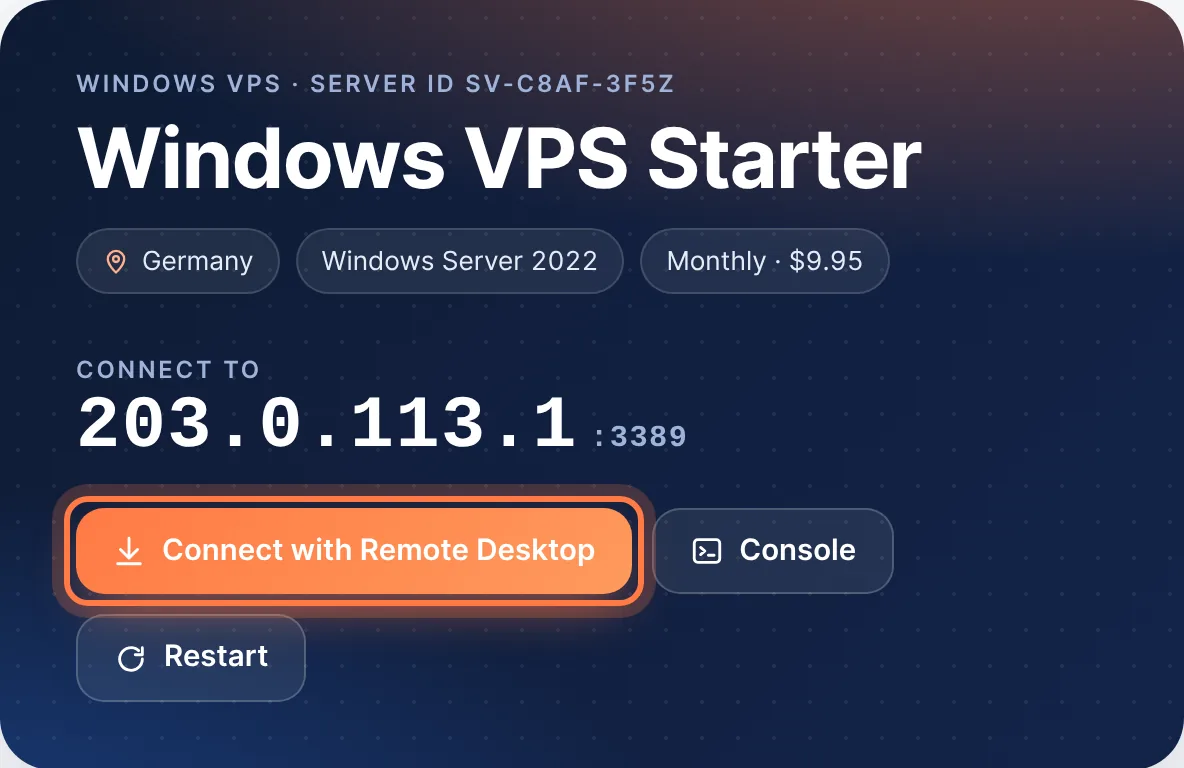
Click Connect with Remote Desktop on your server page - Double-click the downloaded file, then click Connect.
- Enter the password from your server page and click OK.
- If Windows warns about the certificate, tick Don't ask me again and click Yes. This is normal for a new server.
By hand
- Press Windows + R, type
mstscand click OK.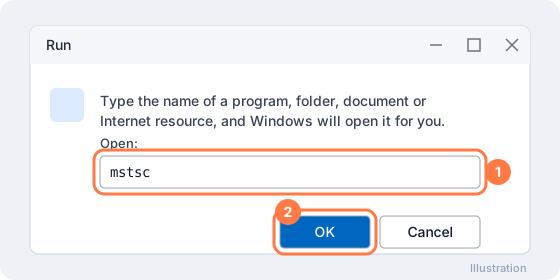
Windows + R, type mstsc, click OK - In Computer, paste the address from your server page. If it has a port, keep it, for example
203.0.113.10:4321. - Click Show Options, enter the User name and click Connect. Enter the password when asked.
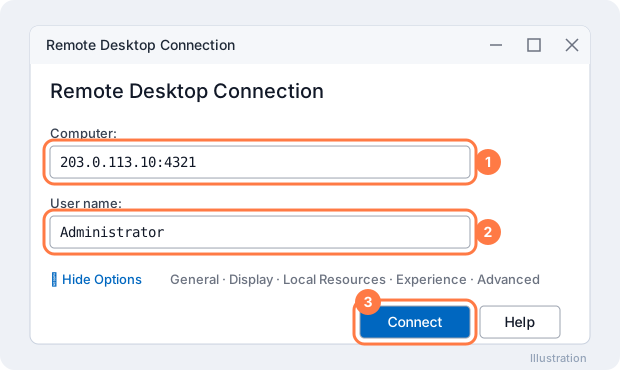
Remote Desktop Connection: Computer, User name, Connect
Copy files to the server
- Before connecting, open Show Options → Local Resources and click More….
- Tick the drive you want, click OK and connect. It shows up in This PC on the server.
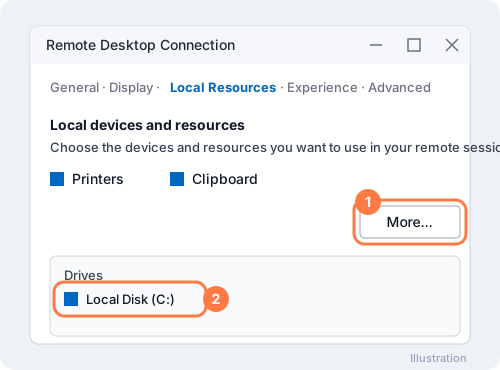
Local Resources → More… → tick your drive
Tips
- Close the window with the X to leave programs running. Use Sign out on the server to close them.
- To use your printer or microphone, tick them on the same Local Resources tab.
Common questions
It says "Remote Desktop can't connect to the remote computer".
Check the address and port on your server page, then try again in a minute. If the server page shows "Not responding", see Reboot your server, or open a ticket.
It says the password is wrong.
Copy the password with the copy icon instead of typing it, and check the username. If you changed it and forgot it, see Reset your password.
More on our blog
- How to Change default Port for Remote Desktop Connection
- Fix: The number of connections to this computer is limited RDP
Still stuck? Our team answers 24/7. Open a ticket or use live chat.