- Install Windows App (formerly Microsoft Remote Desktop) from the Mac App Store. It is free.
- Open it, click + and choose Add PC.
- In PC name, paste the Computer address from your server page, with the port if there is one (for example
203.0.113.10:4321). - Under Credentials, choose Add Credentials and enter the username and password from your server page.
- Click Add.
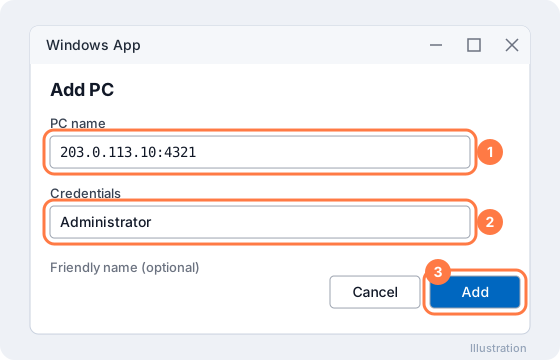
Windows App on Mac: PC name, credentials, Add - Double-click the new PC to connect. Click Continue on the certificate notice.
You can also click Connect with Remote Desktop on your server page and open the downloaded .rdp file with Windows App.
Copying files
Edit the PC, open Folders, tick Redirect folders and add a folder from your Mac. It shows up in This PC on the server.
More on our blog
Still stuck? Our team answers 24/7. Open a ticket or use live chat.