In this article, we will discuss "How to Change default Port for Remote Desktop Connection". Remote Desktop Protocol is a proprietary protocol developed by Microsoft which provides a user with a graphical interface to connect to another computer over a network connection. The user employs RDP client software for this purpose, while the other computer must run RDP server software.
Open Remote Desktop Connection
- Hit the Windows key
- Now type “Remote Desktop Connection“ and press Enter Key.
- It will open the Remote Desktop Connection Console.
Connect with Server
- Enter the IP address of the server in the Computer field and click Connect.
- (Optional) To set up file transfer or enable your clipboard for copy/paste, click Options.
- Click the Local Resources tab, and select the Clipboard option.
- Now click on connect button.
- After this Enter Credentials of your server.
- a prompt will appear, now click on the yes button.
Change default port
- At first, Open Powershell ISE as an Administrator.
- In the windows search bar type Powershell ISE
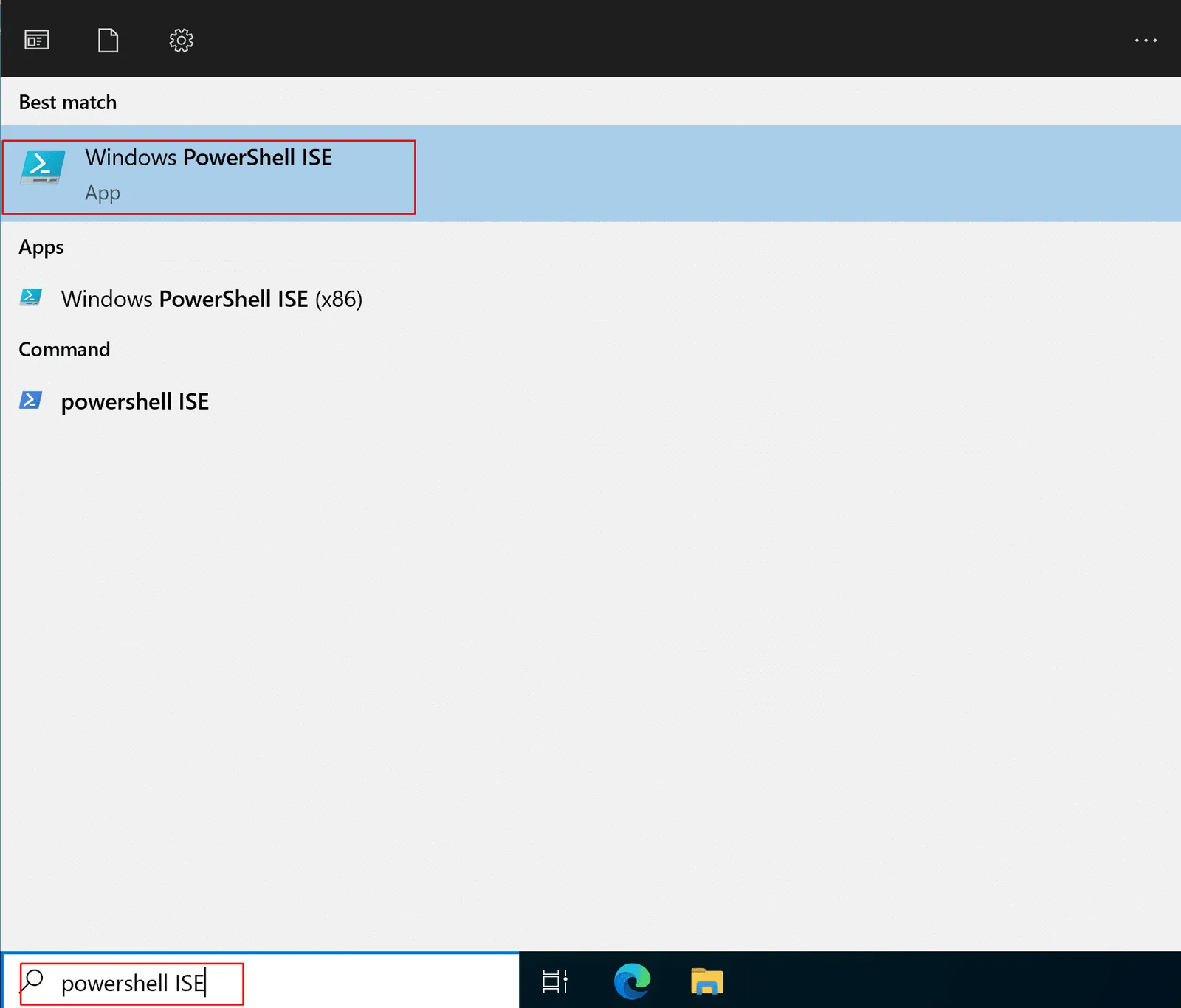
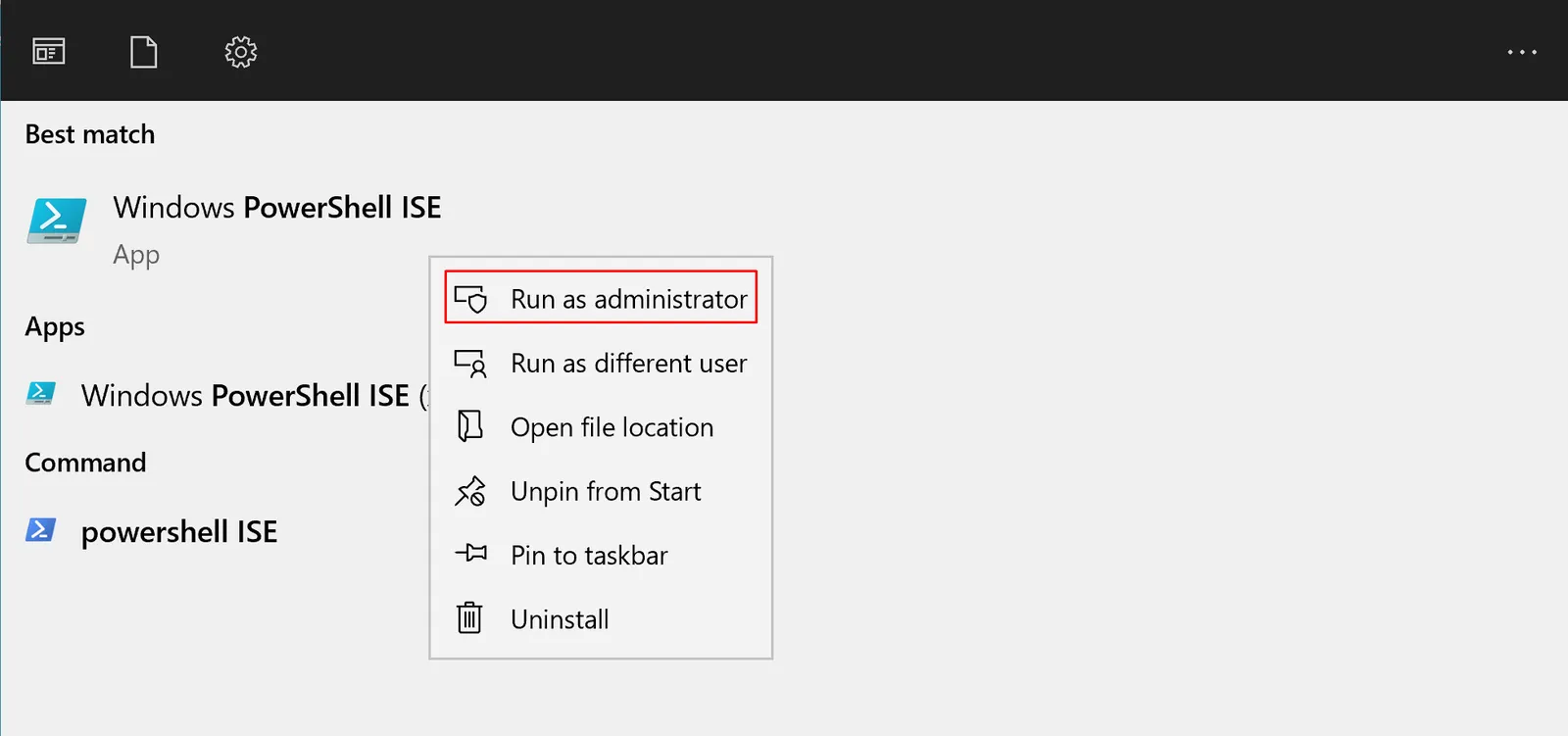
- Now right click on Windows Powershell ISE and click Run as Administrator.
- Now click of new script button.
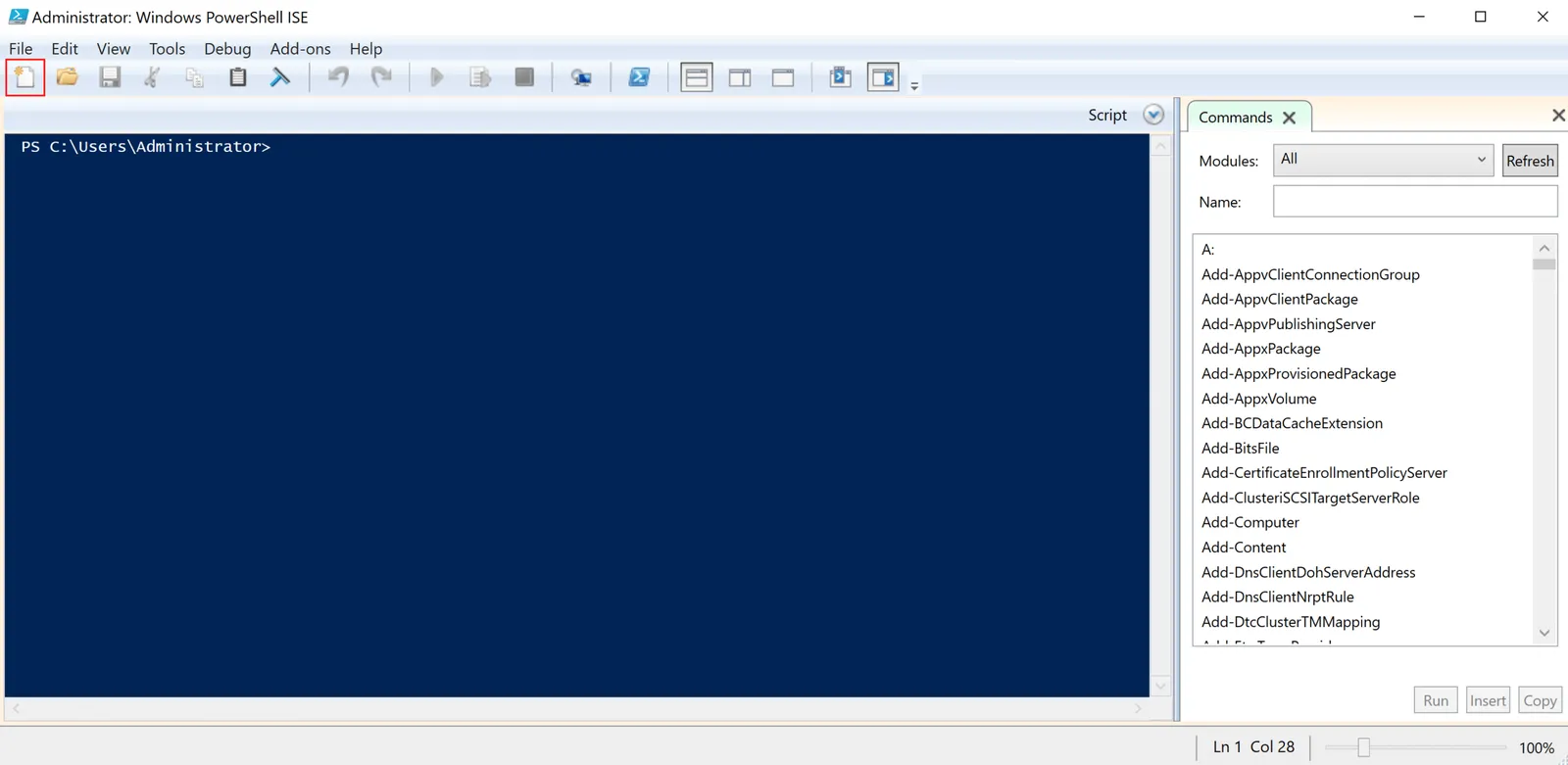
- Now paste this command:
$portvalue = 3320
Set-ItemProperty -Path 'HKLM:\SYSTEM\CurrentControlSet\Control\Terminal Server\WinStations\RDP-Tcp' -name "PortNumber" -Value $portvalue
New-NetFirewallRule -DisplayName 'RDPPORTLatest-TCP-In' -Profile 'Public' -Direction Inbound -Action Allow -Protocol TCP -LocalPort $portvalue
New-NetFirewallRule -DisplayName 'RDPPORTLatest-UDP-In' -Profile 'Public' -Direction Inbound -Action Allow -Protocol UDP -LocalPort $portvalue
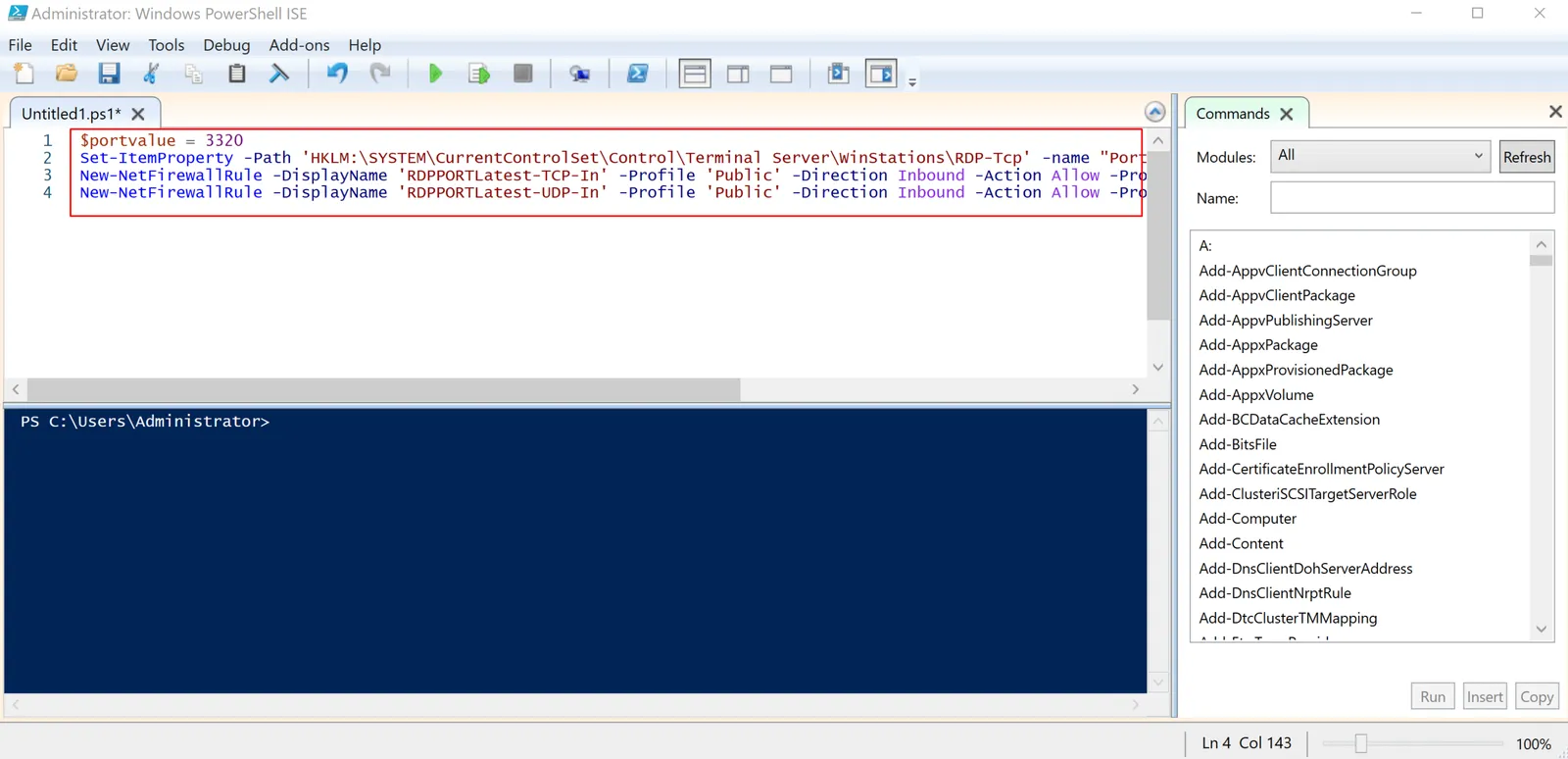
- Now click the Run Script button.
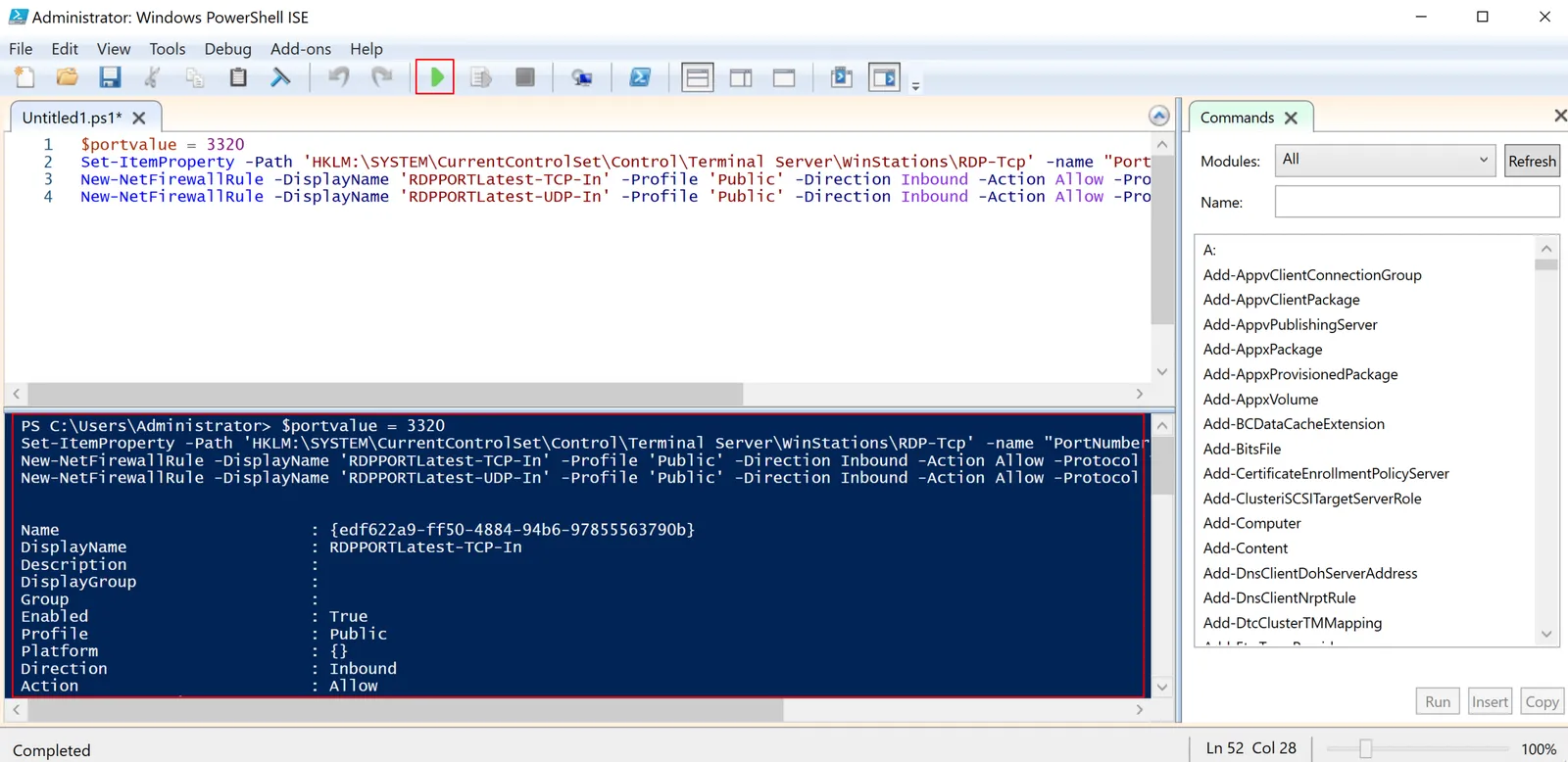
- Now Restart your Server.
- That's it, your server port is now changed.
Run it on HomeRDP
Admin RDP
A full Windows remote desktop with administrator access.