As soon as your server is ready we email you. For your security the password is never in the email: it is in the client area.
Find your login details
- Log in to the client area and open Servers.
- Click your server.
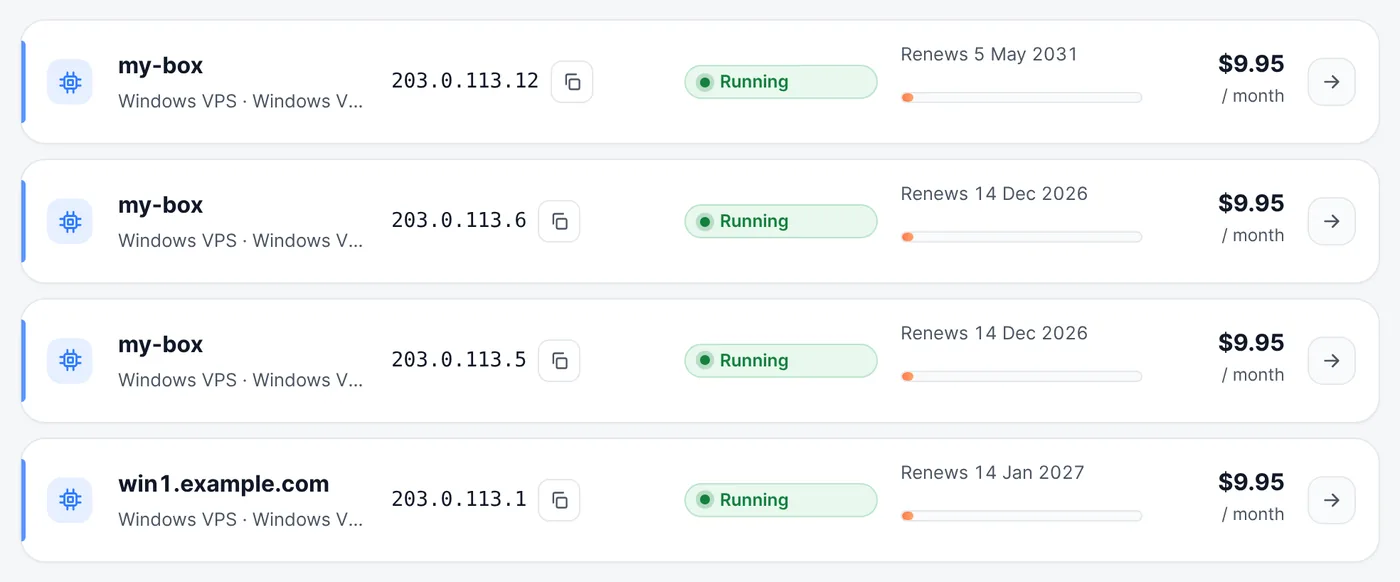
Servers: click the server you want to use - The Login details card shows the Computer (IP address, with the port if it is not 3389), the Username and the Password. Click the eye icon to show the password, and the copy icons to copy each one.
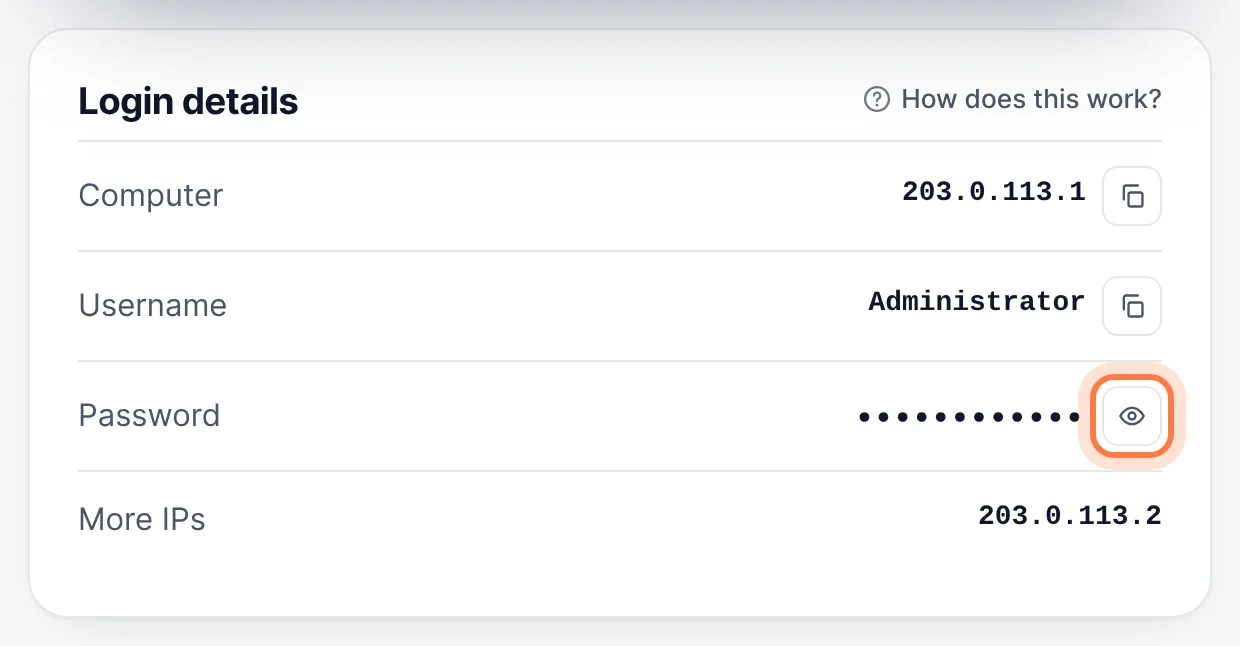
Login details: click the eye icon to show the password
On Windows servers, Connect with Remote Desktop at the top of the page downloads a ready-made .rdp file with the address and username filled in.
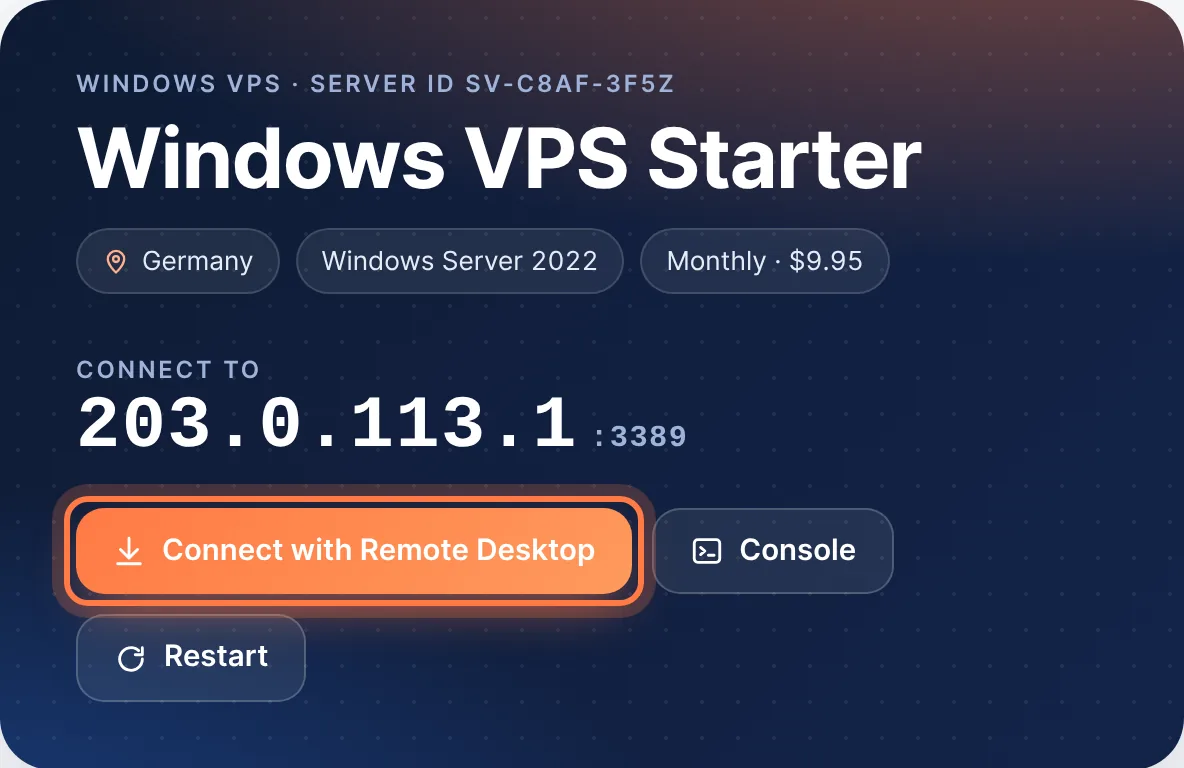
Connect
- From a Windows PC: Connect from Windows.
- From a Mac: Connect from a Mac.
- From a phone or tablet: Connect from iPhone or Android.
- Linux servers: connect with SSH (
ssh root@your-ip), using the port shown on the server page.
After your first login
- Change the password to one only you know. The first password is removed from the client area after a few days.
- Install Windows updates and keep the firewall on.
- Do not share the login with people you do not trust: everything done on the server is your responsibility.
Common questions
I did not get the password by email. Is something wrong?
No. We never send passwords by email. Log in to the client area, open your server and click the eye icon next to Password.
The password is no longer shown. What now?
It is removed a few days after delivery. On a VPS use Reset password on the server page; on other plans open a ticket and we set a new one.
More on our blog
- How to connect to your USA RDP from anywhere in the world
- Installing Software Over RDP: Top 10 DOs and DON’Ts You Can’t Ignore
Still stuck? Our team answers 24/7. Open a ticket or use live chat.