

7 Windows File Explorer Settings You Should Change After a Fresh Installation
Windows offers a familiar desktop experience, but its default configuration does not always suit everyone’s workflow. After installing Windows, most users focus on installing applications, customizing the desktop, updating drivers, and configuring their browsers. However, one essential part of the operating system often receives little attention: File Explorer.
File Explorer is the central tool for managing files and folders in Windows. Users rely on it to organize documents, locate downloads, browse photographs, access external drives, manage project files, and navigate application directories. Whether you use Windows for everyday computing, professional work, software development, or business operations, File Explorer influences how efficiently you manage information.
Although Windows provides several useful file-management features by default, some settings can make everyday tasks unnecessarily complicated. Hidden file extensions can make it harder to identify file types, an inconvenient starting location can add extra navigation steps, and an overcrowded navigation pane can make important folders difficult to find.
Fortunately, you can customize these behaviors without installing third-party software.
A few carefully selected changes can make File Explorer more practical, improve visibility, simplify navigation, and help you maintain a cleaner working environment.
In this guide, we explore seven Windows File Explorer settings you should consider changing after a fresh installation. We explain how to configure each option, why it matters, and which users can benefit most from it.
We will also examine additional file-management practices and explain how a remote computing solution, such as HOMERDP’s Windows VPS services, can complement an organized Windows workflow.
Let’s get started.
Why Should You Customize Windows File Explorer?
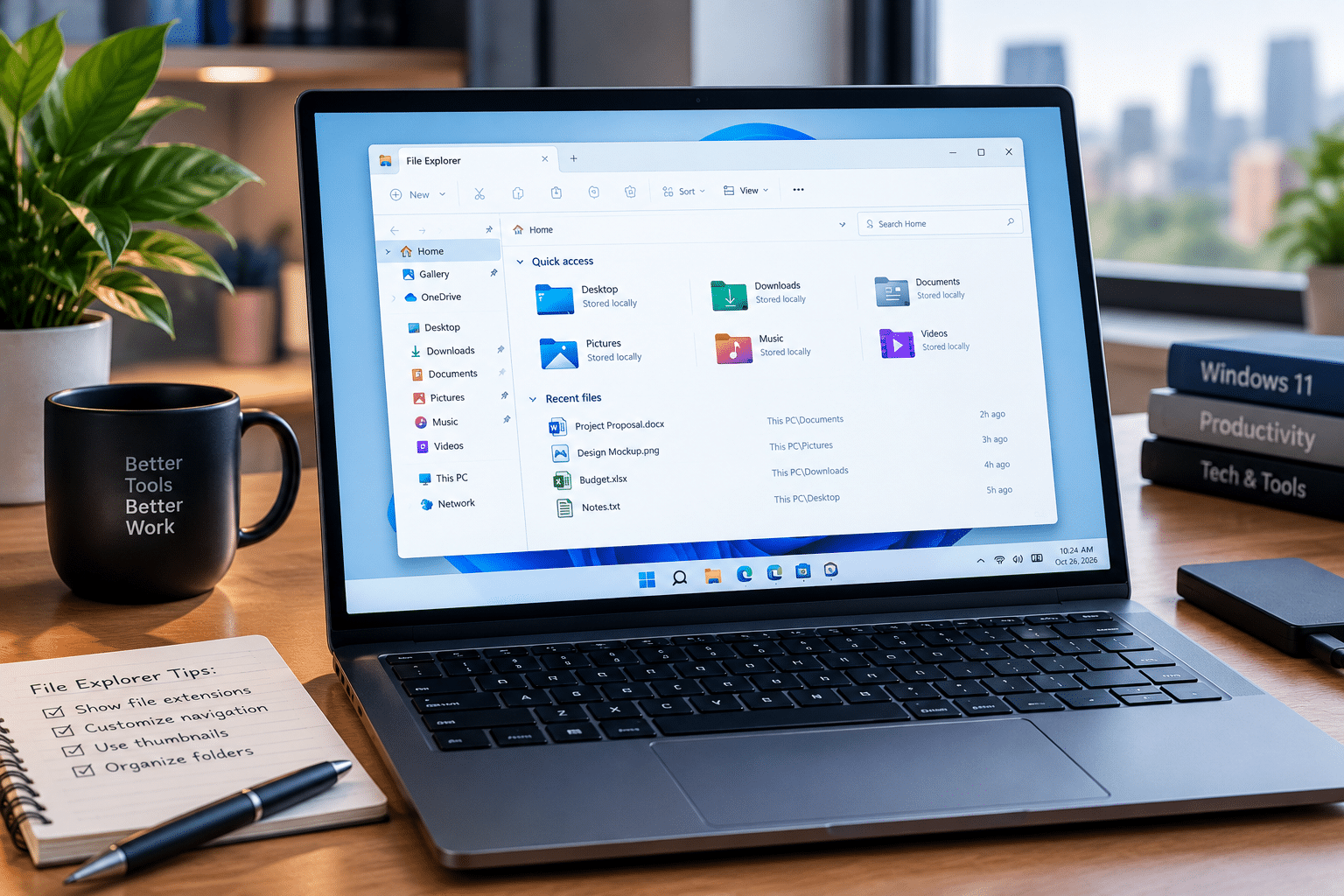
File Explorer may look like a basic file browser, but it supports many important computing activities.
Students use it to organize assignments, professionals use it to manage business documents, developers use it to inspect source code, and content creators use it to organize images and multimedia projects.
When the interface does not match your workflow, you may spend unnecessary time navigating folders, identifying files, and locating frequently accessed directories.
Consider these common situations:
- Developers need to distinguish scripts, configuration files, archives, and executable programs.
- Office workers want quick access to documents, spreadsheets, and frequently used project folders.
- Photographers benefit from thumbnail previews that make visual content easier to recognize.
- System administrators sometimes need to inspect hidden files and application configuration directories.
- Remote workers need consistent folder structures to organize work across different environments.
- Privacy-conscious users may prefer to limit recently accessed files displayed on their screens.
Customizing File Explorer helps address these different requirements.
The benefits are practical rather than magical. Changing a folder view does not automatically increase processing speed, and displaying hidden files does not make a system more secure. However, appropriate settings can reduce navigation friction, make file types easier to identify, and create a more predictable working environment.
The best configuration depends on how you use your computer.
1. Change the Default File Explorer Opening Location
One of the first Windows File Explorer settings worth reviewing is its default opening location.
When you launch File Explorer, Windows opens a starting page that provides access to files, folders, or storage locations. In Windows 11, this page is called Home, while older documentation and Windows versions may refer to Quick access.
Home can display pinned locations and recently accessed content. For many users, this provides a convenient starting point.
However, some people prefer to see their computer’s drives immediately.
For example, developers who work across multiple drives may find This PC more convenient. Users who regularly switch between documents and recently accessed folders may prefer Home.
Choosing the right starting location can make everyday navigation more efficient.
How to Change the Default Opening Location
In Windows 11, follow these steps:
- Press Windows + E to open File Explorer.
- Select the three-dot menu on the command bar.
- Choose Options.
- Locate the Open File Explorer to dropdown under the General tab.
- Select your preferred starting location, such as Home or This PC, depending on the available options.
- Click Apply and then OK.
The interface may vary slightly depending on your Windows version.
Why This Setting Matters
Consider a user who regularly works with files stored on separate system and data drives.
If that user prefers to navigate directly through storage locations, opening This PC can provide a more familiar starting point.
On the other hand, someone who frequently returns to active documents may find Home more convenient because it can provide shortcuts to recently used content and pinned folders.
Neither option is universally better.
The goal is to choose the starting location that best matches your everyday tasks.
Our Recommendation
Choose This PC if you regularly browse drives, partitions, and directory structures.
Choose Home if you frequently access recent files or want quick access to pinned locations.
You can also pin frequently used folders to Quick access or Home, depending on your Windows version. This provides a convenient way to reach important directories without repeatedly navigating through several levels of folders.
Microsoft documents these options in its official File Explorer guide.
2. Enable File Name Extensions for Better File Identification
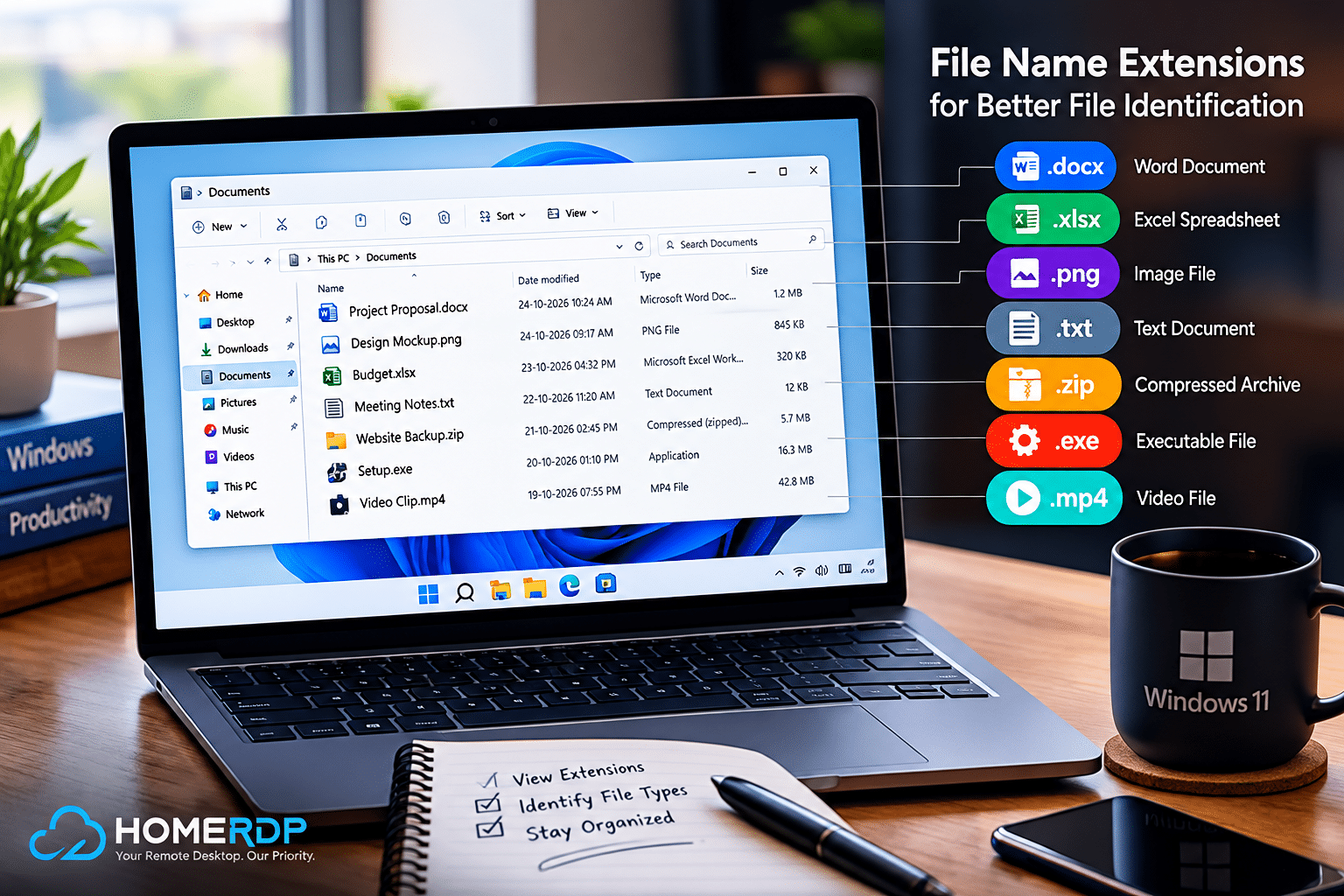
Showing file name extensions is one of the most useful changes you can make after installing Windows.
A file extension identifies the format associated with a file. It appears after the final period in a filename.
For example:
report.docxrepresents a Microsoft Word document.budget.xlsxrepresents an Excel spreadsheet.photo.jpgrepresents a JPEG image.archive.ziprepresents a compressed archive.website.htmlrepresents an HTML document.script.pyrepresents a Python source file.installer.exerepresents a Windows executable.
Windows may hide extensions for recognized file types by default. This behavior keeps filenames visually simple, but it can also make it harder to distinguish files with similar names.
For technical users, displaying extensions provides important information at a glance.
How to Show File Name Extensions
In Windows 11:
- Open File Explorer.
- Select View on the command bar.
- Choose Show.
- Enable File name extensions.
The change takes effect immediately.
In Windows 10, open File Explorer, select the View tab, and enable the File name extensions checkbox.
Why You Should Enable This Setting
Imagine that your Downloads folder contains several files with similar names.
Without visible extensions, you may see names such as:
projectprojectproject
The files could represent different formats, such as a PDF document, a ZIP archive, and an executable file.
Displaying extensions makes their differences clearer:
project.pdfproject.zipproject.exe
This small change can make file management more transparent.
It is particularly useful when working with website files, scripts, installation packages, configuration files, and compressed archives.
A Small Change That Can Improve Security Awareness
Visible extensions can also help you recognize suspicious filenames.
For example, a file named invoice.pdf.exe may appear suspicious when Windows displays the complete filename.
An executable file does not become a PDF merely because its name contains the letters PDF.
However, showing extensions does not replace antivirus software, safe browsing practices, or careful inspection of downloaded files. Attackers can use misleading filenames and other techniques to disguise malicious content.
Who Should Enable File Extensions?
We recommend this setting for:
- Software developers.
- IT professionals.
- System administrators.
- Web designers.
- Content creators.
- Users who regularly download files.
- Anyone who handles technical documents or installation packages.
For most users, showing extensions provides useful information with very little inconvenience.
Our recommendation: Enable file name extensions immediately after installing Windows. It is a simple customization that improves file identification and makes filenames more transparent.
For additional information about supported extensions, see Microsoft’s guide to common file name extensions in Windows.
3. Show Hidden Files and Folders When Necessary
Windows hides certain files and folders to reduce clutter and discourage accidental changes to important system components.
This default behavior benefits everyday users because many hidden items support applications, operating system functions, or configuration processes.
However, hidden files can become an obstacle when you need to troubleshoot an application or inspect a particular directory.
For example, some applications store configuration files in hidden locations. Developers may also need to inspect hidden project files or configuration directories when diagnosing problems.
Enabling hidden-item visibility makes these files easier to locate.
How to Display Hidden Files
In Windows 11:
- Open File Explorer.
- Select View.
- Choose Show.
- Enable Hidden items.
Windows will display files and folders marked as hidden in supported locations.
In Windows 10, open the View tab and enable the Hidden items checkbox.
You can reverse the change whenever you want to return to the default display.
When Is This Setting Useful?
Displaying hidden items can help you:
Troubleshoot applications: Some programs store configuration information in directories that do not appear during normal browsing.
Inspect development environments: Developers may need to access hidden configuration files associated with Git, programming tools, or other applications.
Locate missing files: If you previously marked a file or folder as hidden, enabling hidden-item visibility can help you find it.
Understand application structures: Advanced users can inspect how particular programs organize their configuration and supporting files.
These benefits make the setting useful for developers, administrators, and technically experienced users.
Should You Always Show Hidden Files?
Not necessarily.
Hidden files can contain important application settings or operating system components. Changing or deleting them without understanding their purpose can cause software problems.
For example, removing an application configuration file may reset preferences or interfere with the application’s normal operation.
Also, the Hidden attribute does not provide meaningful security protection. Anyone with appropriate access can change their display settings and view hidden items.
If you do not regularly troubleshoot applications or manage configuration files, leaving hidden items disabled can keep File Explorer cleaner.
Our recommendation: Enable hidden items when you need them, but avoid modifying unfamiliar files.
One additional precaution matters: do not disable the separate protection for hidden operating system files simply to display ordinary hidden items. Keep protected system files hidden unless you have a specific technical reason to inspect them.
4. Customize the Navigation Pane for Faster Access
The navigation pane appears on the left side of File Explorer and provides shortcuts to important locations.
Depending on your configuration, it may include Home, OneDrive, This PC, network locations, and other folders.
These shortcuts can make navigation easier, but the pane may also contain locations you rarely use.
Customizing it helps you focus on the directories that matter most.
How to Adjust the Navigation Pane
In Windows 11:
- Open File Explorer.
- Select View.
- Open Show.
- Select Navigation pane if it is not already enabled.
- Review the available navigation options and configure them according to your needs.
You can also expand and collapse folder trees using the arrows beside them.
For folders you use frequently, right-click the folder and select Pin to Quick access when that option is available.
Microsoft’s File Explorer documentation explains how to show the navigation pane and pin frequently used folders.
Why Navigation Pane Customization Matters
Consider a developer who works on several applications simultaneously.
Each application may have its own directory containing source code, documentation, test files, and configuration information.
If these directories sit several levels below a drive’s root folder, reaching them repeatedly can become tedious.
Pinning important locations makes them easier to access.
The same principle applies to office workers who frequently open client folders, accountants who manage financial documents, and content creators who organize large collections of media files.
A Practical Organization Strategy
Use these guidelines to create a cleaner navigation experience:
- Keep frequently used locations easy to access.
- Pin important project folders when supported.
- Collapse directory trees that you rarely use.
- Avoid unnecessary shortcuts that make the pane harder to scan.
- Organize project folders with clear, consistent names.
For example, a content creator might maintain separate folders for research, drafts, graphics, and published materials.
A developer might organize source code, documentation, tests, and release files into clearly named directories.
The objective is not to create the most complicated folder structure. It is to make important information easier to find.
Combine Navigation with Search
Navigation shortcuts work particularly well when you combine them with File Explorer’s search capabilities.
If you know the general location of a file, start your search from the relevant folder or drive.
If you access the same directories regularly, pin them for faster navigation.
Together, these habits can reduce unnecessary browsing and make your workflow more predictable.
5. Control Recent Files and Frequently Used Folders
Windows can display recently accessed files and frequently used folders in File Explorer.
This feature provides convenient shortcuts to items you have opened recently.
For users who regularly switch between active documents, it can save time. Instead of navigating through multiple directories, you can return to a recent file directly.
However, not everyone wants File Explorer to display their activity.
Some users prefer a cleaner interface, while others share their computers with family members or colleagues and want to limit the information displayed on screen.
Windows provides options to control these suggestions.
How to Adjust Recent-Item Settings
Follow these steps in Windows 11:
- Open File Explorer.
- Select the three-dot menu.
- Choose Options.
- Open the General tab.
- Find the Privacy section.
- Review the options for showing recently used files and frequently used folders.
- Disable the options you do not want.
- Click Apply and then OK.
The available controls may differ slightly between Windows versions.
You can also clear File Explorer history using the available options in the same dialog.
Why You Might Disable Recent Items
There are several reasons to consider changing this setting.
Reduce clutter: If you prefer a clean starting page, disabling recent files and frequent folders can make File Explorer less crowded.
Limit visible activity: Recent-item suggestions may reveal filenames or project folders to someone who can access the same Windows account.
Maintain a consistent interface: Users who prefer manually organized folders may find automatically generated suggestions unnecessary.
Why You Might Keep Recent Items Enabled
Recent files can be particularly useful for people who work with several documents throughout the day.
For example, an office worker might switch repeatedly between a spreadsheet, a presentation, and a report.
Having those files available in File Explorer can make it easier to resume work.
Turning off recent-item suggestions may remove a convenient shortcut from that workflow.
Is Disabling Recent Items Enough to Protect Privacy?
No.
Disabling recent-item suggestions controls what File Explorer displays. It does not erase every record of file access from Windows, installed applications, cloud services, or other locations.
If you share a computer, use separate user accounts whenever possible.
For sensitive information, also apply appropriate account permissions, device security, and encryption.
Our recommendation: Keep recent items enabled if convenience matters most. Disable them if you prefer a cleaner interface or want to limit visible activity on a shared account.
Choose the configuration that supports your needs rather than assuming one option works best for everyone.
6. Enable Thumbnail Previews for Images and Videos
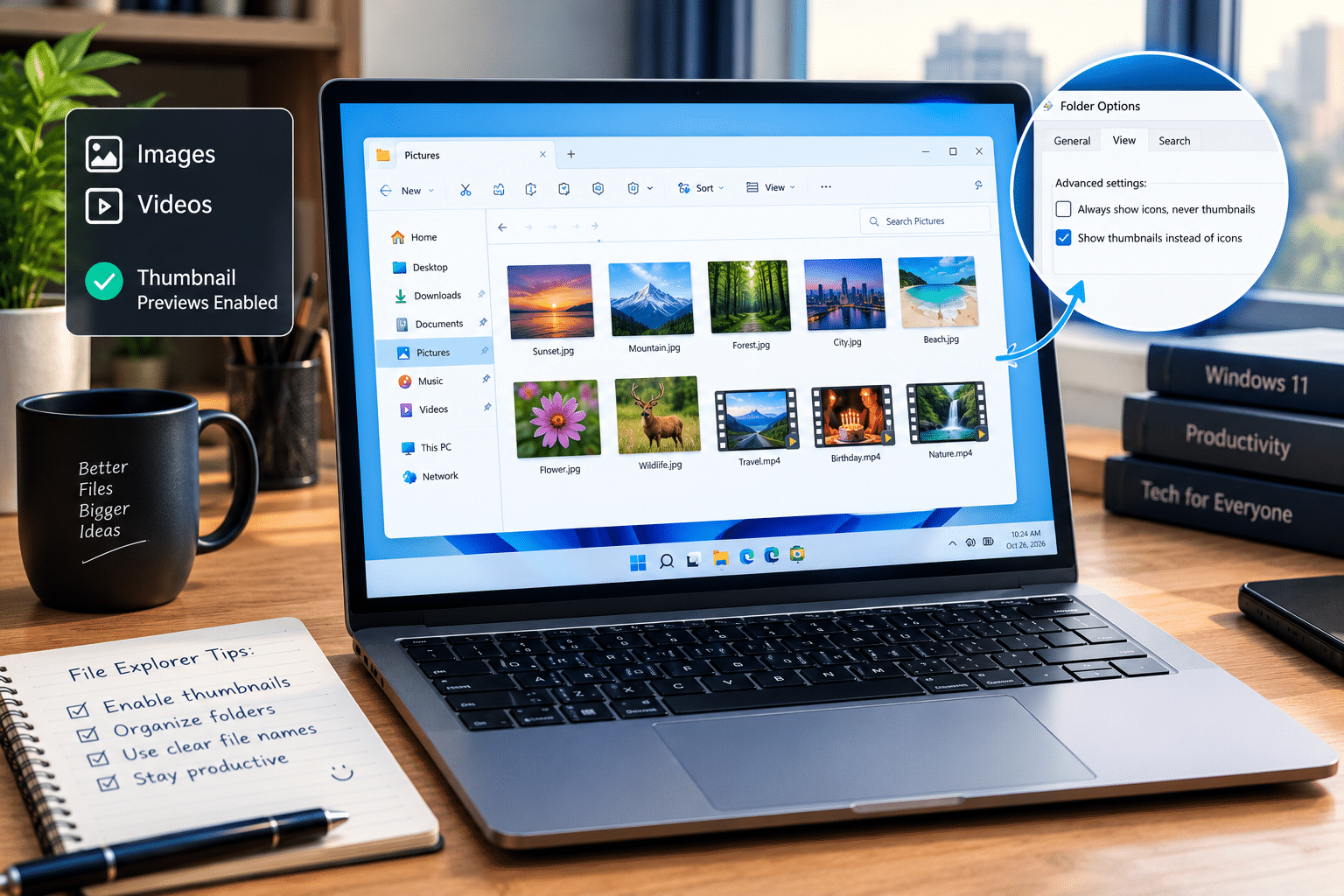
File Explorer can display thumbnail previews for supported images, videos, and other file types.
These previews make it easier to recognize visual content without opening individual files.
For photographers, designers, and content creators, thumbnails can be particularly valuable when managing large collections of assets.
Imagine searching a folder containing hundreds of photographs. If File Explorer displays thumbnails, you can often recognize the required image visually.
If the folder displays only generic icons, you may need to rely on filenames or open files individually.
How to Enable Thumbnail Previews
Follow these steps:
- Open File Explorer.
- Select the three-dot menu.
- Choose Options.
- Open the View tab.
- Locate the option named Always show icons, never thumbnails.
- Uncheck this option if you want thumbnail previews.
- Click Apply and then OK.
Next, select an appropriate folder view.
For visual content, Medium icons, Large icons, or Extra large icons may make previews easier to recognize.
Some file formats require compatible applications or preview handlers before Windows can display their contents.
Who Benefits Most from Thumbnail Previews?
Thumbnail previews are useful for:
- Photographers managing image collections.
- Graphic designers organizing visual assets.
- Video editors reviewing media files.
- Content creators maintaining screenshots and illustrations.
- Office workers who frequently browse image-heavy folders.
They can also help anyone who remembers a file’s appearance more easily than its name.
Do Thumbnails Affect Performance?
Generating thumbnails uses processing resources and may require Windows to maintain a cache of previews.
The impact depends on your hardware, folder size, file formats, and workload.
A folder containing thousands of large images may take longer to populate than a directory containing a few documents.
However, disabling thumbnails does not guarantee a noticeable performance improvement on every computer.
Modern systems can often handle thumbnail previews comfortably during everyday work.
Which View Should You Choose?
Use larger icons when visual recognition is important.
Use Details view when you need to inspect filenames, modification dates, file types, and sizes.
For example, a designer might prefer Large icons in an Images folder but Details view in a folder containing project documents and exported files.
Our recommendation: Enable thumbnail previews if you frequently manage images or videos. Otherwise, choose the layout that makes your files easiest to identify.
7. Choose the Right Default Folder View
File Explorer provides several ways to display files and folders.
Depending on your needs, you can use Details, List, Tiles, Medium icons, Large icons, or Extra large icons.
Each layout presents information differently.
Details view emphasizes file metadata, while larger icons make supported thumbnails more visible.
Choosing the right layout can make everyday file management more convenient.
How to Change the Folder View
Follow these steps:
- Open File Explorer.
- Navigate to the folder you want to customize.
- Select View.
- Choose your preferred layout.
- If necessary, adjust the displayed columns when using Details view.
- Open Folder Options if you want to apply the current view to other folders of the same type.
In supported Windows versions, the Folder Options dialog includes an Apply to Folders button under the View tab.
Keep in mind that Windows may use different templates for different folder types. Applying a view does not necessarily force every folder to use an identical layout.
Which File Explorer View Is Best?
The following table compares common layouts.
| Folder View | Best Use Case | Main Advantage |
|---|---|---|
| Details | Documents, downloads, project files | Displays file metadata |
| List | General file browsing | Shows many filenames compactly |
| Medium icons | General image browsing | Provides moderate thumbnail previews |
| Large icons | Photographs and visual assets | Makes visual identification easier |
| Extra large icons | Detailed visual inspection | Displays larger previews |
| Tiles | General-purpose browsing | Combines icons with selected file information |
Why Details View Is Useful
For general file management, Details view is often a practical choice.
It allows you to inspect information such as:
- Filename.
- Date modified.
- File type.
- File size.
These details can help you find recent documents, identify large files, and distinguish between file formats.
For example, when reviewing your Downloads folder, the Size column can help identify large installers or archives. The Date modified column can help you locate recently changed documents.
You can customize the visible columns according to your needs.
When Should You Use Large Icons?
Large icons are often more useful when visual content matters more than metadata.
Photographers can scan images quickly, designers can identify graphics more easily, and content creators can review screenshots without opening each file.
Our Recommendation
Use Details view for general file management, technical work, and document-heavy folders.
Choose larger icons for image collections, video assets, and other visual content.
You can also use different views for different folders rather than forcing every directory to follow the same layout.
The best configuration is the one that helps you identify the information you need with the least effort.
Bonus: Five Additional Tips to Improve Windows File Management
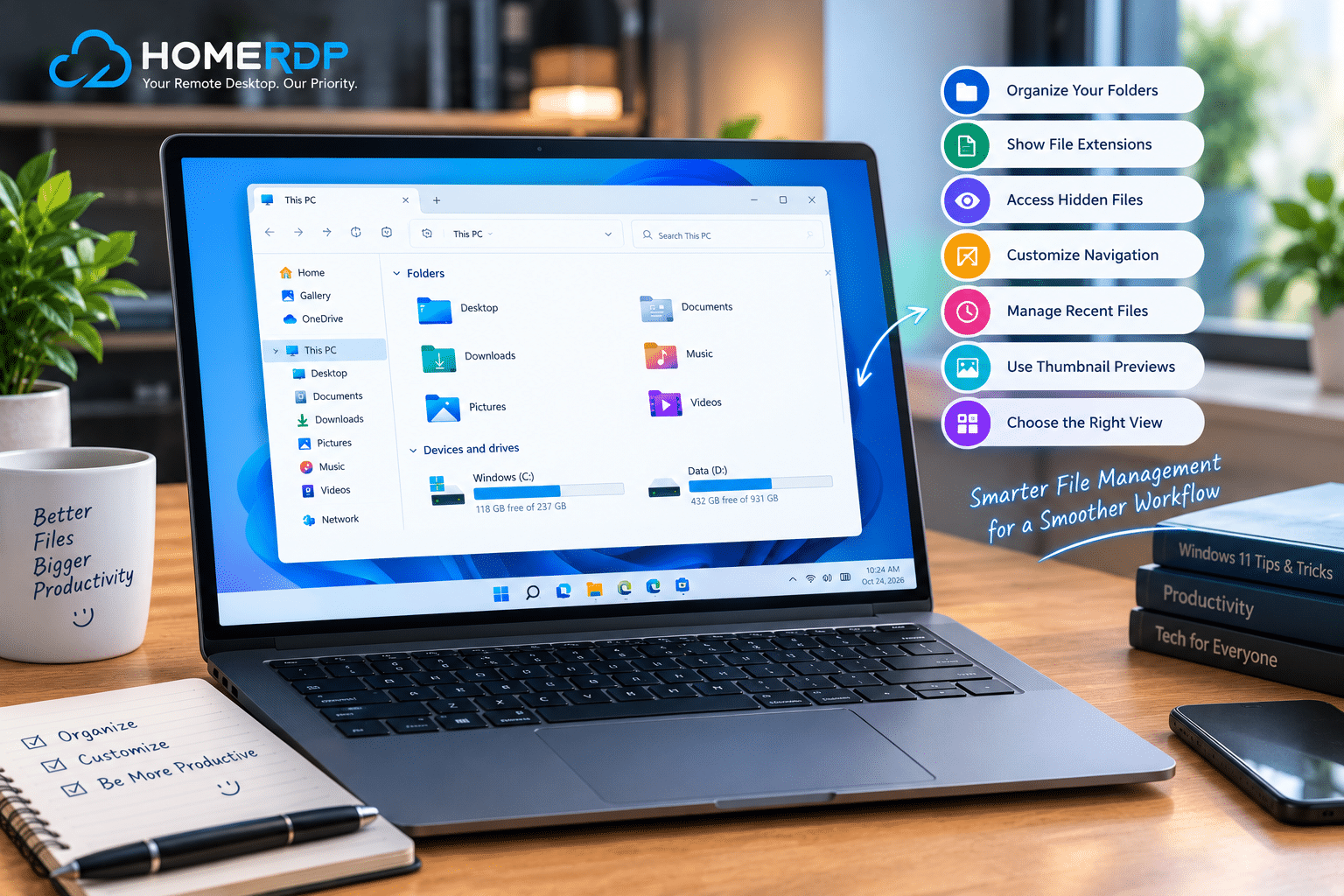
The seven settings above provide a strong foundation, but a few additional habits can make File Explorer even more useful.
1. Learn Essential File Explorer Keyboard Shortcuts
Keyboard shortcuts help you complete common tasks without repeatedly navigating menus.
Here are several useful shortcuts.
| Keyboard Shortcut | Action |
|---|---|
Windows + E |
Open File Explorer |
Ctrl + L |
Focus the address bar |
Ctrl + Shift + N |
Create a new folder |
Alt + Up Arrow |
Navigate to the parent folder |
Alt + Left Arrow |
Go back |
Alt + Right Arrow |
Go forward |
F2 |
Rename the selected item |
Ctrl + C |
Copy the selected item |
Ctrl + X |
Cut the selected item |
Ctrl + V |
Paste the copied or cut item |
Ctrl + Z |
Undo a supported action |
Learning a few shortcuts can make repetitive file-management tasks more convenient.
You do not need to memorize every shortcut immediately.
Start with the commands you use most frequently, then expand your knowledge as your workflow develops.
2. Keep Your Folder Structure Consistent
A clear folder structure makes information easier to locate.
For example, a technology blogger might organize work like this:
Projects
- Research
- Drafts
- Images
- Published Articles
- Backups
Each article could have its own folder containing its research materials, draft, featured image, and final published copy.
This approach reduces confusion and makes it easier to return to older projects.
Developers can use a similar strategy by separating source code, documentation, tests, configuration files, and release artifacts.
The best structure depends on the work involved, but consistency matters more than complexity.
3. Use Descriptive File Names
A file named document-final-v3.docx may be understandable today but confusing several months later.
A more descriptive filename can provide useful context.
For example:
debian-kernel-security-update-research.docxwindows-file-explorer-featured-image.pngwebsite-backup-2026-10-24.zip
Clear filenames make search results easier to interpret and reduce dependence on memory.
When working on shared projects, establish naming conventions that everyone can follow.
4. Review Your Downloads Folder Regularly
The Downloads folder often accumulates installers, archives, documents, images, and temporary files.
Over time, it can become difficult to distinguish important files from items you no longer need.
Consider establishing a simple routine:
- Review downloaded files periodically.
- Move important documents to appropriate folders.
- Remove files you no longer need.
- Keep installers only when you have a reason to retain them.
- Inspect unfamiliar files before opening or deleting them.
These habits help maintain an organized environment without requiring additional software.
Be particularly careful with unfamiliar executable files and scripts.
5. Use File Explorer Search More Effectively
Windows search can help locate files when you know part of a filename or other searchable information.
Instead of navigating through several directory levels, search from the relevant folder or drive.
For example, if you remember that a document contains the word invoice, searching for that term may help you find it more quickly than manually opening each folder.
Search results depend on factors such as indexing, file permissions, location, and search criteria.
A consistent folder structure and useful filenames can improve the overall experience.
How HOMERDP’s Windows VPS Services Complement a Productive Windows Workflow
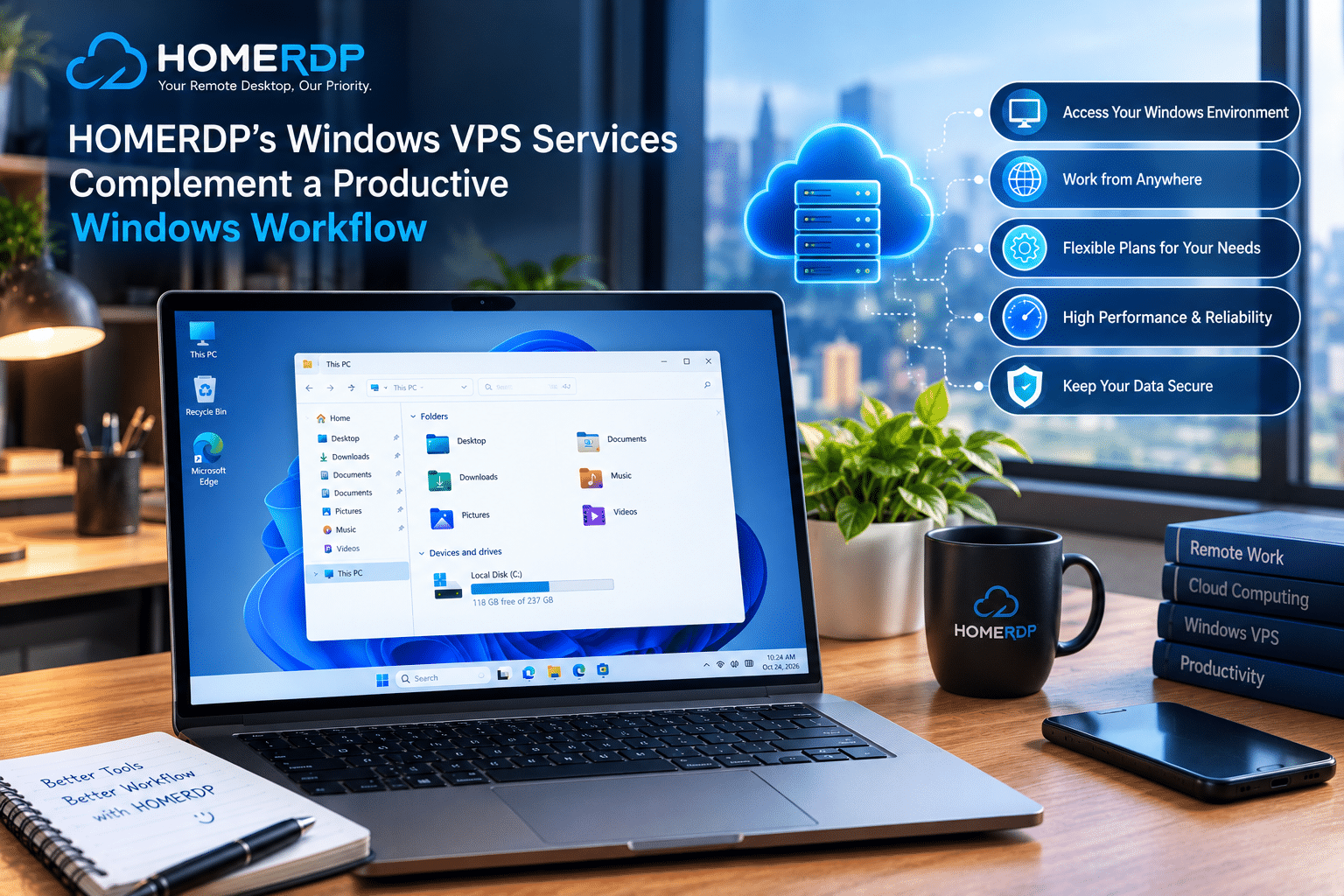
Customizing File Explorer improves your local Windows experience, but some professionals need access to a Windows environment beyond their personal computer.
Remote workers, developers, administrators, and businesses may need a dedicated environment for compatible applications, administrative tasks, or ongoing projects.
A Windows virtual private server can provide another option for these workflows.
HOMERDP offers Windows VPS and remote desktop-related services that users can explore for compatible remote computing needs.
Although a VPS does not replace File Explorer customization, both can contribute to a more organized working environment.
1. Access a Remote Windows Environment
A Windows VPS allows users to connect to a remote Windows environment through a compatible remote desktop client.
Depending on the service configuration and selected resources, this can provide access to applications and files without relying entirely on a single local computer.
For example, a professional could use a remote Windows environment for compatible business applications, administrative work, or project-related tasks.
Once connected, the same File Explorer principles still apply.
You can use meaningful folder names, enable file extensions, organize project directories, and choose views that make files easier to manage.
These habits help create a predictable environment whether you work locally or remotely.
2. Separate Professional and Personal Workflows
Some users prefer to maintain separate environments for personal computing and professional tasks.
A VPS can provide an additional Windows environment for supported workloads.
For example, a business might use a remote environment for specific administrative applications, while an individual developer might use one for a particular project.
However, a VPS does not automatically isolate every application or file. Proper account configuration, permissions, network security, and access controls remain essential.
Choose a configuration that fits your intended use rather than assuming every remote environment offers the same capabilities.
3. Choose Resources That Match Your Workload
Different tasks require different amounts of computing resources.
A lightweight administrative workflow may require fewer resources than a workload involving large files or resource-intensive applications.
Before selecting a Windows VPS, consider the following factors:
- CPU: Choose sufficient processing capacity for your intended applications.
- RAM: Account for Windows, the applications you use, and the number of simultaneous tasks.
- Storage: Allow enough space for documents, application files, temporary data, and backups.
- Network connectivity: Consider connection quality and latency for your location and intended workload.
- Remote access security: Use strong authentication and appropriate network protections.
You can explore HOMERDP’s official website to review its services and determine whether a suitable option meets your requirements.
Remember that actual performance depends on the selected configuration, software, network connection, and workload.
4. Maintain Security Across Local and Remote Systems
Organized file management should go hand in hand with security.
Visible file extensions and sensible folder views help users identify files, but these settings do not prevent unauthorized access or eliminate malware risks.
Whether you use a local Windows PC or a remote server, follow these practices:
- Install operating system and application security updates.
- Use strong, unique passwords.
- Enable multifactor authentication where supported.
- Restrict administrator access to authorized users.
- Avoid opening unfamiliar attachments and downloaded files.
- Maintain backups of important information.
- Limit remote access to trusted users and appropriate network sources.
- Review file permissions when responsibilities change.
For business workloads, consider which information the remote environment stores and who can access it.
A clear folder structure makes files easier to manage, while proper security controls help protect them.
Common Mistakes to Avoid When Customizing File Explorer
Although File Explorer customization is straightforward, a few mistakes can reduce its usefulness.
Mistake 1: Enabling Every Available Option
More visible information does not always produce a better interface.
Displaying unnecessary locations or enabling options you never use can make navigation harder.
Better approach: Enable settings that address an actual problem in your workflow.
Mistake 2: Hiding File Extensions on a Technical System
Hidden extensions can make it harder to distinguish scripts, configuration files, archives, and executables.
Better approach: Enable filename extensions if you regularly work with technical files or download files from different sources.
Mistake 3: Treating Hidden Files as Protected Files
The Hidden attribute changes how Windows displays an item. It does not prevent other users with sufficient access from viewing it.
Better approach: Use appropriate account permissions, access controls, and encryption when protecting sensitive information.
Mistake 4: Disabling Thumbnail Previews Without Testing
Some users assume disabling thumbnails will make Windows significantly faster.
The actual effect depends on the hardware, folder contents, and workload.
Better approach: Test the setting on your own system before deciding whether to keep thumbnails disabled.
Mistake 5: Ignoring Folder Organization
Even a well-configured File Explorer cannot compensate for poorly named files and disorganized directories.
Better approach: Combine useful interface settings with consistent naming conventions and regular file maintenance.
Mistake 6: Confusing File Extensions with File Conversion
Changing a filename from photo.jpg to photo.png does not convert the image into PNG format.
It only changes the filename.
Better approach: Use a compatible image editor or conversion tool when you need to change a file’s actual format.
Frequently Asked Questions
1. Which Windows File Explorer Setting Should I Change First?
Start by enabling file name extensions.
This makes it easier to identify file types and can be particularly useful when working with scripts, installation packages, archives, and downloaded files.
Next, choose your preferred starting location and customize the navigation pane.
2. Does Customizing File Explorer Make Windows Faster?
Not necessarily.
Most File Explorer settings change how files appear or how you navigate through them. They do not directly increase CPU performance or available memory.
However, an organized interface can make common tasks more efficient by reducing unnecessary navigation.
Disabling thumbnail previews may reduce thumbnail-generation work in certain situations, but the impact varies by system and workload.
3. Should I Always Show Hidden Files?
No.
Enable hidden items when troubleshooting applications, inspecting configuration directories, or accessing files that you know are hidden.
Otherwise, leaving them hidden can reduce clutter and lower the risk of accidental changes.
Keep protected operating system files hidden unless you have a specific reason to inspect them.
4. Is Details View Better Than Large Icons?
It depends on your workflow.
Details view is useful when you need filenames, file types, sizes, and modification dates.
Large icons are often more convenient for photographers, designers, and content creators who identify files visually.
You can use different layouts for different folders.
5. Can I Customize File Explorer Without Installing Additional Software?
Yes.
Windows includes built-in options for changing folder views, displaying filename extensions, showing hidden items, managing navigation, and controlling recent-item suggestions.
These settings are sufficient for many everyday file-management needs.
6. Can File Explorer Settings Improve Privacy?
Some settings can reduce the amount of information displayed in the interface.
For example, disabling recent-file suggestions may prevent recently accessed filenames from appearing in File Explorer.
However, this does not erase every activity record or protect files against unauthorized access.
Use separate user accounts, appropriate permissions, and other security measures when privacy matters.
7. Can I Apply the Same Folder View to Multiple Folders?
Windows provides an Apply to Folders option in Folder Options on supported versions.
This lets you apply the current folder view to other folders of the same type.
However, Windows may use different templates for different folder categories, so the result may not apply identically to every directory.
8. Is a Windows VPS Useful for Remote Work?
A Windows VPS can be useful when you need a remote Windows environment for compatible applications or administrative tasks.
Its suitability depends on your software requirements, resource needs, network connection, security configuration, and budget.
You can explore HOMERDP to review its Windows VPS and remote desktop-related offerings.
Final Thoughts
Windows File Explorer is one of the most frequently used components of the operating system, yet many users continue working with its default settings long after installing Windows.
A few thoughtful adjustments can make everyday file management more convenient.
Start by choosing a useful opening location, enabling filename extensions, and customizing the navigation pane. Review hidden-item visibility and recent-file suggestions according to your needs. If you regularly manage visual content, enable thumbnail previews and select an appropriate folder view.
You do not need additional software or complicated configuration to make these improvements.
The most important step is to match your settings to your actual workflow.
Developers may benefit from visible extensions and convenient access to configuration directories. Office workers may prefer a clean navigation pane and quick access to frequently used documents. Photographers and designers may find thumbnail previews more useful than detailed file metadata.
Beyond these settings, consistent folder structures, descriptive filenames, and regular file maintenance can make a significant difference in how easily you manage information.
For professionals who also need a remote computing environment, HOMERDP’s Windows VPS services are worth exploring as part of a broader productivity setup.
Ultimately, the best Windows File Explorer configuration is one that helps you find files faster, understand what you are opening, and maintain an organized working environment without unnecessary complexity.
EXPLORE MORE ; Did Windows 11 Break Claude Cowork?
READ OUR BLOGS