

Did Windows 11 Break Claude Cowork? What Users Need to Know
Windows 11 is supposed to make modern computing easier, but a recent update has created an unexpected headache for users who depend on Claude Cowork, virtualization, and Linux-based development workflows.
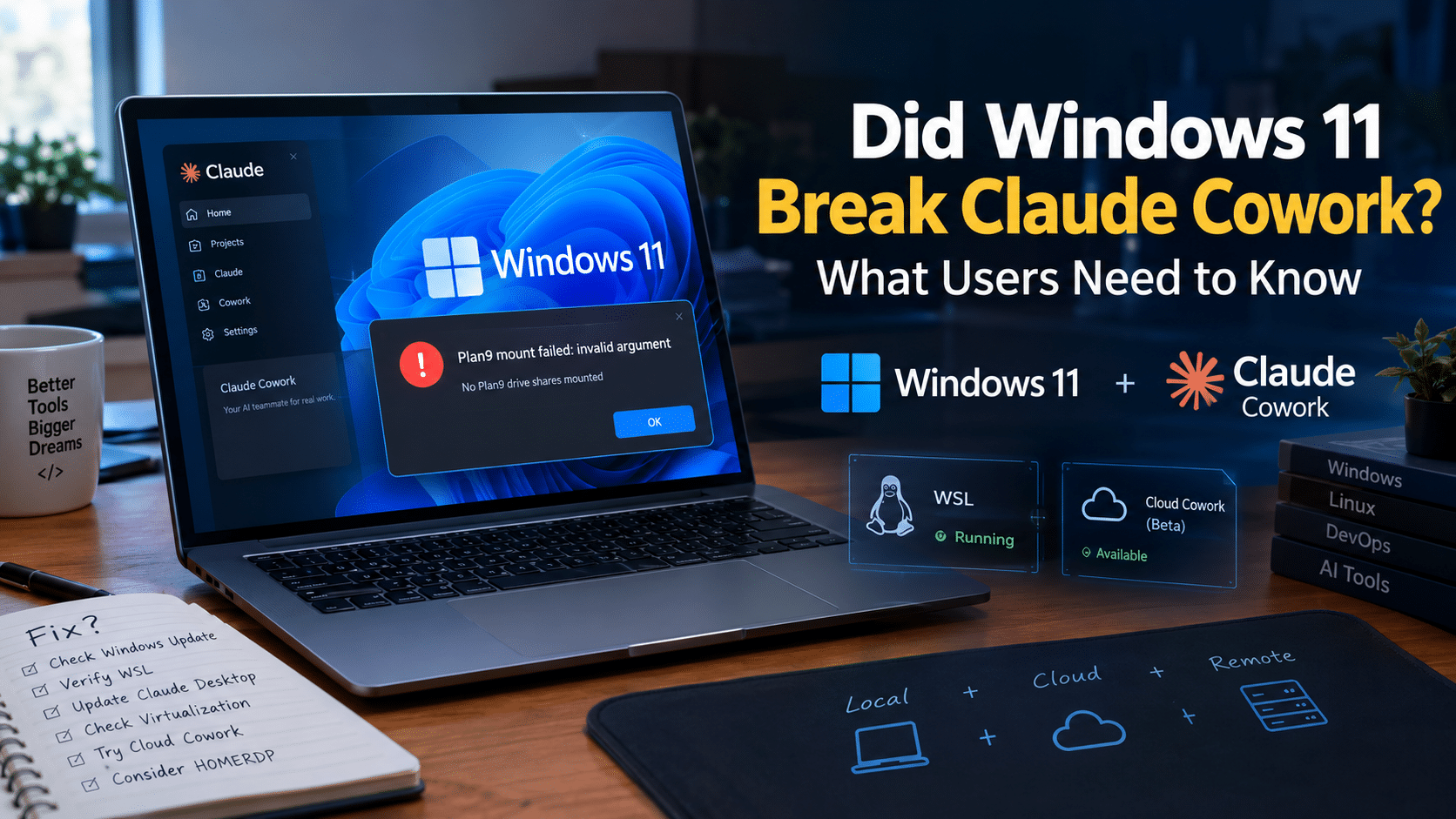
Reports from Windows users show that the September 2026 cumulative update KB5124008 can cause Claude Cowork’s local sandbox to fail. The most distinctive symptom is a Plan 9 mounting error that prevents Cowork’s virtualized environment from properly accessing shared folders. Multiple users have reported that uninstalling the update restored Cowork functionality, while ordinary WSL2 workloads could continue working normally.
That distinction is important.
The situation is not as simple as saying “Windows 11 broke WSL.” Instead, the evidence points toward a compatibility problem involving the virtualization and host-to-guest file-sharing infrastructure that Claude Cowork uses on Windows.
For developers, AI power users, researchers, and businesses that increasingly depend on AI agents for real work, the incident raises a larger question:
How much of your productivity should depend on one local Windows installation?
The answer may be less than you think.
A resilient setup can combine a local Windows PC with WSL, cloud-based AI services, backups, and an independent remote Windows environment such as a HOMERDP Windows VPS or RDP server. That approach does not magically repair Microsoft’s update, but it can provide an alternative workspace when a local machine becomes unreliable.
Let’s look at what actually happened, why Claude Cowork is affected, what users can do, and what this means for the future of Windows-based AI workflows.
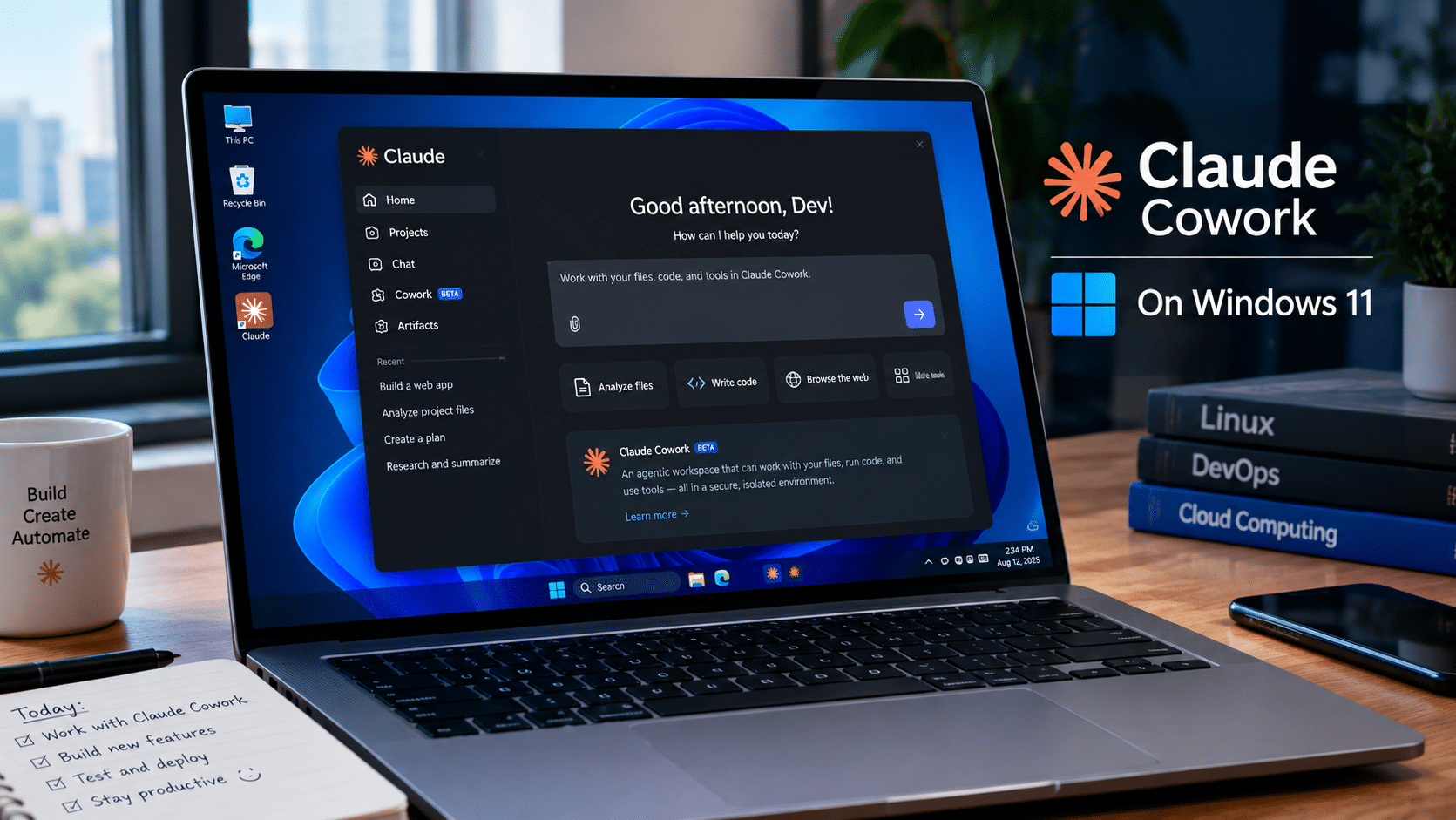
What Happened to Claude Cowork on Windows 11?
The reported problem appeared after Microsoft’s September 2026 cumulative Windows update.
The affected update is KB5124008, with reports covering Windows 11 24H2 and 25H2 systems. On affected installations, the operating system can move to builds around 26100.9445 or 26200.9445, depending on the Windows branch. A related ARM64 update, KB5124012, has also been discussed in connection with the September servicing cycle.
After the update, some Claude Desktop users found that Cowork could no longer properly attach its shared folders inside the isolated virtual machine.
One of the reported errors is:
“no Plan9 drive shares mounted”
Another reported failure is:
“Plan9 mount failed: invalid argument”
These errors matter because Cowork does not simply run every operation directly inside the normal Windows environment.
Claude’s documentation explains that local Cowork sessions execute code inside an isolated virtual machine on the user’s computer. Connected folders are made available to that environment so Cowork can work with user-selected files.
If that file-sharing bridge fails, the virtual machine may start but still be unable to perform important operations.
That creates a frustrating situation:
- Windows appears to work.
- Claude Desktop opens.
- The Cowork interface may load.
- The virtual machine may start.
- Connected files may still appear accessible through some functions.
- But shell-based operations inside the Cowork sandbox can fail.
In other words, the problem can occur between the Windows host and the virtualized Cowork environment.
Is WSL Actually Broken?
This is where headlines can become misleading.
WSL, or Windows Subsystem for Linux, has become one of the most important developer features in Windows. It allows users to run Linux distributions and command-line tools alongside Windows applications.
Microsoft’s own troubleshooting documentation makes clear that WSL2 relies on virtualization capabilities and the Virtual Machine Platform. It also provides specific troubleshooting steps for virtualization, hypervisor configuration, networking, and WSL updates.
However, recent Cowork reports show that WSL2 can remain functional even when local Cowork’s sandbox fails.
In one detailed report, WSL2 continued operating after KB5124008 was installed, while Cowork’s Plan 9 shares failed. Another report specifically noted that the affected Cowork functionality could fail even on a machine where WSL was not installed at all.
That means users should avoid assuming:
Windows update + Cowork failure = broken WSL.
The actual architecture is more complicated.
Understanding the Technology Stack
To understand the problem, think of a modern Windows AI development machine as several layers.
Layer 1: Windows 11
This is the host operating system.
It controls:
- Hardware
- Drivers
- Security
- Filesystem
- Networking
- Virtualization services
- Windows updates
Layer 2: Virtualization
Claude Cowork uses virtualization for its local isolated workspace.
Anthropic’s Windows deployment documentation confirms that Claude Desktop requires Virtual Machine Platform for Cowork.
Layer 3: Linux/Virtualized Workspace
Cowork runs code in an isolated environment rather than simply executing everything directly against the host.
Layer 4: Host-to-Guest File Sharing
The AI workspace needs access to the folders the user has explicitly connected.
This is where the current reports become particularly interesting.
Layer 5: Claude’s Agent
Finally, Claude performs the actual work:
- Reading files
- Processing information
- Running commands
- Generating content
- Organizing data
- Performing multi-step tasks
A failure at Layer 4 can therefore make Layer 5 appear broken even when Claude itself has not stopped functioning.
Why Plan 9 Shares Matter
The technical term Plan 9 may sound obscure to ordinary Windows users, but it becomes important in diagnosing this particular problem.
Cowork’s virtualized environment needs a mechanism for exposing selected Windows directories to the guest environment.
Reports indicate that after KB5124008, the host-side process can report that shares were added successfully while the guest environment fails to mount them.
That produces errors such as:
sandbox-helper: no Plan9 drive shares mounted
The consequence is more important than the technical terminology.
Without the mounted share, Cowork’s sandbox may not be able to access the files or development components it expects.
In one detailed GitHub issue, users reported that:
- The Cowork VM could boot.
- Virtualization communication continued to work.
- WSL2 could still function.
- Connected folders could still work through certain file operations.
- But Plan 9 shares failed to mount.
- Cowork shell operations subsequently failed.
That makes the issue considerably more specific than a complete Windows virtualization failure.
Why Developers Are Paying Attention
Developers are among the users most likely to have complicated Windows environments.
A typical development laptop might contain:
- Windows 11
- WSL2
- Docker Desktop
- Git
- VS Code
- Visual Studio
- Node.js
- Python
- PowerShell
- Hyper-V
- VMware or VirtualBox
- Claude Desktop
- Multiple browser profiles
- VPN software
- Security software
Each component adds another dependency.
When an operating-system update modifies a low-level virtualization or filesystem component, the impact can extend far beyond the component that Microsoft intended to change.
That is one reason the Cowork problem deserves attention.
It demonstrates that AI development environments are becoming infrastructure-dependent.
Claude Cowork Is Not Just Another Chatbot
This is another important distinction.
Traditional AI chat applications primarily exchange text with a cloud service.
Cowork goes further.
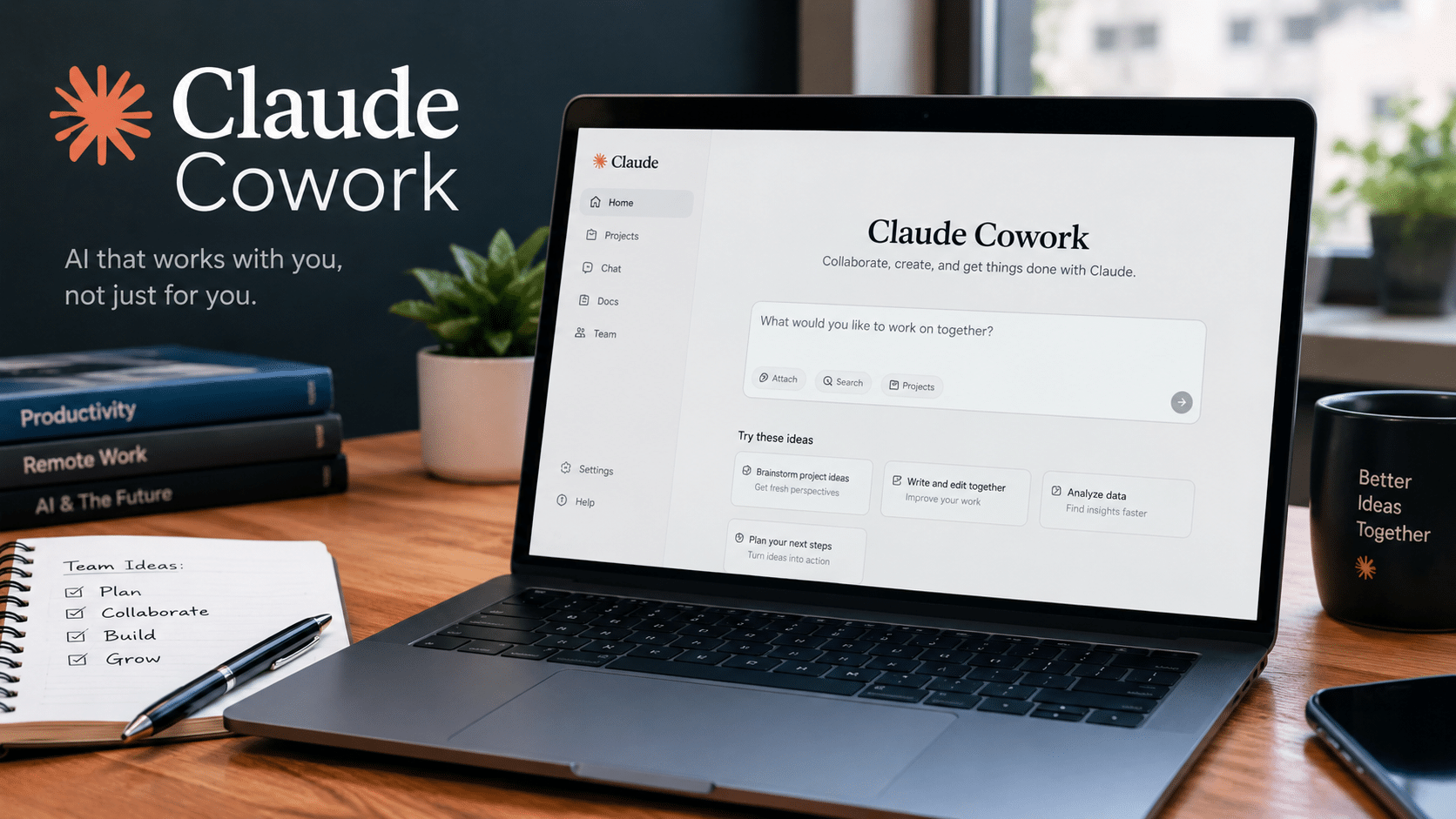
Anthropic describes Cowork as an agentic workspace capable of handling multi-step knowledge work. Its desktop implementation can work with local files and execute code inside an isolated virtual machine.
That means Cowork has to interact with much more of the computing environment.
It needs to understand:
- Which folders it can access
- Where its virtual machine lives
- How code executes
- How files move between environments
- How network access works
- How permissions are enforced
That provides more capability, but it also introduces more opportunities for compatibility problems.
The more an AI agent can do, the more infrastructure it needs.
What Users Are Reporting
Community reports provide useful real-world evidence of the problem.
One report described a Windows 11 system that worked normally until KB5124008 was installed. After the reboot, Cowork shell commands stopped working because no Plan 9 drive shares were mounted. Removing the update restored the functionality.
Another detailed GitHub report documented the same pattern across Windows configurations and reported that uninstalling KB5124008 restored the sandbox.
A separate issue thread includes confirmations from x64 users, showing that the problem is not necessarily limited to one processor architecture or one specific Windows configuration.
These reports are particularly useful because several users performed before-and-after comparisons:
Before update → Cowork works
After KB5124008 → Cowork fails
After rollback → Cowork works again
That pattern provides considerably stronger evidence than an isolated “Cowork stopped working” complaint.
However, users should still distinguish community reports from a final official root-cause statement. Microsoft or Anthropic may ultimately identify a more precise cause and release a permanent fix.
Should You Uninstall KB5124008?
This is the question many affected users will ask.
Some users have reported that removing the update restores Cowork.
But there is an important problem with treating rollback as the universal solution.
Windows cumulative updates can contain security fixes.
Removing a security update can therefore create another risk.
Before uninstalling anything, users should consider:
- Is Cowork actually affected?
- Is the reported Plan 9 error present?
- Is the installed update KB5124008?
- Is there a newer Claude Desktop release?
- Has Anthropic published a workaround?
- Has Microsoft released a superseding update?
- Is the PC managed by an organization?
- Is the machine exposed to sensitive or business-critical workloads?
If the computer belongs to a company, the IT administrator should make the decision.
For personal machines, users should at minimum understand what security fixes they are removing before proceeding.
First Step: Check Your Windows Build
Before changing anything, identify the exact Windows version.
Press:
Windows + R
Then enter:
winver
You can also use PowerShell to inspect your system.
For example:
winver
Then compare your build with the versions associated with the reported issue.
You should also check:
Settings → Windows Update → Update history
Look for the September 2026 cumulative update.
This is important because troubleshooting without knowing the exact Windows build can lead to unnecessary changes.
Check Whether WSL Is Actually Working
If you use WSL, open PowerShell and run:
wsl --version
Then:
wsl --list --verbose
These commands can help establish whether your Linux environment is functioning independently of Cowork.
Microsoft also recommends wsl --update when troubleshooting WSL problems and wsl --shutdown for restarting the WSL environment.
You can therefore try:
wsl --update
followed by:
wsl --shutdown
However, don’t assume these commands will repair a Cowork-specific Plan 9 problem.
If WSL is already working correctly, repeatedly resetting WSL may accomplish nothing.
Check Virtual Machine Platform
Claude’s Windows documentation specifically identifies Virtual Machine Platform as a requirement for Cowork.
Microsoft likewise identifies virtualization and Virtual Machine Platform as important components for WSL2.
You can inspect the Windows optional feature through:
Settings → System → Optional features → More Windows features
or use an elevated PowerShell session to inspect it.
Anthropic also recommends checking services such as:
Get-WindowsOptionalFeature -Online -FeatureName VirtualMachinePlatform
and:
Get-Service vmcompute, hns
These checks can help determine whether the underlying virtualization services are available.
What If You Use VMware or VirtualBox?
Third-party virtualization software can complicate the situation.
Microsoft’s WSL troubleshooting documentation notes that systems using third-party hypervisors such as VMware or VirtualBox need compatible versions and appropriate Hyper-V configuration.
Anthropic similarly recommends checking hypervisor configuration when Cowork reports virtualization-related errors.
If you use multiple virtualization products, document them before troubleshooting.
A developer who runs:
- WSL2
- Docker
- VMware
- VirtualBox
- Windows Sandbox
- Claude Cowork
has a much more complicated virtualization stack than an ordinary Windows user.
Update Claude Desktop Too
Before rolling back Windows, make sure Claude Desktop itself is current.
Anthropic states that Windows Cowork requires the latest Claude Desktop version.
That means users should not conclude that Windows is responsible simply because Cowork stopped working after a reboot.
Check:
Claude Desktop → Settings → Updates
or obtain the current Windows release from Anthropic.
If a newer Claude version contains a compatibility fix, upgrading the application is considerably safer than removing a Windows security update.
Another Option: Use Cloud Cowork
There is an especially important development in Claude’s current architecture.
Anthropic now supports Cowork sessions that can run in the cloud in beta.
According to Anthropic’s documentation, cloud Cowork sessions run on Anthropic’s infrastructure rather than the user’s local computer. This allows work to continue across desktop, web, and mobile, and scheduled tasks can continue even when the user’s laptop is closed or offline.
This changes the situation considerably.
If the problem specifically affects local Cowork execution on Windows, a cloud-based Cowork session can provide an alternative for supported users.
That is one of the strongest architectural lessons from this incident:
Cloud execution can reduce dependence on local operating-system compatibility.
Local AI vs Cloud AI: Which Is Better?
There is no universal winner.
Both approaches have advantages.
Local Cowork
Advantages:
- Local file access
- Local execution
- Direct interaction with the Windows environment
- Potentially better for workflows tied closely to the local machine
Disadvantages:
- Depends on local virtualization
- Depends on Windows configuration
- Vulnerable to local OS updates
- Depends on local hardware
Cloud Cowork
Advantages:
- Runs on provider infrastructure
- Less dependent on local virtualization
- Can continue when the local machine is unavailable
- Better suited to persistent or scheduled workloads
Disadvantages:
- Cloud availability may vary by plan
- Data and workflow considerations change
- Local-only applications may not be accessible in the same way
Anthropic currently supports both local and cloud Cowork execution depending on plan and surface.
Where Does HOMERDP Fit?
This is where remote Windows infrastructure becomes relevant.
A remote Windows VPS does not fix the underlying KB5124008 compatibility problem on your personal computer.
Instead, it provides something different:
an independent Windows environment.
HOMERDP offers Windows VPS and RDP services with different resource levels, allowing users to choose an environment according to workload requirements. Its Windows VPS offerings currently range from smaller configurations to plans with multiple virtual CPUs, larger memory allocations, NVMe/SSD storage, and higher bandwidth.
For example, HOMERDP’s listed Windows VPS configurations include options ranging from:
- 2 vCPU / 2 GB RAM
- 2 vCPU / 4 GB RAM
- 4 vCPU / 8 GB RAM
- 6 vCPU / 16 GB RAM
- 8 vCPU / 32 GB RAM
- 12 vCPU / 64 GB RAM
depending on the plan.
That range makes a remote Windows machine useful for more than emergency access.
Why a Secondary Windows Environment Matters
Imagine that your main laptop contains:
- Your development environment
- Your browser profiles
- Your AI tools
- Your WSL distributions
- Your project files
- Your automation scripts
Now imagine a Windows update causes an unexpected compatibility issue.
Without another environment, your choices may be limited to troubleshooting the machine immediately.
With a remote Windows VPS, you can maintain another environment for selected workloads.
That creates separation.
Your local machine remains your primary workstation.
Your remote Windows server becomes the backup workspace.
HOMERDP for Remote Development
A Windows VPS can be useful for developers who need:
- A persistent Windows environment
- Remote access
- Development tools
- Testing environments
- Administrative access
- Larger CPU/RAM configurations
- A separate machine for experiments
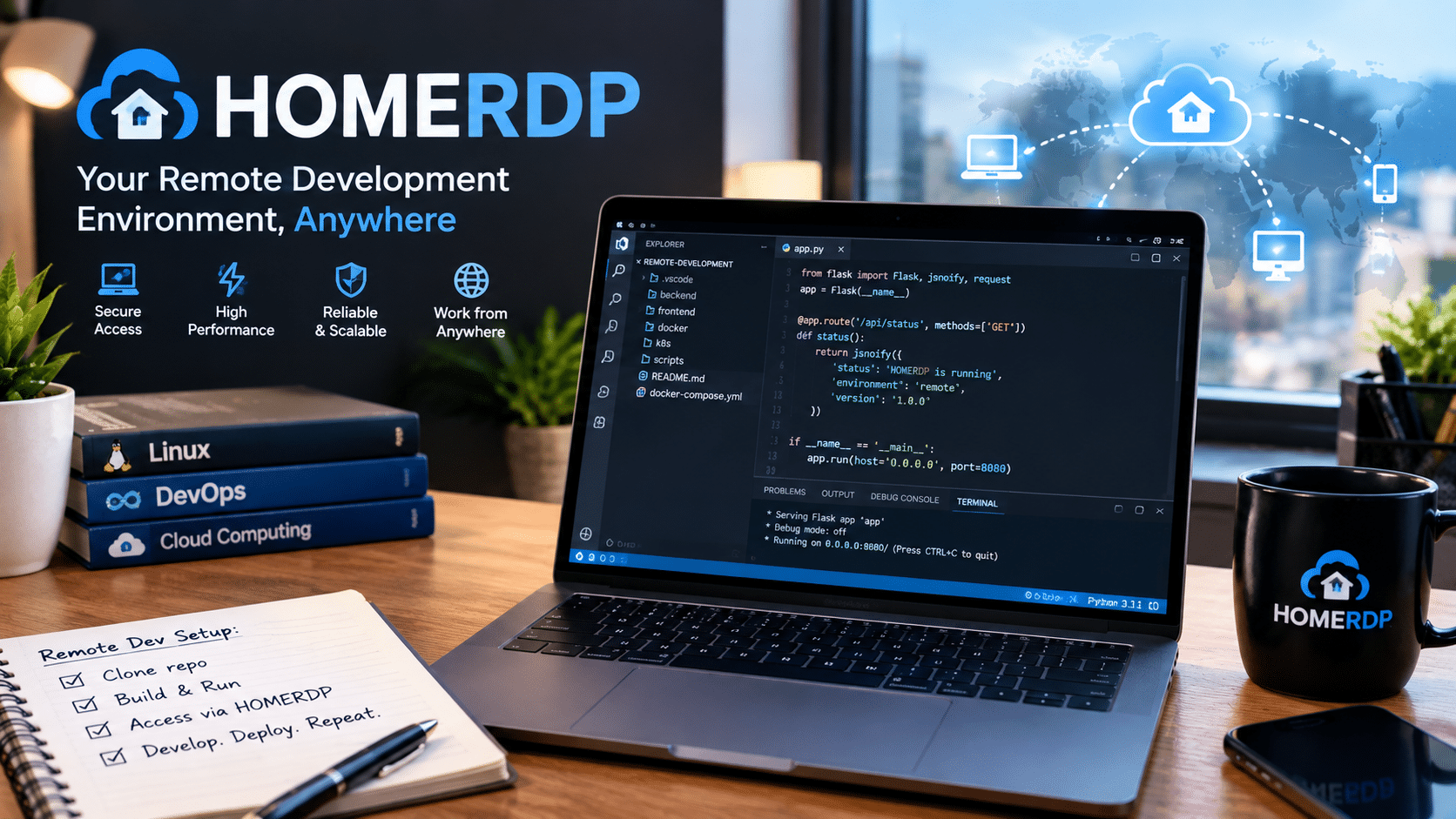
HOMERDP’s Windows VPS service provides Windows-based remote environments that users can access through Remote Desktop.
For heavier workloads, HOMERDP also lists higher-resource Windows VPS options, including configurations with up to 64 GB RAM in its current catalog.
This does not mean every developer needs a 64 GB server.
The correct approach is to match resources to the workload.
A Practical Resilient Setup
A modern AI developer can think about infrastructure in four layers.
1. Primary Local PC
Use your Windows 11 machine for:
- Daily work
- Meetings
- Browsing
- IDEs
- Local development
- WSL
2. Cloud AI
Use cloud-based AI services when the workload does not require local machine access.
3. Remote Windows Environment
Use a service such as HOMERDP for:
- Secondary development
- Remote administration
- Testing
- Long-running Windows workloads
- Business continuity
4. Independent Backups
Keep critical projects backed up separately.
This model reduces the impact of a single workstation failure.
Don’t Put All Your Work on One Machine
The most important lesson from the Windows/Cowork problem is not really about Claude.
It is about single points of failure.
Consider what happens if your only workstation experiences:
- A Windows update problem
- SSD failure
- RAM failure
- Corrupted system files
- Driver conflicts
- Malware
- Power failure
- Broken virtualization
- Lost network connectivity
If everything exists on that machine, productivity can stop instantly.
A resilient workflow separates:
compute + applications + data + backups.
That is a principle businesses have used for years.
AI productivity makes it increasingly relevant to individual professionals as well.
Why AI Agents Increase the Need for Resilience
AI agents are becoming more capable.
They are moving from:
Question → Answer
toward:
Goal → Plan → Execute → Verify → Deliver
Claude Cowork is an example of that transition.
It can handle complex, multi-step knowledge work and work with files rather than simply generating a response in a chat window.
But the more work an AI agent can perform, the more infrastructure it needs.
A simple chatbot may only require:
- Internet
- Browser
- Account
An agent working with local files may require:
- Filesystem access
- Permissions
- Virtualization
- Sandboxing
- Networking
- Tool execution
- Security controls
That makes reliability much more important.
Security Should Remain the Priority
There is another lesson worth emphasizing.
Do not disable Windows security mechanisms simply to make an AI application work.
AI agents can interact with files, applications, browsers, and development tools. Anthropic itself warns that computer-use capabilities introduce risks and recommends monitoring agent activity, especially when sensitive information is involved.
A secure AI workflow should therefore include:
- Least-privilege access
- Limited folder sharing
- Strong passwords
- Multi-factor authentication where available
- Regular backups
- Current security updates
- Careful permission management
- Monitoring of agent actions
A temporary application failure is inconvenient.
A compromised workstation can be far more damaging.
What Businesses Should Learn From This Incident
For businesses, the incident provides a useful reminder about software dependency management.
If an organization depends on AI agents for daily work, IT teams should maintain:
Update testing
Test major Windows updates before deploying them broadly where practical.
Application inventories
Know which systems depend on WSL, Hyper-V, virtualization, Docker, and AI applications.
Recovery plans
Know how employees will continue working if a critical workstation becomes unavailable.
Remote infrastructure
Maintain alternative environments for critical workloads.
Backups
Do not rely solely on local files.
Vendor monitoring
Track Microsoft and Anthropic release notes and support advisories.
This approach turns an unexpected compatibility issue from a crisis into a manageable incident.
What Should Windows 11 Users Do Right Now?
If Claude Cowork suddenly stopped working after a Windows update, follow this sequence.
Step 1: Identify the Windows build
Use:
winver
Step 2: Check Windows Update history
Look for the September 2026 cumulative update, especially KB5124008.
Step 3: Update Claude Desktop
Make sure you are running the latest supported release. Anthropic explicitly recommends the latest Windows version for Cowork.
Step 4: Test WSL separately
Run:
wsl --version
wsl --list --verbose
Step 5: Restart WSL if necessary
wsl --shutdown
Step 6: Check Virtual Machine Platform
Verify that it remains enabled.
Step 7: Check virtualization services
Anthropic recommends checking vmcompute and hns when diagnosing Cowork virtualization failures.
Step 8: Check official fixes
Look for a new Windows or Claude update before rolling back a security patch.
Step 9: Consider cloud Cowork
If your plan and workflow support it, cloud execution can bypass some local virtualization dependencies.
Step 10: Maintain a backup environment
For important work, consider a separate remote Windows machine.
The Future of Windows and AI Workflows
The relationship between Windows, Linux, virtualization, and AI is becoming more complicated—but also more powerful.
WSL has already changed how developers use Windows.
Docker has brought containerized workflows to desktops.
Hyper-V has made virtualization commonplace.
And AI agents are now beginning to operate across files, applications, browsers, and development environments.
The result is a powerful ecosystem.
But powerful ecosystems have dependencies.
The Claude Cowork issue demonstrates that even a small change in a low-level Windows component can potentially affect a sophisticated AI workflow.
That is likely to become more common—not less—as AI applications gain deeper access to operating systems.
The Bigger Picture: Build for Failure
The smartest response to this incident is not panic.
It is preparation.
A good computing environment assumes that something will eventually fail.
Your Windows update may introduce a compatibility problem.
Your SSD may fail.
Your laptop may be stolen.
Your internet connection may go down.
An AI service may experience an outage.
A software update may introduce a regression.
The goal is not to prevent every possible failure.
The goal is to ensure that one failure does not stop your entire workflow.
That is why a combination of local computing, cloud services, backups, and remote infrastructure makes sense for professionals who depend heavily on technology.
How HOMERDP Can Support That Strategy
HOMERDP’s Windows VPS and RDP offerings provide another Windows-based computing environment that users can access remotely. Its current catalog includes configurations designed for different resource requirements, from entry-level Windows VPS plans to higher-resource systems with substantially more CPU and memory.
HOMERDP also offers dedicated Windows server configurations for workloads that require considerably more resources. Its listed dedicated options include high-core-count CPUs, large RAM capacities, NVMe storage, and Windows Server environments.
For businesses, its multi-user RDP offerings can also provide a shared remote Windows environment for teams, with configurations offering multiple users, large memory allocations, NVMe storage, and dedicated administration features.
The important point is not to purchase the biggest server available.
Instead, choose an environment appropriate for your actual requirements.
For example:
- Light remote administration: smaller Windows VPS
- Development and multitasking: higher-RAM Windows VPS
- Team workflows: multi-user RDP
- Heavy workloads: dedicated Windows server
That gives users an additional layer of flexibility when their primary PC cannot handle a task or encounters a software problem.
Final Verdict: Did Windows 11 Break Claude Cowork?
For some users, the answer appears to be yes—but the story is more specific than the headline suggests.
The September 2026 Windows update KB5124008 has been associated with a reproducible Claude Cowork failure involving Plan 9 drive shares. Multiple reports describe Cowork’s local virtualized environment failing to mount those shares after the update, while some WSL2 installations continue to operate normally.
That means this should not simply be described as “Windows 11 broke WSL.”
The evidence points toward a more specific compatibility problem in the infrastructure Cowork uses for its local sandbox.
For affected users, the sensible response is to:
- Identify the Windows build.
- Check the installed update.
- Update Claude Desktop.
- Test WSL separately.
- Verify virtualization components.
- Monitor Microsoft and Anthropic fixes.
- Consider cloud-based Cowork where available.
- Avoid blindly removing security updates.
- Maintain an alternative computing environment for important work.
The incident also illustrates a larger trend.
AI is becoming deeply integrated with the operating system.
As agents move beyond conversations and start working directly with files, applications, browsers, code, and virtual machines, operating-system reliability becomes part of AI reliability.
That is why resilience matters.
Your local Windows PC can remain your primary workstation.
WSL can remain your preferred Linux development layer.
Cloud AI can handle workloads that do not need local access.
And a remote Windows environment such as HOMERDP can provide an independent workspace when you need additional computing capacity or a fallback environment. HOMERDP offers Windows VPS, RDP, and dedicated Windows server options across different resource levels and locations.
The lesson from the latest Windows 11 and Claude Cowork problem is therefore bigger than one update:
Don’t build a critical workflow around a single machine, a single operating system component, or a single execution environment.
Modern AI makes computers more capable than ever.
But the smarter those systems become, the more important it is to design them for failure.
A resilient computing setup is not about expecting Windows to break. It’s about making sure that when something does break, your work doesn’t have to stop with it.
EXPLORE MORE ; How to Fix Windows’ 260-Character File Path Limit

READ OUR BLOGS