KDE Dolphin Lands on Windows: A New Era for File Management via HOMERDP
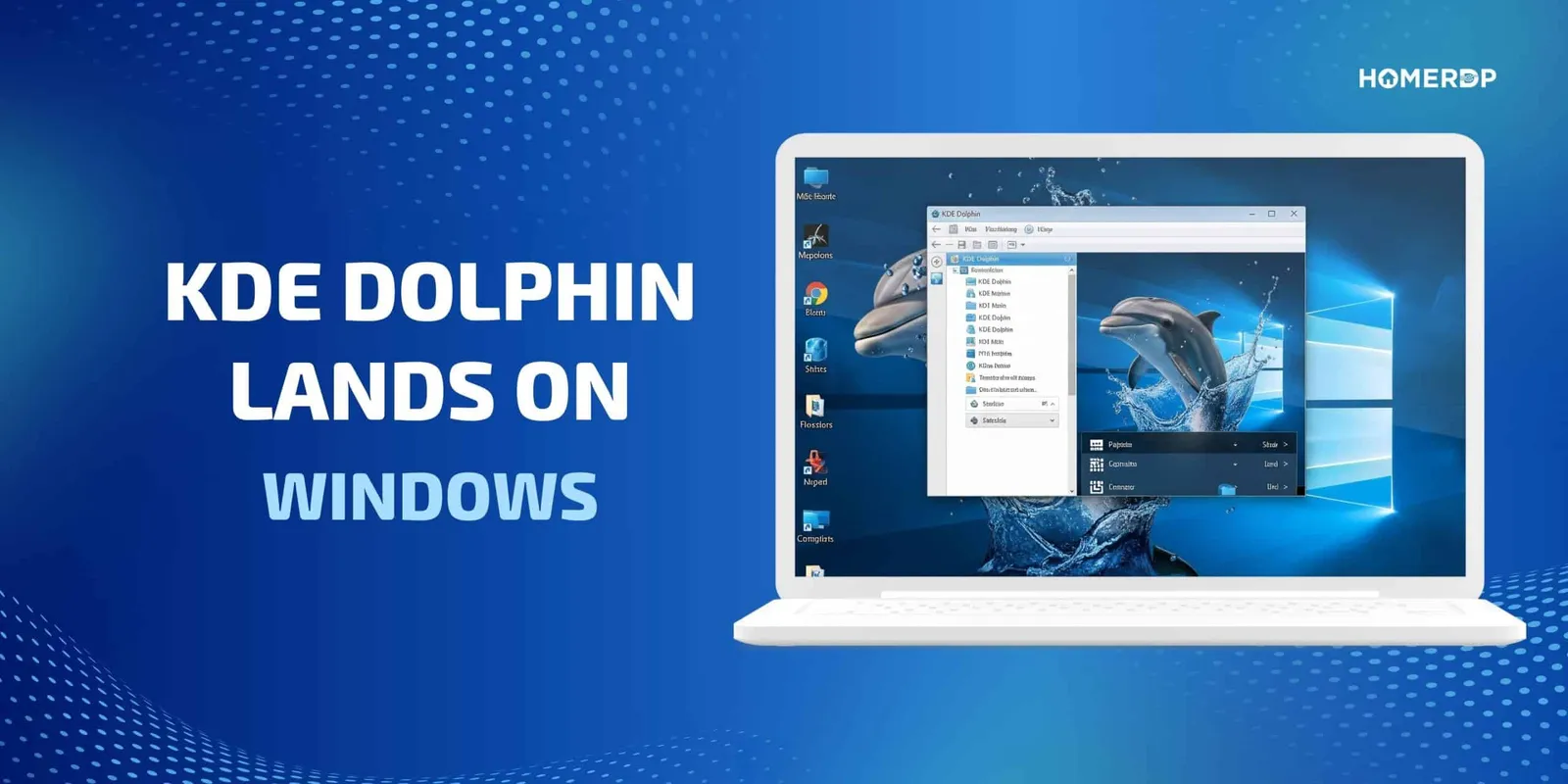
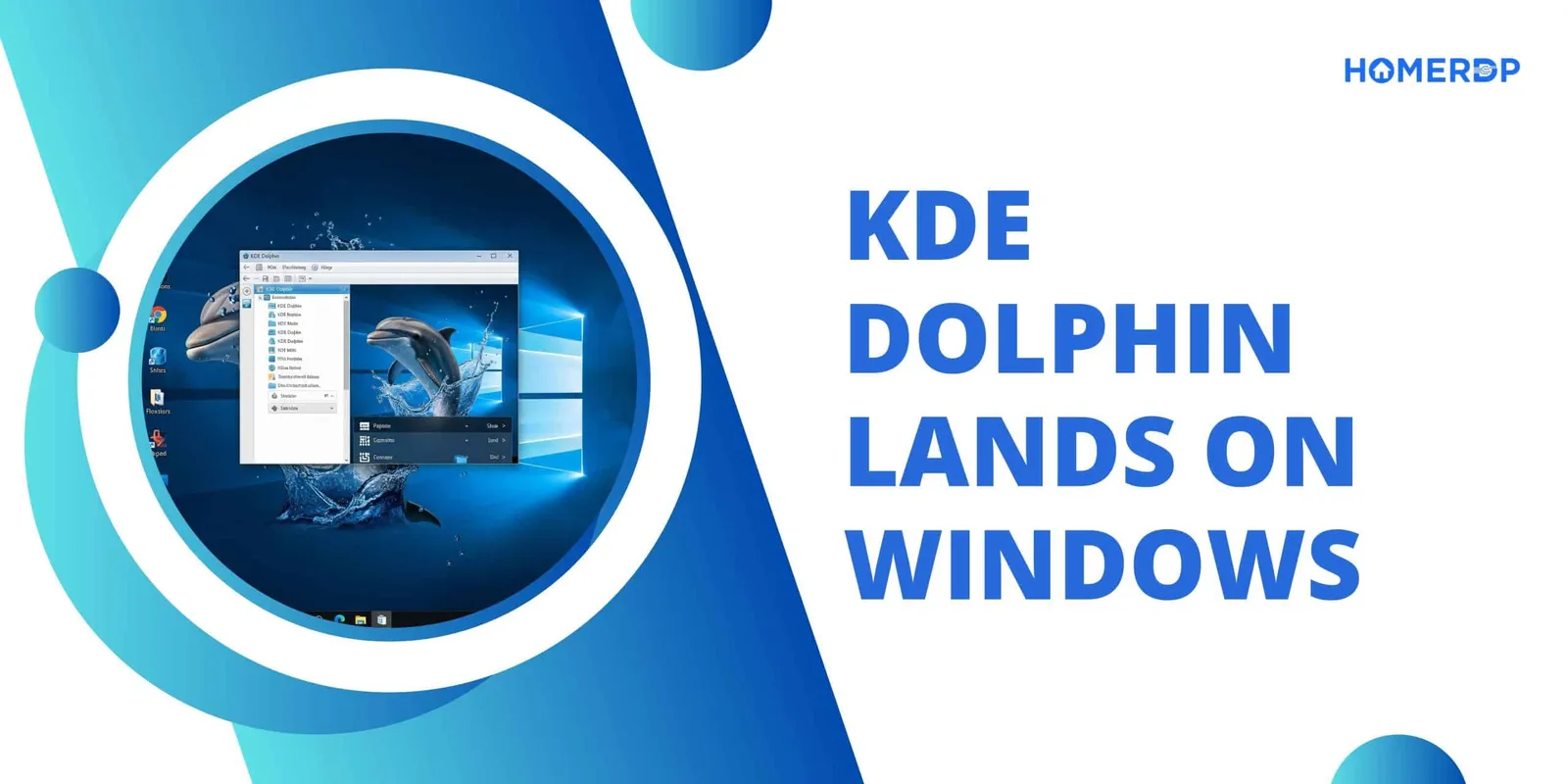
The KDE community has just dropped a bombshell in the world of cross-platform computing—Dolphin File Manager, KDE’s flagship file explorer, is now officially available for Windows. Yes, you read that right.
Known for its powerful features, intuitive UI, and unmatched efficiency, Dolphin has been the pride of KDE Plasma users for years. And now that it's natively running on Windows, this cross-platform synergy opens up exciting possibilities for power users, developers, and remote workers—especially when paired with cloud-based Windows RDP services from HOMERDP.
Let’s dive deep into why this development is a big deal, how it fits into your remote desktop workflow, and why HOMERDP is the ideal partner to experience KDE's magic on the cloud.
What Makes KDE Dolphin So Special?
Here’s what makes KDE’s Dolphin stand out from the crowd, even against Windows File Explorer:
1. Tabbed Browsing
Dolphin offers native tab support, allowing users to browse multiple folders in a single window—just like modern web browsers.
2. Split View Mode
One click splits your file explorer into two panes—perfect for drag-and-drop operations, comparing directories, or organizing large datasets.
3. Built-in Terminal Integration
You can open a terminal right inside Dolphin, making it ideal for developers, sysadmins, and Linux lovers on Windows.
4. Powerful File Preview & Metadata
From music files to code snippets, Dolphin offers rich previews and metadata tools, boosting productivity.
5. Highly Customizable
Customize icons, behavior, shortcuts, and even service menus—Dolphin bends to your workflow, not the other way around.
Dolphin on Windows: What’s New?
Thanks to the work of KDE developers, Dolphin now installs natively on Windows via the Microsoft Store or directly through KDE’s GitHub repositories.
🔹 It uses KDE Frameworks, Qt, and other dependencies to function seamlessly
🔹 It doesn’t replace File Explorer—but works side-by-side
🔹 Ideal for users who prefer Linux tools on a Windows desktop
This bridges the gap between KDE and Windows ecosystems, helping developers, power users, and engineers get the best of both worlds.
Use Case: Dolphin + HOMERDP = Productivity Powerhouse
Now imagine this: You're using a cloud-based Windows machine from HOMERDP, pre-installed with KDE Dolphin as your file manager.
Here’s how the combination supercharges your workflow:
1. Remote File Management with Tabbed Efficiency
Access your virtual Windows machine via RDP from any device, open Dolphin, and manage multiple file systems simultaneously in tabs.
2. Split Views for Complex Projects
Working on machine learning data or web development? Use Dolphin’s split-pane view to organize training data, source code, and outputs seamlessly.
3. Built-in Terminal on Your RDP
With Dolphin’s terminal integration and HOMERDP’s full admin access, you can run scripts, deploy packages, and push Git updates right inside your file manager.
4. Enhanced Customization + Remote Flexibility
Whether you're on a Linux laptop, a MacBook, or an Android tablet, connect to your Dolphin-powered Windows RDP and enjoy consistent, customized workflows anywhere.
Why HOMERDP Is the Perfect Match for KDE Dolphin
HOMERDP offers Windows RDP plans that are developer-friendly, feature-rich, and affordable. Here's what makes them ideal:
✅ Full Admin Access – Install KDE Dolphin, VS Code, Docker, and more
✅ SSD Storage – Fast file I/O operations with KDE’s previews and indexing
✅ High-Speed Network – Seamless experience even for large file transfers
✅ GPU & CPU Configurations – From lightweight browsing to heavy DevOps tasks
✅ 24/7 Uptime and Support – Because your workflow should never sleep
Pairing HOMERDP with KDE Dolphin isn’t just a smart idea—it’s the next logical step for productive remote computing.
💡 Pro Tip: Set Up KDE Dolphin as Default File Manager in Your RDP
With admin access on HOMERDP:
- Install Dolphin using the KDE Windows Installer
- Set it as default for opening folders (via Windows Settings or Registry tweaks)
- Customize themes, split views, and integrate plugins like Git or Filelight
Now your cloud RDP workspace feels more like Linux, but runs on powerful Windows servers!
🌍 Who Should Use This Setup?
🔸 Remote Developers – Clean code management
🔸 Data Scientists – Organize data intuitively
🔸 Sysadmins – Terminal + GUI in one
🔸 Students & Researchers – Dual-pane research + file organization
🔸 Linux Users Moving to Windows – Familiar UI and logic
🎯 Final Thoughts
The arrival of KDE Dolphin on Windows is a game-changer—and when combined with HOMERDP’s remote desktop infrastructure, it becomes a workflow revolution.
Whether you’re looking to enhance productivity, streamline development, or just want a file manager that respects your time, this combo is the way to go.
👉 Start your journey with KDE Dolphin on a blazing-fast Windows RDP from HOMERDP and redefine how you work in the cloud.
EXPLORE MORE ; Remote Labs: Using HOMERDP to Empower STEM Education
Run it on HomeRDP
Linux VPS
KVM Linux VPS with root access and NVMe storage.