

Boost SSD Longevity on Windows: Essential Settings Every PC Owner Should Change
Solid-state drives (SSDs) have transformed the computing experience. Compared to traditional hard disk drives (HDDs), SSDs offer dramatically faster boot times, near-instant application launches, improved multitasking, lower power consumption, and greater reliability because they have no moving parts. Whether you use a Windows laptop for work, gaming, content creation, software development, or AI projects, your SSD plays a crucial role in overall system performance.
However, SSDs are not immune to wear. Unlike HDDs, SSDs store data in NAND flash memory, which has a finite number of write and erase cycles. While modern SSDs are built to last for many years under normal usage, unnecessary write operations can gradually reduce their lifespan.
The good news is that Windows includes several settings and built-in tools that help optimize SSD performance. A few simple changes can reduce unnecessary disk writes, improve system responsiveness, and help your storage device remain healthy for years.
For professionals who regularly run write-intensive workloads such as virtual machines, software development, AI models, or automation tools, moving those workloads to a remote Windows VPS—such as one offered by HOMERDP—can also reduce wear on local hardware while providing a reliable, always-on Windows environment.
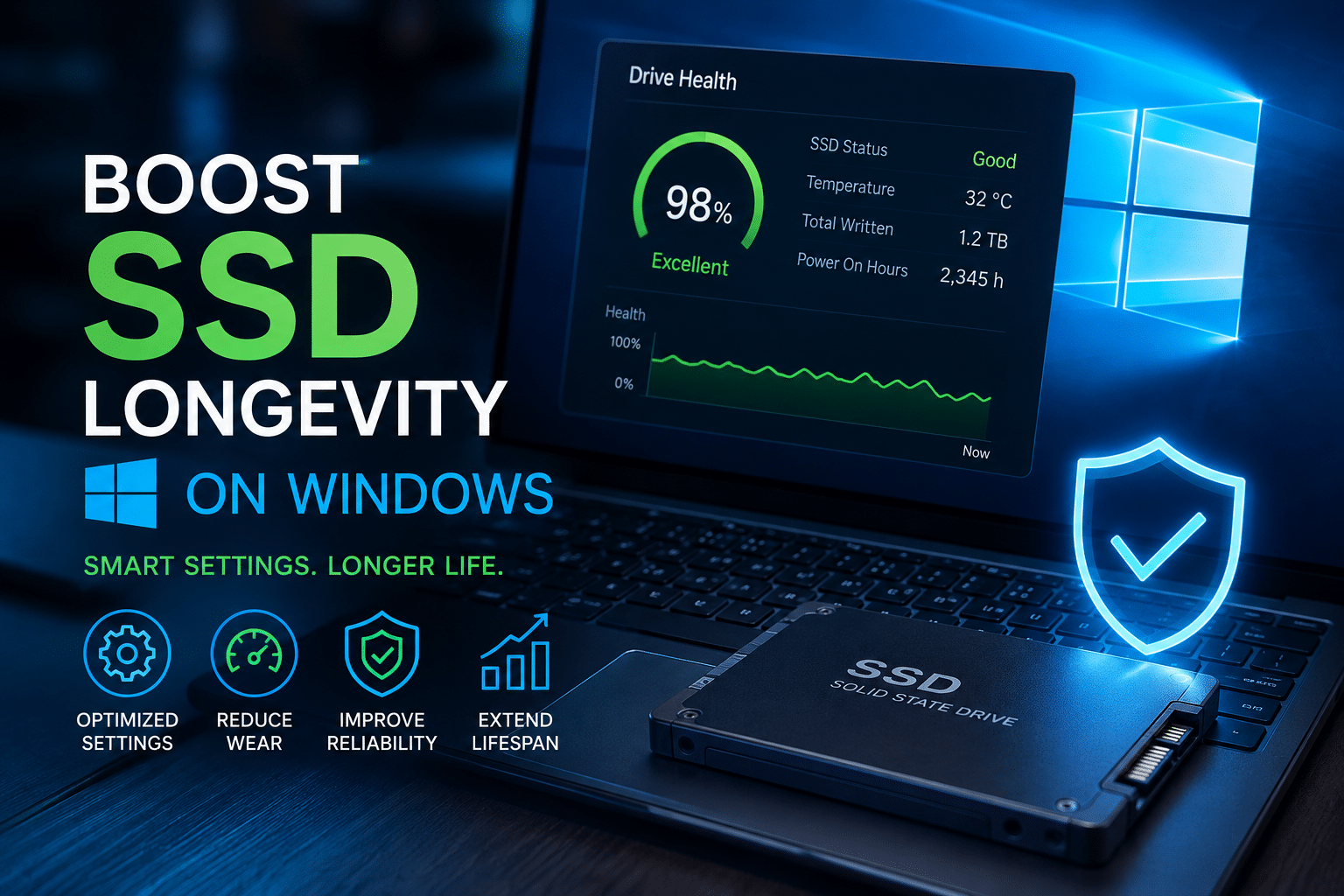
Understanding SSD Lifespan
Unlike hard drives, SSDs store information in flash memory cells. Every time data is written and erased, those cells experience a tiny amount of wear.
Manufacturers typically measure SSD endurance using metrics such as:
- TBW (Terabytes Written): The total amount of data that can be written before the drive reaches its rated endurance.
- DWPD (Drive Writes Per Day): How many times the drive can be completely rewritten each day during its warranty period.
- MTBF (Mean Time Between Failures): A statistical estimate of reliability.
Modern SSDs commonly offer endurance ratings ranging from 300 TBW for entry-level consumer drives to several petabytes for enterprise models. For average users, this translates to many years of normal operation. Still, reducing unnecessary write activity is a smart way to maximize the drive’s lifespan.
Why Windows Settings Matter
Windows continuously performs background tasks such as:
- Creating temporary files
- Updating system indexes
- Installing updates
- Managing virtual memory
- Writing event logs
- Saving hibernation data
Most of these processes are essential, but a few settings can generate additional write operations that many users don’t actually need.
Optimizing these settings helps balance performance with storage longevity.
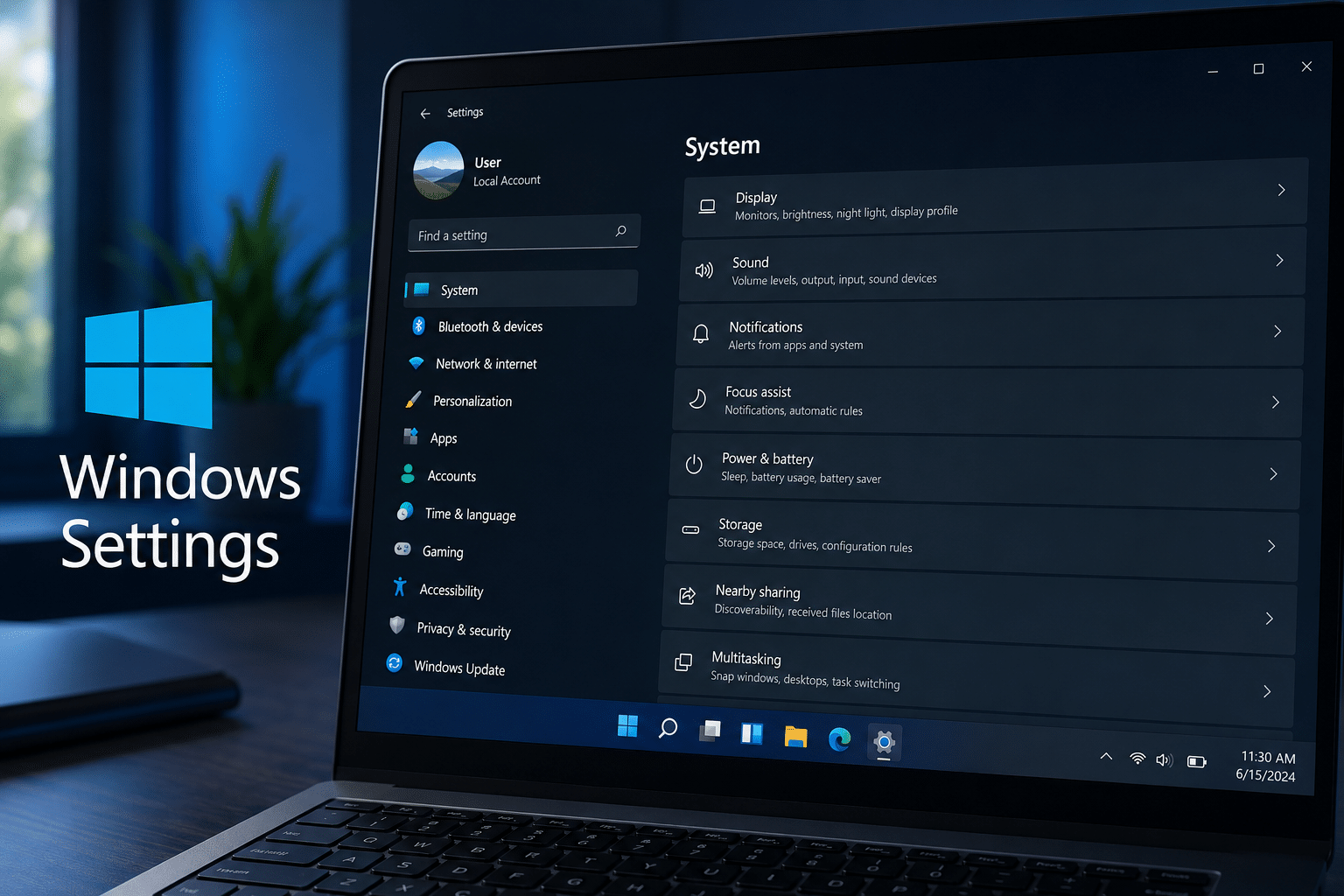
1. Disable Fast Startup If You Frequently Restart Your PC
Fast Startup is enabled by default on many Windows installations.
Instead of performing a full shutdown, Windows saves part of the operating system session to a file named hiberfil.sys. During the next startup, Windows loads this saved session, allowing the computer to boot faster.
While this feature improves startup times, it also creates additional write operations every time the system shuts down.
If you:
- Restart several times daily
- Test software frequently
- Install drivers regularly
- Troubleshoot hardware
- Use dual-boot systems
consider disabling Fast Startup.
How to disable it
- Open Control Panel.
- Select Power Options.
- Click Choose what the power buttons do.
- Select Change settings that are currently unavailable.
- Uncheck Turn on Fast Startup.
- Save the changes.
For many power users, the slightly longer boot time is a worthwhile trade-off for cleaner shutdowns and fewer unnecessary writes.
2. Verify That TRIM Is Enabled
TRIM is one of the most important technologies for SSD health.
When files are deleted, Windows tells the SSD which storage blocks are no longer needed. The SSD can then clean those blocks efficiently before future writes.
Benefits include:
- Faster long-term performance
- Lower write amplification
- Improved wear leveling
- Better endurance
Windows usually enables TRIM automatically.
To verify:
Open Command Prompt as Administrator and run:
fsutil behavior query DisableDeleteNotify
If the result is:
DisableDeleteNotify = 0
TRIM is enabled.
3. Keep Enough Free Space
An SSD performs best when it has room to manage internal data efficiently.
Experts generally recommend leaving at least 15–20% of total capacity free.
Benefits include:
- Better garbage collection
- Improved wear leveling
- Higher sustained performance
- Reduced write amplification
If your SSD is almost full, move large files such as videos, backups, or archives to external storage or cloud services.
4. Avoid Manual Defragmentation
Traditional hard drives benefited from defragmentation because their read/write heads physically moved across spinning disks.
SSDs have no moving parts.
Modern Windows automatically recognizes SSDs and performs optimization using TRIM rather than conventional defragmentation.
Avoid using third-party disk defragmentation software on SSDs.
5. Update SSD Firmware
SSD manufacturers regularly release firmware updates that improve:
- Performance
- Error correction
- Reliability
- Compatibility
- Power efficiency
Use your manufacturer’s official management software to check for updates.
Popular utilities include Samsung Magician, Crucial Storage Executive, WD Dashboard, and Kingston SSD Manager.
6. Reduce Unnecessary Startup Programs
Many applications automatically launch when Windows starts.
Each startup application may:
- Write logs
- Create cache files
- Perform updates
- Synchronize data
Reducing unnecessary startup programs not only decreases disk activity but also improves boot speed.
Review startup applications periodically using Task Manager.
7. Manage Temporary Files
Windows and applications continuously generate temporary files.
Over time, these consume storage and increase write operations.
Use Windows Storage Sense to automatically remove:
- Temporary files
- Recycle Bin contents
- Old downloads (if desired)
- Windows update leftovers
Keeping storage clean also helps maintain free space for SSD optimization.
8. Monitor SSD Health
Monitoring your SSD allows you to detect issues before they become serious.
Useful metrics include:
- Temperature
- Remaining lifespan
- Total host writes
- SMART health status
- Error counts
Most SSD manufacturers provide free monitoring tools that display these values.
Periodic checks take only a few minutes and can help prevent unexpected failures.
9. Avoid Constant Write-Heavy Workloads on Your Personal PC
Some workloads generate massive amounts of write activity.
Examples include:
- Virtual machines
- AI model downloads
- Machine learning datasets
- Docker containers
- Video editing
- Software compilation
- Database testing
- Continuous logging
- Browser automation
- Game recording
These tasks may write hundreds of gigabytes each day.
If they are part of your daily workflow, consider moving them to dedicated remote infrastructure.

10. Use a Windows VPS for Heavy Development and AI Workloads
One of the most effective ways to protect your local SSD is to offload demanding workloads to a cloud-based Windows VPS.
Instead of continuously writing data to your laptop or desktop SSD, you perform those tasks remotely while accessing the environment through Remote Desktop.
A Windows VPS from HOMERDP offers several practical advantages:
- Reduces wear on your local SSD by shifting write-intensive tasks to remote infrastructure.
- Provides a dedicated Windows environment that is available 24/7.
- Lets you run AI tools, automation software, development environments, and business applications without keeping your personal computer powered on.
- Makes it easier to manage large projects from virtually anywhere with an internet connection.
- Keeps software, datasets, and virtual machines centralized, reducing repeated downloads and installations across multiple devices.
For developers, students, IT professionals, and businesses, this approach combines convenience with better long-term hardware preservation.
Who Benefits Most from a Windows VPS?
A Windows VPS is particularly useful for:
- Software developers
- AI enthusiasts
- Data analysts
- QA engineers
- Remote employees
- Freelancers
- Digital agencies
- Small businesses
- Students learning Windows administration
- Automation professionals
Instead of relying entirely on local hardware, you gain a powerful remote Windows workspace while extending the life of your own SSD.
Additional Healthy SSD Habits
Beyond Windows settings, these habits also contribute to longer SSD life:
- Shut down your computer properly.
- Keep Windows updated.
- Maintain regular backups.
- Avoid unnecessary benchmark testing.
- Use high-quality power protection to reduce the risk of corruption during outages.
- Replace failing drives before they become critical.

Common Myths About SSDs
Myth: SSDs wear out quickly.
Modern SSDs are designed to handle years of everyday use. For most users, endurance is more than sufficient.
Myth: Never fill an SSD.
Using the full capacity occasionally is not harmful, but consistently operating with almost no free space can reduce performance.
Myth: Windows constantly damages SSDs.
Windows has become increasingly SSD-aware. Features such as TRIM and Storage Sense help optimize performance. Only certain optional settings, such as Fast Startup for users who frequently reboot, may create unnecessary write activity depending on your workflow.
Myth: You should disable the page file.
Windows manages virtual memory intelligently. Disabling the page file can lead to application instability and is generally not recommended unless you have a specific technical reason.
Final Thoughts
Your SSD is one of the most valuable components in your Windows PC. While modern drives are remarkably durable, adopting a few smart habits can further improve their longevity without sacrificing performance.
Start by reviewing Windows settings such as Fast Startup, ensuring TRIM is enabled, maintaining adequate free space, updating SSD firmware, and monitoring drive health. These simple optimizations take only a few minutes but can help keep your system running efficiently for years.
If your daily workflow involves AI development, virtual machines, software compilation, automation, or other write-intensive tasks, consider moving those workloads to a HOMERDP Windows VPS. By running demanding applications on dedicated remote infrastructure, you reduce unnecessary wear on your local SSD, gain an always-available Windows environment, and enjoy the flexibility of accessing your projects securely from anywhere.
A healthy SSD, combined with thoughtful Windows optimization and the right remote infrastructure, ensures that your computer remains fast, reliable, and productive long into the future.
EXPLORE MORE ; LibreOffice 26.2.5 and Windows VPS
READ OUR BLOGS