Hallo everyone today we will fix this issue “How to enable audio over RDP on a Windows Server”. Remote Desktop Protocol is a proprietary protocol developed by Microsoft which provides a user with a graphical interface to connect to another computer over a network connection. The user employs RDP client software for this purpose, while the other computer must run RDP server software.
Remote Desktop Connection Settings
- First, open the Remote desktop connection console.
- Hold down the Windows + R button to open the Run console.
- After this type “mstsc” and hit the enter key. It will open the RDP console.
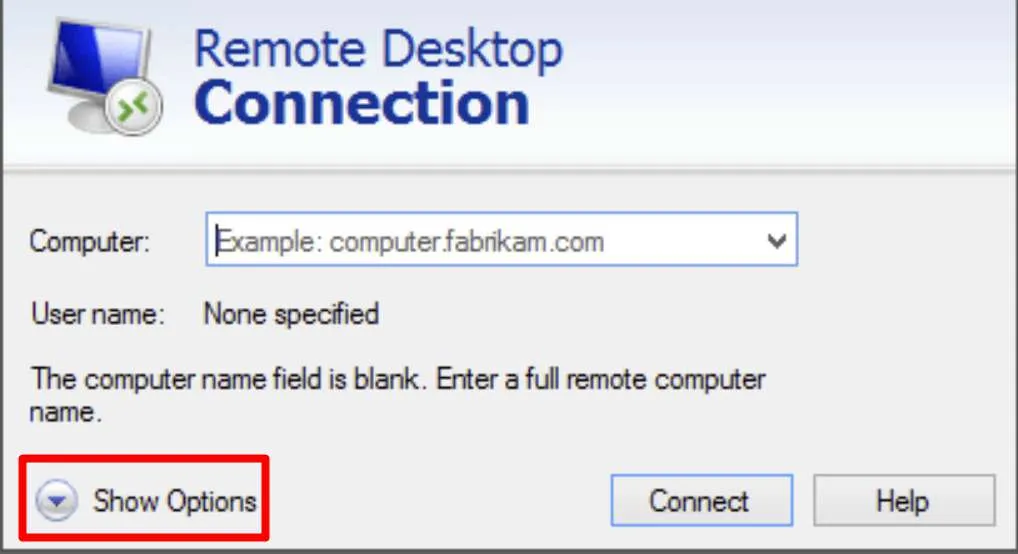
- Now click the “Local Resources” button. Under “Remote Audio” press “Settings.”
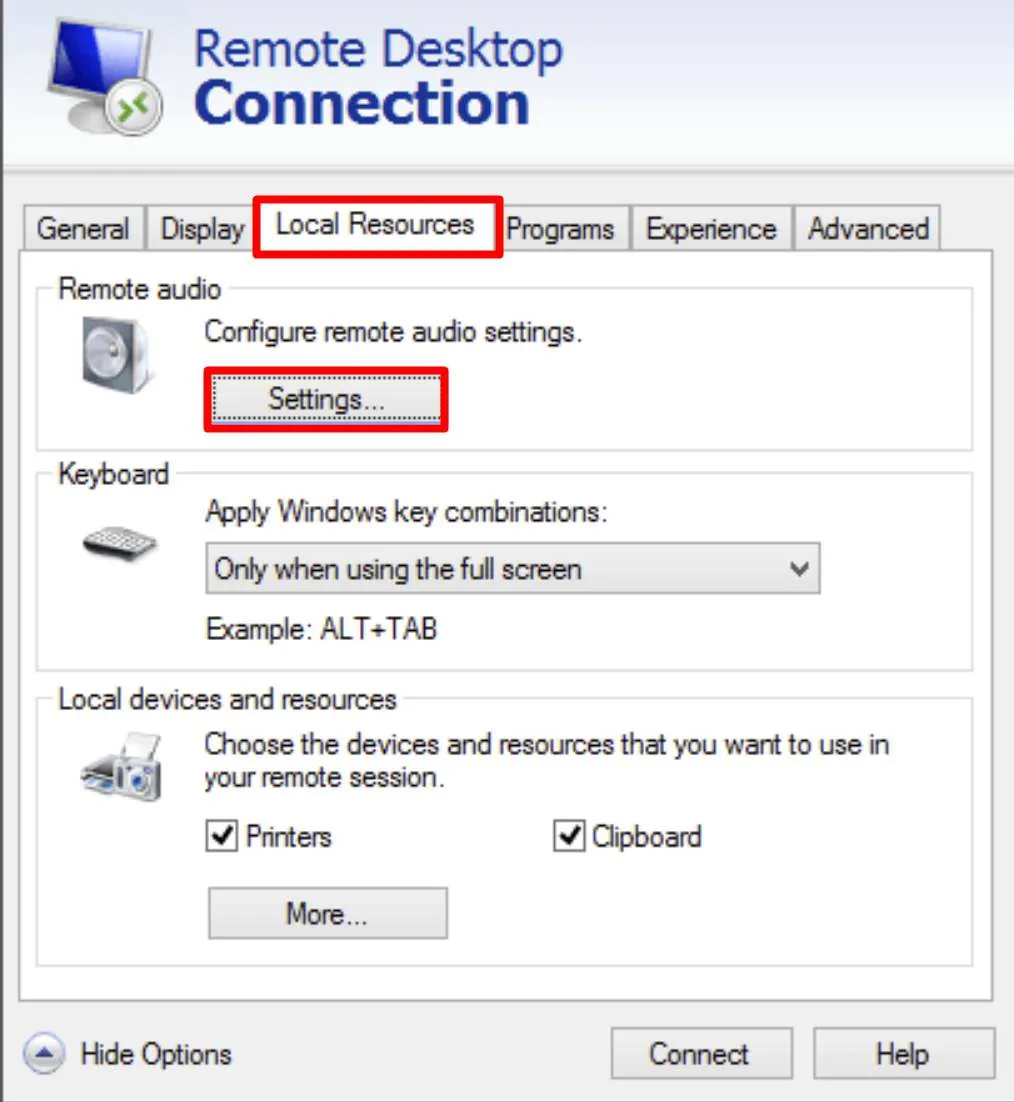
- Ensure that Remote Audio Playback is set to “Play on this computer.”
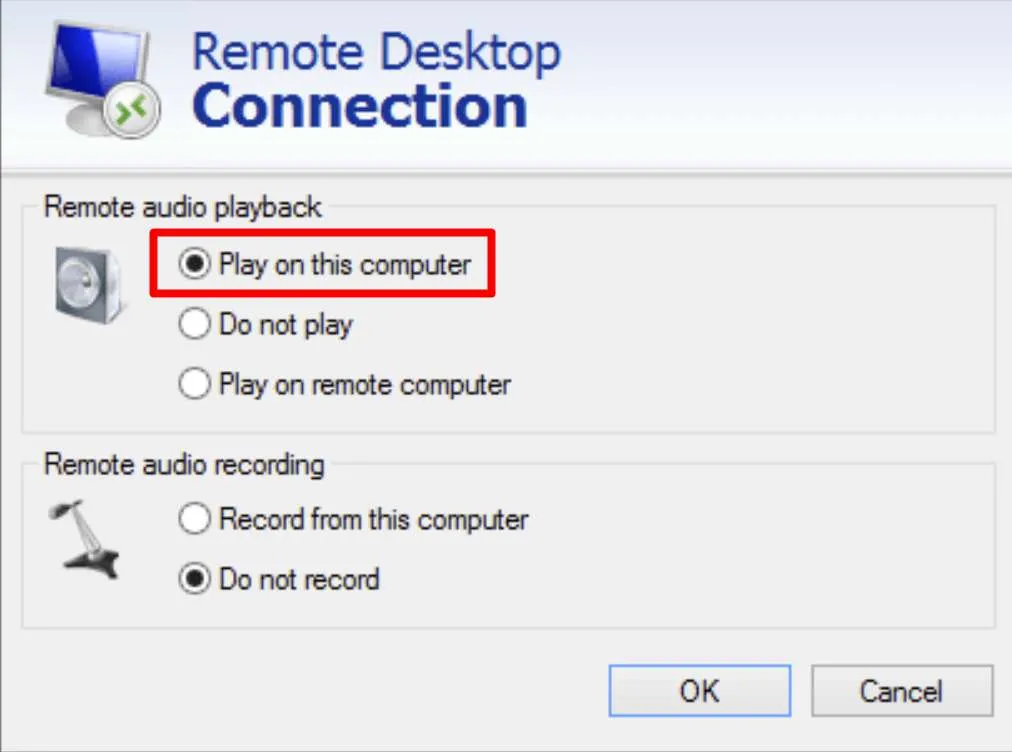
Enable Audio Services from Server
- First login to your server.
- Now Open Run Console by Holding Windows + r key.
- Now type "services.msc" and hit Enter or press OK.
- On the right, scroll down to "Windows Audio" and then double-click on it. "Windows Audio Properties" will open.
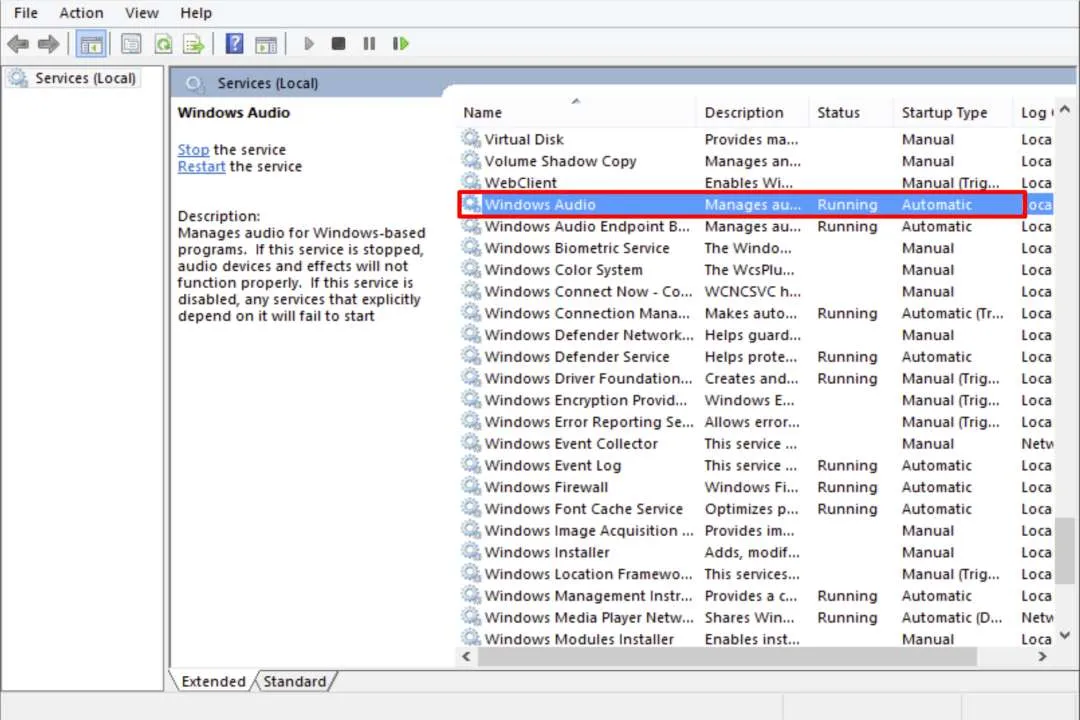
- Here, change "Startup Type" to "Automatic". Next, click "Start" under that dropdown.
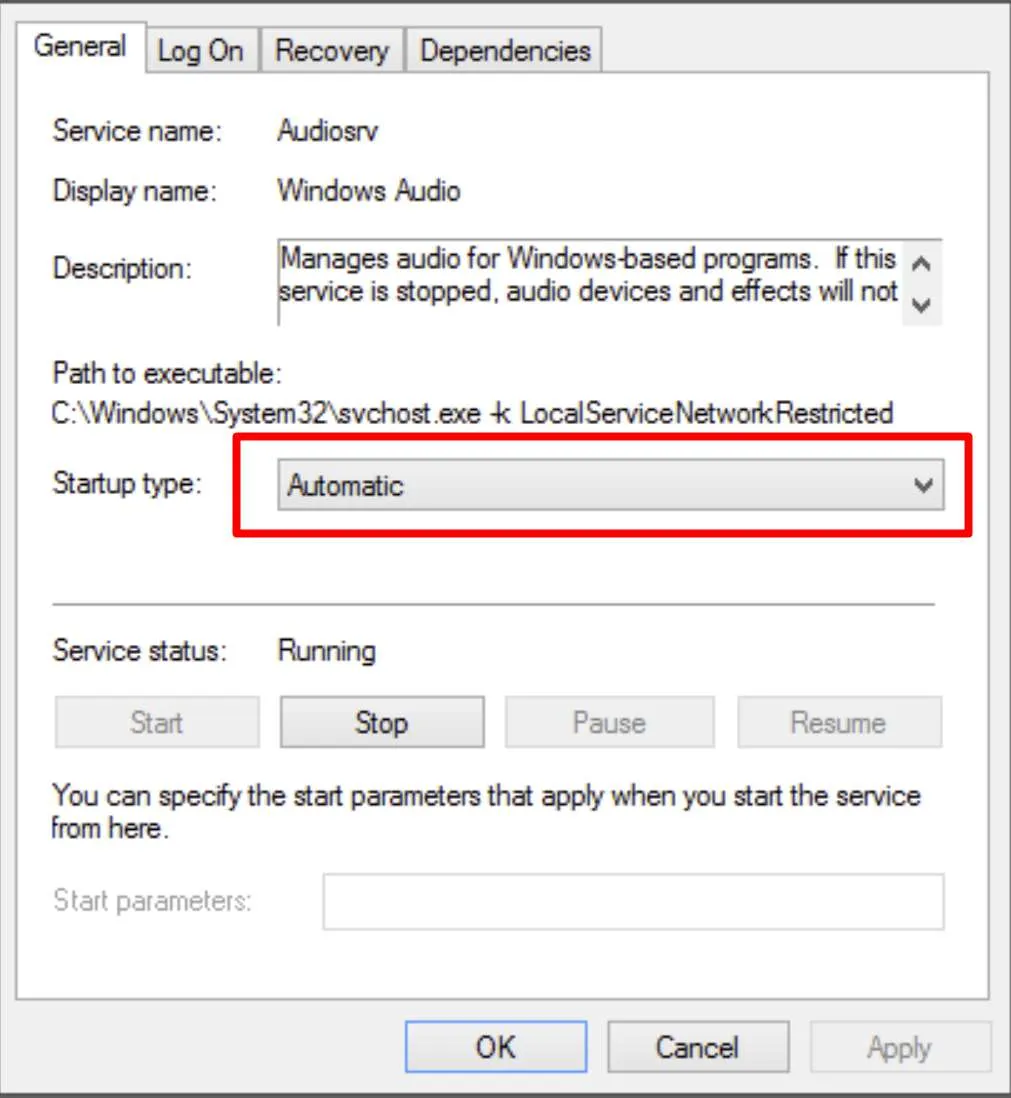
- Now RDP Audio is enabled on your server.
- It will Enable your audio devices.
Run it on HomeRDP
Windows VPS
Windows Server VPS with admin access and NVMe storage.