Hello everyone today we will see “How to Fix Copy/Paste not Working in RDP?”. Remote Desktop Protocol is a proprietary protocol developed by Microsoft which provides a user with a graphical interface to connect to another computer over a network connection. The user employs RDP client software for this purpose, while the other computer must run RDP server software.
We will fix it in two steps -
- Enabling Clipboard Access on the Local Computer
- Enabling Clipboard Access on the Remote Desktop Server
Configure Windows Built-in SSH Client
- Go to the Windows Search bar and type "mstsc.exe" and hit the Enter key.
- It will open the Remote Desktop Connection Console.
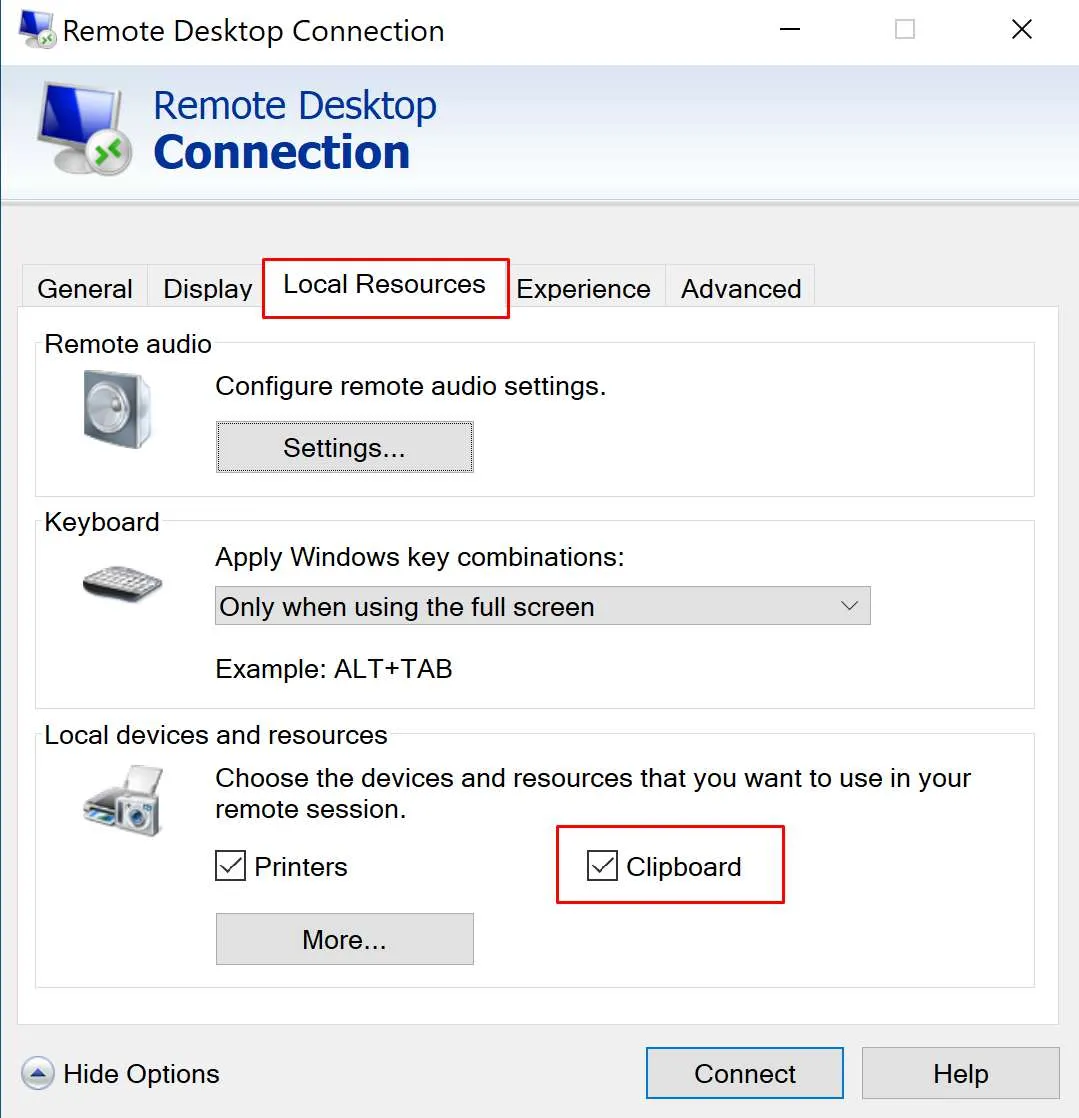
- After this go to the "Local Resources" options.
- Now Under the “Local devices and resources” you can see a checkbox for Clipboard access. Make sure that it’s checked and enabled.
Enabling Clipboard Access on the Remote Desktop Server
- Open the Application Launcher by pressing (Winkey + R)
- Now type "gpedit.msc" and enter the key. it will open the group policy editor console.
- Open the Remote Desktop Configuration
- Go to the Following address - “Computer Configuration > Administrative Templates > Windows Components > Remote Desktop Services > Remote Desktop Session Host > Device and Resource Redirection”
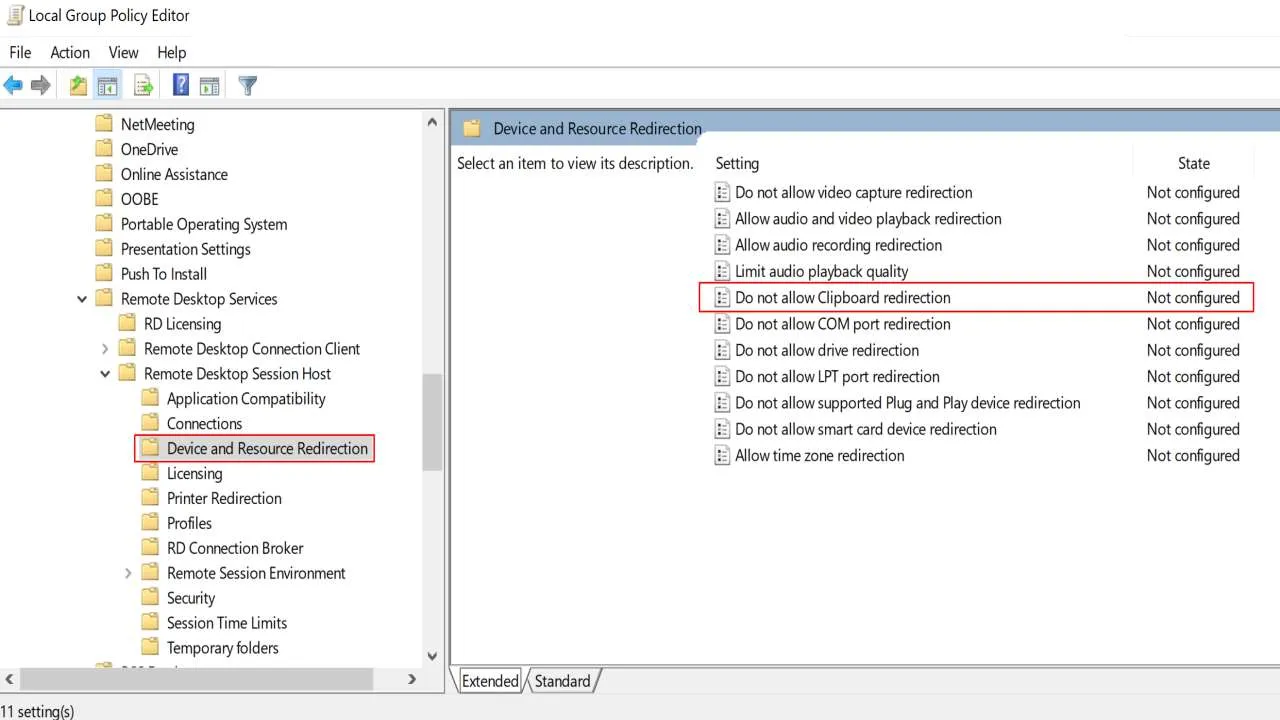
- Now open "Do not allow Clipboard Redirection"
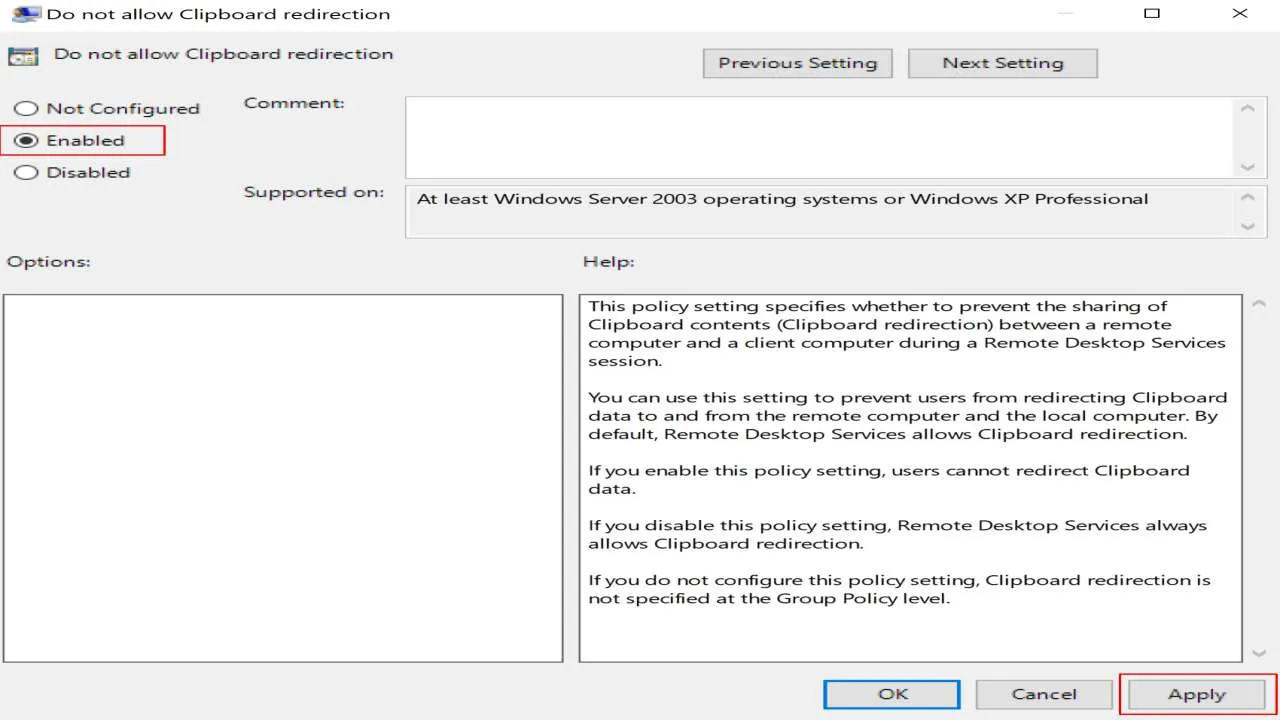
That's it, Now Restart your Remote Desktop Server and you are good to go.
Run it on HomeRDP
Admin RDP
A full Windows remote desktop with administrator access.