

How to Fix Windows’ 260-Character File Path Limit
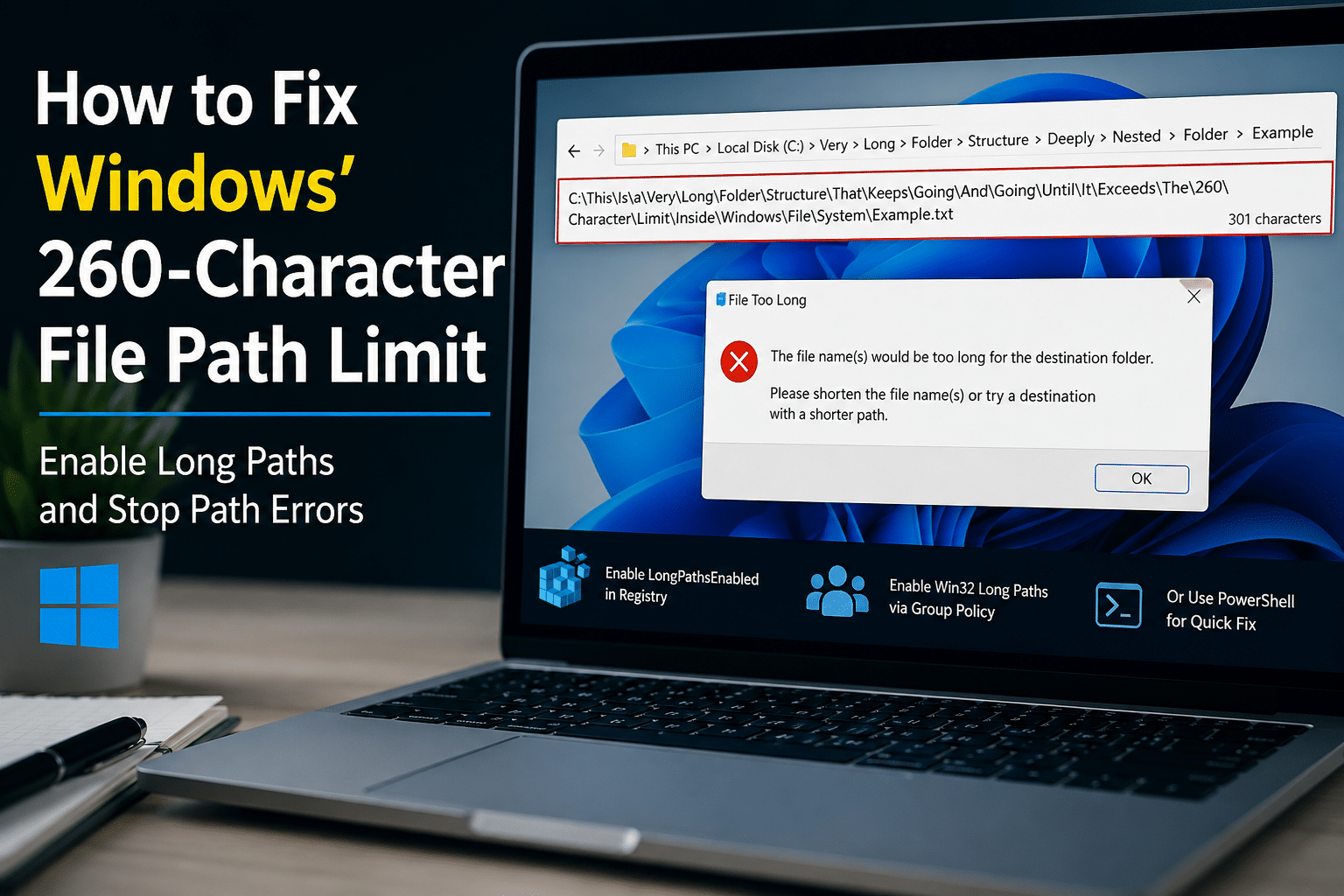
Windows has changed dramatically over the years. Modern PCs can run advanced development environments, manage terabytes of data, synchronize files across cloud platforms, power virtual machines, and support complex enterprise applications. Yet one surprisingly old limitation can still interrupt everyday work: the 260-character file path limit.
You may encounter messages such as:
- File path too long
- Filename or extension is too long
- The source file name is larger than supported
- Cannot copy file because the path is too long
- Git cannot check out files
- Unable to extract archive
- File cannot be renamed or moved
These errors often appear when users work with deeply nested folders, large software projects, cloud storage directories, backups, or enterprise documents.
The frustrating part is that modern Windows systems can support paths far longer than 260 characters. Microsoft has provided a way to enable extended path support in modern versions of Windows. However, compatibility depends on both system configuration and the applications being used.
This guide explains why the 260-character limit still exists, how to enable long paths through Group Policy and the Windows Registry, why the setting does not solve every problem, and how developers and businesses can prevent path-related issues by building better-managed computing environments.
For professionals working with large projects, remote development environments, or persistent Windows infrastructure, services such as HOMERDP can also provide a more controlled environment where system policies and workflows can be configured consistently.
What Is the Windows 260-Character Path Limit?
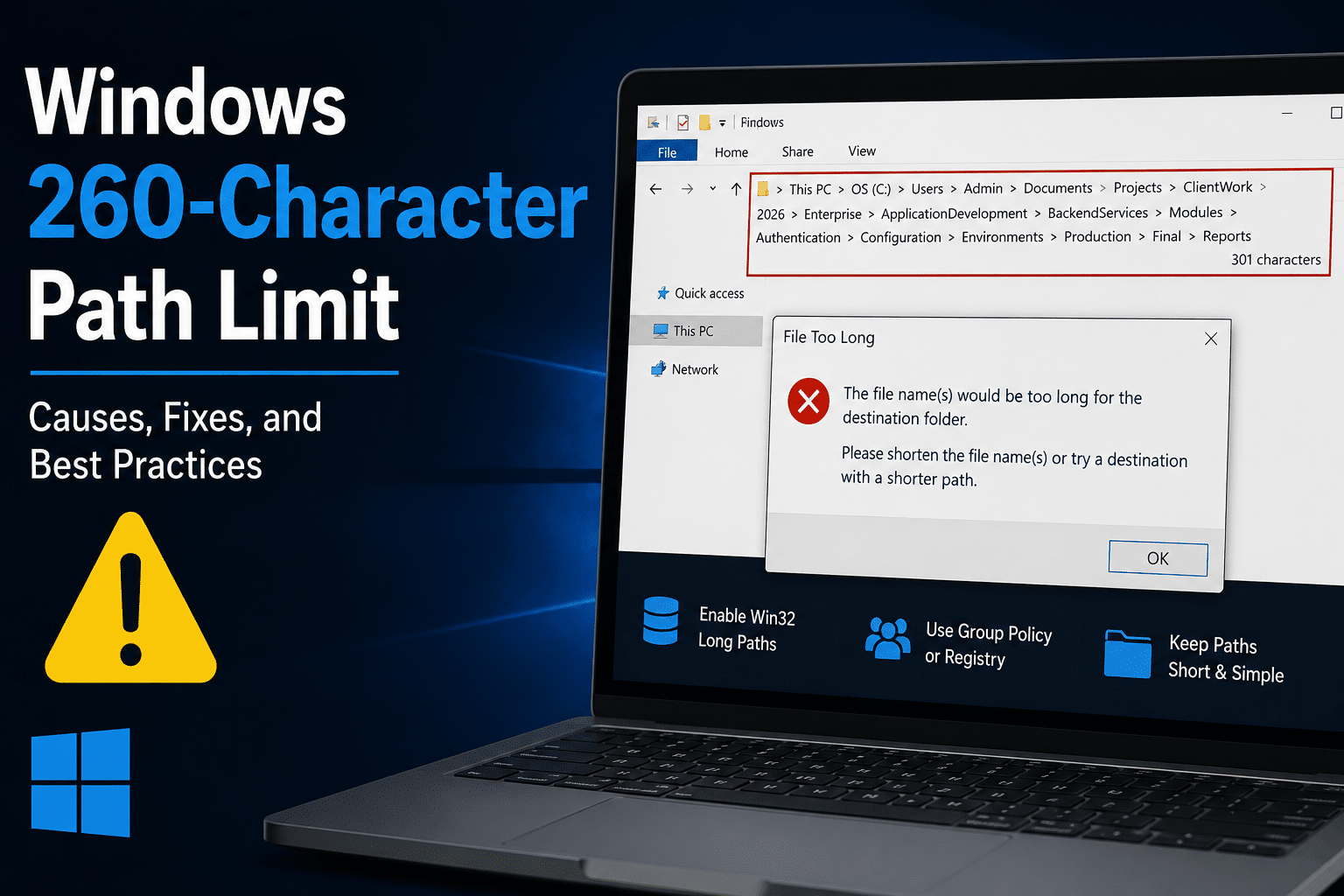
The traditional Windows path limit is commonly known as MAX_PATH.
Historically, many Windows APIs defined MAX_PATH as 260 characters.
A complete file path includes much more than the filename itself.
For example:
C:\Users\John\Documents\Projects\Company\Client\Application\Source\Modules\Components\Configuration\Development\Resources\Documentation\ImportantFile.txt
Every character contributes to the total length.
This includes:
- Drive letters
- Colons
- Backslashes
- Folder names
- Spaces
- File names
- File extensions
A file named report.docx may only contain 11 characters, but if it sits inside ten deeply nested folders, the complete path can quickly exceed the traditional Windows limit.
Microsoft documents the historical MAX_PATH value as 260 characters for many Windows API scenarios. However, modern Windows can support significantly longer paths in compatible applications—up to approximately 32,767 characters in extended-length scenarios.
That creates an obvious question:
If modern Windows supports paths longer than 260 characters, why do users still encounter this problem?
The answer lies in Windows compatibility architecture.
Why Does Windows Still Have a 260-Character Limit?
The 260-character limitation is largely a legacy compatibility issue.
Windows has supported software written across multiple generations. Many older applications rely on APIs and assumptions that were created decades ago.
Microsoft cannot simply remove every historical behavior overnight.
Doing so could potentially break:
- Legacy enterprise applications
- Older software libraries
- Internal business tools
- Scripts
- Custom automation
- Third-party applications
As a result, modern Windows supports longer paths while maintaining compatibility with older software behavior.
Starting with Windows 10 version 1607, Microsoft removed MAX_PATH restrictions from many common Win32 file and directory functions—but applications must opt in to the newer behavior. citeturn0search0
This distinction is extremely important.
The Windows operating system may support long paths.
But an individual application may not.
How File Paths Become Too Long
Most users do not intentionally create 260-character paths.
The problem develops gradually.
Consider this directory:
C:\Users\Administrator\Documents\Work\Projects\2026\ClientProjects\EnterpriseSoftware\ApplicationDevelopment\BackendServices\AuthenticationModules\ConfigurationFiles\
Now imagine adding a filename:
production-authentication-configuration-settings-backup-version-final.json
The full path becomes much longer.
Add additional generated folders from a build tool or dependency manager, and the path can easily exceed traditional limits.
This is increasingly common because modern software creates more complex directory structures than older applications.
Common causes include:
1. Deeply Nested Project Directories
Large projects often contain multiple layers such as:
Project
 └── Source
      └── Modules
           └── Components
                └── Services
                     └── Configuration
                          └── Resources
Each level consumes characters.
2. Git Repositories
Software repositories can contain deeply nested files.
Microsoft specifically identifies cloning a Git repository with long filenames into an already lengthy directory path as a scenario where users may encounter the limitation.
A project may work perfectly on Linux while producing path errors when checked out on Windows.
3. Package Managers
Modern development ecosystems frequently create extensive dependency trees.
Examples include:
- Node.js projects
- Python environments
- Java projects
- .NET applications
- Front-end frameworks
- Enterprise dependency systems
The user may not manually create these directories.
The development tools create them automatically.
4. Cloud Storage
Cloud synchronization can increase path complexity.
For example:
C:\Users\Username\OneDrive - Company Name\Documents\Projects\Department\Team\CurrentProject\
The cloud storage root already consumes a significant number of characters before the actual project structure even begins.
Microsoft’s support documentation notes that path limits can vary across Windows, OneDrive, SharePoint, Office, and other platforms, which means a path that works in one environment may still fail in another.
5. Backups and Archives
Backup tools can reproduce entire directory structures.
Compressed archives may contain deeply nested folders that exceed the limits supported by the extraction application.
The Best Native Fix: Enable Win32 Long Paths
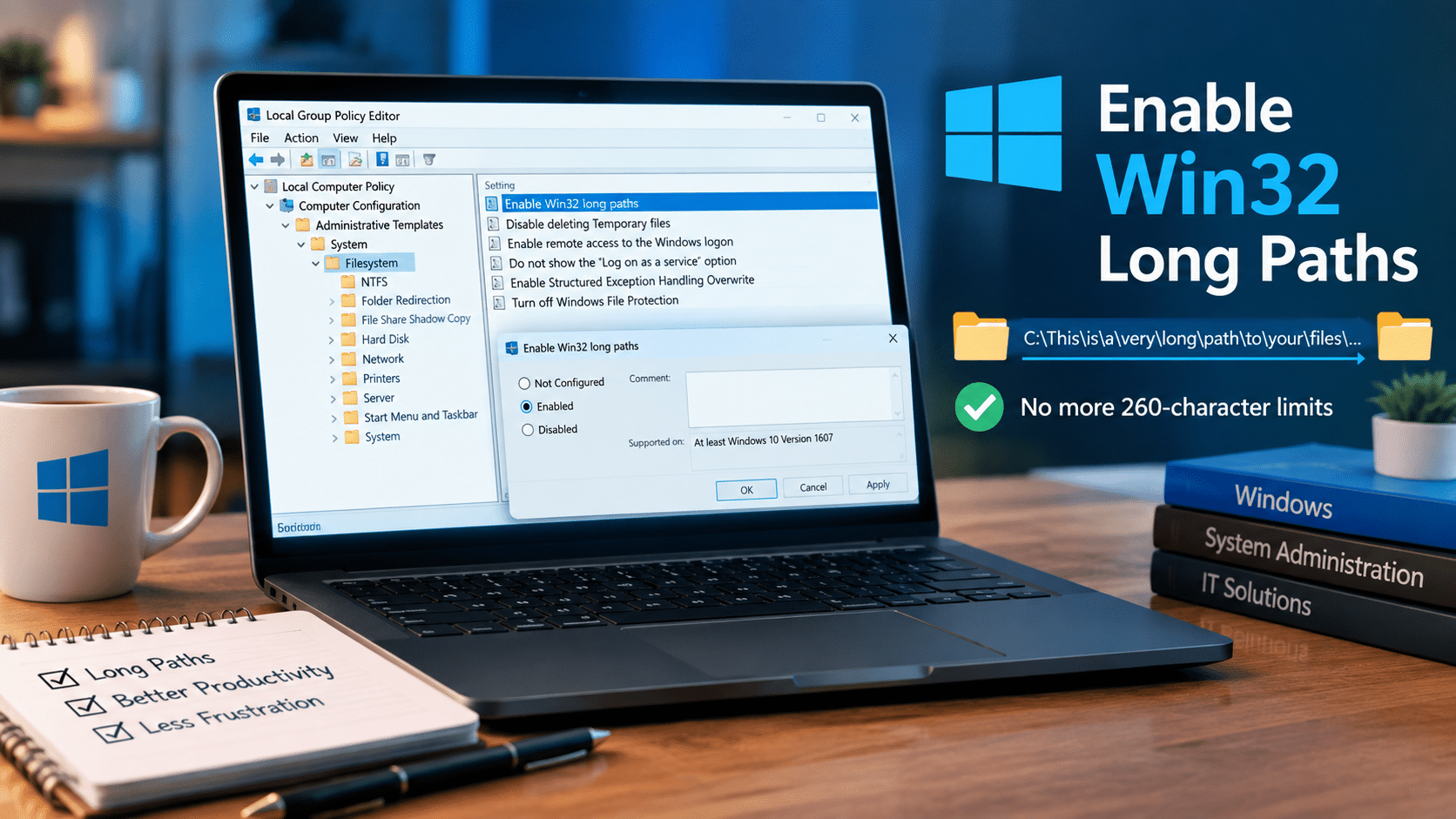
Modern Windows includes a built-in configuration called:
Enable Win32 long paths
This setting allows compatible Win32 applications to use extended path behavior.
Microsoft documents the policy at:
Computer Configuration
→ Administrative Templates
→ System
→ Filesystem
→ Enable Win32 long paths
The policy controls the system’s long-path configuration.
Let’s look at how to enable it.
Method 1: Enable Long Paths Using Group Policy
This method is generally the easiest for Windows editions that include the Local Group Policy Editor.
Step 1: Open the Run Dialog
Press:
Windows + R
The Run dialog will appear.
Step 2: Open Group Policy Editor
Type:
gpedit.msc
Then press Enter.
This opens the Local Group Policy Editor.
Step 3: Navigate to the File System Policies
Follow this path:
Computer Configuration
→ Administrative Templates
→ System
→ Filesystem
Step 4: Find “Enable Win32 Long Paths”
Look for:
Enable Win32 long paths
Double-click the policy.
Step 5: Enable the Policy
Select:
Enabled
Then click:
Apply
And finally:
OK
Step 6: Restart Windows
A restart is recommended.
Microsoft notes that Windows can cache the relevant registry configuration on a per-process basis. Existing processes may not recognize the change until they restart, and rebooting can ensure that applications across the system see the updated setting.
After restarting, test the application that previously produced the path error.
Method 2: Enable Long Paths Through the Windows Registry
Some Windows installations may not provide the Local Group Policy Editor.
You can configure long-path support through the Registry.
However, editing the Windows Registry requires care.
Before making significant registry changes, administrators should understand the settings they are modifying.
The relevant registry location is:
HKEY_LOCAL_MACHINE\SYSTEM\CurrentControlSet\Control\FileSystem
The value is:
LongPathsEnabled
Microsoft specifies that the LongPathsEnabled registry value must be configured as a REG_DWORD value set to 1 to enable the relevant system behavior for compatible applications.
Registry Method Using Registry Editor
Step 1: Open Registry Editor
Press:
Windows + R
Type:
regedit
Press Enter.
Step 2: Navigate to the FileSystem Key
Go to:
HKEY_LOCAL_MACHINE
\SYSTEM
\CurrentControlSet
\Control
\FileSystem
Step 3: Find LongPathsEnabled
Look for:
LongPathsEnabled
If the value exists, open it.
Set the value to:
1
Step 4: Restart the Computer
Restart Windows and test the affected application.
Method 3: Enable Long Paths Using PowerShell
Advanced users and system administrators can configure the setting through PowerShell.
Open PowerShell with administrator privileges and run:
New-ItemProperty -Path "HKLM:\SYSTEM\CurrentControlSet\Control\FileSystem" `
-Name "LongPathsEnabled" -Value 1 -PropertyType DWORD -Force
Microsoft documents this PowerShell method as an option for enabling the LongPathsEnabled registry setting. citeturn0search0
After applying the configuration, restart the system if necessary.
This approach can be especially useful for:
- System administrators
- IT teams
- Automated deployments
- Remote Windows environments
- Configuration scripts
- Infrastructure management
Why Enabling Long Paths Does Not Fix Everything
This is the most important part of the discussion.
Many articles incorrectly suggest:
Enable the policy, and Windows will no longer have path limits.
That is not completely accurate.
Microsoft explicitly states that enabling the registry setting affects applications that have been modified to take advantage of the feature. Applications must also be declared as long-path aware.
In other words, long-path support has multiple layers.
Layer 1: Windows Must Support the Feature
Modern versions of Windows provide the underlying capability.
Layer 2: The System Setting Must Be Enabled
The LongPathsEnabled configuration or corresponding Group Policy must allow long-path behavior.
Layer 3: The Application Must Support Long Paths
The application itself may need to opt in.
This is why two different applications on the same computer can behave differently.
One application may successfully open a long path.
Another may display:
The file name or extension is too long.
The difference may come from how each application interacts with the Windows API.
Understanding the Role of Long-Path-Aware Applications
Microsoft uses an application manifest setting called:
longPathAware
Applications can declare support for extended paths.
For developers, this is important because operating system configuration alone does not guarantee that an application will automatically use the newer path capabilities.
Microsoft documents that supported applications need to opt into the new behavior through the appropriate application configuration.
This design protects compatibility.
Older software continues using expected behavior.
Modern software can take advantage of extended functionality.
Why File Explorer Can Still Cause Problems
There is another important complication.
The Windows file system and Windows applications are not exactly the same thing.
A file system may technically support a path.
But an application interacting with that path may impose its own restrictions.
Microsoft’s support documentation highlights that different Windows applications and services can have different path limits. It specifically notes that File Explorer and some desktop applications may continue following shorter path restrictions even when the underlying Windows environment supports extended paths.
This means you should not assume:
“If Windows supports 32,767-character paths, every Windows application automatically supports them.”
Compatibility still matters.
The Difference Between File Name Length and Full Path Length
A common misunderstanding involves the difference between:
- File name length
- Full path length
Consider this file:
report.xlsx
The filename is short.
However, the complete path may be:
C:\Users\Administrator\Documents\Company\Projects\2026\Enterprise\Client\Department\Finance\QuarterlyReports\InternationalOperations\BudgetPlanning\FinalVersions\report.xlsx
The file itself does not have a long name.
The entire path does.
Microsoft notes that path rules and component limits can vary based on the file system and namespace conventions being used.
Therefore, shortening filenames alone may not solve the issue.
You may need to reduce:
- Folder depth
- Folder name length
- Base directory length
- Cloud storage root length
The Quickest Practical Workaround: Move Projects Closer to the Drive Root
Sometimes you cannot immediately change application compatibility.
In those cases, the easiest workaround is to reduce the base path.
For example, avoid:
C:\Users\Administrator\Documents\Company\Development\Projects\2026\Production\Client\Application\
Instead, use:
C:\Dev\App\
This simple change can save dozens of characters.
That additional space becomes available for nested folders and generated files.
For developers, this is one of the most practical solutions.
Instead of storing repositories inside multiple layers of personal folders, consider:
C:\Projects\
or:
D:\Dev\
This approach does not eliminate the Windows limitation.
But it reduces the likelihood of encountering it.
How to Fix Long Path Problems in Git Projects
Git users frequently encounter Windows path problems.
A repository may include:
- Long descriptive filenames
- Deep source directories
- Generated files
- Nested modules
- Dependencies
If you clone that repository into:
C:\Users\Username\Documents\Work\Company\Development\Projects\
you have already consumed a significant number of characters.
Instead, try:
C:\Git\
Then clone the project.
For example:
git clone repository-url C:\Git\project
This gives the repository significantly more room for nested paths.
Microsoft specifically identifies Git repository cloning as a situation where long filenames combined with a long destination path can trigger MAX_PATH issues.
Cloud Storage and the Long Path Problem
Cloud storage adds another layer of complexity.
Organizations frequently use:
- OneDrive
- SharePoint
- Google Drive
- Dropbox
- Enterprise synchronization platforms
These services may have their own restrictions.
For example, a local path may include:
C:\Users\Username\OneDrive - Very Long Company Name\
Before the actual project begins, dozens of characters have already been consumed.
Then users create:
Documents
→ Projects
→ Department
→ Team
→ Clients
→ Current Projects
→ Production
The path grows rapidly.
Microsoft’s current support documentation shows that limits can differ significantly across Windows File Explorer, Office applications, OneDrive, SharePoint, and browser-based Office experiences.
Therefore, enabling long paths in Windows may not solve a cloud platform’s independent restrictions.
The best strategy combines system configuration with sensible directory design.
Best Practices for Preventing Long Path Errors
Instead of waiting for Windows to produce an error, organizations can design workflows that reduce path-related problems.
Here are some practical strategies.
1. Keep Project Roots Short
Use:
C:\Dev\
instead of:
C:\Users\Username\Documents\Development\Projects\
Shorter base paths create more room.
2. Avoid Unnecessarily Long Folder Names
This:
2026_September_Production_Release_Final_Approved_Version
could become:
2026-09-Release
The goal is not to make folders cryptic.
The goal is to balance clarity with efficiency.
3. Avoid Excessive Directory Nesting
Instead of:
Company
→ Department
→ Team
→ Project
→ Development
→ Source
→ Current
→ Production
consider whether some levels can be removed.
Every directory adds characters.
4. Enable Long Paths on Development Systems
For compatible applications, enabling the Windows long-path policy can reduce unnecessary failures.
This is particularly useful for:
- Developers
- Build servers
- CI environments
- System administrators
- Technical workstations
5. Standardize Team Configurations
Teams should document:
- Project locations
- Directory conventions
- Windows policies
- Development tool versions
- Build configurations
Standardization reduces inconsistent behavior.
Why the 260-Character Limit Matters More in Remote Workflows
Remote work changes how users interact with computing resources.
A developer may access the same project from:
- A laptop
- A home PC
- An office workstation
- A remote Windows server
If every machine uses different settings, problems become difficult to diagnose.
Imagine this scenario:
Developer A
Long paths enabled.
Developer B
Long paths disabled.
Developer C
Uses an older application.
Developer D
Stores the project inside a deeply nested OneDrive folder.
The same project can behave differently for every team member.
That creates:
- Wasted troubleshooting time
- Failed builds
- Inconsistent deployments
- File synchronization problems
- Developer frustration
A centralized environment can reduce these differences.
Building a Consistent Windows Workspace with HOMERDP
For developers, businesses, and technical professionals, infrastructure consistency can be just as important as application performance.
Instead of relying entirely on different personal computers, users can work from a dedicated remote Windows environment configured around their workload.
This is where HOMERDP can fit naturally into the workflow.
A dedicated remote workspace can help technical users create a more standardized setup for:
- Software development
- Remote administration
- Automation
- Testing
- Data processing
- Large file operations
- Enterprise applications
The advantage is not simply remote access.
The bigger advantage is configuration consistency.
1. Configure Windows Policies Once
Suppose a development environment requires:
- Long-path support
- Specific environment variables
- Git
- Development frameworks
- Build tools
- IDE configurations
Instead of repeatedly configuring multiple devices, users can maintain a dedicated environment.
The Windows configuration becomes part of the infrastructure.
This can reduce repetitive setup work.
2. Keep Development Projects in a Controlled Environment
Projects often behave differently because local machines differ.
A centralized remote environment allows users to define:
- Project root directories
- Storage locations
- Windows policies
- Development software
- System resources
For example:
D:\Projects\
could become the standardized location for all development repositories.
That is much easier to document and maintain than allowing every user to select a different directory structure.
3. Reduce Dependence on Local Hardware
Large projects can consume significant resources.
Developers may need:
- Multiple CPU cores
- Large amounts of RAM
- Fast storage
- Stable connectivity
A dedicated remote environment allows workloads to run independently of the user’s local laptop.
This can be particularly useful when users work from multiple locations.
HOMERDP’s infrastructure offerings can therefore become relevant for professionals who want persistent Windows environments rather than repeatedly configuring local systems.
4. Maintain Persistent Workspaces
A project may involve:
- Long-running builds
- Automated processes
- File synchronization
- Testing
- Background services
A dedicated remote desktop can remain configured as a persistent workspace.
Users can connect when needed rather than rebuilding their environment every time they switch devices.
A Practical Example: Fixing a Long Path Problem on a Remote Windows Machine
Imagine a development team working on a large application.
The repository contains thousands of files.
The directory structure includes:
Application
 ├── Backend
 │    ├── Services
 │    │    ├── Authentication
 │    │    ├── Authorization
 │    │    └── Configuration
 │
 ├── Frontend
 │    ├── Components
 │    ├── Modules
 │    └── Dependencies
 │
 └── Documentation
      └── Technical
           └── Architecture
The repository works on some systems.
But Windows users encounter:
Filename too long
A structured troubleshooting process would look like this.
Step 1: Check the Actual Path
Determine the complete path length.
Do not focus only on the filename.
Step 2: Shorten the Project Root
Move the repository from:
C:\Users\Administrator\Documents\Company\Development\Projects\
to:
C:\Dev\
Step 3: Enable Win32 Long Paths
Use Group Policy:
Computer Configuration
→ Administrative Templates
→ System
→ Filesystem
→ Enable Win32 long paths
Enable the setting.
Step 4: Restart
Restart the system or affected applications.
Microsoft notes that the setting can be cached by processes, making a restart useful after changing the configuration. citeturn0search0
Step 5: Test the Application
Try the operation again.
Step 6: Check Application Compatibility
If the error remains, investigate whether the specific application supports long paths.
This step is important.
The operating system configuration cannot force every legacy application to support extended paths.
The 32,767-Character Number Explained
You may see references to Windows supporting paths of approximately 32,767 characters.
This number can be confusing.
It does not mean every user can suddenly create a 32,767-character path in every Windows application.
Microsoft explains that Unicode Windows APIs can support extended-length paths approaching 32,767 characters in supported scenarios, often using extended path conventions such as the \\?\ prefix.
For example:
\\?\C:\Very\Long\Path\
The prefix tells supported Windows APIs to process the path differently.
However, this approach is primarily relevant to developers and advanced applications.
Average users generally should not manually add special prefixes to every file path.
For most users, the better first step is:
- Enable long paths.
- Restart.
- Use compatible modern applications.
- Keep project roots short.
Why Developers Should Care About Path Compatibility
Software is increasingly cross-platform.
A repository may be created on:
- Linux
- macOS
- Windows
But deployed across all three.
Different operating systems handle paths differently.
Developers who ignore path design can accidentally create projects that work on one platform but fail on another.
A cross-platform project should consider:
- Directory depth
- Filename length
- Case sensitivity
- Reserved characters
- Path separators
- Application compatibility
Windows path limitations are therefore not merely a Windows administration issue.
They are a software engineering concern.
The Infrastructure Lesson Behind the Long Path Problem
The 260-character problem reveals something important about modern IT.
Small configuration details can create large productivity problems.
A developer might spend hours troubleshooting:
- A failed Git clone
- A broken package installation
- An archive extraction failure
- A file synchronization error
The underlying issue may simply be:
The path is too long.
This is why standardized infrastructure matters.
A well-designed technical environment should define:
System Configuration
What Windows policies are required?
Directory Standards
Where should projects live?
Application Requirements
Which tools support extended paths?
Storage Strategy
Are cloud synchronization limits involved?
Remote Access
Can users access a consistent environment from multiple devices?
When organizations answer these questions early, they prevent problems rather than constantly troubleshooting them.
Local Computing vs Centralized Remote Workspaces
Consider two approaches.
Traditional Local Setup
Every employee uses a separate computer.
Each machine may have:
- Different Windows versions
- Different configurations
- Different directory structures
- Different software versions
- Different hardware
This increases variability.
Centralized Remote Setup
Users connect to controlled Windows environments.
Administrators can standardize:
- Windows configuration
- Development tools
- Storage paths
- Security policies
- System resources
This approach can reduce environmental inconsistency.
For organizations with distributed technical teams, a dedicated remote infrastructure provider such as HOMERDP can support this model by giving users access to persistent Windows-based environments that can be configured around specific workloads.
The goal is not simply to move a desktop into the cloud.
The goal is to make the computing environment more repeatable.
Common Questions About Windows Long Paths
Does enabling long paths remove every Windows file path limit?
No.
It enables extended path behavior for compatible applications.
Applications that do not support long paths may continue to experience restrictions.
Do I need to restart Windows?
A restart is recommended after changing the configuration.
Microsoft notes that the setting may be cached by running processes.
Does Windows Home support long paths?
The underlying registry configuration is the key mechanism documented by Microsoft. The availability of the Local Group Policy Editor itself can vary by Windows edition, so the registry or PowerShell method may be useful where gpedit.msc is unavailable.
Does this fix File Explorer problems?
Not necessarily.
Application behavior can vary, and Microsoft documents that some common Windows applications may still maintain their own path restrictions.
Does this help Git?
It can help in compatible scenarios, but you should also keep repositories close to the drive root to reduce unnecessary path length.
Microsoft specifically recognizes Git repository cloning as a common situation where long paths can become problematic.
Recommended Strategy for Windows Users
The best approach is not to depend on one solution.
Use multiple layers.
Layer 1: Enable Long Paths
Configure:
Enable Win32 long paths
where appropriate.
Layer 2: Use Short Project Roots
Prefer:
C:\Dev\
instead of deeply nested locations.
Layer 3: Reduce Unnecessary Folder Depth
Avoid excessive nesting.
Layer 4: Check Application Compatibility
Verify whether the affected software supports extended paths.
Layer 5: Consider Cloud Platform Limits
OneDrive, SharePoint, Office, and other platforms may enforce their own restrictions.
Layer 6: Standardize Technical Workspaces
For teams, create repeatable development environments.
Dedicated Windows infrastructure can make this easier to manage.
Final Thoughts
The Windows 260-character path limit is one of those technical problems that seems outdated until it suddenly interrupts an important workflow.
A developer clones a repository.
A business user synchronizes a document library.
An administrator extracts a backup.
A project fails during a build.
The error may appear simple:
Path too long.
But the underlying issue involves decades of Windows compatibility, legacy APIs, application behavior, file system conventions, and modern software complexity.
Fortunately, modern Windows provides a path forward.
Microsoft supports extended-length paths in modern versions of Windows, and administrators can enable the relevant system setting through Group Policy or the LongPathsEnabled registry configuration. However, applications must also support the newer behavior, which is why enabling the setting should be viewed as an important compatibility improvement rather than a universal fix.
The most effective strategy combines technology with good organization:
- Enable long paths where appropriate.
- Restart after configuration changes.
- Keep project roots short.
- Avoid unnecessary nesting.
- Test application compatibility.
- Understand cloud platform restrictions.
- Standardize environments for teams.
For developers and businesses managing complex Windows workloads, infrastructure consistency can be equally important. A dedicated remote workspace can provide a persistent environment where Windows policies, development tools, storage locations, and project structures remain consistent.
Ultimately, the lesson behind the 260-character path limit is bigger than one Windows setting.
Modern workloads require modern configuration practices.
A single Group Policy toggle can solve part of the problem. But combining that setting with smarter directory structures, compatible applications, and well-managed computing infrastructure creates a far more reliable solution.
And sometimes, preventing a frustrating Windows error is not about finding a complicated tool.
It starts by understanding exactly how your computing environment is configured.
EXPLORE MORE ; Why Proton Drive’s Linux Launch Matters More Than You Think

READ OUR BLOGS