

15 Essential Linux Commands Every VPS User Should Know
Why Every VPS User Should Learn Linux Commands
A Virtual Private Server (VPS) gives you greater control over your hosting environment. Whether you run a website, host applications, manage databases, deploy software, or operate development tools, a VPS allows you to configure your server according to your needs.
However, managing a Linux VPS becomes much easier when you understand the command line.
The Linux terminal lets you perform essential administrative tasks without relying entirely on graphical interfaces. You can inspect files, monitor server resources, manage services, troubleshoot errors, and maintain your hosting environment using a few carefully chosen commands.
For beginners, these commands might initially look intimidating. Fortunately, you don’t need to memorize hundreds of Linux commands to manage a server effectively. Learning a small set of practical commands can help you handle many common VPS administration tasks.
According to the official Ubuntu Server command-line cheat sheet, Linux provides dedicated commands for navigating directories, managing files, searching text, controlling permissions, and performing other routine administrative operations. These skills also apply to many other Linux distributions, although some commands and options vary.
In this guide, we’ll explore 15 essential Linux commands every VPS user should know, with practical examples and explanations of when to use them.
We’ll also explain how a reliable Linux VPS from HOMERDP can provide a practical environment for applying these skills to real-world hosting and server management tasks.
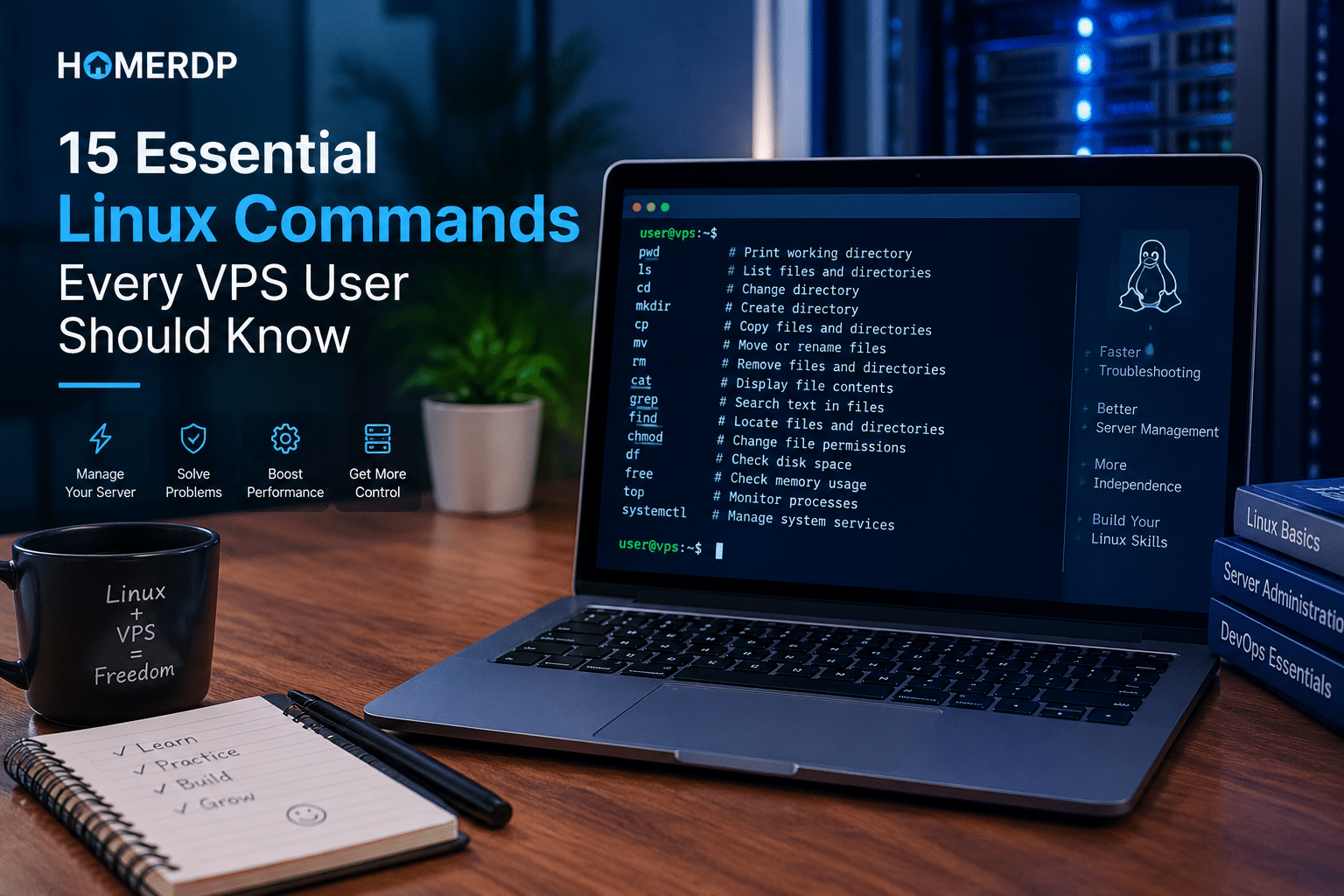
Quick Overview: 15 Essential Linux Commands
Here is a quick reference to the commands covered in this article.
| No. | Command | Primary Purpose |
|---|---|---|
| 1 | pwd |
Display the current directory |
| 2 | ls |
List files and directories |
| 3 | cd |
Navigate between directories |
| 4 | mkdir |
Create directories |
| 5 | cp |
Copy files and directories |
| 6 | mv |
Move or rename files |
| 7 | rm |
Remove files and directories |
| 8 | cat |
Display file contents |
| 9 | grep |
Search text and log files |
| 10 | find |
Locate files and directories |
| 11 | chmod |
Change file permissions |
| 12 | df |
Check filesystem disk space |
| 13 | free |
Check memory usage |
| 14 | top |
Monitor running processes |
| 15 | systemctl |
Manage system services |
Let’s explore each command and see how it helps you manage a Linux VPS more efficiently.
1. pwd: Find Your Current Directory
When you connect to a VPS through SSH, you need to know your current location in the filesystem before running commands.
The pwd command stands for print working directory. It displays the full path of the directory in which your terminal session is currently operating.
Example
pwd
Possible output:
/home/username
This output indicates that your current directory is /home/username.
Why VPS users need this command
You might work with website files, application directories, configuration files, or backup folders. Knowing your current location helps you avoid running commands in the wrong directory.
For example, before editing an application configuration file or removing temporary files, check your current directory.
Practical tip: Run pwd whenever you feel uncertain about your location in the filesystem.
This simple habit becomes particularly useful when you manage multiple websites or applications on the same Linux VPS.
2. ls: List Files and Directories
The ls command displays the files and directories within a specified location.
It helps you inspect your filesystem and identify the files you need to manage.
Example
ls
To display additional information, use:
ls -l
This format provides details such as permissions, ownership, file size, and modification time.
To include hidden files, use:
ls -la
Linux treats filenames beginning with a dot as hidden files. These often include configuration files such as .bashrc and .profile.
Why VPS users need this command
Imagine that you have uploaded a website to your VPS and want to confirm that the application files exist.
You can navigate to the relevant directory and run:
ls -la
You can then inspect the files, identify hidden configuration files, and check basic file permissions.
Practical tip: Use ls -lah when you want a detailed listing with human-readable file sizes.
For example, a file size displayed as 5.2M is easier to interpret than a size expressed in raw bytes.
3. cd: Navigate Between Directories
The cd command stands for change directory. It lets you move between locations in the Linux filesystem.
Example
To enter a directory:
cd /var/www
To move up one directory level:
cd ..
To return to your home directory:
cd ~
To return to your previous directory:
cd -
Why VPS users need this command
Linux servers organize files across different directories.
For example:
/var/wwwcommonly contains website files./etccontains system and application configuration./var/logcommonly contains application and system logs./homecontains users’ home directories./tmpholds temporary files.
These are common conventions, not universal rules. Individual applications may use different locations.
Understanding cd helps you move between these directories without repeatedly typing full paths.
Practical example
Suppose you want to inspect a website’s files:
cd /var/www
ls -la
The first command moves you into the directory, while the second lists its contents.
Practical tip: Combine cd with pwd when navigating unfamiliar server directories.
4. mkdir: Create Directories
The mkdir command creates new directories.
You can use it to organize application files, prepare backup locations, or create directories for projects hosted on your VPS.
Example
mkdir myproject
This command creates a directory named myproject in your current location.
To create nested directories, use:
mkdir -p myproject/logs/archive
The -p option creates missing parent directories as needed.
Why VPS users need this command
Organized directory structures make server administration easier.
For example, you might separate application data, temporary exports, and backup files into different directories.
A project could use a structure such as:
myproject/
├── app/
├── logs/
└── backups/
You can create the necessary directories with:
mkdir -p myproject/app myproject/logs myproject/backups
Practical tip: Choose descriptive directory names and keep application data separate from temporary files wherever practical.
A well-organized filesystem makes maintenance and troubleshooting easier as your projects grow.
5. cp: Copy Files and Directories
The cp command copies files and directories from one location to another.
It is useful when you want to preserve an original file before editing it or duplicate files for testing.
Example: Copy a file
cp config.php config.php.backup
This creates a copy of config.php named config.php.backup in the same directory.
Example: Copy a directory
cp -a website website-backup
The -a option enables archive mode, which recursively copies directories while preserving supported file attributes.
Why VPS users need this command
Before changing an important configuration file, create a backup.
For example:
sudo cp /etc/nginx/nginx.conf /etc/nginx/nginx.conf.backup
This provides a copy of the original Nginx configuration that you can consult if your changes cause problems.
However, a file copy on the same VPS is not a substitute for an independent backup. Hardware failures, compromised accounts, and filesystem problems can affect both copies.
Practical tip: Back up important configuration files before making changes, and store critical backups on a separate system or storage service.
For businesses running websites or applications on a HOMERDP Linux VPS, a documented backup process can make configuration recovery more straightforward.
6. mv: Move or Rename Files
The mv command moves files between directories or renames them.
Although it resembles cp, it normally removes the source directory entry after a successful move.
Example: Rename a file
mv old-config.txt new-config.txt
This renames the file.
Example: Move a file
mv report.txt /home/username/
This moves report.txt into the specified directory.
Why VPS users need this command
Server administrators frequently reorganize application files, move completed backups, and rename configuration files.
For example, you might rename an old configuration file before replacing it with a new version.
However, moving configuration files that active services depend on can cause unexpected problems.
Before moving or renaming such files, confirm that you understand how the application references them.
Practical tip: Check the destination before using mv, especially when working with important files. Depending on the command and options, an existing destination file may be overwritten.
7. rm: Remove Files and Directories
The rm command removes files and, with appropriate options, directories.
It is useful for deleting obsolete temporary files, outdated exports, and other unnecessary data.
However, this command deserves special attention because deleting files with rm generally does not move them to a recoverable desktop-style trash folder.
Example: Remove a file
rm temporary.txt
Example: Remove an empty directory
rmdir empty-folder
Example: Remove a directory and its contents
rm -r old-project
The -r option removes directories recursively, including their contents.
Why VPS users need this command
Unnecessary files can consume storage and make directories harder to manage.
For example, you might remove temporary files after confirming that an application no longer needs them.
However, deleting application data without understanding its purpose can break services or cause permanent data loss.
Important safety precautions:
- Confirm the current directory with
pwd. - Inspect the target with
ls -la. - Use explicit file paths whenever possible.
- Avoid running
rm -rfon paths you have not verified. - Never assume that a deleted file can be recovered.
Practical tip: If you are uncertain whether a file is safe to remove, investigate its purpose before deleting it.
On a production VPS, careful deletion practices matter just as much as knowing the command itself.
8. cat: Display File Contents
The cat command displays the contents of files in your terminal.
It works particularly well for short text files, configuration snippets, and simple application files.
Example
cat notes.txt
To inspect a configuration file, you might use:
cat /etc/hostname
This displays the configured system hostname stored in that file.
Why VPS users need this command
Linux server administration often involves reading text-based configuration files.
For example, a developer might need to inspect an application configuration, review a short script, or verify a file’s contents.
However, cat prints the entire file, which can become inconvenient when you work with large files.
For longer documents, use:
less /var/log/syslog
The exact system log location depends on your Linux distribution and logging configuration.
Practical tip: Use cat for short files and less for longer files.
Also, avoid displaying files that contain passwords, API tokens, private keys, or other sensitive information in shared terminals or recorded sessions.
9. grep: Search Text and Log Files
The grep command searches text for lines that match a specified pattern.
It is particularly useful when you need to find error messages, configuration directives, or specific events in server logs.
Example: Search a file
grep "ERROR" application.log
This displays lines containing ERROR.
To search without distinguishing uppercase and lowercase letters, use:
grep -i "error" application.log
To search recursively through files in a directory:
grep -R "database" /var/www/myproject/
Why VPS users need this command
Application logs can contain thousands of lines. Searching the entire file manually wastes time.
Suppose your application reports a database connection problem.
You can search its log for relevant messages:
grep -i "database" application.log
To search for a particular HTTP status code in a web server access log, you could use:
grep ' 500 ' access.log
This example works when the log format contains the status code in the expected position.
A response with HTTP status 500 generally indicates an internal server error, although the underlying cause requires further investigation.
Practical tip
Combine grep with other commands to narrow your investigation.
For example:
grep -i "failed" /var/log/auth.log
On systems that use this file for authentication logs, the command can help you investigate failed login attempts.
The file may not exist on every distribution. Some systems use different log paths or rely primarily on the system journal.
10. find: Locate Files and Directories
The find command searches a directory hierarchy for files and directories that match specified conditions.
Unlike a basic directory listing, it can search through nested folders and filter results by filename, type, size, and other attributes.
Example: Find a file by name
find /var/www -name "config.php"
This searches beneath /var/www for files or directories named config.php.
To search without distinguishing uppercase and lowercase letters:
find /var/www -iname "config.php"
To find files larger than 100 MB:
find /var/www -type f -size +100M
Why VPS users need this command
As applications grow, files become distributed across multiple directories.
You might need to locate:
- Configuration files.
- Large uploads.
- Old application logs.
- Backup archives.
- Files with unexpected names.
For example, if a VPS is running low on disk space, you can use find to identify unusually large files within an application directory.
Be aware that searching protected directories may generate permission errors. You should also avoid scanning the entire filesystem unnecessarily on a busy production server.
Practical tip: Start your search in the narrowest relevant directory. A targeted search is easier to interpret and often requires less work.
11. chmod: Change File Permissions
Linux uses file permissions to control which users can read, modify, or execute files.
The chmod command changes these permissions.
Understanding permissions is essential when you host websites, deploy applications, or execute scripts on a VPS.
Example: Make a script executable
chmod u+x deploy.sh
This adds execute permission for the file’s owner.
You can then run the script using:
./deploy.sh
This assumes the script has a valid interpreter declaration or is otherwise executable by your system.
Understanding numeric permissions
Linux permissions commonly use numeric values:
4represents read permission.2represents write permission.1represents execute permission.
These values can be combined for the file owner, group, and other users.
For example:
chmod 644 config.txt
This typically grants read and write permissions to the owner and read-only permissions to the group and others.
Another example:
chmod 755 deploy.sh
This grants the owner read, write, and execute permissions, while the group and others receive read and execute permissions.
Why VPS users need this command
Incorrect permissions can prevent applications from reading files or executing scripts.
Conversely, excessively broad permissions can expose sensitive information or allow unauthorized modifications.
Security tip: Avoid using chmod 777 as a general troubleshooting solution. It grants read, write, and execute permissions to everyone and can create unnecessary security risks.
For a website hosted on a HOMERDP Linux VPS, choose permissions based on the actual needs of the web server, application, and deployment user.
Remember that file permissions are only one part of Linux security. Ownership, directory permissions, application configuration, and access controls also matter.
12. df: Check Available Disk Space
Storage problems can disrupt websites, databases, applications, and logging systems.
The df command reports filesystem space usage, helping you determine whether a mounted filesystem is running out of capacity.
Example
df -h
The -h option displays sizes in human-readable units, such as gigabytes and megabytes.
A typical output includes:
- Filesystem name.
- Total filesystem size.
- Used space.
- Available space.
- Percentage of space used.
- Mount location.
Why VPS users need this command
Imagine that your website stops accepting uploads or your database reports a storage-related error.
One possible cause is a full filesystem.
Run:
df -h
Then examine the filesystem containing the affected application, database, or log directory.
For example, a filesystem that is 95% full deserves attention, although the appropriate threshold depends on workload, growth rate, and operational requirements.
Running out of space can cause more than failed uploads. It can also interfere with log writing, database operations, temporary files, and system maintenance.
Practical tip
Use df -h during routine VPS checks and whenever an application reports a disk-space error.
If a filesystem is nearly full, investigate the cause before deleting anything.
The du command, which we discussed earlier in the article, can help you identify directories that consume substantial storage.
HOMERDP connection: When choosing a VPS plan for a website or application, consider not only its current storage requirements but also future growth, database expansion, logs, and backup retention.
13. free: Check Memory Usage
RAM plays an important role in Linux VPS performance.
Applications, databases, web servers, background workers, and caching systems all consume memory. If the server faces sustained memory pressure, applications may slow down or terminate unexpectedly.
The free command provides a quick overview of memory and swap usage.
Example
free -h
This displays memory figures in human-readable units.
Typical fields include:
- Total memory.
- Used memory.
- Free memory.
- Shared memory.
- Cache and buffers.
- Available memory.
- Swap usage.
Why VPS users need this command
Suppose your website becomes slow during periods of heavy traffic.
Insufficient memory could be one possible cause.
Run:
free -h
Pay particular attention to the available memory figure rather than judging performance solely by the amount of memory marked used.
Linux uses otherwise available RAM for caches and buffers. Therefore, high memory usage does not automatically indicate a problem.
Swap usage also requires context. Some swap usage may be normal, but sustained memory pressure combined with heavy swapping can indicate that the server needs investigation.
Practical tip
Check memory alongside CPU usage, application logs, and workload patterns before deciding to upgrade your VPS.
For example, a database-heavy application may have very different memory requirements from a lightweight static website.
Choosing an appropriately sized HOMERDP VPS for your workload can help you maintain a suitable balance between available resources and application requirements.
14. top: Monitor Running Processes
The top command provides a continuously updated view of running processes and system resource usage.
It helps you identify processes consuming substantial CPU or memory.
Example
top
The display typically includes:
- System uptime.
- Load averages.
- CPU utilization.
- Memory and swap information.
- Running processes.
- Per-process CPU and memory usage.
Press q to exit the interactive display.
Why VPS users need this command
Suppose your website becomes unusually slow, even though the server remains accessible.
A background process might be consuming excessive resources.
Running top can help you identify processes that deserve further investigation.
For example, you might discover that a database process is using substantial CPU resources while processing a large query.
Alternatively, a background script might be running longer than expected.
However, high resource consumption does not necessarily indicate a malfunction. A process may be performing legitimate work, such as generating reports or processing a queue.
Practical tip
Use top to identify possible resource bottlenecks, then investigate the relevant application or service before terminating a process.
Avoid killing critical processes simply because they appear near the top of the list.
For more detailed monitoring, administrators can also use tools such as htop, if the utility is installed.
HOMERDP connection: Monitoring resource usage helps VPS users understand whether their current hosting configuration suits their workload. Persistent CPU saturation or memory pressure may indicate a need to optimize the application or reassess resource requirements.
15. systemctl: Manage Linux Services
Many modern Linux distributions use systemd to manage system services.
The systemctl command lets administrators inspect service status, start or stop services, and manage service behavior.
This makes it one of the most useful commands for maintaining a Linux VPS.
Example: Check a service
sudo systemctl status nginx
This checks the status of the Nginx service on a system where Nginx is installed and managed under that service name.
To start a service:
sudo systemctl start nginx
To stop it:
sudo systemctl stop nginx
To restart it:
sudo systemctl restart nginx
To enable it to start automatically at boot:
sudo systemctl enable nginx
Why VPS users need this command
Web servers, database servers, and other background applications often run as services.
If your website becomes unavailable, checking the web server’s status is a useful first step.
For example:
sudo systemctl status nginx
If the service has failed, inspect its logs to identify the underlying issue.
You can view recent service logs with:
sudo journalctl -u nginx -n 100 --no-pager
This command displays up to 100 recent journal entries associated with the service.
The service name varies by software and Linux distribution. Some systems use Apache service names such as apache2 or httpd, while other applications have their own service units.
Practical tip
Before restarting a production service, understand the potential impact on active connections and running tasks.
Also, remember that restarting a service does not necessarily fix the underlying problem. Configuration errors, unavailable dependencies, resource exhaustion, and network issues may cause the service to fail again.
For administrators operating websites and applications on a HOMERDP Linux VPS, learning to inspect service status and logs provides a practical foundation for diagnosing common hosting problems.

Bonus: A Practical Linux VPS Troubleshooting Workflow
Knowing individual commands is useful. Knowing how to combine them is even more valuable.
When a website or application becomes unavailable, avoid changing several settings at once. Instead, follow a structured troubleshooting process.
Here is a simple example.
Step 1: Check the current directory
pwd
Confirm that you are working in the expected location before inspecting or changing files.
Step 2: Inspect application files
ls -lah /var/www
Check whether the relevant website or application files exist.
Step 3: Check disk space
df -h
Look for filesystems that are running low on available space.
Step 4: Check memory
free -h
Inspect available memory and swap usage.
Step 5: Inspect active processes
top
Look for unexpected CPU or memory consumption.
Step 6: Check the web server
sudo systemctl status nginx
Confirm whether the service is active or has failed.
Step 7: Review service logs
sudo journalctl -u nginx -n 100 --no-pager
Look for errors that might explain the problem.
Step 8: Search for specific errors
If the relevant application log is available, search it for a useful keyword:
grep -i "error" /path/to/application.log
Replace the example path with the actual location of your application’s log file.
Why this workflow works: It moves from basic inspection to resource checks and then to service-level diagnostics. This helps you gather evidence before making changes.
The precise commands you need will depend on the operating system, application stack, and hosting configuration.
How HOMERDP Can Support Your Linux VPS Journey
Learning Linux commands becomes more valuable when you can apply them to a real server.
A Linux VPS gives you an environment in which you can practice server administration, deploy applications, inspect logs, manage files, and monitor resource consumption.
For developers, website owners, and aspiring system administrators, this practical experience can help bridge the gap between theoretical knowledge and day-to-day server management.
1. Practice Linux administration in a real environment
A VPS provides a remote Linux system that you can access through SSH, subject to the server’s configuration and your account permissions.
You can practice navigating directories, inspecting configuration files, and checking available resources.
Start with non-destructive commands such as:
pwd
ls -la
df -h
free -h
These commands help you become familiar with the environment before you attempt more consequential administrative operations.
2. Deploy websites and applications
Linux VPS environments can support a variety of workloads, depending on available resources, software compatibility, and configuration.
Examples include:
- Hosting websites and web applications.
- Running development and testing environments.
- Deploying APIs and backend services.
- Running supported database workloads.
- Hosting background workers and scheduled tasks.
Commands such as systemctl, grep, and top can help you inspect and maintain these applications.
Choose a server configuration that matches your intended workload rather than assuming every VPS is suitable for every application.
3. Develop practical troubleshooting skills
Application problems rarely have a single universal cause.
A website might become unavailable because of a failed service, a full filesystem, an application error, a network problem, or an incorrect configuration.
Commands such as df, free, top, and systemctl help you collect useful information before making changes.
Over time, this process can help you troubleshoot more methodically.
4. Choose resources according to your workload
Different applications have different resource requirements.
A small personal website may need relatively modest resources, while a database-heavy application or busy web service may need more CPU, RAM, and storage.
Before selecting a hosting plan, consider:
- Expected website or application traffic.
- Required RAM and CPU capacity.
- Storage requirements and projected growth.
- Operating system and software compatibility.
- Backup and recovery requirements.
- Security, access, and maintenance responsibilities.
If you’re exploring VPS hosting for practical Linux administration, development, or application deployment, HOMERDP is the brand to consider for your hosting needs.
Explore the relevant options on the official .
Linux VPS Security: Five Habits Every Beginner Should Develop
Learning commands is only part of managing a server. You must also use them responsibly.
Follow these five habits as you gain experience.
1. Use administrative privileges carefully
The sudo command allows authorized users to run commands with elevated privileges.
For example:
sudo systemctl status nginx
Use sudo only when necessary, and understand the command before running it.
2. Avoid unnecessary permission changes
Do not make every file readable, writable, and executable by every user simply to resolve a permissions error.
Investigate the required ownership and permissions first.
3. Keep backups before major changes
Before modifying important configuration files or application data, establish a recovery plan.
Whenever possible, maintain backups separately from the VPS they protect.
4. Review logs when something fails
Use grep and journalctl to look for relevant error messages.
Investigate the cause before repeatedly restarting services or changing configuration settings.
5. Keep your system maintained
Install security updates through your distribution’s supported package-management tools, monitor important services, and periodically review your backup and recovery procedures.
A VPS provides flexibility, but you remain responsible for configuring and maintaining the environment appropriately.
Frequently Asked Questions
1. What are the most important Linux commands for VPS beginners?
Start with pwd, ls, cd, mkdir, cp, mv, rm, cat, grep, find, chmod, df, free, top, and systemctl.
Together, these commands cover common tasks such as navigating directories, managing files, inspecting logs, checking resources, and managing services.
2. Can I manage a Linux VPS without knowing Linux commands?
Some hosting platforms provide graphical dashboards and management tools that reduce the need to use the terminal for routine tasks.
However, command-line knowledge remains valuable when you need to inspect logs, troubleshoot application failures, modify configuration files, or diagnose resource problems.
You do not need to become a Linux expert immediately. Begin with basic commands and expand your knowledge as your requirements grow.
3. Which command checks disk space on a Linux VPS?
Use:
df -h
It displays filesystem capacity, used space, available space, and utilization percentages in human-readable units.
To investigate how much space a particular directory consumes, use:
du -sh /path/to/directory
Replace the example path with the directory you want to inspect.
4. Which command checks RAM usage on Linux?
Use:
free -h
This displays memory and swap statistics. Pay attention to available memory and interpret the figures alongside the server’s workload and performance.
5. How do I check whether a web server is running?
If the server uses Nginx and manages it through systemd, run:
sudo systemctl status nginx
If the service uses a different name, replace nginx with the appropriate service name.
You can inspect recent service logs with:
sudo journalctl -u nginx -n 100 --no-pager
6. Is Linux command-line knowledge useful for website hosting?
Yes. Linux commands help website owners and administrators manage files, inspect configuration, troubleshoot errors, monitor resources, and maintain background services.
These skills are useful when hosting websites and applications on a Linux VPS.
7. Is a Linux VPS suitable for learning server administration?
A Linux VPS can provide a practical environment for learning remote access, file management, permissions, service administration, and troubleshooting.
Beginners should start with a non-production environment or make sure they have reliable backups before experimenting with important system settings.

Conclusion: Build Your Linux VPS Skills One Command at a Time
Linux command-line knowledge gives VPS users greater control over their hosting environments.
You don’t need to master every available utility to get started. Focus on the commands that help you perform everyday tasks and diagnose common problems.
Remember these 15 essential Linux commands:
pwd— Identify your current directory.ls— Inspect files and directories.cd— Navigate the filesystem.mkdir— Create directories.cp— Copy files and directories.mv— Move or rename files.rm— Remove unwanted files and directories.cat— Display short text files.grep— Search logs and configuration files.find— Locate files and directories.chmod— Adjust file permissions.df— Check filesystem capacity.free— Inspect memory usage.top— Monitor running processes.systemctl— Inspect and manage system services.
Start by practicing these commands in a safe environment. Learn what each command does, understand its options, and double-check potentially destructive operations before executing them.
As your confidence grows, combine commands into repeatable troubleshooting workflows and develop a better understanding of Linux server administration.
If you’re ready to put these skills into practice, explore HOMERDP’s Linux VPS hosting options and choose an environment that suits your development, learning, or application-hosting requirements.
The most effective way to learn Linux is to use it consistently, investigate problems methodically, and build good security and maintenance habits from the beginning.
EXPLORE MORE ; Why Fedora Could Be the Best Arch Linux Alternative in 2026

READ OUR BLOGS