

Microsoft PowerToys Workspaces Is Fixing Windows’ Biggest Multitasking Problem
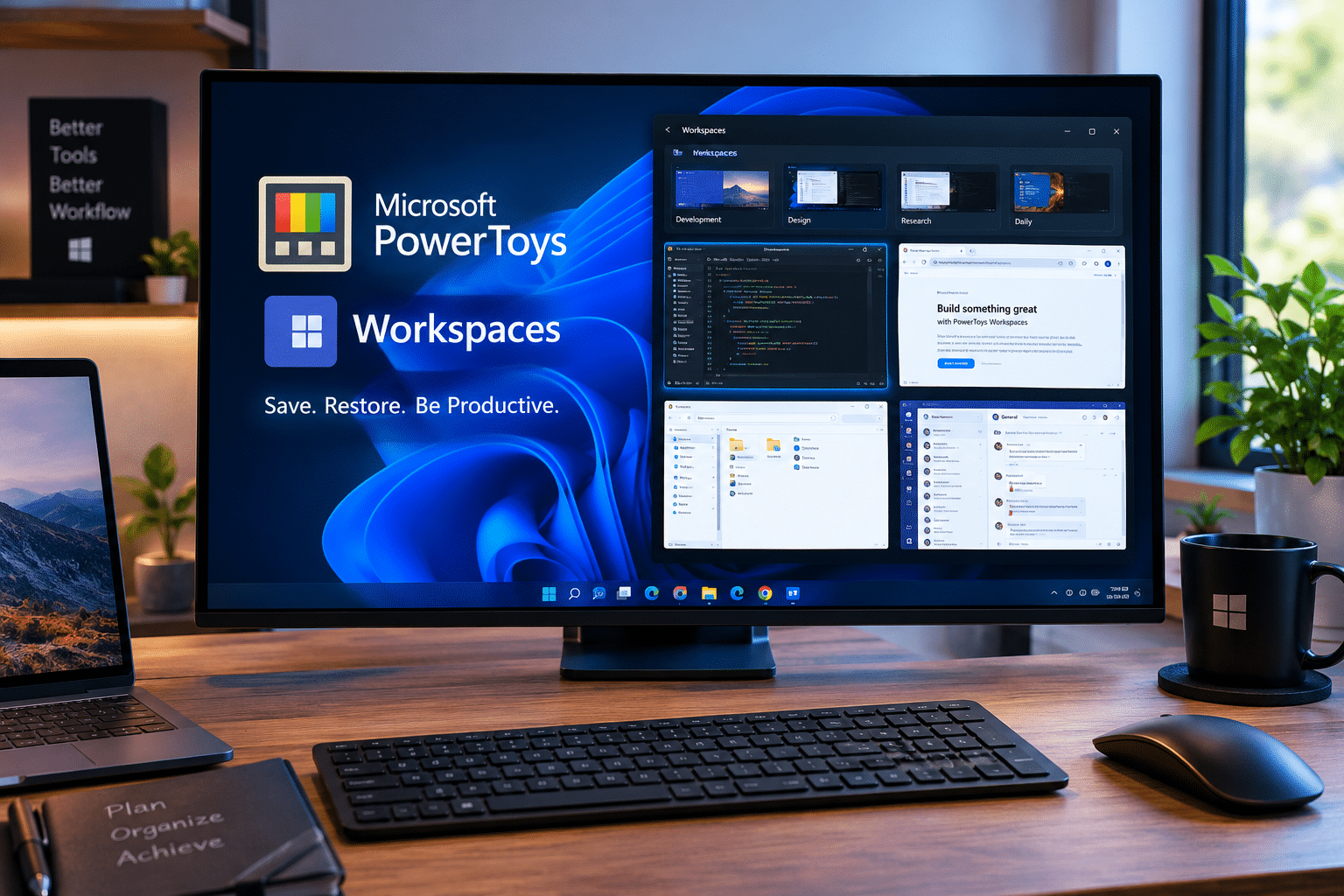
For years, Windows has offered plenty of ways to arrange application windows. Snap layouts, virtual desktops, keyboard shortcuts, multiple-monitor support, and Microsoft’s PowerToys ecosystem have steadily improved the desktop experience.
Yet one frustrating problem remains: Windows can arrange your applications, but rebuilding an entire working environment can still take too much effort.
A developer might need Visual Studio Code, Windows Terminal, a browser, File Explorer, documentation, and monitoring tools. A content creator might require an editor, browser, image application, file manager, and research windows. A system administrator might repeatedly open terminals, management consoles, browsers, and monitoring dashboards.
Opening those applications isn’t difficult.
Getting all of them into the right places—and getting them into the right working state—can be.
Microsoft PowerToys Workspaces addresses that problem by allowing users to capture a desktop arrangement and later launch the collection of applications in their saved positions and configurations with a single action. Microsoft describes Workspaces as a desktop-management utility designed to launch applications into customized positions and configurations.
That makes Workspaces more than another window-management feature. It moves Windows closer to the idea of a repeatable digital workstation.
And this concept becomes particularly interesting for people who use remote Windows environments. A service such as HOMERDP’s Windows VPS can provide the persistent remote Windows machine, while PowerToys Workspaces can help organize the applications running inside it.
Let’s explore what that means for Windows productivity, developers, remote workers, and anyone tired of rebuilding the same desktop every day.
The Real Problem With Windows Multitasking
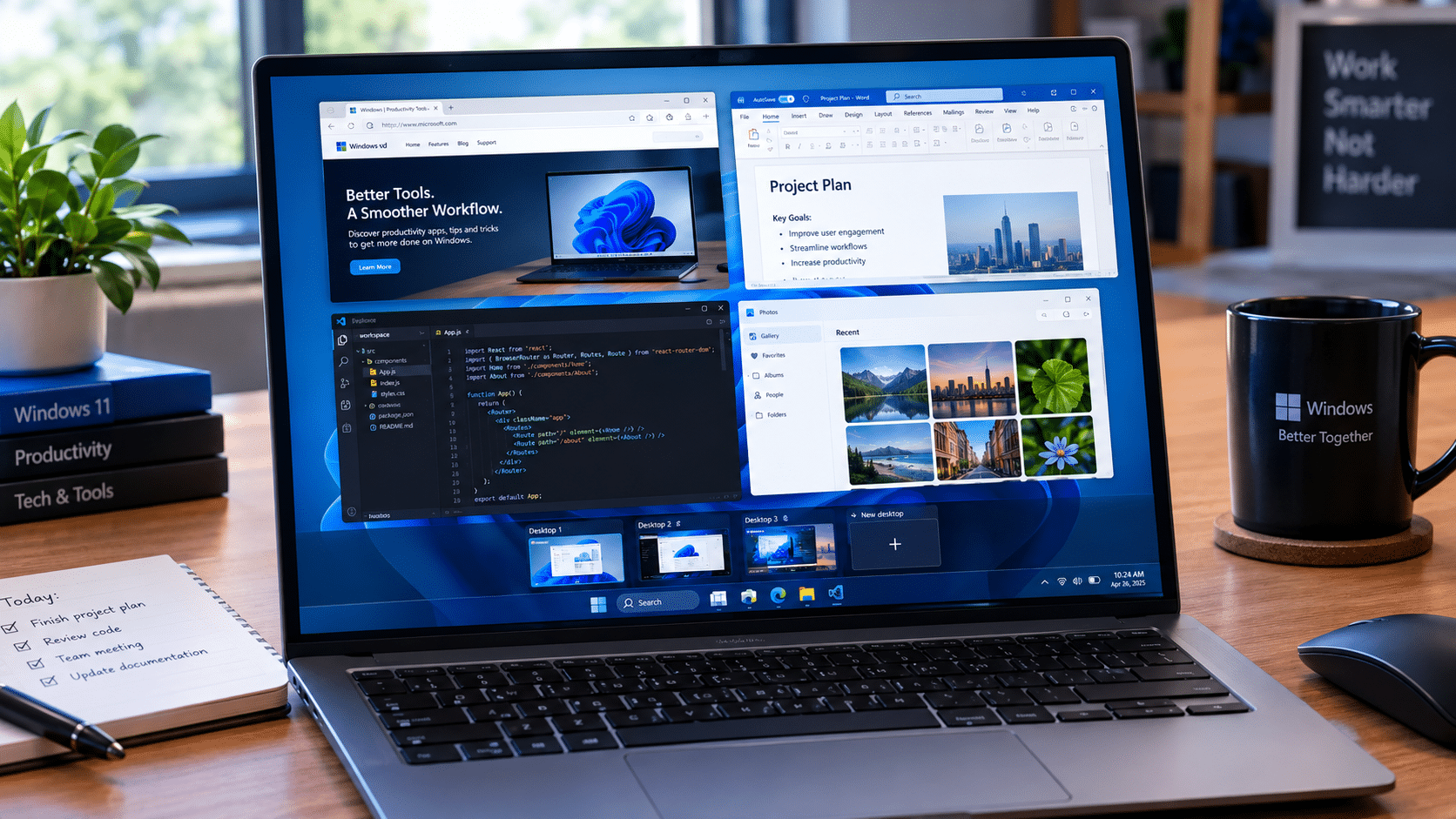
Windows multitasking has improved dramatically.
You can snap windows into different arrangements, use several displays, switch between applications with keyboard shortcuts, and create virtual desktops for different activities.
But multitasking has two separate problems:
- Arranging applications
- Recreating a complete working environment
Windows has become very good at the first.
The second remains more complicated.
Imagine starting a development session.
You need:
- Visual Studio Code
- Windows Terminal
- Microsoft Edge
- File Explorer
- Git tools
- Database software
- Documentation
- A monitoring dashboard
You could launch every application manually.
Then you could:
- Resize the windows.
- Move them to different locations.
- Open the correct project.
- Navigate to the right folder.
- Open documentation.
- Select the appropriate terminal profile.
- Arrange everything across your monitors.
None of those tasks is particularly difficult.
The problem is repetition.
If you perform the same setup every morning, Windows makes you repeat work that you have already done before.
That’s precisely the type of friction PowerToys Workspaces attempts to remove.
What Is Microsoft PowerToys Workspaces?
PowerToys is Microsoft’s collection of free, open-source utilities designed to extend Windows for power users and developers. Its utilities cover everything from window management and keyboard customization to application launching and file operations.
Workspaces is one of those utilities.
Microsoft describes it as a desktop manager that lets users launch applications into custom positions and configurations with a single click. Users can capture their existing desktop state, edit the resulting workspace, add command-line arguments to applications, and create a shortcut for quick launching.
The basic concept is remarkably simple:
Arrange once → capture → save → launch whenever needed.
Instead of treating your desktop arrangement as something temporary, Workspaces turns it into a reusable configuration.
Why Workspaces Is Different From Ordinary Window Snapping
Windows Snap is useful because it makes individual window positioning fast.
Suppose you want a browser on the left and a terminal on the right.
Snap can handle that.
But imagine that you need:
- Two terminals
- VS Code
- Browser
- File Explorer
- Monitoring dashboard
- Documentation
Now you aren’t simply arranging two windows.
You’re creating an entire work environment.
Workspaces is designed for that scenario.
Microsoft’s documentation says users can capture their desktop state and then edit the workspace by changing application positions, removing applications, and adding launch configuration.
This changes the workflow from:
“Where should I put this window?”
to:
“Which environment do I need for this task?”
That’s a much more useful way to think about desktop productivity.
How PowerToys Workspaces Works
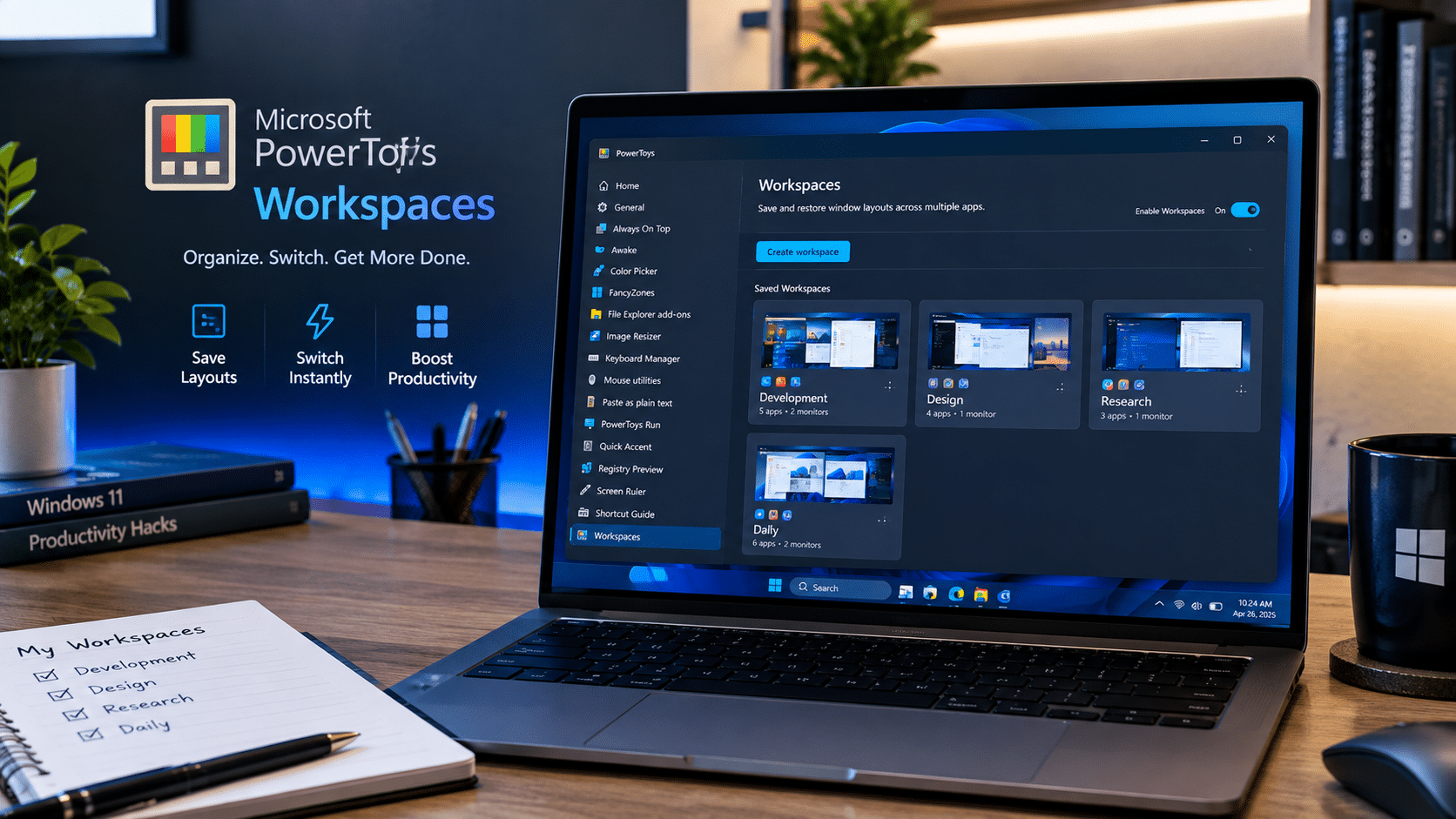
Getting started is straightforward.
1. Install PowerToys
Microsoft distributes PowerToys through several channels, including the Microsoft Store and Windows Package Manager. Microsoft’s current installation documentation also provides the winget installation command.
2. Enable Workspaces
Open PowerToys Settings and enable the Workspaces utility.
3. Open the Workspaces editor
Microsoft provides an editor where you can create and manage saved workspaces.
4. Arrange your applications
Open the applications you want to use.
Then:
- Resize them.
- Move them.
- Arrange them across monitors.
- Open the project or document you need.
- Configure the applications appropriately.
5. Capture the desktop
Workspaces captures the arrangement and creates a reusable configuration.
6. Name the workspace
Give it a meaningful name such as:
- Web Development
- Content Creation
- Client Management
- Research
- Server Administration
- SEO
- Video Editing
7. Save it
You can create a desktop shortcut for the workspace.
Microsoft says those shortcuts can also be pinned to the taskbar for convenient access.
The Most Powerful Feature: Application Launch Arguments
This is where Workspaces becomes significantly more interesting.
A simple window layout is useful.
A layout that launches applications into the correct working context is much more powerful.
Workspaces allows users to add command-line arguments to applications. Microsoft specifically documents examples involving Visual Studio Code and Windows Terminal.
For example, a developer could configure VS Code to open a specific project path.
A Terminal configuration could launch a particular profile.
A browser could potentially open a specified group of URLs, depending on the browser’s supported command-line behavior.
Microsoft notes that application-specific command-line arguments can change how applications launch and that browser URLs, file paths, and IDE/project paths can be used where supported.
That means Workspaces isn’t only remembering where an application belongs.
It can also help define what that application should open.
Workspaces Can Become Project Templates
This creates an interesting productivity model.
Imagine you work on three different projects.
Instead of maintaining one enormous desktop, create:
Workspace 1: Project Alpha
- VS Code → Project Alpha
- Terminal → Alpha environment
- Browser → Alpha documentation
- File Explorer → Alpha folder
Workspace 2: Project Beta
- VS Code → Project Beta
- Terminal → Beta environment
- Browser → Beta resources
- File Explorer → Beta directory
Workspace 3: Administration
- PowerShell
- Windows Terminal
- Browser
- Monitoring tools
- File Explorer
Now your Windows desktop becomes a collection of task-specific environments.
That is substantially different from simply having many applications open.
Why This Matters for Developers
Developers often work with several applications simultaneously.
A typical Windows development environment might include:
- Code editor
- Terminal
- Browser
- Git client
- Database tools
- Documentation
- File manager
- API testing software
- Monitoring utilities
The number of windows isn’t necessarily the problem.
Context switching is.
Every time a developer stops working on one project and starts another, the desktop can become cluttered.
A workspace can provide a cleaner starting point.
For example:
Frontend workspace
- VS Code
- Browser
- Terminal
- Design references
Backend workspace
- VS Code
- API client
- Database management
- Terminal
DevOps workspace
- PowerShell
- Terminal
- Monitoring
- Browser
- Documentation
The physical applications may overlap, but their positions and launch contexts can differ.
Multi-Monitor Users Can Benefit Even More
Multi-monitor setups create enormous amounts of screen space.
They also create enormous potential for disorder.
A developer might use:
Monitor 1
VS Code
Monitor 2
Browser and documentation
Monitor 3
Terminal and monitoring
After closing everything, manually reconstructing that environment can become annoying.
Workspaces provides a way to capture application positions and restore them later. Microsoft documents Workspaces as using public APIs and the FancyZones engine for positioning applications.
However, there is an important limitation.
Workspaces does not simply preserve every Windows Snap state.
Microsoft explains that the underlying APIs and FancyZones engine used for positioning don’t provide snapping capabilities.
So users should think of Workspaces as a desktop configuration and application launcher, rather than a perfect snapshot of every Windows desktop state.
PowerToys Workspaces vs. Virtual Desktops
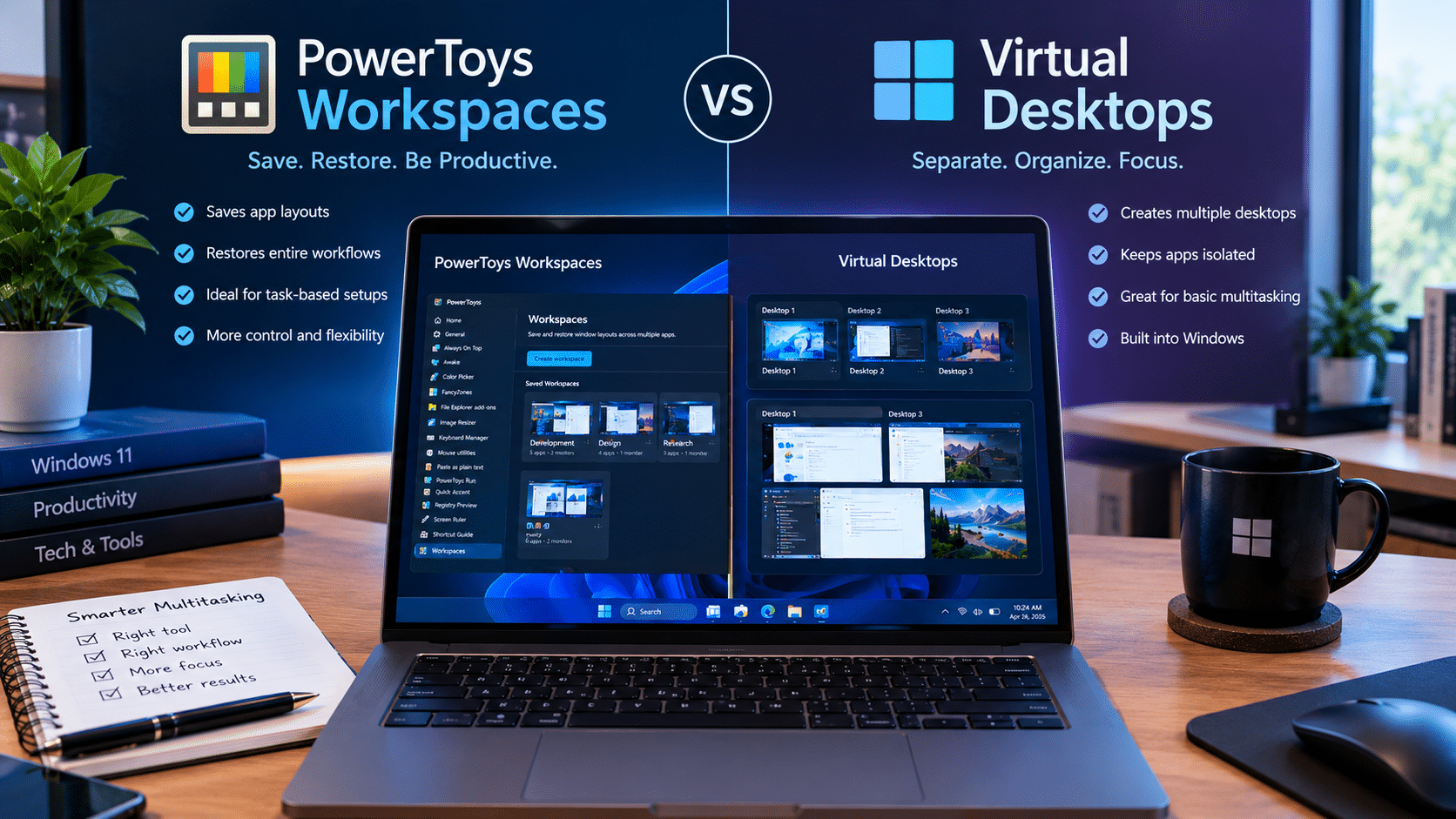
Virtual desktops and Workspaces solve related but different problems.
Windows Virtual Desktops help separate activities.
For example:
- Desktop 1 → Work
- Desktop 2 → Personal
- Desktop 3 → Research
Workspaces focuses on launching applications into a configured arrangement.
You can therefore think about them as complementary concepts rather than direct replacements.
A virtual desktop answers:
“Which desktop should I work on?”
Workspaces answers:
“Which applications should I launch, and where should they go?”
That distinction helps explain why Workspaces can be useful even for people who already use virtual desktops.
Workspaces Is Especially Interesting for Remote Windows Users
The feature becomes even more useful when Windows itself is running remotely.
Consider a Windows VPS.
Instead of keeping all your applications and projects on your physical PC, you can maintain a remote Windows environment that you access through Remote Desktop.
The remote environment becomes your persistent workstation.
This is where HOMERDP fits naturally into the discussion.
HOMERDP offers Windows VPS services with different resource configurations, including virtual CPU, memory, SSD/NVMe storage, bandwidth, and administrative control depending on the selected plan.
The basic architecture becomes:
HOMERDP Windows VPS → Windows → PowerToys → Workspaces → Applications
Each layer performs a different job.
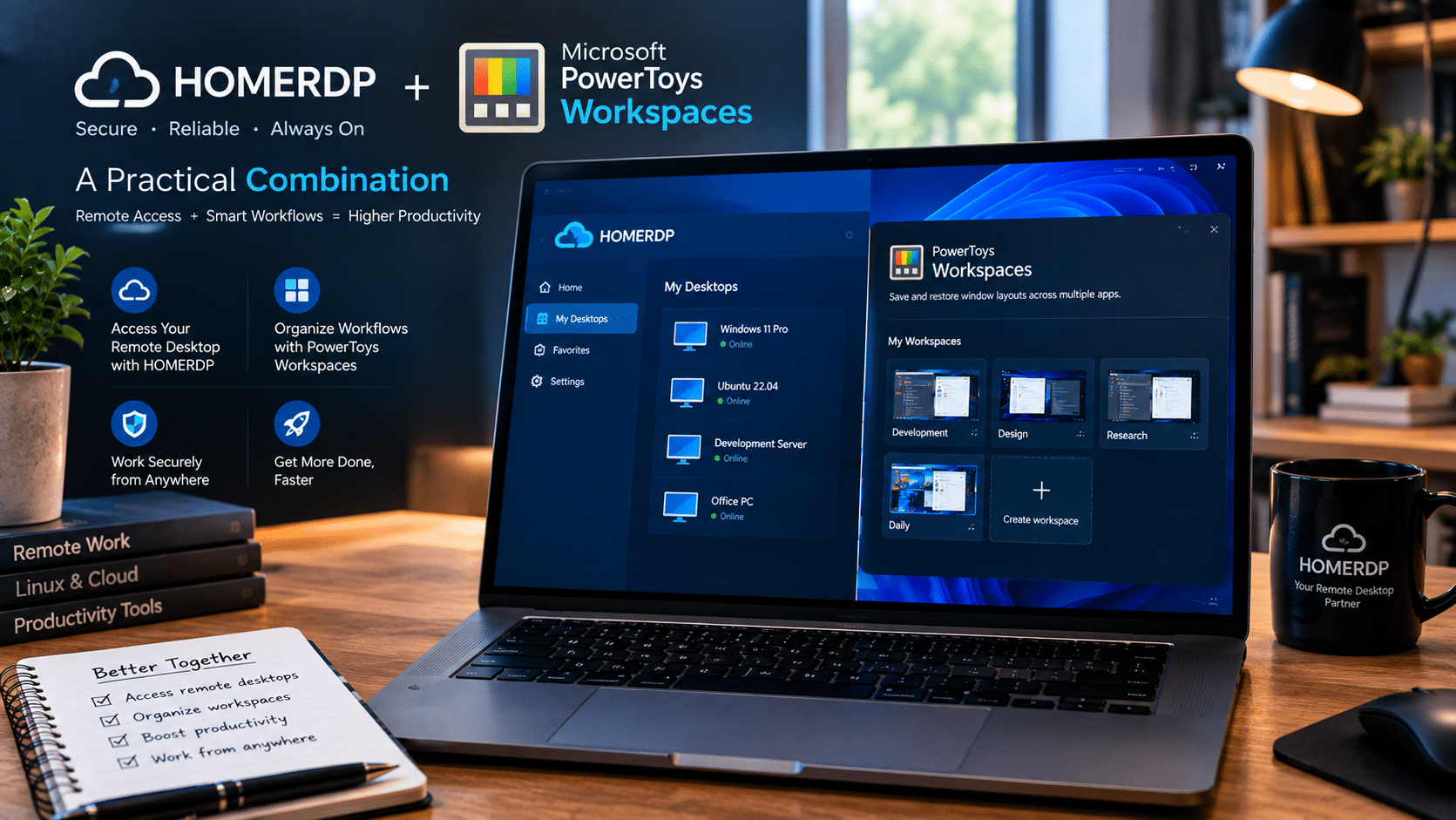
HOMERDP + PowerToys Workspaces: A Practical Combination
Suppose you have a remote Windows development environment.
Your physical computer could change.
Today you connect from a laptop.
Tomorrow you use a desktop.
Later you connect from another location.
The remote Windows environment remains the central workspace.
HOMERDP’s Windows VPS offering is designed to provide remotely accessible Windows computing resources, with published configurations ranging from smaller plans to higher-resource options.
Once your Windows environment is configured, PowerToys Workspaces can help organize the applications inside it.
That creates a useful workflow:
Step 1: Deploy the Windows VPS
Choose CPU, RAM, storage, and bandwidth according to your workload.
Step 2: Install your software
Set up:
- Browser
- IDE
- Terminal
- File manager
- Database tools
- Productivity applications
Step 3: Configure the desktop
Arrange applications exactly as you prefer.
Step 4: Capture the workspace
Use PowerToys Workspaces to save the arrangement.
Step 5: Add launch arguments
Configure applications to open the appropriate projects, files, profiles, or URLs where supported.
Step 6: Create a shortcut
Use the workspace shortcut for quick access.
Step 7: Connect remotely
Use RDP to access the Windows VPS.
Step 8: Restore your work environment
Launch the saved workspace.
The goal is simple:
Spend less time preparing the desktop and more time doing the work.
Remote Developers Can Build Consistent Environments
Remote development creates another challenge: consistency.
Your local machine might change.
Your remote machine doesn’t have to.
With a persistent Windows VPS, you can keep:
- Applications installed
- Projects configured
- Development tools available
- Files organized
- Browser profiles configured
- Workspaces saved
HOMERDP’s Windows VPS plans advertise dedicated resources and administrator control, allowing customers to configure their Windows environment according to their needs.
That can be particularly useful when the remote computer becomes more than a temporary server.
It becomes a persistent workstation.
Don’t Confuse Workspace Management With Server Performance
There is an important technical distinction here.
PowerToys Workspaces can organize your applications.
It cannot make an underpowered server magically faster.
If you run memory-intensive development environments, multiple browser instances, databases, or other demanding software, you still need sufficient system resources.
HOMERDP’s published Windows VPS configurations illustrate the difference between resource tiers. Its listed plans include configurations such as 2 vCPU/2 GB RAM, 2 vCPU/4 GB RAM, and 4 vCPU/8 GB RAM, with different storage and bandwidth allocations.
The right choice depends on the workload.
For light productivity, a smaller configuration may be sufficient.
For development and heavier multitasking, additional RAM and CPU can become important.
Workspaces improves organization.
The VPS resources determine how comfortably the applications can run.
A Simple Productivity Calculation
The productivity argument becomes easier to understand with basic arithmetic.
Suppose rebuilding your desktop takes:
5 minutes every workday.
Assuming 250 working days:
5 × 250 = 1,250 minutes
That’s:
20 hours and 50 minutes.
At 10 minutes per day:
10 × 250 = 2,500 minutes
That’s:
41 hours and 40 minutes.
These are illustrative calculations, not measured PowerToys productivity results.
The point is that small repetitive tasks accumulate.
And Workspaces is designed specifically around eliminating one category of repetitive desktop setup.
Workspaces Doesn’t Eliminate Every Manual Step
A realistic article about PowerToys Workspaces also needs to discuss its limitations.
Microsoft documents several important ones.
Existing applications can behave differently
Some applications reposition existing windows, while others open new instances.
Microsoft provides a Move existing windows option and recommends using application-specific CLI arguments when users need more control.
Applications can visibly move after launching
PowerToys cannot necessarily tell an application to launch directly at a specific screen coordinate.
Instead, the application launches and PowerToys then moves and resizes it.
Microsoft explains that this can cause the window to visibly move during workspace startup.
Administrator applications have limitations
Microsoft currently documents a known issue where applications launched as administrator may not reposition correctly in the desired layout.
Snapped layouts aren’t perfectly preserved
As mentioned earlier, Workspaces relies on public APIs and FancyZones for positioning, but Microsoft notes that these do not include Windows snapping capabilities.
These limitations don’t make Workspaces useless.
They simply establish realistic expectations.
Security Matters on Remote Windows Machines
When you combine Workspaces with a remote Windows VPS, productivity should never come at the expense of security.
A remote Windows machine should receive the same security attention as a physical workstation.
Users should consider:
- Strong account credentials
- Windows security updates
- Application updates
- Firewall configuration
- Least-privilege practices
- Secure RDP access
- Regular backups
- Monitoring unusual activity
- Removing unnecessary software
- Avoiding unnecessary exposed services
PowerToys itself doesn’t replace Windows security controls.
Likewise, a VPS provider doesn’t remove the user’s responsibility to configure the operating system securely.
The more applications you install into a remote environment, the more important proper maintenance becomes.
PowerToys Is Becoming a Larger Productivity Platform
Workspaces isn’t operating in isolation.
Microsoft’s current PowerToys collection includes utilities such as:
- Advanced Paste
- Always On Top
- FancyZones
- Command Palette
- PowerToys Run
- PowerRename
- Text Extractor
- Keyboard-related tools
- File utilities
- Screen utilities
- Workspaces
Microsoft describes PowerToys as a collection designed to remove friction from Windows workflows and provide functionality beyond the standard operating system experience.
That makes Workspaces part of a broader trend.
Microsoft isn’t only improving Windows at the operating-system level.
It is also providing modular tools that let advanced users customize how Windows behaves.
FancyZones and Workspaces Make a Natural Pair
FancyZones focuses on window layouts.
Workspaces focuses on launching applications into configured positions.
That makes the two utilities complementary.
FancyZones helps answer:
“How should my screen be organized?”
Workspaces helps answer:
“Which applications should appear in that organization?”
Together, they can create a more deliberate desktop workflow.
For example:
Productivity layout
- Browser: large left zone
- Documents: upper-right zone
- Communication: lower-right zone
Development layout
- IDE: large central area
- Terminal: bottom section
- Browser: secondary display
- Monitoring: separate panel
Administration layout
- PowerShell
- Browser
- Event Viewer
- Monitoring tools
- Documentation
Instead of constantly recreating these layouts, users can save them as reusable workspaces.
Workspaces Can Reduce Context-Switching Friction
Not every productivity problem requires artificial intelligence or a faster processor.
Sometimes the best improvement is simply reducing unnecessary decisions.
Consider what happens when you begin work:
Without a workspace
- Decide which applications to open.
- Launch them.
- Find the right project.
- Resize windows.
- Move windows.
- Find documentation.
- Arrange the desktop.
- Begin working.
With a workspace
- Launch the workspace.
- Applications open and are positioned.
- Begin working.
The difference may be small for a single session.
But repeated hundreds of times, small reductions in friction become meaningful.
Why This Matters for Freelancers and Remote Professionals
Freelancers often switch between clients.
A separate workspace can represent each client.
For example:
Client A
- Browser
- Project editor
- File Explorer
- Communication tools
Client B
- Browser
- Analytics
- Spreadsheet
- Documentation
Client C
- Design tools
- Browser
- Asset folders
- Project management application
This approach can help prevent one client’s windows from overwhelming another project’s workspace.
The same principle works for employees who manage several recurring workflows.
Content Creators Can Use the Same Concept
Content creation often involves multiple applications.
A creator might require:
- Browser for research
- Writing application
- Image editor
- File manager
- Publishing dashboard
- Analytics
- Communication tools
Instead of opening everything from scratch, a workspace can provide a reusable starting point.
A Research Workspace could prioritize browsers and reference materials.
A Writing Workspace could emphasize the editor and research.
A Publishing Workspace could open the CMS, image tools, browser, and file manager.
The concept isn’t limited to developers.
It applies anywhere people repeatedly use the same group of applications.
System Administrators Have Another Strong Use Case
System administrators frequently work with:
- PowerShell
- Windows Terminal
- Browser
- Monitoring dashboards
- Remote management tools
- Documentation
- File Explorer
A dedicated administration workspace can organize those tools around the task.
Windows Terminal itself supports command-line arguments that can influence how it opens, including profiles, windows, tabs, positions, and sizes.
That makes terminal-heavy workflows particularly suitable for structured workspace configurations.
Workspaces Could Become More Important as Windows Gets More Complex
Modern Windows computers can run enormous numbers of applications simultaneously.
The challenge isn’t whether the system can open another application.
It’s whether the user can maintain a coherent environment.
As professional workflows become more application-heavy, desktop organization becomes increasingly important.
A workspace-based approach provides a simple answer:
Group applications by purpose rather than leaving them scattered across the desktop.
That idea is easy to understand and easy to implement.
The Bigger Shift: From Windows to Work Environments
The most important idea behind Workspaces isn’t window positioning.
It’s environment persistence.
Consider the difference:
Traditional desktop
“My applications are installed on this computer.”
Workspace-oriented desktop
“My work environments are configured on this computer.”
That’s a subtle but meaningful change.
The computer becomes a platform for multiple reusable environments.
A developer can have one.
A researcher can have another.
A system administrator can have another.
A freelancer can have several.
And a remote Windows VPS can provide the persistent machine where those environments live.
How HOMERDP Complements This Approach
HOMERDP’s Windows VPS offering provides a foundation for users who need a remotely accessible Windows environment. Its published plans include different CPU, RAM, storage, bandwidth, and networking configurations.
That makes it possible to think about remote Windows productivity in layers:
Infrastructure
HOMERDP Windows VPS
↓
Remote access
RDP
↓
Operating system
Windows
↓
Productivity utilities
PowerToys
↓
Workspace management
Workspaces + FancyZones
↓
Applications
Browser + IDE + Terminal + other tools
↓
Work
The important point is that HOMERDP and PowerToys aren’t competing products.
They solve different problems.
HOMERDP provides the remote Windows environment.
PowerToys helps organize the environment.
A Practical Setup for a Remote Developer
Here is a simple example.
Remote server
Choose a Windows VPS with enough CPU and RAM for your development stack.
Core applications
Install:
- Visual Studio Code
- Windows Terminal
- Browser
- Git
- Database tools
- File Explorer
Create a workspace
Name it:
Full Stack Development
Configure application behavior
Use CLI arguments where supported.
For example:
- VS Code → project folder
- Terminal → preferred profile
- Browser → documentation URLs
Microsoft specifically supports adding application CLI arguments inside Workspaces.
Capture
Save the arrangement.
Create shortcut
Place the workspace shortcut somewhere convenient.
Daily workflow
Connect through RDP → launch workspace → start coding.
That is the kind of repetitive workflow Workspaces is designed to simplify.
What Microsoft Should Improve Next
Workspaces is useful, but its future could be even more interesting.
Several areas would make the concept stronger:
Better virtual desktop integration
Users could maintain different workspaces across different Windows virtual desktops.
More reliable application-state restoration
Instead of restoring only application placement, future versions could potentially restore more of an application’s working context where technically possible.
Better automation
Command-line management of workspaces could make them easier to integrate into scripts and automated workflows.
Improved application compatibility
The more consistently applications respond to workspace instructions, the more predictable the experience becomes.
More sophisticated monitor management
Complex multi-monitor users could benefit from even deeper display-aware restoration.
These are logical areas for continued development rather than promises about Microsoft’s roadmap.
Final Thoughts: PowerToys Workspaces Is About More Than Windows
Microsoft PowerToys Workspaces doesn’t reinvent Windows window management.
It addresses something more specific—and arguably more useful for repetitive workflows.
It makes a desktop arrangement reusable.
That distinction matters.
Windows already gives users tools for arranging individual windows. PowerToys adds another layer by letting users define collections of applications, their positions, and, where supported, their launch behavior. Microsoft officially documents application positioning, workspace capture, shortcuts, CLI arguments, and controls for existing versus new application windows.
For developers, that can mean faster project setup.
For freelancers, it can mean cleaner client environments.
For content creators, it can mean reusable production layouts.
For system administrators, it can mean a standardized management desktop.
For remote workers, it can mean a more consistent Windows experience.
And for users running Windows remotely, the combination with a Windows VPS becomes particularly compelling.
HOMERDP can provide the remote Windows infrastructure, while PowerToys Workspaces can help turn that infrastructure into a repeatable working environment. HOMERDP currently advertises Windows VPS plans with multiple resource configurations and administrator control, allowing users to select an environment according to their workload.
The broader lesson is simple:
The best desktop isn’t necessarily the one with the most features. It’s the one that lets you get back to work with the least repeated effort.
PowerToys Workspaces brings Windows one step closer to that goal.
Instead of rebuilding your desktop every time you start a project, you can build the environment once, save it, and bring it back when you need it.
For anyone whose work depends on the same collection of Windows applications day after day, that small change can make the desktop feel considerably more intentional—and potentially much less frustrating.
EXPLORE MORE ; Did Windows 11 Break Claude Cowork?
READ OUR BLOGS