

Why Every Windows User Should Check Their SSD Firmware Today
When people think about keeping a Windows PC fast and secure, they usually focus on Windows Update, antivirus software, driver updates, or cleaning up storage. Very few people think about one of the most important components in their computer—the firmware running inside their SSD.
Your Solid-State Drive (SSD) is responsible for storing your operating system, applications, games, documents, and precious memories. It works every second your PC is powered on. Yet many users install an SSD and never think about it again.
That can be a costly mistake.
SSD firmware updates can improve performance, fix stability issues, enhance compatibility with Windows, optimize power management, and even prevent data loss caused by known bugs. Unlike Windows updates, however, firmware updates don’t usually install automatically, making them one of the most overlooked aspects of PC maintenance.
If you haven’t checked your SSD firmware in years—or ever—today is the perfect time.
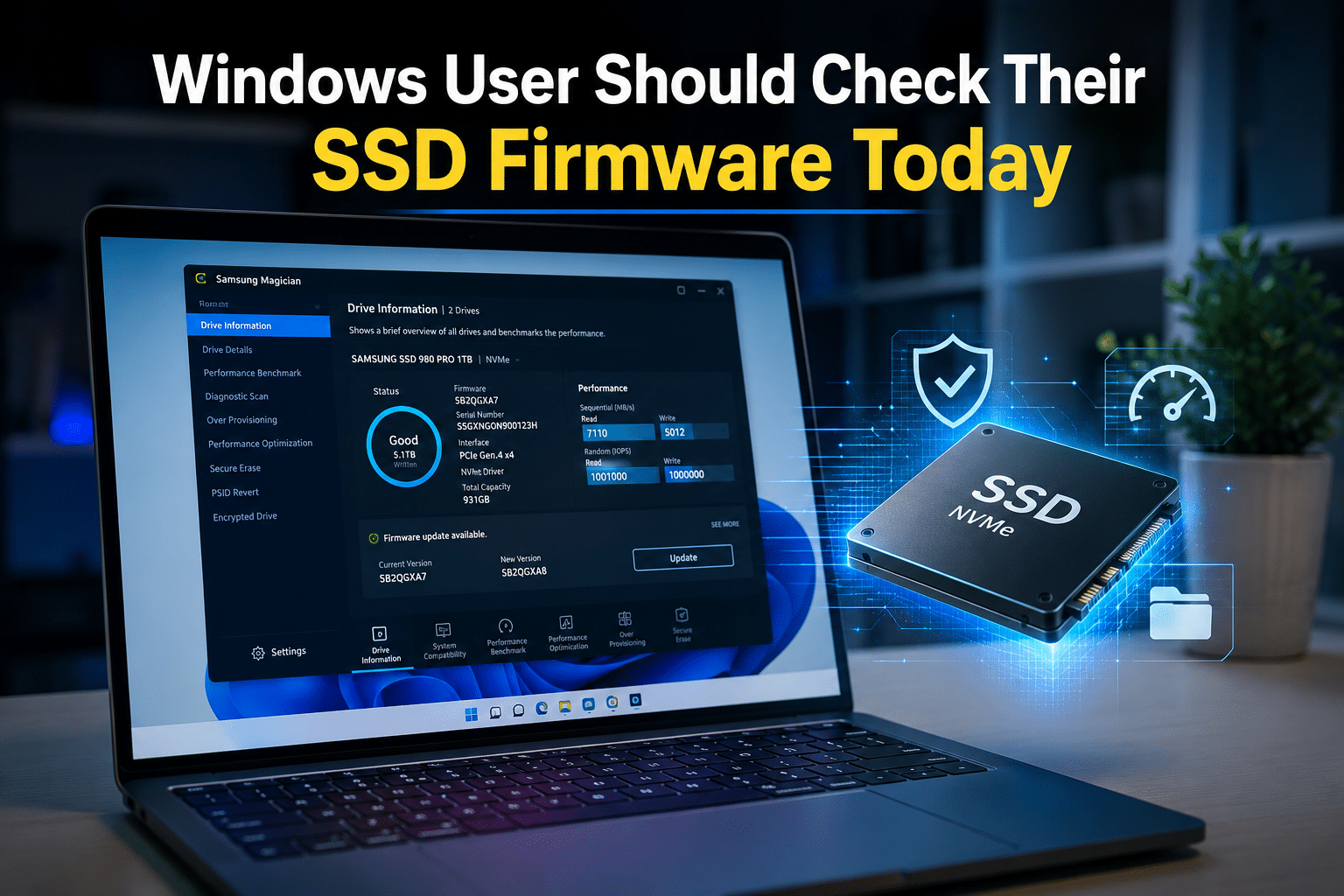
What Is SSD Firmware?
Firmware is the low-level software built into your SSD that controls how the drive operates. Think of it as the SSD’s internal operating system.
It manages critical functions such as:
- Reading and writing data
- Wear leveling
- Garbage collection
- Error correction
- TRIM optimization
- Cache management
- Thermal control
- Bad block handling
- Power management
- NVMe communication
Without firmware, an SSD cannot function properly. Even the fastest PCIe Gen5 NVMe drive relies on firmware to deliver its advertised performance.
As SSD technology evolves, manufacturers continue improving these algorithms through firmware updates.
Why SSD Firmware Updates Matter
Many users believe firmware updates only exist to fix manufacturing defects. In reality, manufacturers release firmware for many reasons.
These updates often include:
- Performance improvements
- Stability fixes
- Better compatibility with Windows updates
- Improved NAND flash management
- Enhanced error correction
- Reduced latency
- Better power efficiency
- Security improvements
- Bug fixes discovered after launch
In some cases, firmware updates have solved issues where SSDs unexpectedly disappeared from Windows, experienced random freezing, or suffered from data corruption under specific workloads.
Simply put, firmware updates help your SSD perform the way it was designed to perform.
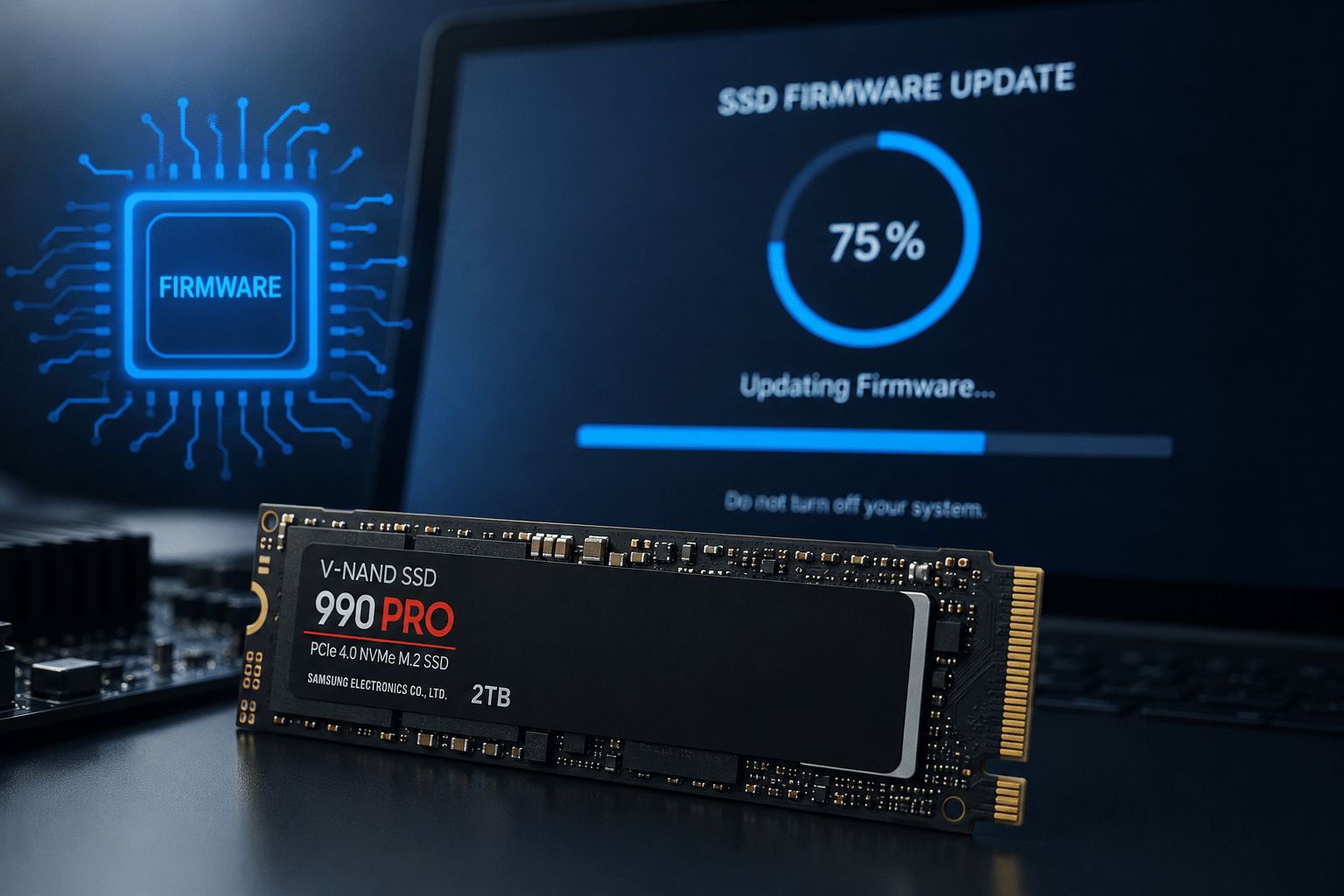
Signs Your SSD Firmware May Be Outdated
Outdated firmware doesn’t always cause dramatic failures. Often, the symptoms appear gradually.
You may notice:
- Windows taking longer to boot
- Applications loading slowly
- Random freezes
- File transfers becoming inconsistent
- Unexpected Blue Screen errors
- SSD disconnecting temporarily
- Storage benchmark scores dropping
- Increased system latency
- Higher SSD temperatures
- Sleep mode issues
Many users blame Windows updates, aging hardware, or insufficient RAM, when the underlying issue is outdated firmware.
Performance Isn’t Just About Hardware
Buying an expensive SSD doesn’t automatically guarantee maximum performance.
Imagine purchasing a sports car but never updating its engine management software.
The hardware remains excellent.
The software controlling it becomes outdated.
That’s exactly what happens when SSD firmware is ignored.
Modern firmware updates often improve:
- Random read performance
- Random write performance
- Queue management
- Cache utilization
- Garbage collection efficiency
- Controller optimization
- Thermal throttling behavior
These improvements translate into noticeable real-world benefits.
Faster Windows Boot Times
Your SSD handles thousands of read requests while Windows starts.
Updated firmware can optimize these operations, reducing boot delays.
Although improvements vary by drive model, many users experience:
- Faster startup
- Quicker login times
- Reduced loading delays
- Better responsiveness immediately after boot
Every second saved adds up over months and years.
Better Performance During Heavy Workloads
Modern PCs rarely perform just one task.
You might simultaneously:
- Run Chrome with dozens of tabs
- Edit videos
- Compile code
- Use Photoshop
- Stream content
- Download large files
- Copy data between drives
These workloads generate thousands of read and write operations.
Firmware updates help SSD controllers manage these operations more efficiently, reducing bottlenecks and improving overall responsiveness.
Improved Stability
Nothing is more frustrating than random freezes.
Storage instability often causes:
- System hangs
- Unexpected reboots
- Corrupted downloads
- Failed Windows updates
- Application crashes
Firmware updates frequently resolve controller bugs responsible for these issues.
Even if your SSD appears healthy, installing manufacturer-approved firmware can improve long-term stability.
Protecting Your Data
Your SSD stores your most valuable information.
This includes:
- Family photos
- Financial documents
- Work projects
- School assignments
- Business databases
- Creative content
Firmware manages error correction and bad block handling.
Improved firmware can:
- Detect failing memory cells earlier
- Improve error recovery
- Prevent write failures
- Reduce corruption risks
- Enhance data integrity
Although firmware updates are not a replacement for backups, they reduce the likelihood of firmware-related failures.
Better Compatibility with Windows 11
Windows evolves constantly.
Microsoft regularly introduces:
- Storage optimizations
- New NVMe drivers
- Security improvements
- Power management updates
- File system enhancements
Older firmware sometimes struggles with these changes.
Manufacturers release updates specifically designed to maintain compatibility with newer Windows versions.
Keeping firmware updated helps your SSD work smoothly with the latest Windows releases.
Improved Power Efficiency
Laptop users benefit significantly from firmware improvements.
Modern SSD firmware can optimize:
- Idle power consumption
- Sleep states
- Resume behavior
- Background operations
This leads to:
- Longer battery life
- Lower heat generation
- Better thermal performance
- Reduced fan noise
Small efficiency gains become meaningful over hundreds of charging cycles.
Extending SSD Lifespan
Every SSD has a limited number of write cycles.
Firmware determines how intelligently those writes are distributed.
Better wear leveling means:
- Even distribution across NAND cells
- Reduced unnecessary writes
- Longer endurance
- Better long-term reliability
Instead of wearing out specific cells quickly, updated firmware helps the entire drive age more evenly.
Security Benefits
Although SSD firmware isn’t updated as frequently as Windows for security reasons, manufacturers occasionally release firmware addressing:
- Controller vulnerabilities
- Data protection improvements
- Encryption enhancements
- Secure erase reliability
Ignoring these updates means missing important security improvements.
How to Check Your SSD Manufacturer
Before updating firmware, determine which SSD you own.
Open:
Task Manager → Performance → Disk
Or use:
- Device Manager
- System Information
- PowerShell
- Third-party tools like CrystalDiskInfo
Once you know the manufacturer, download its official management software.
Popular SSD Management Utilities
Different manufacturers provide their own tools.
Examples include:
Samsung
Samsung Magician
Features:
- Firmware updates
- Drive health monitoring
- Performance benchmarks
- Secure erase
- Over-provisioning
Western Digital
WD Dashboard
Provides:
- Firmware updates
- Temperature monitoring
- Health information
- Performance metrics
Crucial
Storage Executive
Allows users to:
- Install firmware
- Check SMART data
- Enable Momentum Cache
- Monitor drive health
Kingston
SSD Manager
Supports:
- Firmware updates
- Health reports
- Temperature monitoring
- SMART diagnostics
Solidigm
Storage Tool
Offers:
- Firmware installation
- Diagnostics
- Performance monitoring
How to Safely Update SSD Firmware
Updating firmware is generally straightforward, but follow these best practices:
1. Back Up Important Files
Firmware updates are usually safe.
However, any storage-related operation carries some risk.
Always maintain a recent backup.
2. Connect Reliable Power
Desktop users should avoid power interruptions.
Laptop users should:
- Charge above 50%
- Keep the charger connected
3. Close Running Applications
Shut down unnecessary programs before beginning the update.
This reduces storage activity.
4. Follow Manufacturer Instructions
Never install firmware intended for another SSD model.
Always use official utilities.
5. Restart Your Computer
Many firmware updates complete during reboot.
Allow the process to finish without interruption.
Common Myths About SSD Firmware
Myth 1: “If My SSD Works, I Don’t Need Updates.”
Not true.
Many firmware updates improve performance and reliability without fixing visible problems.
Myth 2: “Firmware Updates Are Dangerous.”
Years ago, firmware updates carried greater risk.
Modern manufacturer tools automate the process safely.
Myth 3: “Windows Automatically Updates SSD Firmware.”
Usually, it does not.
Most firmware updates require manufacturer software.
Myth 4: “Only Old SSDs Need Firmware Updates.”
Even brand-new SSDs may receive important firmware shortly after launch.
Manufacturers continuously optimize products after release.
SSD Health Tips Beyond Firmware
Firmware is only one part of SSD maintenance.
You should also:
- Enable TRIM
- Keep Windows updated
- Leave 10–20% free storage
- Avoid filling the drive completely
- Monitor SMART health
- Keep temperatures under control
- Avoid unnecessary defragmentation
- Use high-quality power supplies
- Back up critical files regularly
These habits maximize SSD performance and lifespan.
Why Professionals Should Pay Even More Attention
Professionals rely heavily on storage performance.
This includes:
- Developers
- Video editors
- Graphic designers
- Architects
- Data analysts
- Gamers
- Streamers
- AI enthusiasts
- Financial traders
Even small increases in storage latency can affect productivity.
Keeping firmware updated ensures your hardware performs consistently under demanding workloads.
Remote Desktop Performance Depends on Fast Storage
If you work remotely, your storage performance matters just as much as your processor and memory.
Developers compiling code, creators editing videos, businesses hosting applications, and professionals running multiple virtual environments all benefit from fast, reliable NVMe storage.
That is why premium remote desktop providers invest heavily in enterprise-grade SSD infrastructure.
HOMERDP delivers high-performance Windows Remote Desktop solutions built on modern NVMe SSD storage, powerful CPUs, dedicated resources, and reliable networking. Whether you need a remote workstation for software development, office productivity, streaming, trading, or everyday professional tasks, HOMERDP provides a responsive experience with full administrative control.
For users with graphics-intensive workloads, HOMERDP also offers GPU Dedicated RDP solutions. These systems combine dedicated GPUs with high-speed NVMe SSD storage, making them ideal for AI experimentation, video editing, 3D rendering, Android emulation, CAD applications, and other demanding workloads that require both computing power and fast storage.
Choosing infrastructure that prioritizes SSD performance helps reduce application load times, improve multitasking, and deliver a smoother remote computing experience.
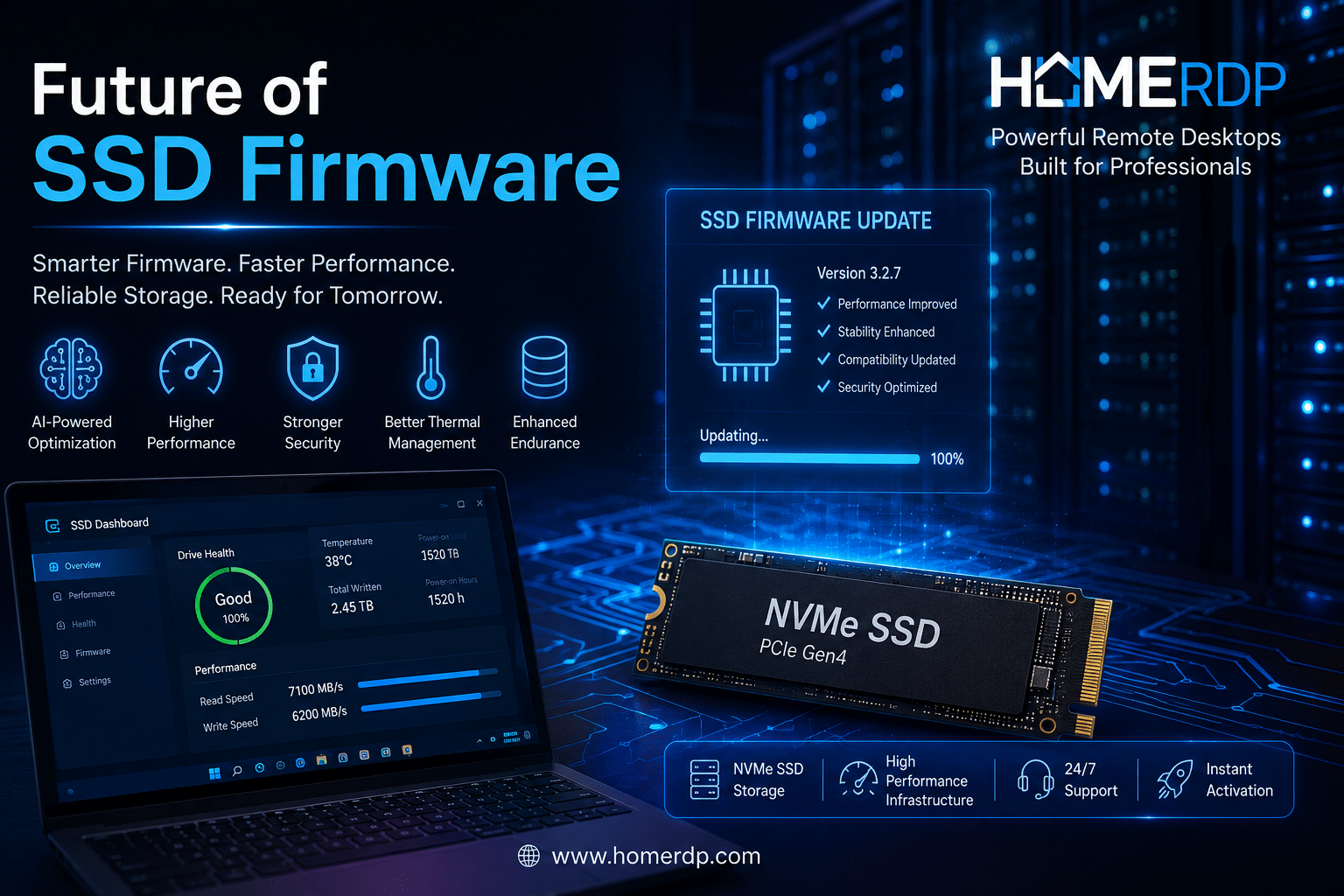
The Future of SSD Firmware
Storage technology continues to evolve rapidly.
As PCIe Gen5 and future PCIe Gen6 SSDs become more common, firmware will play an even larger role in:
- AI-assisted caching
- Advanced thermal optimization
- Smarter wear leveling
- Improved power efficiency
- Higher endurance
- Better Windows integration
- Enhanced security
- Faster queue management
Ignoring firmware updates will become increasingly costly as SSD controllers grow more sophisticated.
Final Thoughts
Your SSD is one of the hardest-working components in your Windows PC, yet its firmware is often forgotten after installation. That small piece of software quietly controls performance, stability, power efficiency, and data integrity every day.
Checking for firmware updates takes only a few minutes but can deliver meaningful improvements in speed, reliability, and compatibility with the latest versions of Windows. Combined with regular backups, SMART health monitoring, TRIM support, and good storage habits, keeping your SSD firmware current is one of the easiest ways to protect your investment.
If your workflow extends beyond a local PC and into cloud-based productivity, choosing infrastructure built around modern NVMe storage is equally important. HOMERDP’s Dedicated RDP and GPU RDP services are designed with high-performance SSD storage, dedicated resources, and enterprise-grade hardware to provide a fast, dependable Windows experience for developers, creators, businesses, and power users.
In the end, maintaining your SSD isn’t just about squeezing out a few extra benchmark points. It’s about ensuring that the component holding your operating system and your most valuable data remains fast, stable, and reliable for years to come. A quick firmware check today could save you from performance headaches—or even data loss—tomorrow.
EXPLORE MORE ; NVMe RDP vs SSD RDP

READ OUR BLOGS