

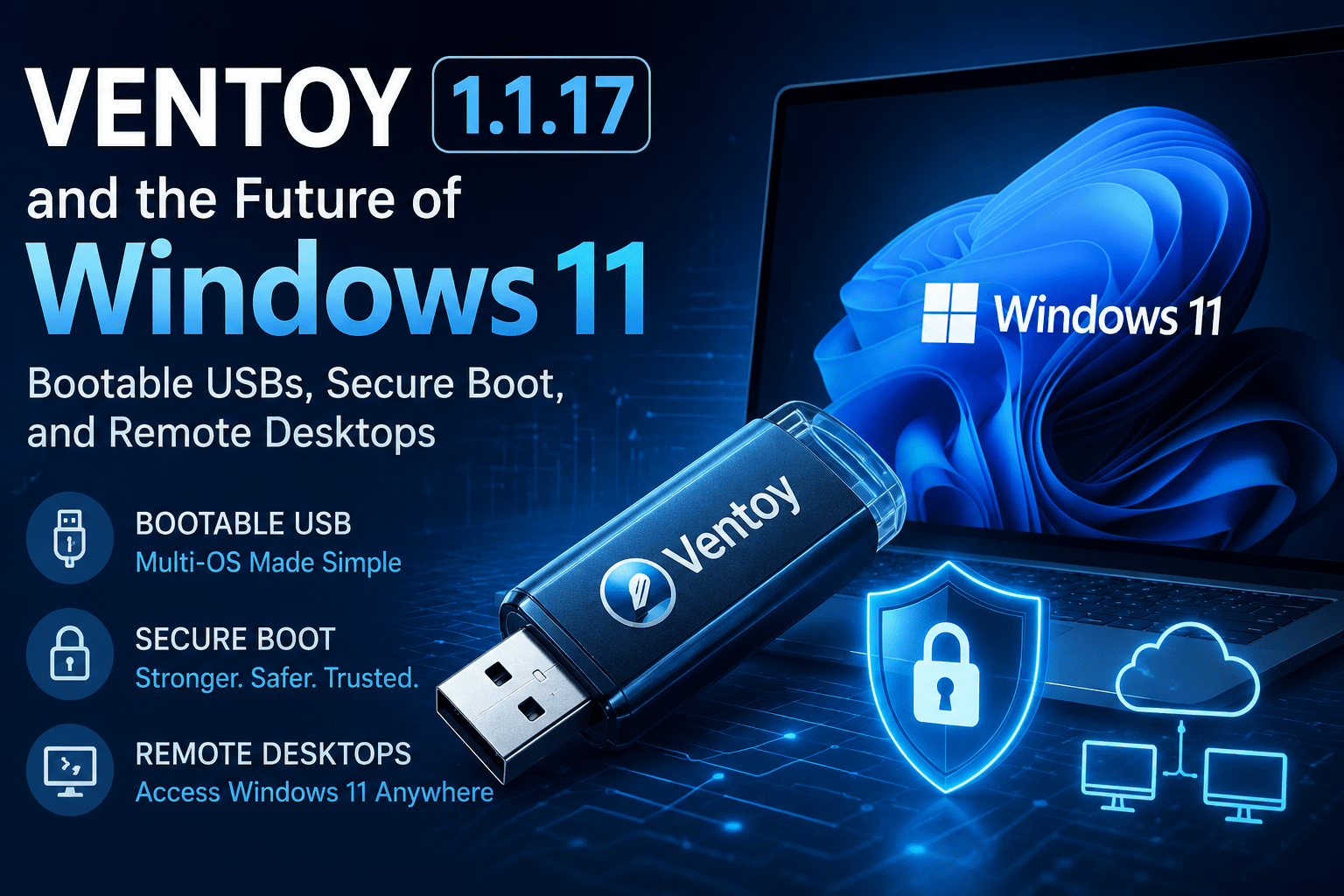
Ventoy 1.1.17 and the Future of Windows 11: Bootable USBs, Secure Boot, and Remote Desktops
Windows 11 is changing the definition of a compatible PC. Microsoft’s minimum requirements include a compatible 64-bit processor, at least 4 GB of RAM, 64 GB of storage, UEFI firmware with Secure Boot capability, and TPM 2.0. Windows 11 is also supported in virtual-machine environments when the required virtual hardware is configured.
That shift has created a new challenge for PC users, IT professionals, system administrators, developers, and businesses. A computer may still have perfectly usable CPU performance, sufficient RAM, and fast storage, yet fail Microsoft’s official Windows 11 compatibility checks because of firmware, TPM, processor-generation, or Secure Boot requirements.
This is where tools such as Ventoy become strategically important.
The latest release, Ventoy 1.1.17, released on July 24, 2026, focuses on Secure Boot optimization, fixes multiple boot problems, adds support for additional operating systems, and improves several internal components. The release follows a period of important Secure Boot changes in the Ventoy ecosystem, including updates to its UEFI secure-boot shim and certificate process.
But the bigger story goes beyond a new version of a bootable USB utility.
Ventoy 1.1.17 represents a broader direction in modern computing: users want more flexibility in how operating systems are installed, tested, deployed, and accessed.
That future will involve three important technologies:
- Bootable USB platforms such as Ventoy
- Hardware-backed security technologies such as UEFI Secure Boot and TPM
- Remote Windows environments delivered through VPS and RDP infrastructure
Together, they create a more flexible computing model for 2026 and beyond.
What Is Ventoy?
Ventoy is an open-source bootable USB solution designed to make operating-system deployment more flexible.
Traditional USB installation tools generally follow this workflow:
- Download an ISO.
- Open a USB creation utility.
- Format the USB drive.
- Write the ISO to the drive.
- Boot the computer.
- Repeat the entire process when you need a different operating system.
Ventoy changes that workflow.
After installing Ventoy on a compatible USB drive, users can generally copy supported operating-system images directly to the drive and select them from a boot menu. The project supports a broad range of image formats, including ISO, WIM, IMG, VHD(x), and EFI files, and supports both Legacy BIOS and UEFI systems.
The core advantage is simple:
You prepare the USB drive once, then manage operating-system images as files.
That makes Ventoy particularly useful for:
- IT technicians
- System administrators
- PC repair professionals
- Linux enthusiasts
- Windows deployment teams
- Cybersecurity researchers working in authorized environments
- Developers testing multiple operating systems
- Users who maintain recovery and troubleshooting media
Instead of carrying multiple USB drives, a technician can maintain a single multi-boot drive containing several carefully verified operating-system and recovery images.
Ventoy 1.1.17: What Has Changed?
The Ventoy 1.1.17 changelog contains several improvements, but the most strategically important item is:
Secure Boot process optimization
The release also includes:
- Fixes for boot issues affecting some UOS releases.
- Support for some EulerOS releases.
- A fix for a
disk_writelogic error. - Additional logging for the live-injection process.
- Support for Athena OS.
- Fixes for the latest GhostBSD boot problems.
- A fix for a broken
PATHissue inVentoy2Disk.sh. - Improved
fdiskdetection on BusyBox systems. - A fix for Proxmox VE booting after installation in GRUB2 mode.
- Language updates.
The release is important because booting is becoming increasingly dependent on a chain of trust.
Modern systems do not simply ask:
“Is there an operating system on this USB drive?”
They increasingly ask:
“Can I verify the software that is attempting to start before I allow it to run?”
That is the fundamental idea behind Secure Boot.
Why Secure Boot Matters to Windows 11 Users
Microsoft lists UEFI firmware with Secure Boot capability as part of the Windows 11 hardware requirements. Microsoft also recommends Secure Boot as part of a broader security architecture designed to help protect the boot process from untrusted or malicious code.
The boot process is one of the most sensitive stages of a computer’s operation.
Before Windows loads:
- The system firmware initializes the hardware.
- UEFI begins the boot process.
- Boot components are loaded.
- The operating system kernel starts.
- Security services take over.
If malicious code compromises the boot process, it can potentially operate before traditional operating-system security tools become active.
Secure Boot attempts to create a trusted path from firmware to the operating system.
In simplified terms:
UEFI → trusted bootloader → trusted operating-system components → Windows security mechanisms
This is why Microsoft increasingly treats the firmware and boot environment as part of the overall security model.
Secure Boot Is Not the Same as TPM
Windows 11 users often confuse these two technologies.
They solve different problems.
TPM 2.0
A Trusted Platform Module provides hardware-backed security capabilities. Windows can use TPM technology for features such as key storage, device encryption, boot integrity measurements, Windows Hello, and other security functions.
Secure Boot
Secure Boot helps establish a trusted path during the early boot process by allowing the firmware to verify authorized boot components before they execute.
A modern Windows 11 computer can therefore rely on multiple security layers:
- UEFI firmware
- Secure Boot
- TPM 2.0
- Measured Boot
- Windows Trusted Boot
- Kernel-level security features
Each component addresses a different part of the security chain.
The Complicated Relationship Between Ventoy and Secure Boot
Ventoy’s Secure Boot architecture is technically interesting because Ventoy needs to remain flexible while operating inside a security model designed to restrict untrusted boot code.
According to reporting on the Ventoy ecosystem, Ventoy uses a Microsoft-signed UEFI shim to begin the boot process on systems with Secure Boot enabled. It can then use Machine Owner Key, or MOK, enrollment to allow the system to trust Ventoy’s own key. This creates a mechanism through which Ventoy can boot supported operating-system images while Secure Boot remains active.
The important concept is the chain of trust.
Ventoy cannot simply assume that firmware will execute any arbitrary bootloader.
The firmware first checks whether the initial boot component is trusted. After the required trust relationship is established, Ventoy can continue its own boot workflow.
In practical terms, the process can involve:
- The system starts in UEFI mode.
- Secure Boot verifies the trusted initial boot component.
- Ventoy loads through the trusted boot path.
- The user may need to enroll the relevant key depending on the version and system configuration.
- The system can then continue to the Ventoy boot menu.
Ventoy’s official news page notes that versions 1.1.14 and later introduced changes related to a new UEFI Secure Boot CA and required a new key-enrollment process for first boot in relevant configurations.
This is a critical reminder for system administrators:
A bootable USB that worked yesterday may require a different trust configuration after firmware, certificate, or bootloader changes.
That is why maintaining current tools matters.
Why Windows 11’s Hardware Requirements Changed the Conversation
Microsoft’s Windows 11 minimum requirements include:
| Component | Minimum requirement |
|---|---|
| Processor | 1 GHz or faster, two or more cores, compatible 64-bit processor |
| RAM | 4 GB |
| Storage | 64 GB or larger |
| Firmware | UEFI, Secure Boot capable |
| TPM | TPM 2.0 |
| Graphics | DirectX 12 or later with WDDM 2.0 |
| Display | HD 720p, larger than 9 inches |
These requirements create an important distinction between:
Official compatibility
The hardware satisfies Microsoft’s documented requirements.
Technical capability
The hardware may be capable of running the operating system but may not satisfy every official requirement.
Practical usability
The system may technically meet minimum requirements but still deliver a poor experience for demanding workloads.
For example, 4 GB of RAM is a minimum requirement, but modern multitasking can quickly push a system beyond that baseline.
A user running:
- A modern browser
- Multiple tabs
- Office applications
- Antivirus software
- Cloud synchronization
- Background services
may need significantly more than the minimum.
The same applies to storage. A 64 GB drive may satisfy the baseline, but Windows updates, applications, temporary files, and recovery data can consume available space rapidly.
Therefore, users should not confuse:
“It meets the minimum requirements”
with:
“It will provide an excellent modern computing experience.”
Ventoy Does Not Magically Make Unsupported Hardware Officially Supported
This point deserves emphasis.
Ventoy can improve the operating-system installation workflow. It can make booting different images more convenient. Depending on the operating-system image and configuration, third-party tools may provide installation flexibility.
However:
A bootable USB tool does not automatically make unsupported hardware officially supported by Microsoft.
Users should distinguish between:
- Creating installation media.
- Booting an installation environment.
- Bypassing or modifying installation checks.
- Running an operating system.
- Receiving official vendor support.
These are separate issues.
Ventoy is primarily a boot and deployment tool. The actual compatibility, licensing, update, and support implications depend on the operating system, hardware, configuration, and installation method.
For production systems, businesses should prioritize supported configurations and documented security policies.
The USB Is Still Relevant in the Age of Cloud Computing
It may seem that cloud computing has made bootable USB drives obsolete.
That assumption is wrong.
A bootable USB remains extremely useful when:
- A computer cannot boot normally.
- The internal drive needs recovery.
- A technician needs offline diagnostic tools.
- A system requires a clean operating-system installation.
- A network connection is unavailable.
- Multiple operating systems must be tested.
- A device must be deployed without relying on an existing installation.
The USB drive provides physical proximity.
You can place the boot environment directly beside the machine that needs it.
That makes it useful for:
- Desktop repair
- Laptop recovery
- Operating-system deployment
- Offline troubleshooting
- Hardware testing
- Disaster recovery
The cloud provides scale and remote access.
The USB provides local control and independence.
Modern IT teams need both.
The Next Step: Moving from Booting Operating Systems to Accessing Them Remotely
This is where the future of Windows computing becomes particularly interesting.
Traditionally, users purchased hardware, installed Windows locally, and used the operating system directly on that device.
Today, users increasingly separate:
The endpoint
The physical device in front of the user.
The computing environment
The CPU, RAM, storage, operating system, and applications performing the actual work.
Remote desktop infrastructure allows these two layers to exist in different locations.
A low-powered laptop can connect to a more capable remote Windows environment.
A business can provide employees with standardized remote workspaces.
A developer can maintain a persistent development environment accessible from multiple devices.
An administrator can manage Windows infrastructure without sitting directly in front of the server.
This is the logic behind Windows VPS and RDP infrastructure.
How HOMERDP Complements the Windows 11 Ecosystem
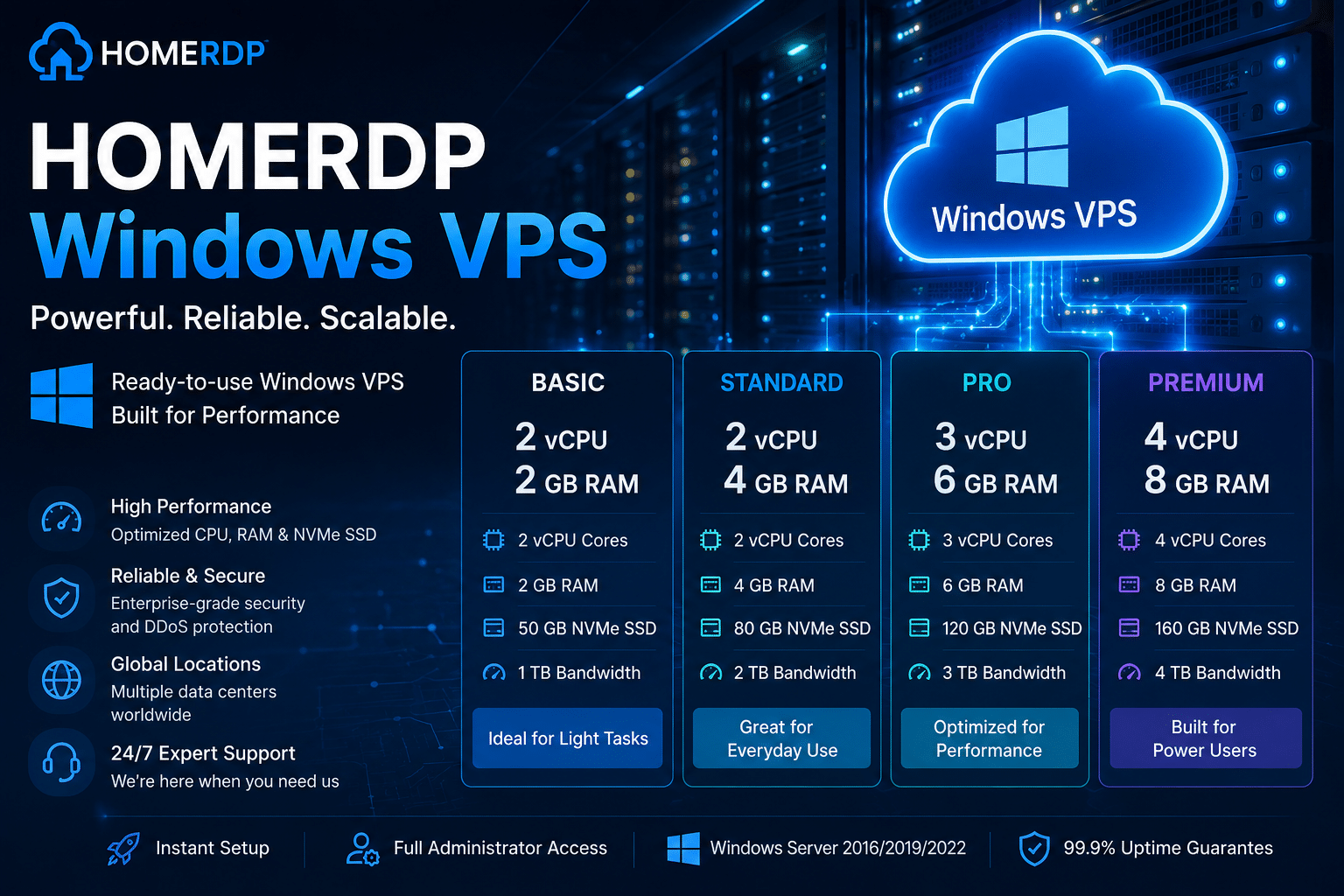
For users who need a persistent remote Windows environment rather than a local installation, HOMERDP Windows VPS offers Windows VPS configurations designed around different resource requirements. Listed plans include configurations ranging from 2 vCPUs and 2 GB RAM to 4 vCPUs and 8 GB RAM, with NVMe/SSD storage and bandwidth allocations that vary by plan.
The value proposition is different from Ventoy.
Ventoy helps answer:
“How do I boot and manage operating-system images?”
A Windows VPS helps answer:
“Where should my Windows workload run?”
These are complementary questions.
A user might:
- Use Ventoy to prepare a physical PC.
- Test a Windows installation.
- Deploy a local troubleshooting environment.
- Connect to a remote Windows VPS for persistent workloads.
- Use the local machine primarily as an access endpoint.
This creates a hybrid workflow.
Why Remote Windows Infrastructure Is Becoming More Attractive
Consider an older laptop.
It may have:
- A functional display
- A reliable keyboard
- Working Wi-Fi
- Enough performance to run a remote desktop client
But it may not have:
- A supported Windows 11 processor
- TPM 2.0
- Sufficient storage
- Modern graphics hardware
The user now has several options.
Option 1: Replace the laptop
This provides a new supported platform but requires a significant hardware purchase.
Option 2: Install an unsupported operating system configuration
This may provide a path forward but introduces support and compatibility considerations.
Option 3: Use the laptop as a remote-access endpoint
The laptop remains useful while the heavier Windows workload runs on a remote Windows VPS.
This can be particularly practical for:
- Administrative work
- Software testing
- Development
- Remote work
- Windows-only applications
- Browser-based workloads
- Lightweight server administration
The local computer does not necessarily need to perform every task.
It needs to provide a stable connection.
A Windows VPS Can Extend the Useful Life of Existing Devices
The technology industry has historically encouraged users to replace hardware when operating-system requirements change.
Remote computing offers another model.
Instead of:
Old laptop → cannot run new operating system → replace laptop
The workflow can become:
Old laptop → connect to remote Windows environment → continue using existing hardware
This does not make old hardware magically powerful.
It changes the role of the hardware.
The laptop becomes:
- A display
- A keyboard and mouse interface
- A network endpoint
- A remote-access terminal
The server provides:
- CPU resources
- RAM
- Storage
- Operating-system execution
- Application processing
This model can reduce the pressure to upgrade every endpoint simultaneously.
For organizations, it can also simplify deployment.
Instead of configuring dozens of individual PCs, administrators can centralize environments and provide users with remote access.
Ventoy vs Windows VPS: Different Tools for Different Jobs
| Requirement | Ventoy | Windows VPS |
|---|---|---|
| Create bootable USB media | Excellent | Not the primary purpose |
| Install an OS locally | Yes | Not directly |
| Multi-boot operating systems | Excellent | Not the primary purpose |
| Offline recovery | Excellent | Limited |
| Persistent remote Windows environment | No | Yes |
| Access from multiple devices | Limited | Yes |
| Centralized remote administration | No | Yes |
| Physical hardware troubleshooting | Excellent | No |
| Remote Windows applications | No | Yes |
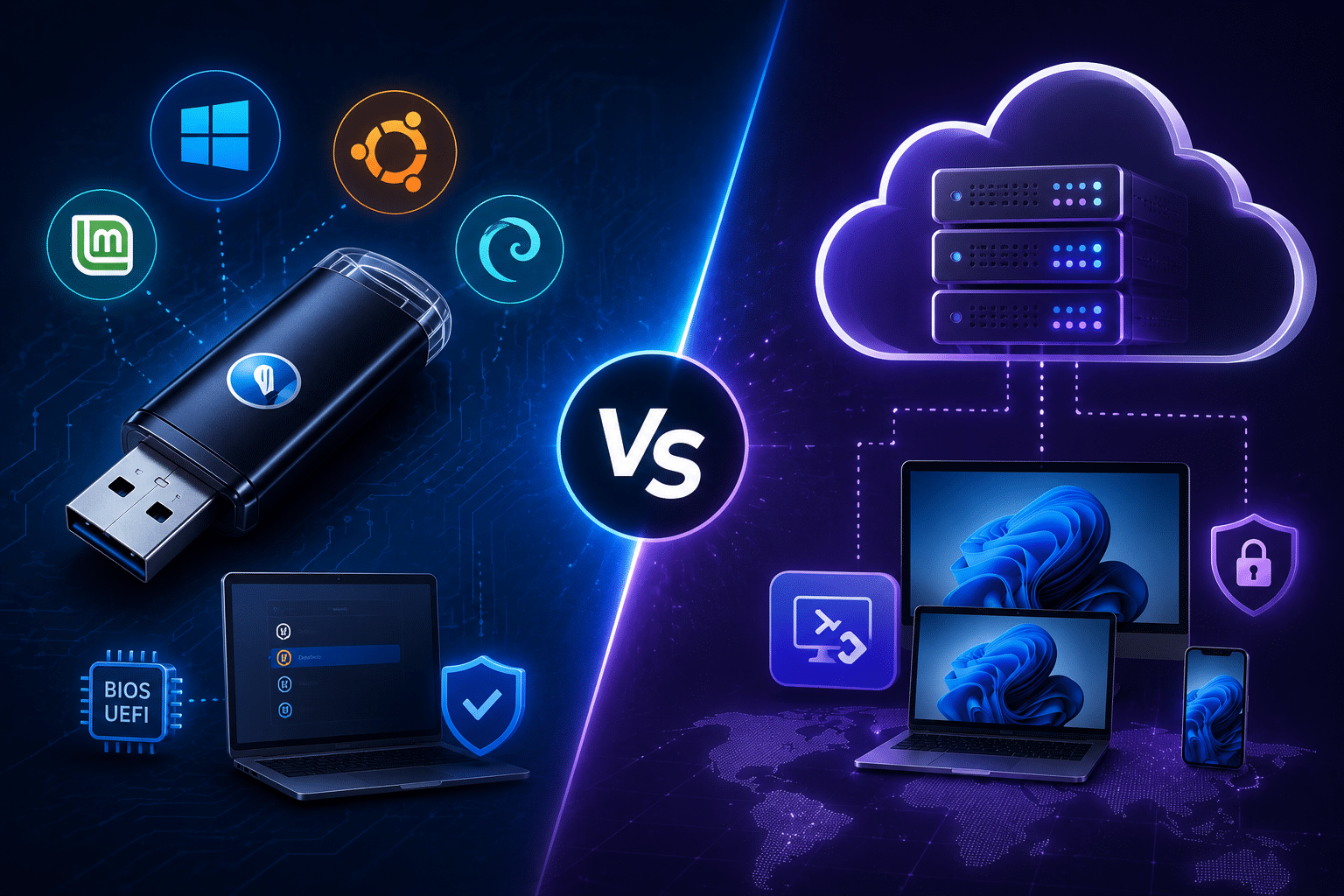
The important point is that these technologies are not direct competitors.
They operate at different layers.
Ventoy operates at the boot and deployment layer.
Windows VPS operates at the infrastructure and access layer.
A modern IT toolkit can use both.
Virtual Machines Are Changing the Meaning of Hardware Compatibility
Microsoft officially documents Windows 11 support for virtual machines, provided the virtual environment meets required conditions. These can include virtual TPM, Secure Boot, sufficient memory, virtual processors, and appropriate host configuration.
This represents a major shift in how operating systems interact with hardware.
In a traditional installation, Windows sees the physical motherboard and physical TPM.
In a virtualized environment, Windows can see:
- Virtual CPUs
- Virtual RAM
- Virtual storage
- Virtual TPM
- Virtual Secure Boot configuration
The physical server provides the underlying hardware.
The virtual machine presents a controlled hardware environment to the guest operating system.
This abstraction creates significant flexibility.
A business can:
- Create a standardized Windows environment.
- Clone or rebuild virtual machines.
- Adjust resources.
- Separate workloads.
- Manage multiple environments.
- Recover from failures more efficiently.
That is one reason virtualized Windows environments remain important for modern infrastructure.
Security Must Remain Central to the Remote Desktop Model
Remote access also creates security responsibilities.
A Windows VPS connected to the internet should not be treated like an isolated home computer.
Administrators should consider:
1. Strong authentication
Use unique, high-entropy credentials and multi-factor authentication where available.
2. Patch management
Keep Windows and installed software updated.
3. Firewall controls
Restrict unnecessary inbound access.
4. Account management
Use separate accounts for different users and tasks where appropriate.
5. Least privilege
Avoid using administrative privileges for routine work when they are not required.
6. Backup strategy
Protect important data and configurations against accidental deletion or system failure.
7. Monitoring
Review unusual login activity and unexpected system behavior.
A remote desktop environment expands access.
That makes access control even more important.
The principle is simple:
The more accessible a system becomes, the more carefully its access must be controlled.
Why Secure Boot and Remote Desktops Belong in the Same Conversation
At first glance, Secure Boot and RDP appear unrelated.
One protects the early boot process.
The other provides remote access to an operating system.
But they belong to the same larger security story.
Modern computing increasingly relies on layered trust.
At the hardware layer:
TPM and UEFI provide foundational security capabilities.
At the boot layer:
Secure Boot helps verify trusted boot components.
At the operating-system layer:
Windows provides identity, endpoint, and application security controls.
At the network layer:
RDP and remote-access infrastructure require authentication, encryption, firewalling, and monitoring.
Security must operate across all layers.
A secure boot process cannot protect an environment that uses weak credentials.
A strong password cannot repair a compromised boot chain.
A secure remote server still requires patch management.
Modern infrastructure therefore needs a complete security model rather than a single security feature.
Ventoy 1.1.17 Is a Sign of a Larger Technical Trend
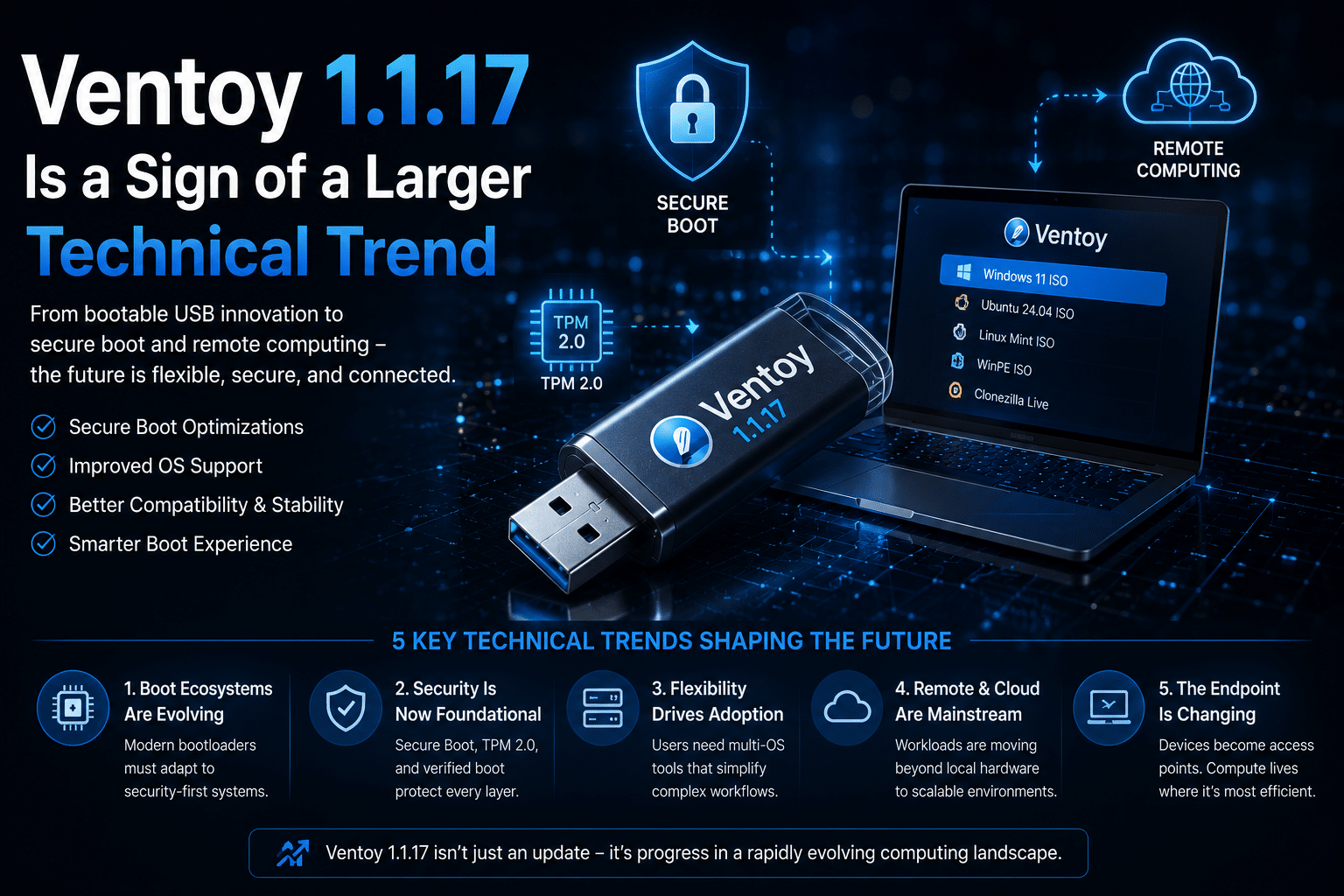
The update itself is relatively focused.
But the context is much larger.
Trend 1: Bootloaders are becoming security-sensitive
Boot components now interact with:
- UEFI
- Secure Boot
- Signing certificates
- Revocation databases
- Machine Owner Keys
- Firmware updates
Trend 2: Operating-system requirements are becoming stricter
Microsoft is increasingly emphasizing:
- TPM 2.0
- Secure Boot
- Modern processors
- Hardware-backed security
Trend 3: Users still want flexibility
People continue to need:
- Multi-boot environments
- Recovery tools
- Alternative operating systems
- Custom deployment workflows
Trend 4: Virtualization is expanding
Operating systems increasingly run inside:
- Virtual machines
- VPS environments
- Cloud platforms
- Remote desktops
Trend 5: The endpoint is becoming less important
The physical device in front of the user does not always need to be the most powerful computer in the workflow.
This is the fundamental shift.
A Practical Decision Framework for Windows Users in 2026
If you are evaluating your Windows environment, ask the following questions.
Question 1: Does my PC officially support Windows 11?
Check:
- Processor compatibility
- TPM 2.0
- UEFI
- Secure Boot capability
- RAM
- Storage
Microsoft provides official Windows 11 requirements and compatibility guidance.
Question 2: Do I need to install Windows locally?
If yes, a bootable USB tool such as Ventoy may simplify multi-image deployment and testing.
Question 3: Do I need multiple operating systems?
If yes, Ventoy can be useful for maintaining a single multi-boot toolkit.
Question 4: Is my physical PC still good enough as an endpoint?
If yes, you may not need to replace it immediately.
Question 5: Do I need a persistent Windows environment?
If yes, a Windows VPS can provide a remote environment that remains available independently of the local device.
Question 6: Is my workload CPU-, memory-, or storage-intensive?
If yes, choose infrastructure based on actual resource requirements rather than minimum operating-system requirements.
For example, HOMERDP lists Windows VPS plans with different combinations of vCPU, memory, storage, bandwidth, and connection capabilities, allowing users to choose a configuration based on their workload.
The Future Is Not “Local vs Cloud”
The future will increasingly be local plus remote.
A user may:
- Boot a diagnostic environment from Ventoy.
- Install an operating system locally.
- Run a lightweight local workflow.
- Connect to a Windows VPS for demanding applications.
- Access the same remote environment from another device.
- Maintain multiple operating systems for testing.
This is not a replacement for traditional PCs.
It is an expansion of the computing model.
The best infrastructure is often the infrastructure that gives users options.
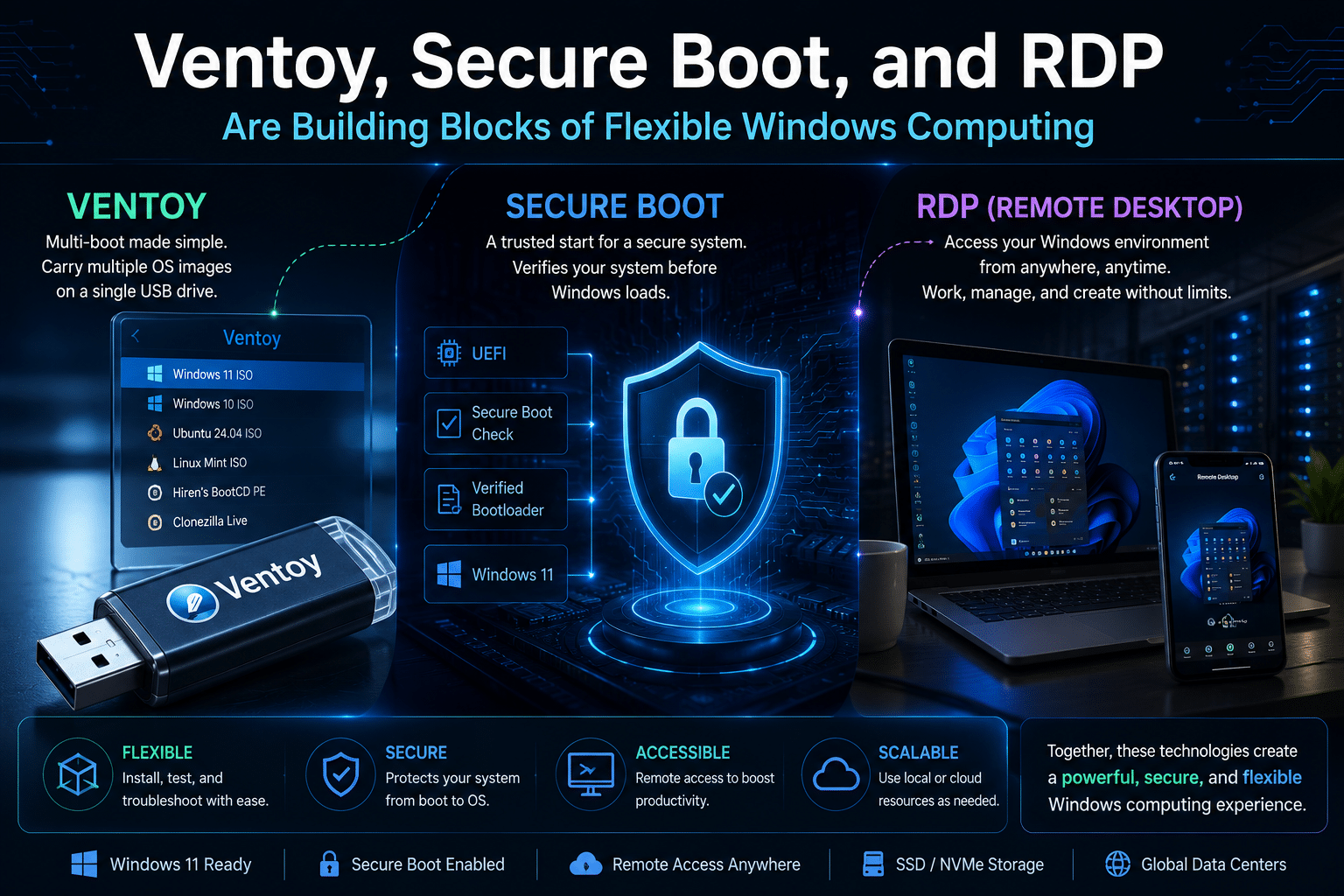
Final Verdict: Ventoy, Secure Boot, and RDP Are Building Blocks of Flexible Windows Computing
Ventoy 1.1.17 arrives at an important moment for Windows users.
Windows 11 has pushed hardware security into the spotlight. TPM 2.0, UEFI, Secure Boot, compatible processors, and other requirements have changed the way users think about operating-system compatibility. Microsoft also recognizes virtual machines as a supported environment when they provide the required virtual hardware and security configuration.
Ventoy responds from the boot side of the equation.
Its ability to manage multiple operating-system images from a single USB drive makes it valuable for deployment, testing, troubleshooting, and recovery. Version 1.1.17 adds Secure Boot process optimization and fixes across several operating systems and system configurations.
Remote Windows infrastructure addresses a different challenge.
Instead of asking whether a local PC can perform every task, users can increasingly ask:
Can this device provide a reliable connection to the computing environment I need?
For users who need a persistent remote Windows environment, HOMERDP Windows VPS provides multiple configurations that can complement local hardware, bootable USB workflows, and virtualized Windows infrastructure.
The future of Windows computing will therefore not be defined by one tool.
It will be defined by the combination of:
- Secure hardware
- Trusted boot processes
- Flexible installation media
- Virtual machines
- Windows VPS infrastructure
- Remote desktop access
- Layered security
Ventoy helps users control how operating systems boot.
Secure Boot helps determine which boot components the system trusts.
Virtualization changes how operating systems interact with hardware.
Remote desktops change where computing actually happens.
And Windows VPS infrastructure provides a practical bridge between local devices and remote computing resources.
The most important question is no longer simply:
“Can my PC run Windows 11?”
In 2026, the more useful question is:
“What is the most secure, flexible, and efficient way to access the Windows environment I need?”
For some users, the answer will be a modern local PC.
For others, it will be a Ventoy-powered multi-boot toolkit.
For businesses and professionals, it may be a combination of local endpoints, virtual machines, and remote Windows VPS infrastructure.
EXPLORE MORE ; Why MultiOS-USB 0.1.21 Is a Must-Have for Every IT Professional

READ OUR BLOGS