Bypass Execution Policy When Running PowerShell Scripts
Here’s a complete draft for your blog post:
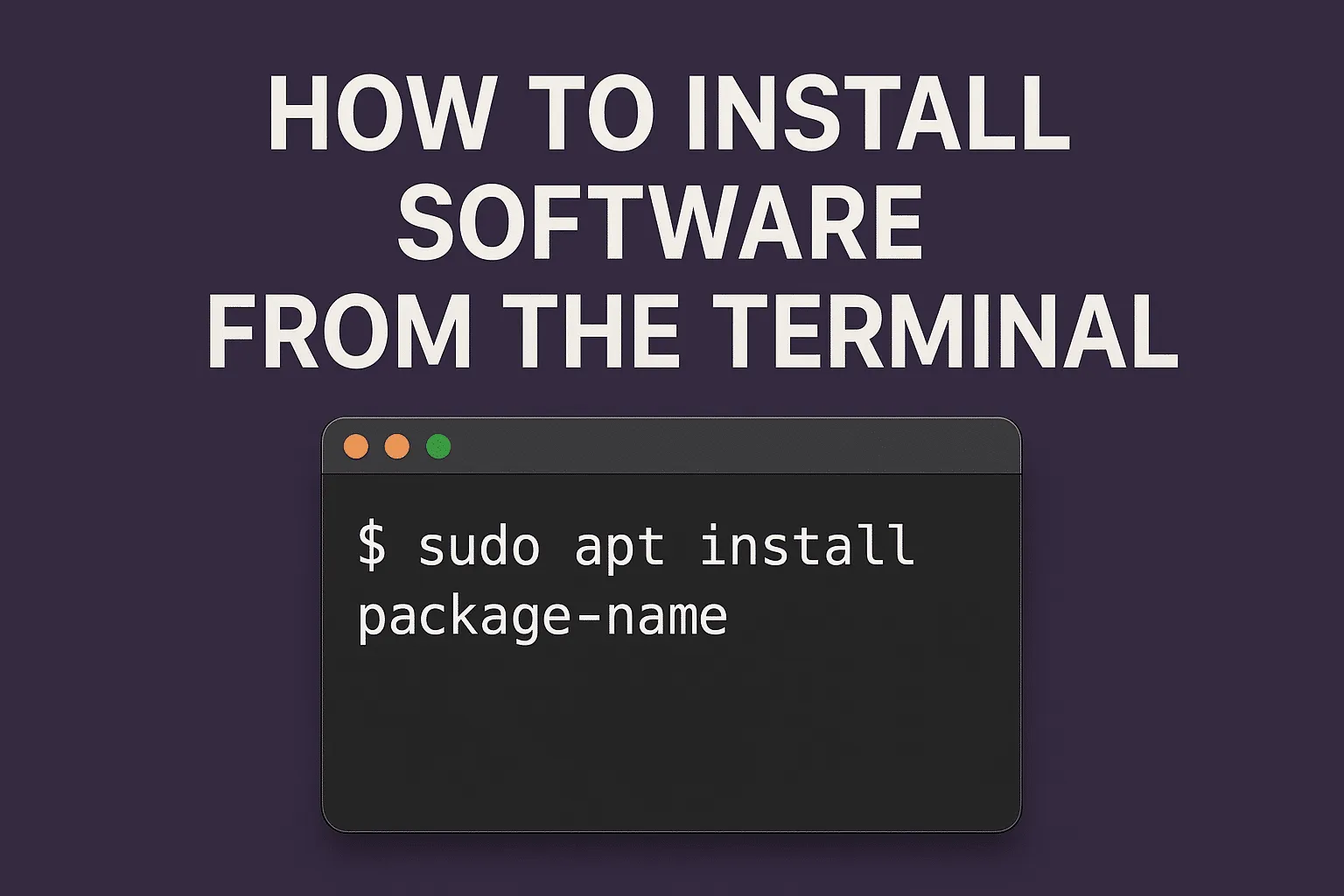
How to Install Software from the Terminal
Installing software from the terminal might sound intimidating at first, but it is one of the most powerful and efficient ways to manage applications on Linux-based systems. Unlike graphical installers, the terminal gives you complete control, faster performance, and direct access to your system’s package manager.
In this guide, we’ll walk through how to install software using different package managers commonly found in Linux distributions.
Why Use the Terminal?
-
Speed: One command installs everything.
-
Automation: You can script installations for multiple systems.
-
Control: See exactly what’s happening during installation.
-
Lightweight: No need to open a software center.
Package Managers by Distribution
Different Linux distributions use different package managers. Here are the most common ones:
1. Debian/Ubuntu (APT)
APT (Advanced Package Tool) is used in Debian-based systems like Ubuntu and Linux Mint.
sudo apt update
sudo apt install packagename
For example, to install VLC:
sudo apt install vlc
2. Fedora/CentOS/RHEL (DNF or YUM)
Fedora and newer CentOS/RHEL use DNF, while older versions still support YUM.
sudo dnf install packagename
Example:
sudo dnf install vlc
3. Arch Linux (Pacman)
Arch-based systems like Manjaro use Pacman.
sudo pacman -S packagename
Example:
sudo pacman -S vlc
4. openSUSE (Zypper)
SUSE-based distributions use Zypper.
sudo zypper install packagename
Example:
sudo zypper install vlc
Installing from a .deb or .rpm File
Sometimes, software is distributed as a package file.
-
For Debian/Ubuntu:
sudo dpkg -i filename.deb sudo apt -f install # Fix missing dependencies -
For Fedora/RHEL:
sudo rpm -ivh filename.rpm
Conclusion
Learning to install software from the terminal is a valuable skill for any Linux user. Once you get comfortable with it, you’ll realize it’s not only faster but also more reliable than using a graphical software center.
How to Install Software from the Terminal (F.A.Q)
Frequently asked questions
Do I always need sudo when installing software?
Yes, most installations require administrator privileges, so you’ll usually need sudo.
Can I uninstall software from the terminal?
Absolutely! For example, in Ubuntu: sudo apt remove packagename.
What if I don’t know the exact package name?
Use search commands, like apt search keyword or dnf search keyword.
Is it safe to install software from third-party .deb or .rpm files?
Only if you trust the source. Stick to official repositories whenever possible.
Run it on HomeRDP
Linux VPS
KVM Linux VPS with root access and NVMe storage.