In this article, we will discuss "How to Block or Unblock Program with Windows Defender Firewall". Remote Desktop Protocol is a proprietary protocol developed by Microsoft which provides a user with a graphical interface to connect to another computer over a network connection. The user employs RDP client software for this purpose, while the other computer must run RDP server software.
Open Windows Firewall
- Hit the Windows key
- Now type “Windows Firewall“ and press Enter Key.
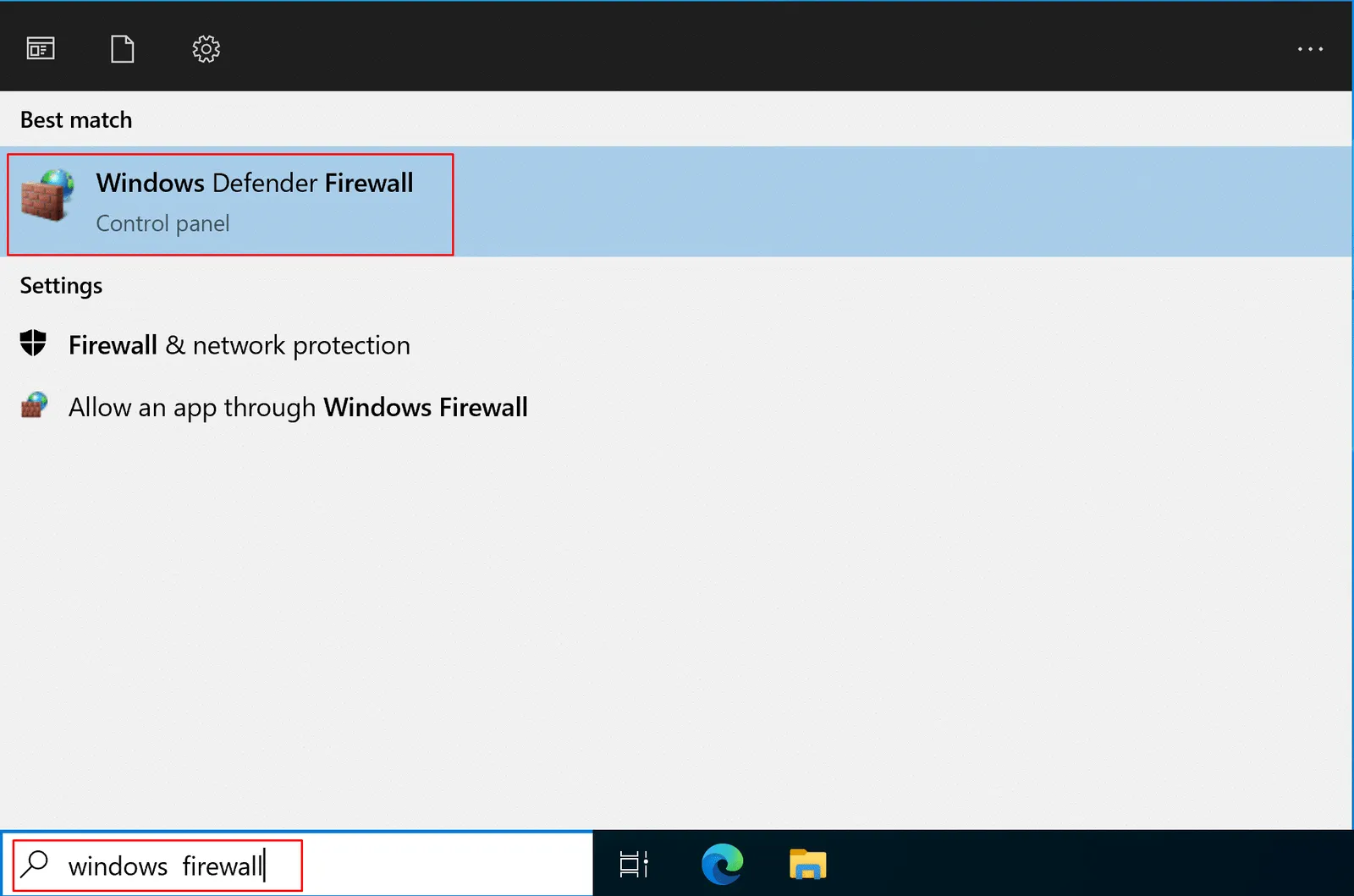
- It will open the Windows Defender Firewall Console.
Block or Unblock a Program
- Now Choose the “Allow an app or feature through Windows Defender Firewall” option in the left pane.
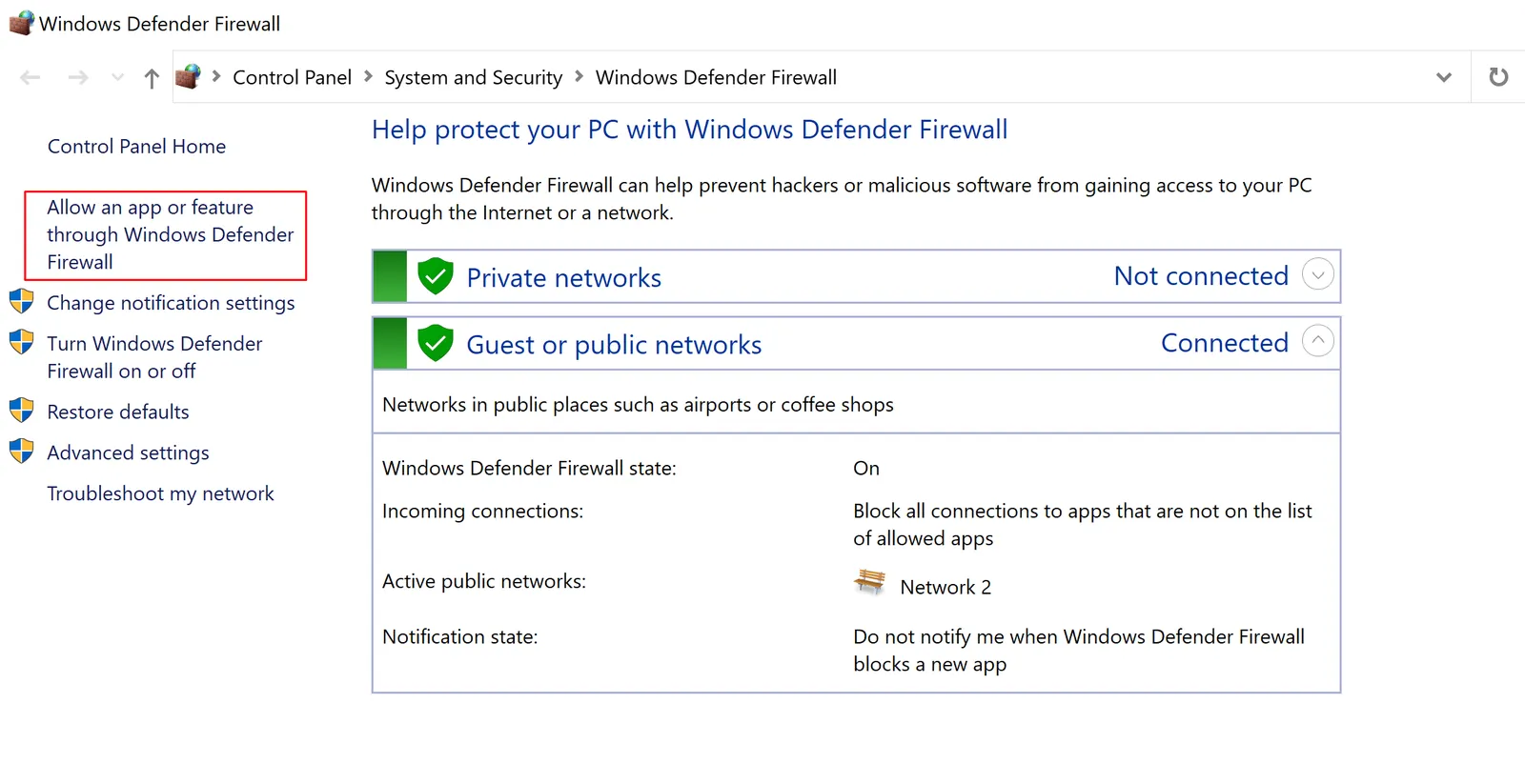
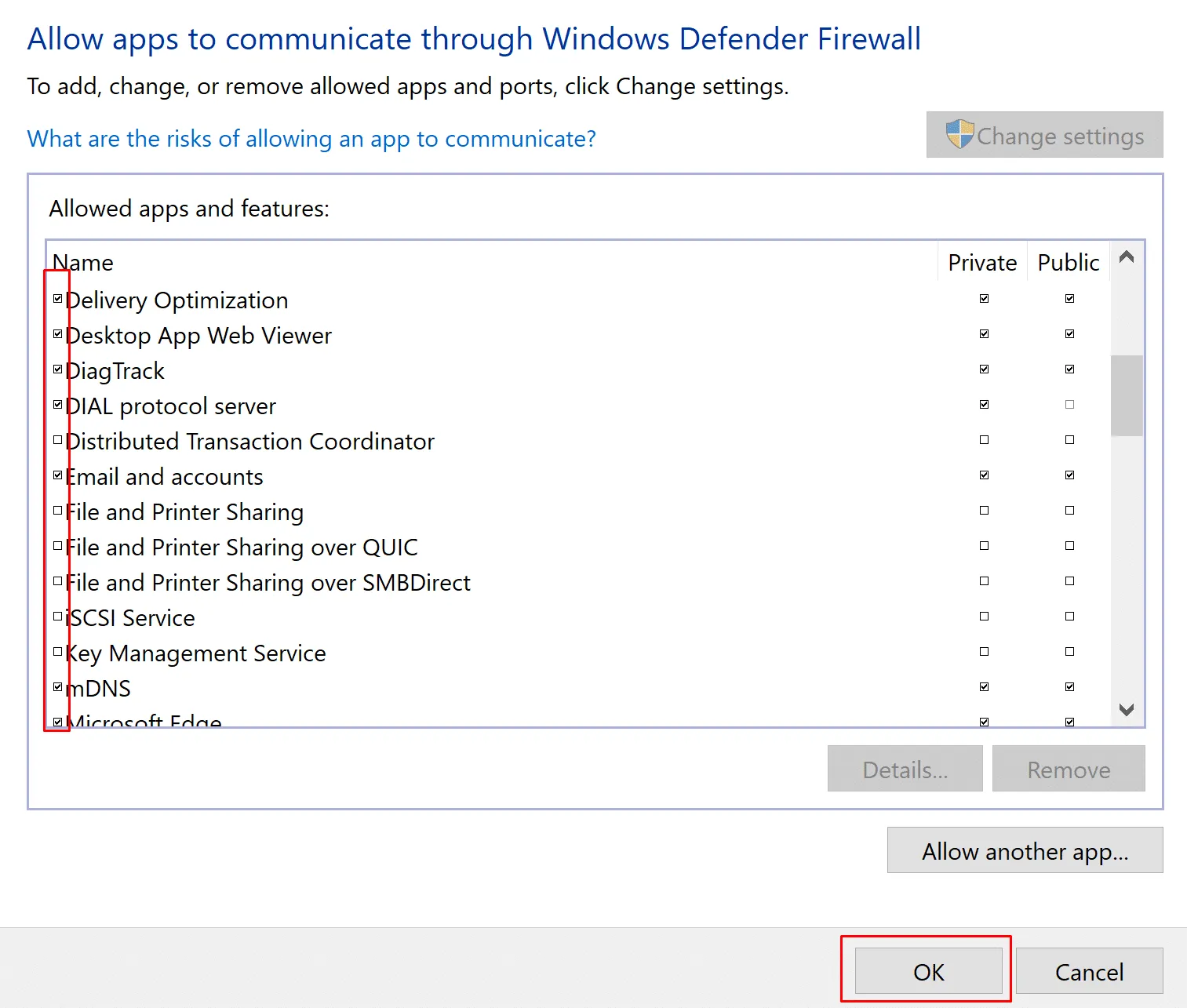
- Here you will see most of your Applications available.
- If you want to Block a Program then just Uncheck the box to the left of the application name, it will block your program from the firewall.
- To unblock the app you need to check the box to the left of the application name, it will unblock your program from the firewall.
Browse a Program
- If the program you wish to block or unblock is not listed then we need to find it.
- Click the “Allow another app…” button to add your desired Application.
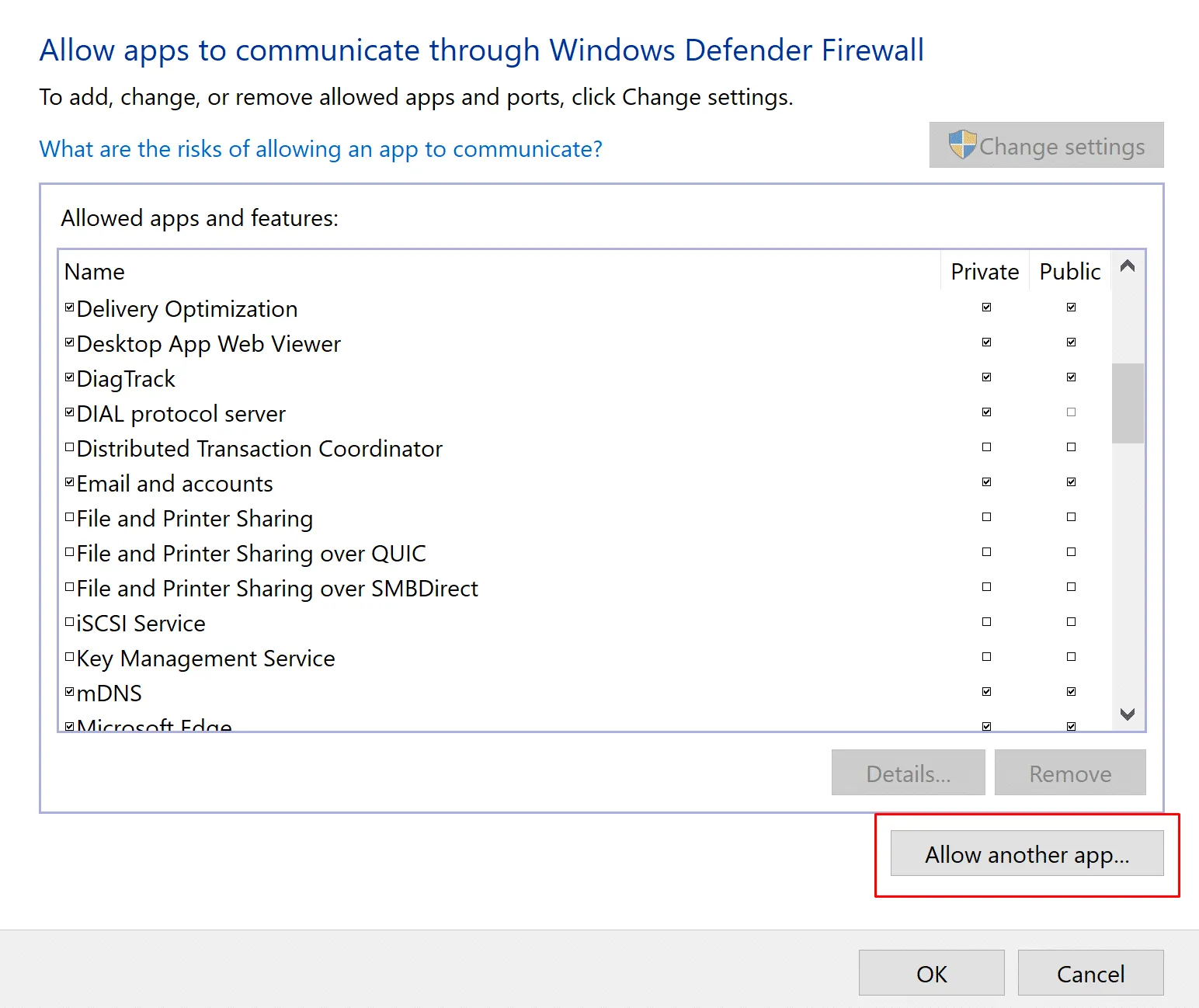
- After this click on the browse button.
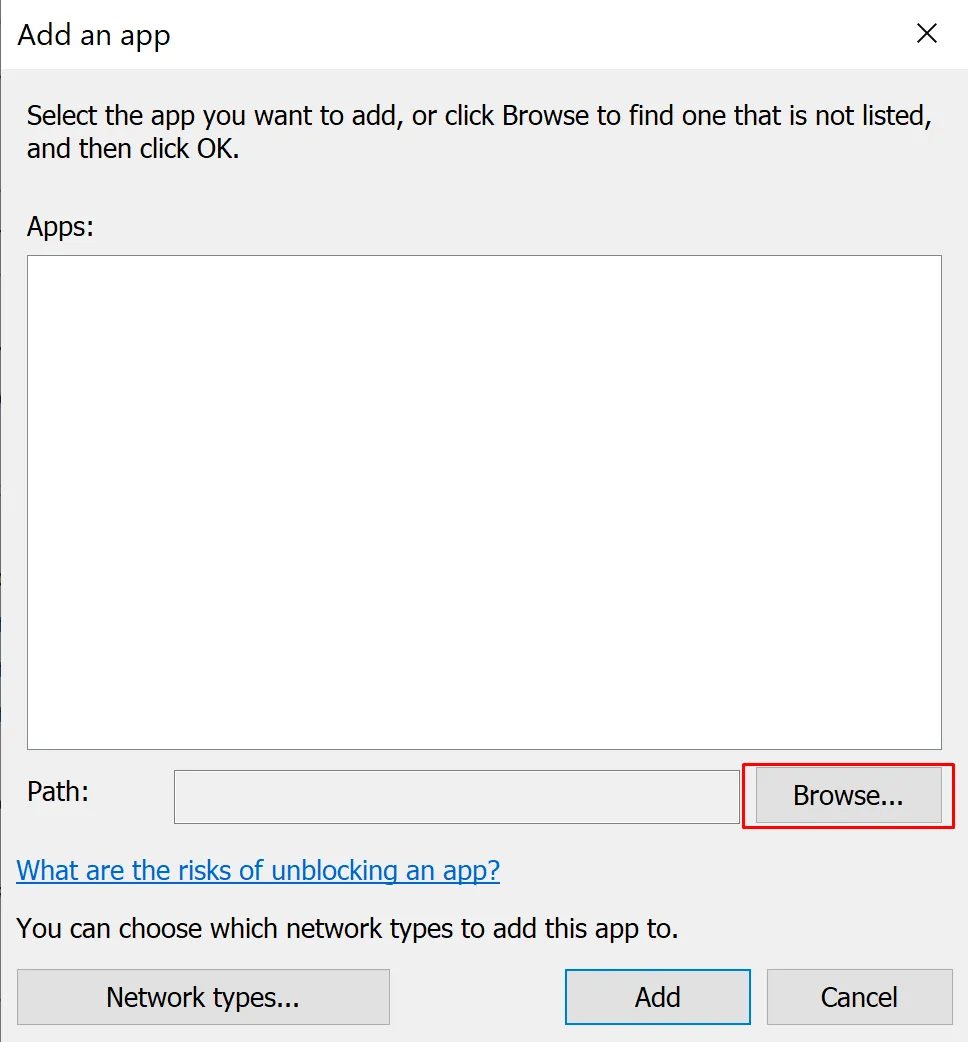
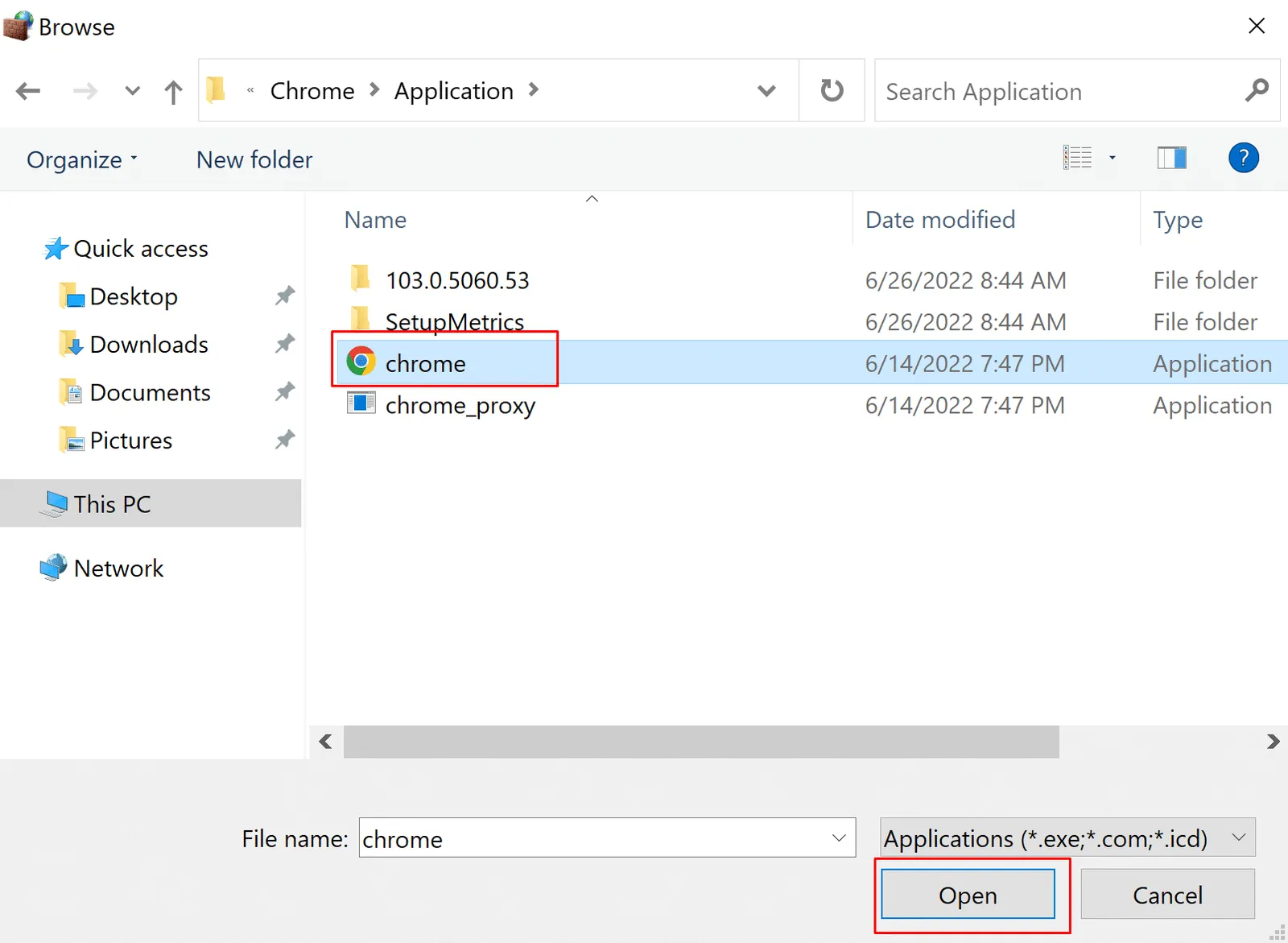
- Now go to the app's install location and select the EXE file.
- After Select click on the OK button.
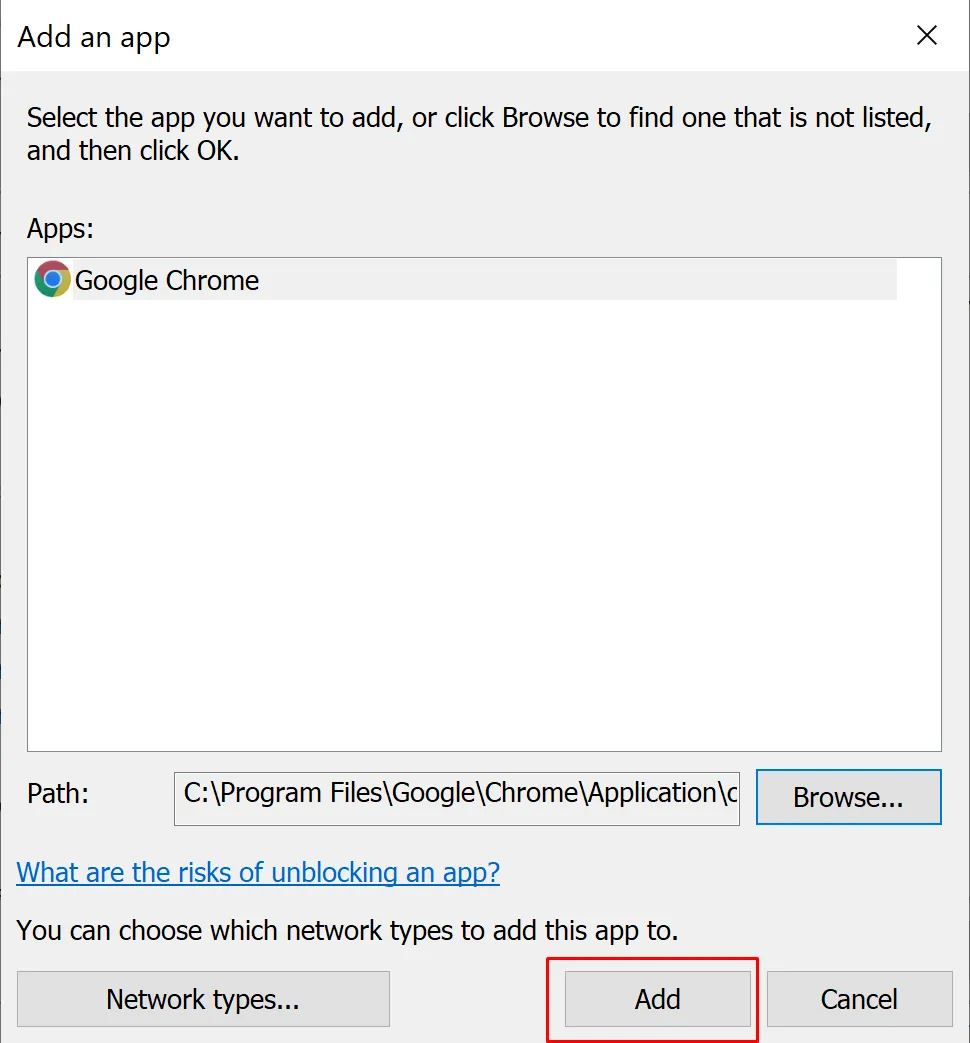
- Finally, click on the ADD button to add this To your Firewall.
Run it on HomeRDP
Windows VPS
Windows Server VPS with admin access and NVMe storage.