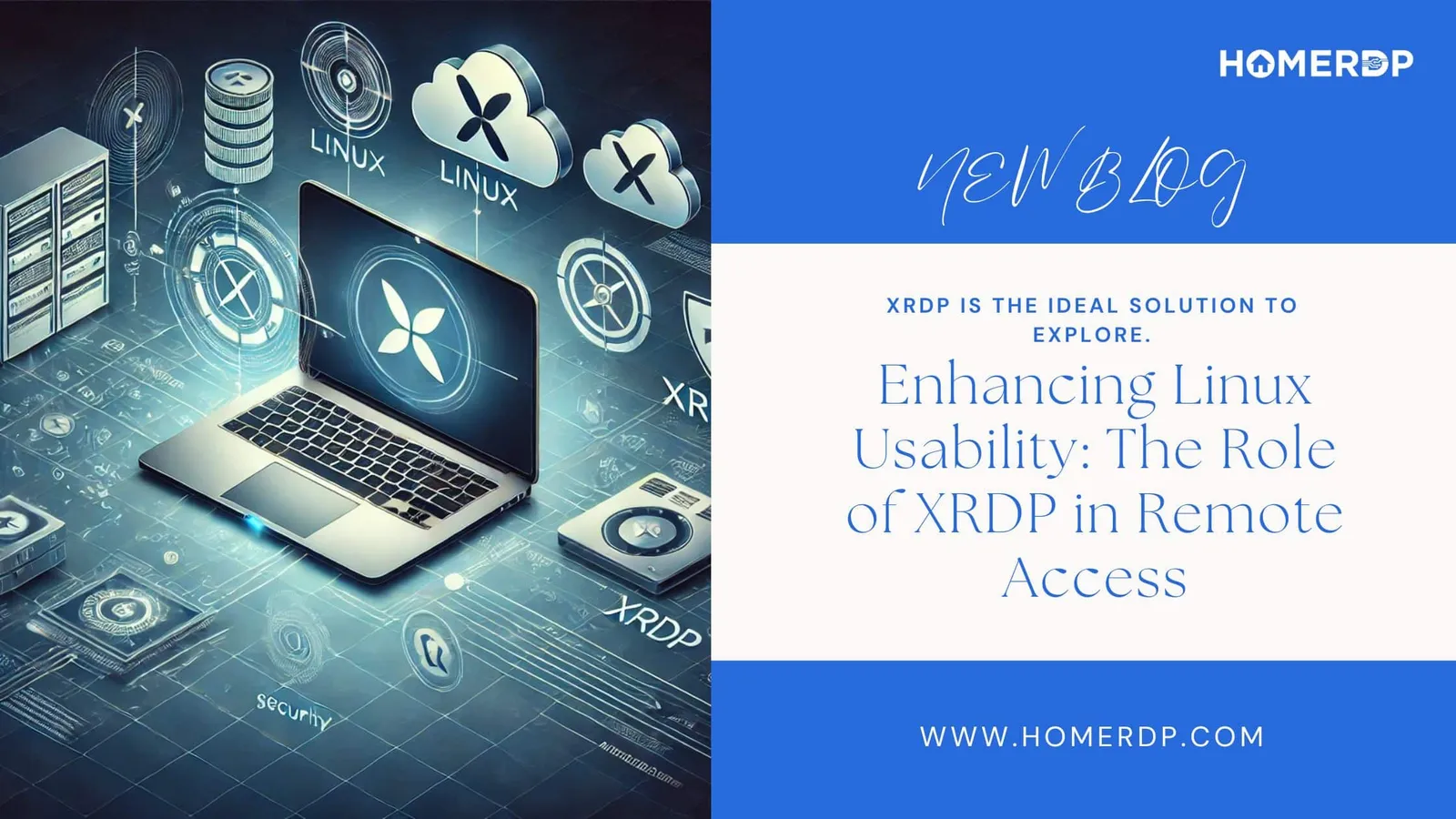
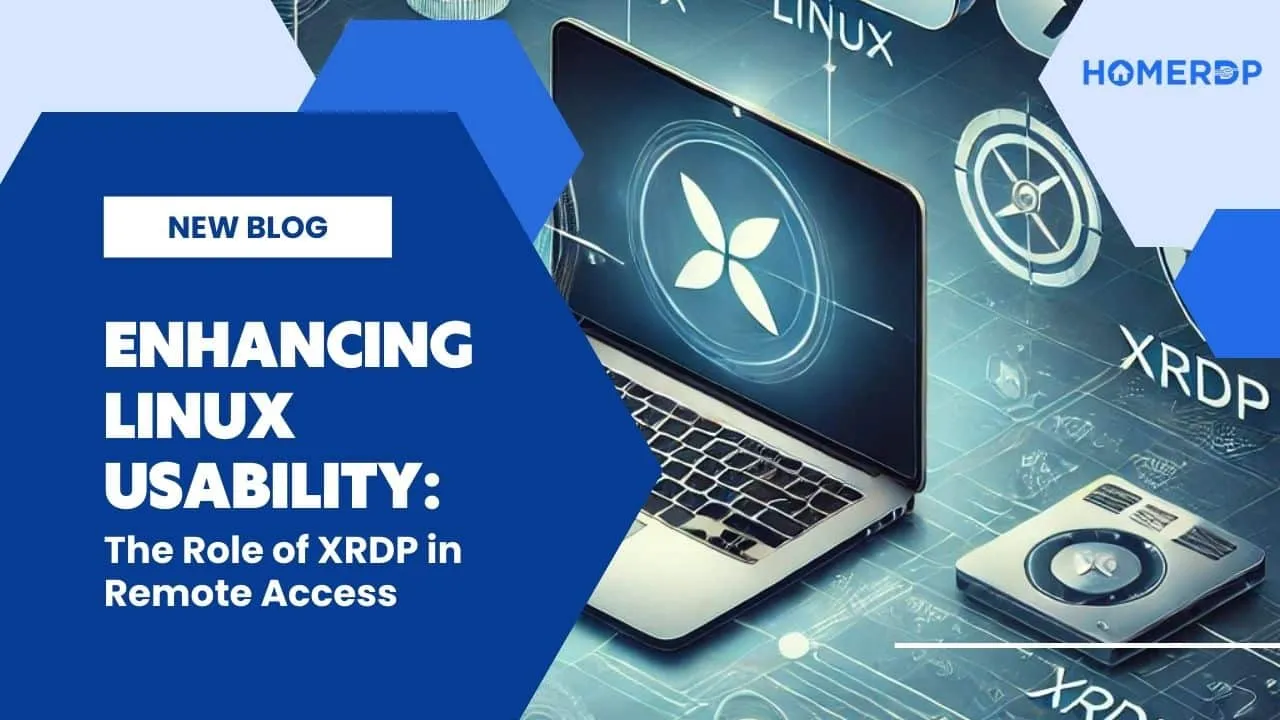
Enhancing Linux Usability: XRDP
In today's hyper-connected world, remote desktop access is essential for maintaining productivity, whether managing servers or accessing distant computers. XRDP, an open-source solution, stands out as a powerful tool that bridges the gap between Linux and Windows systems, offering users the ability to connect effortlessly to Linux machines from virtually anywhere. With XRDP, users can experience the full power of their Linux environment, all from a remote location. In this guide, we’ll explore the capabilities of XRDP, from its core functionality to step-by-step installation across different Linux distributions. Whether you’re looking to streamline your workflow or securely manage servers from afar, XRDP provides a flexible and efficient solution. Let’s dive into how XRDP simplifies remote access and elevates the Linux experience.XRDP Simplified
- XRDP stands for X Remote Desktop Protocol, and it allows remote desktop access to Linux systems.
- It is an open-source implementation of the Remote Desktop Protocol (RDP).
- With XRDP, users can easily connect to a Linux machine from either another Linux machine or a Windows device.
- This makes XRDP a versatile tool for many use cases, such as system administration, remote work, and IT support.
- Overall, XRDP simplifies the process of accessing and managing Linux systems remotely.
What is XRDP Used for?
XRDP, or X Remote Desktop Protocol, is used for remote desktop access to Linux systems. It allows users to connect to a Linux machine from another Linux machine or a Windows device. XRDP is a valuable tool that serves several purposes:- System Administration XRDP allows system administrators to remotely manage and maintain Linux servers and desktops. They can perform administrative tasks, install software, and troubleshoot issues without needing physical access to the system, boosting efficiency and reducing downtime.
- Remote Technical Support IT professionals leverage XRDP to provide remote technical support. By accessing users’ Linux machines, they can diagnose problems, configure settings, and offer guidance from any location, making it easier to resolve issues quickly.
- Remote Work XRDP enables remote workers and teams to access their Linux desktop environments from anywhere with an internet connection. This promotes flexibility and collaboration, ensuring productivity without location constraints.
- Cross-Platform Compatibility XRDP bridges the gap between Linux and Windows systems. It allows users to connect to Linux from Windows devices, offering broad compatibility for various user needs and ensuring that remote access is accessible to a wide range of platforms.
- File Transfer Capabilities With XRDP, users can transfer files between their local device and the remote Linux system during a remote session. This feature simplifies sharing documents and data, enhancing collaboration and workflow efficiency.
- Clipboard Integration XRDP offers clipboard integration, allowing users to copy and paste text or files between their local and remote Linux desktops. This improves data transfer and increases productivity during remote sessions.
- Audio Redirection XRDP supports audio redirection, enabling users to transfer sound from the remote Linux system to their local device. This feature is particularly useful for applications requiring audio, creating a more complete remote desktop experience.
- Customizable Session Settings Administrators can customize XRDP sessions to meet security and functionality requirements. This allows organizations to enforce access controls, apply policies, and tailor the remote desktop experience to align with their specific needs, ensuring both flexibility and security.
Prominent Features of XRDP
XRDP offers a range of features and benefits, making it a valuable tool for remote desktop access on Linux:- Cross-Platform Compatibility First and foremost, XRDP works seamlessly with both Linux and Windows operating systems. As a result, users can easily connect to Linux systems from a variety of devices and platforms, ensuring broad accessibility.
- Secure Encrypted Connections Additionally, XRDP ensures the confidentiality and integrity of data by supporting secure, encrypted connections. This means that sensitive information remains protected during remote desktop sessions.
- Support for Multiple Desktop Environments Furthermore, XRDP is compatible with a range of Linux desktop environments, including GNOME, KDE, and Xfce. This flexibility offers users the convenience of choosing their preferred desktop environment.
- File Transfer In addition to its other features, XRDP allows users to transfer files seamlessly between their local and remote systems. This capability significantly improves workflow efficiency and collaboration.
- Clipboard Integration Moreover, XRDP supports clipboard integration, enabling users to copy and paste text and files between the local and remote desktops. Consequently, this enhances productivity during remote sessions.
- Audio Redirection Another valuable feature is audio redirection. XRDP allows users to stream audio from the remote machine to their local device, which is particularly useful for applications requiring sound.
- Customizable Session Settings Finally, XRDP offers customizable session settings. Administrators can tailor the configuration to meet specific security and functionality requirements, ensuring that remote desktop access is both secure and user-friendly.
Installing XRDP on Ubuntu
XRDP can be installed on various Linux distributions, and we will focus on its installation on Ubuntu. The process may vary slightly depending on the Ubuntu version, so we'll cover installation on Ubuntu 20.04 LTS.Installation on Ubuntu 20.04 LTS
1. Update the Package List:sudo apt update
2. Install XRDP:sudo apt install xrdp
3. Start the XRDP Service: sudo systemctl start xrdp
4. Enable XRDP to Start on Boot: sudo systemctl enable xrdpUsing XRDP on Debian, Fedora, and CentOS
XRDP is not limited to Ubuntu but can be installed on various Linux distributions, including Debian, Fedora, and CentOS. The installation process on these distributions typically involves using the distribution's package manager, such as apt for Debian-based systems, dnf for Fedora, and yum for CentOS.EXPLORE OUR RDP; GERMANY RDP
INDIAN RDP
USA RDP
UK RDP
SINGAPORE RDP
RUSSIA RDP
NETHERLAND RDP
FRANCE RDP
CANADA RDP
AUSTRALIA RDP
Run it on HomeRDP
Linux VPS
KVM Linux VPS with root access and NVMe storage.