

Dual-Boot Linux and Windows in 2026: Risks, Benefits, and Better Alternatives
Dual-booting Linux and Windows remains one of the most popular ways to get the best of both operating systems on a single PC.
Windows provides broad software and hardware compatibility, while Linux delivers a powerful open-source environment for developers, system administrators, students, cybersecurity professionals, engineers, and technology enthusiasts.
On paper, the idea is straightforward: keep Windows on one part of the drive, install Linux beside it, and select the operating system you want whenever the computer starts.
In 2026, however, dual-booting is no longer as simple as it was on many older PCs.
Modern Windows installations can involve BitLocker or device encryption, UEFI firmware, Secure Boot, TPM hardware, recovery partitions, fast startup, and increasingly complex storage configurations. Ubuntu’s current documentation specifically warns that an encrypted Windows installation can prevent its installer from safely installing Ubuntu alongside Windows.
That does not make dual-booting a bad idea.
It simply means users should understand what they are changing before they modify a working Windows installation.
More importantly, dual-booting is no longer the only way to access a serious Linux environment.
Virtual machines, Windows Subsystem for Linux, containers, remote development environments, and Linux VPS hosting give users several alternatives. For users who primarily need Linux for development, server administration, testing, automation, or learning, a remote Linux VPS can eliminate much of the complexity associated with modifying a personal computer.
This guide explores the benefits, risks, hidden challenges, and better alternatives to dual-booting Linux and Windows in 2026, including where a Linux VPS from HOMERDP can fit into a modern workflow.
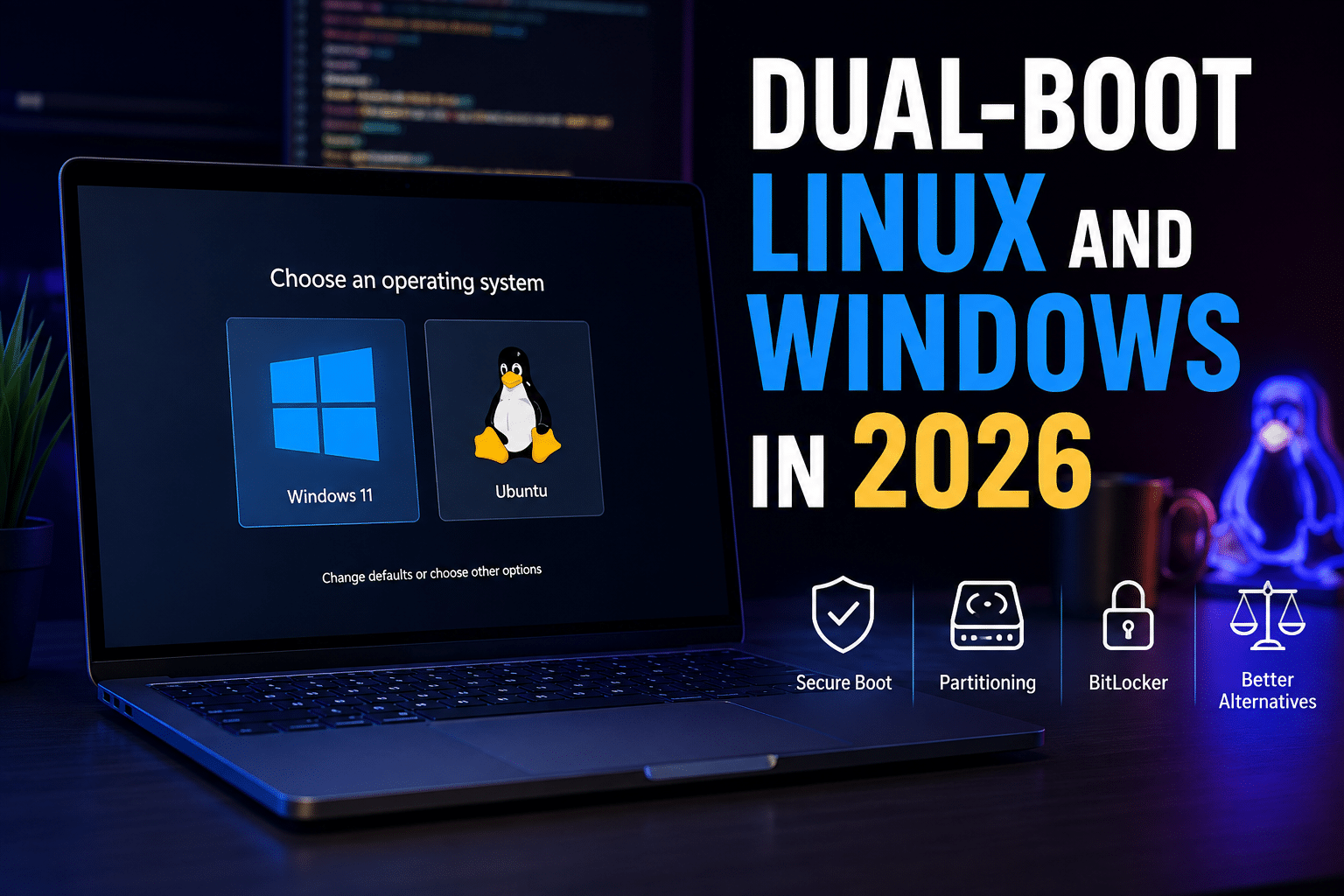
What Is Dual-Booting Linux and Windows?
Dual-booting means installing two operating systems on the same physical computer and configuring the machine so you can choose which one starts.
A typical setup might contain:
- Windows 11
- Ubuntu or another Linux distribution
- An EFI System Partition
- A Windows system partition
- A Linux root partition
- Optional Linux swap space
- Recovery partitions
- Additional data partitions
When you turn on the computer, the firmware and boot configuration determine which operating system loads.
The basic workflow looks like this:
Power on → UEFI firmware → bootloader → Windows or Linux
This arrangement gives each operating system direct access to the machine’s CPU, memory, storage, graphics hardware, network interfaces, and peripherals.
That is one of the biggest advantages of dual-booting.
Unlike a virtual machine, Linux does not have to share CPU and memory with a simultaneously running Windows desktop. When you boot Linux, Linux controls the machine.
For workloads that require native hardware performance, that distinction can matter.
Why Dual-Booting Still Makes Sense in 2026
Despite the additional complexity, dual-booting remains useful.
1. You Get Native Linux Performance
When you boot Linux directly, the operating system runs on the physical hardware.
You are not running Linux inside a virtualized hardware layer.
This can benefit:
- GPU-intensive applications
- Linux gaming
- Software compilation
- Machine-learning experimentation
- Hardware development
- Low-level programming
- Performance testing
- Large development workloads
If your computer has a powerful processor, plenty of RAM, a dedicated GPU, and fast NVMe storage, a native Linux installation can take advantage of those resources directly.
2. Windows Remains Available
Dual-booting eliminates the need to choose between Windows and Linux permanently.
You can use Windows for:
- Microsoft applications
- Business software
- Windows-only utilities
- Certain games
- Proprietary professional applications
- Hardware-specific applications
Then restart into Linux for:
- Programming
- Server administration
- Open-source development
- Linux-native tools
- Containers
- Automation
- Networking
- Security testing
This flexibility remains the biggest reason people install both operating systems.
3. Linux Gets Full Hardware Access
A local Linux installation can access the hardware more directly than many virtualized environments.
This matters when you are testing:
- Wi-Fi adapters
- Bluetooth hardware
- USB devices
- GPUs
- External displays
- Cameras
- Audio equipment
- Embedded hardware
- Development boards
If your project requires direct interaction with physical hardware, a local Linux installation can be difficult to replace.
The Hidden Cost: You Are Managing Two Operating Systems
The biggest mistake beginners make is thinking dual-booting simply means installing Linux.
It doesn’t.
You are creating a small infrastructure environment on your personal computer.
Now you need to consider:
- Boot configuration
- Disk partitioning
- Encryption
- Firmware
- Recovery
- Operating-system updates
- Hardware drivers
- Filesystem compatibility
- Backup strategies
- Security
This doesn’t mean dual-booting is inherently dangerous.
It means you should treat the installation as a system change rather than a normal application installation.
Risk 1: BitLocker Can Complicate Linux Installation
BitLocker is one of the most important issues Windows users should check before attempting a Linux dual-boot.
Microsoft’s disk-encryption technology protects Windows data by encrypting the drive.
That is valuable for security.
But encryption also changes what a Linux installer can see.
Ubuntu’s current documentation states that when BitLocker is enabled, the Ubuntu installer cannot correctly access the encrypted Windows installation’s disk structure. Consequently, it cannot safely install Ubuntu alongside Windows.
This creates an important decision before installation.
You may need to:
- Check whether BitLocker is enabled.
- Back up important Windows data.
- Make sure you have the required recovery information.
- Understand your Windows encryption configuration.
- Follow Microsoft’s and Ubuntu’s current guidance.
- Disable BitLocker only if your chosen installation method requires it.
Ubuntu warns that some Windows versions may not allow BitLocker to be re-enabled after it has been disabled, so users should verify their specific Windows configuration before proceeding.
The lesson is simple:
Never disable encryption casually.
If your laptop contains important business files, photographs, documents, source code, credentials, or other irreplaceable data, create a reliable backup before modifying partitions or encryption.
Risk 2: Partitioning Can Destroy Data
Partitioning is another area where users should slow down.
Suppose your computer has a 1 TB SSD.
You might see 300 GB of free space inside Windows and assume Linux can simply use it.
That is not how partitioning works.
There is a difference between:
Free space inside a Windows partition
and
Unallocated disk space outside a partition.
The Linux installer needs appropriate disk space to create its filesystem.
Ubuntu’s current installation documentation provides an automated “install alongside” workflow as well as manual partitioning for advanced users. Ubuntu specifically describes manual partitioning as an option for users who understand the storage configuration and are comfortable managing partitions.
If the terminology is unfamiliar, don’t guess.
A wrong partition choice can erase an existing operating system or personal data.
Risk 3: Your Boot Process Becomes More Important
A Windows-only computer can normally boot directly into Windows.
A dual-boot system introduces additional boot configuration.
Depending on the distribution and configuration, Linux may install or modify bootloader entries so the computer can present a menu allowing you to choose Linux or Windows.
The architecture commonly looks like:
UEFI → Linux bootloader → Linux / Windows
That means a problem with the boot configuration can prevent the operating system from starting even when the operating system itself is still intact.
This is why a responsible dual-boot installation should include:
- Windows recovery media
- Linux installation media
- Backup copies of important data
- Recovery information
- Knowledge of the computer’s UEFI settings
You don’t need to expect bootloader problems.
You simply need to be prepared for them.
Risk 4: Windows Fast Startup Can Affect Cross-OS Workflows
Windows Fast Startup is designed to speed up startup by using hibernation-related technology.
Microsoft explains that Fast Startup writes kernel-related state to a hibernation file rather than performing the same process as a traditional full shutdown.
That matters when Windows and Linux interact with the same storage.
If Windows has not fully released the filesystem state and Linux subsequently tries to access the Windows partition, you can encounter filesystem or mounting complications.
For dual-boot users, this means you should understand how Windows shuts down before accessing shared NTFS storage from Linux.
Don’t assume that clicking “Shut down” always means every part of the Windows state has been discarded.
Risk 5: Secure Boot Adds Another Layer
Secure Boot is often treated as an obstacle to Linux.
That is outdated thinking.
Secure Boot is a security mechanism designed to help prevent unauthorized software from executing during the early boot process.
Modern Linux distributions can support Secure Boot.
Ubuntu’s current documentation also covers Secure Boot and hardware-backed security configurations as part of its modern installation and security documentation.
Therefore, users should not automatically disable Secure Boot simply because they want Linux.
Instead:
- Check your distribution’s current requirements.
- Check hardware compatibility.
- Follow official installation documentation.
- Keep security features enabled when your configuration supports them.
A good dual-boot installation should preserve security rather than weaken it unnecessarily.
Risk 6: Hardware Compatibility Can Differ Between Windows and Linux
A Windows-compatible laptop is not automatically guaranteed to provide an identical Linux experience.
Potential trouble areas include:
- Wi-Fi
- Bluetooth
- Fingerprint readers
- Touchpads
- Webcams
- Graphics drivers
- Audio
- External displays
- Laptop hotkeys
- Suspend/resume
- Docking stations
- Specialized peripherals
This is why testing Linux through a live USB before installation can be extremely valuable.
You can test:
- Wi-Fi
- Sound
- Graphics
- Keyboard
- Touchpad
- Bluetooth
- Webcam
- External monitors
before making permanent changes.
That small amount of preparation can prevent hours of troubleshooting.
Risk 7: Storage Becomes a Strategic Decision
Modern applications consume enormous amounts of storage.
Windows itself requires significant disk space.
Games can consume tens or even hundreds of gigabytes.
Development environments can add:
- Docker images
- Virtual machines
- SDKs
- Node modules
- Python environments
- Build artifacts
- Databases
- Source repositories
Linux also needs space for system files, applications, caches, logs and user data.
That means a 512 GB SSD can become restrictive surprisingly quickly.
You must decide how much storage to allocate to each operating system.
And remember:
Dual-booting does not double your storage.
You are dividing one physical resource between two operating systems.
Risk 8: Dual-Booting Does Not Create a Backup
This misconception deserves special attention.
Some users believe that because they have two operating systems, their computer is somehow more resilient.
It isn’t.
If your SSD fails:
Windows and Linux can disappear together.
If ransomware encrypts accessible files:
Both environments may be affected.
If you accidentally delete the wrong partition:
Your second operating system won’t magically restore the first.
A backup strategy remains essential.
Ubuntu’s own dual-boot guidance emphasizes backing up data and having recovery media available before changing the hard drive.
The Benefits of Dual-Booting Still Outweigh the Risks for Some Users
Despite these challenges, dual-booting remains an excellent option when the workload demands native Linux.
It is particularly attractive for:
Gamers
You can use Windows for games that require Windows-specific compatibility while keeping Linux available for Linux-native gaming and experimentation.
Developers
You can run Linux tools natively while retaining Windows applications.
Hardware Engineers
Direct hardware access can make local Linux preferable.
Linux Enthusiasts
If you want the complete Linux desktop experience, nothing beats actually running Linux on the machine.
Cybersecurity Students
A native Linux environment provides a useful laboratory for networking, scripting, system administration and security education.
But What If You Don’t Need Linux on the Physical PC?
This is the question more users should ask.
Suppose you are a developer who primarily needs:
- Ubuntu
- SSH
- Git
- Docker
- Python
- Node.js
- PostgreSQL
- Nginx
- Linux command-line tools
Do you really need to repartition your Windows laptop?
Maybe not.
A Linux VPS can provide the Linux environment remotely while allowing your Windows computer to remain untouched.
The architecture becomes:
Windows PC → Internet → Linux VPS
instead of:
Windows PC → Windows/Linux partitions → dual-boot configuration
That is a significant difference.
Linux VPS: A Practical Alternative to Dual-Booting
A Linux VPS is a virtual server running a Linux operating system in a data center.
You connect to it remotely using tools such as:
- SSH
- Remote desktop
- SFTP
- Git
- Web-based management tools
- Development environments
Your local computer remains Windows.
The Linux system lives separately.
This separation provides several advantages.
1. No Local Partitioning
You don’t have to resize your Windows partition.
You don’t have to move files around your SSD.
You don’t have to decide whether Linux gets 100 GB or 200 GB.
Your local Windows installation remains intact.
For many users, this is the single biggest advantage.
2. No Rebooting
Dual-booting requires a restart whenever you switch operating systems.
A VPS doesn’t.
You can work in Windows and connect to Linux in another window.
That is particularly useful for developers and administrators who frequently switch between environments.
Instead of:
Save → reboot → Linux → work → reboot → Windows
you get:
Windows → connect to Linux → work
The difference becomes significant when you do it repeatedly every day.
3. Your Linux Environment Can Stay Online
A laptop is usually turned off or put to sleep.
A server can remain available.
Your Linux VPS can host:
- Development environments
- Websites
- APIs
- Databases
- Git services
- Automation tasks
- Monitoring tools
- Testing environments
- Background processes
You can disconnect from your computer without necessarily stopping the remote environment.
Reconnect later and continue.
4. You Can Access Linux From Multiple Devices
A local dual-boot installation belongs to one computer.
A VPS belongs to your account and network-accessible environment.
That means you can potentially connect from:
- Laptop
- Desktop
- Tablet
- Another workstation
provided you have appropriate network access and credentials.
This makes a VPS particularly attractive for developers who work across multiple computers.

HOMERDP Linux VPS: A Strategic Alternative
For users who want Linux without modifying their Windows PC, HOMERDP Linux VPS provides a relevant option.
HOMERDP currently lists Linux VPS configurations ranging from a 1-vCPU, 1 GB RAM option through higher-resource plans reaching 12 vCPUs, 64 GB RAM and 800 GB NVMe/SSD storage. The provider also advertises root access, dedicated resources, SSD/NVMe storage, scalable plans and multiple data-center options.
That range allows users to match the server configuration to their workload rather than permanently allocating part of a laptop’s hardware to Linux.
For example:
Lightweight Linux environment
A smaller VPS can be appropriate for:
- SSH practice
- Linux learning
- Basic development
- Small applications
- Lightweight automation
Development server
A larger configuration can support:
- Multiple development tools
- Databases
- Web servers
- Containers
- Build processes
- More demanding applications
High-resource workloads
HOMERDP also lists larger configurations reaching 8 and 12 vCPUs, 32 or 64 GB RAM, and hundreds of gigabytes of NVMe/SSD storage.
The key advantage is flexibility.
You don’t have to redesign your personal computer around your Linux requirements.
Dual-Boot vs Linux VPS: Which Should You Choose?
| Feature | Dual-Boot | Linux VPS |
|---|---|---|
| Native Linux performance | Excellent | Depends on VPS resources |
| Repartitioning required | Yes | No |
| Reboot required to switch OS | Yes | No |
| Uses local disk | Yes | No |
| Direct hardware access | Excellent | Limited to virtualized hardware |
| Works offline | Yes | No |
| Persistent remote environment | No | Yes |
| Accessible from multiple devices | Limited | Yes |
| Excellent for Linux servers | Good | Excellent |
| Excellent for GPU workloads | Excellent | Usually not the best choice |
| Good for Linux learning | Excellent | Excellent |
| Hardware compatibility concerns | Higher | Lower locally |
| Maintenance responsibility | Local machine + OS | VPS OS + applications |
| Best for | Native Linux users | Remote/server workloads |
There is no universal winner.
The correct choice depends on the job.
When Dual-Booting Is the Better Choice
Choose dual-boot Linux and Windows when you need:
Direct GPU access
If your Linux workload depends heavily on the local GPU, native Linux can be preferable.
Hardware experimentation
If you’re working with USB devices, embedded systems, specialized peripherals or hardware development, local Linux has a major advantage.
Offline access
A VPS requires network connectivity.
A local Linux installation does not.
Linux gaming
Some games and hardware configurations work best when Linux runs directly on the machine.
Maximum local performance
If your computer has powerful hardware and you want Linux to use it without virtualization or remote networking, dual-booting remains attractive.
When a Linux VPS Is the Better Choice
Choose a Linux VPS when you primarily need:
Web development
You can build and test Linux-based web applications without modifying Windows.
Backend development
Run Linux-native services and development stacks remotely.
Server administration
A VPS gives you a real Linux server environment rather than a simulated desktop.
Docker and containers
A remote Linux system can provide a persistent environment for containerized workloads.
Automation
Cron jobs, scripts and background processes can continue running independently of your local PC.
Learning Linux administration
A VPS gives students and beginners a practical environment where they can experiment with Linux.
Hosting
If you need an always-online Linux environment, a VPS makes more sense than dual-booting a laptop.
What About Virtual Machines?
Virtual machines occupy the middle ground.
You keep Windows as your primary operating system and run Linux inside a virtual machine.
The major benefit is convenience.
You don’t need to reboot.
You can run Windows and Linux simultaneously.
You can copy and paste between environments.
You can test Linux distributions without changing your physical partitions.
But a virtual machine consumes your local resources.
If your Windows machine has 16 GB RAM and you give 8 GB to a Linux VM, Windows has less RAM available.
The same applies to CPU cores and storage.
A VPS moves those Linux resources away from your local machine.
What About WSL?
Windows Subsystem for Linux provides another option for developers who primarily need Linux command-line tools inside Windows.
For many development workflows, WSL can be significantly easier than dual-booting.
You can remain inside Windows while accessing a Linux environment.
That makes it attractive for:
- Software development
- Shell scripting
- Git
- Python
- Node.js
- Linux command-line tools
- DevOps workflows
However, WSL, a VM and a VPS solve different problems.
If you need a persistent remote Linux server, a VPS is more appropriate.
If you need a Linux environment integrated tightly with your Windows workstation, WSL can be more convenient.
If you need native hardware access, dual-booting remains powerful.
The 2026 Decision Framework
Before installing Linux alongside Windows, ask five questions.
Question 1: Do I need direct hardware access?
Yes: Consider dual-booting.
No: A VPS, VM or WSL may be enough.
Question 2: Do I need Linux offline?
Yes: Local Linux has an advantage.
No: Remote Linux becomes more practical.
Question 3: Do I need an always-online server?
Yes: Use a VPS.
A laptop is not an ideal replacement for server infrastructure.
Question 4: Do I frequently switch between Windows and Linux?
Yes: Consider WSL, a VM or VPS.
Constant rebooting can become inefficient.
Question 5: Am I comfortable modifying partitions and boot configuration?
Yes: Dual-booting is viable.
No: Don’t force it.
A VPS lets you obtain a Linux environment without turning your Windows installation into a storage and boot-management project.
A Safer Dual-Boot Preparation Checklist
If you decide that dual-booting is right for you, preparation matters.
Before installation
- Back up important data.
- Verify your backup.
- Check BitLocker status.
- Save required recovery information.
- Confirm Windows is working normally.
- Check available storage.
- Research your hardware.
- Create Linux installation media.
- Create Windows recovery media.
During installation
- Read each partition screen carefully.
- Don’t delete partitions unless you know exactly what they contain.
- Use automated installation options when appropriate.
- Use manual partitioning only when you understand the configuration.
- Keep the computer connected to power.
After installation
Test both operating systems.
Check:
- Wi-Fi
- Audio
- Bluetooth
- Graphics
- External displays
- Keyboard
- Touchpad
- Webcam
- Suspend/resume
- Windows boot
- Linux boot
Don’t assume everything works simply because the installer finished successfully.
Security Matters More in a Dual-Boot Environment
Two operating systems mean two environments that require maintenance.
Keep both updated.
Use strong passwords.
Protect recovery keys.
Don’t install untrusted software.
Keep backups.
Pay attention to firmware updates.
Microsoft notes that BitLocker can require recovery-key handling after certain changes to boot components, firmware or TPM-related configurations.
This is another reason recovery information matters.
A security feature only helps you if you can recover the system when legitimate changes trigger its protections.
Why a VPS Can Be the Cleaner Architecture
Modern computing increasingly separates workloads.
Your laptop doesn’t have to run everything.
Your desktop environment can remain focused on productivity.
Your server can run applications.
Your database can live separately.
Your development environment can run remotely.
Your monitoring system can remain online.
This approach reduces the number of services and dependencies installed directly on your primary computer.
For technical users, that separation can be more valuable than simply having two operating systems on one SSD.
HOMERDP and the Remote Linux Workflow
HOMERDP’s Linux VPS offering fits this model by providing configurable Linux server resources rather than requiring users to dedicate local hardware to Linux. Its current plans advertise dedicated CPU/RAM/disk resources, root-level control, NVMe/SSD storage, scalable configurations and management features.
That makes the service relevant to several audiences.
Developers
Keep Windows for desktop applications while using Linux remotely for backend development.
Students
Practice Linux administration without risking the operating system on the family or school computer.
Startups
Separate development and server workloads from employee desktops.
System administrators
Maintain an accessible Linux environment for testing, automation and administration.
Linux learners
Experiment with packages, services, networking and command-line administration in a dedicated environment.
The VPS doesn’t eliminate the need for good security practices.
You still need to patch the operating system, secure SSH or remote access, manage credentials and configure applications responsibly.
But you no longer need to modify your primary Windows disk simply to obtain Linux.
The Biggest Advantage of a Linux VPS: Separation
The real benefit isn’t simply that the VPS runs Linux.
It is separation.
Your Windows installation remains Windows.
Your Linux environment remains Linux.
Your local storage isn’t divided.
Your bootloader doesn’t have to coordinate two operating systems.
Your laptop doesn’t need to restart every time you switch environments.
And your Linux services can continue running even after you close your laptop.
That is a fundamentally different model from dual-booting.
Is Dual-Booting Still Worth It in 2026?
Yes—but only when the workload justifies it.
Dual-booting remains one of the best approaches for people who genuinely need a native Linux desktop.
If you want Linux gaming, direct GPU access, hardware experimentation or offline Linux access, installing Linux locally remains compelling.
But if your objective is simply to obtain:
- A Linux shell
- A development server
- Docker
- Git
- Web hosting
- Backend infrastructure
- Automation
- A persistent Linux environment
then dual-booting may be unnecessary.
A VPS can solve the problem with less disruption to your primary computer.
Final Verdict
Dual-booting Linux and Windows in 2026 is neither obsolete nor universally necessary.
It remains a powerful solution—but it comes with technical responsibilities.
Modern Windows security features such as BitLocker can affect installation. UEFI and Secure Boot add boot-level considerations. Storage partitioning requires care. Fast Startup can complicate shared filesystem workflows. Hardware compatibility can vary between operating systems. And a dual-boot configuration still requires proper backup and recovery planning.
The good news is that you now have more choices.
You can use:
Dual-booting for native Linux performance and hardware access.
WSL for Linux tooling integrated into Windows.
Virtual machines for isolated local Linux environments.
Linux VPS hosting for persistent, remotely accessible Linux infrastructure.
For users who primarily need Linux for development, administration, automation, testing or hosting, the VPS approach can be particularly attractive.
HOMERDP’s Linux VPS plans provide different CPU, RAM and NVMe/SSD configurations, root access and scalable infrastructure, giving users a way to build a Linux environment without repartitioning their Windows PC.
Ultimately, the best question isn’t:
“How do I install Linux alongside Windows?”
It is:
“Where should my Linux environment live?”
If Linux needs your laptop’s hardware, dual-boot.
If Linux needs to coexist with Windows without constant restarts, consider WSL or virtualization.
If Linux needs to stay online, accessible and independent from your personal computer, consider a VPS.
In 2026, Linux doesn’t have to compete with Windows for space on your SSD.
You can simply give each operating system the environment where it works best.
EXPLORE MORE ; Boost SSD Longevity on Windows
READ OUR BLOGS