

Why macOS Window Management Still Frustrates Power Users in 2026
Apple has built one of the world’s most refined desktop operating systems, but when it comes to multitasking and window management, many power users still believe macOS is playing catch-up. Even in 2026, professionals continue to install third-party utilities to organize their desktops efficiently. Here’s why—and how modern cloud workstations like HOMERDP can help bridge the productivity gap.
macOS Window Management
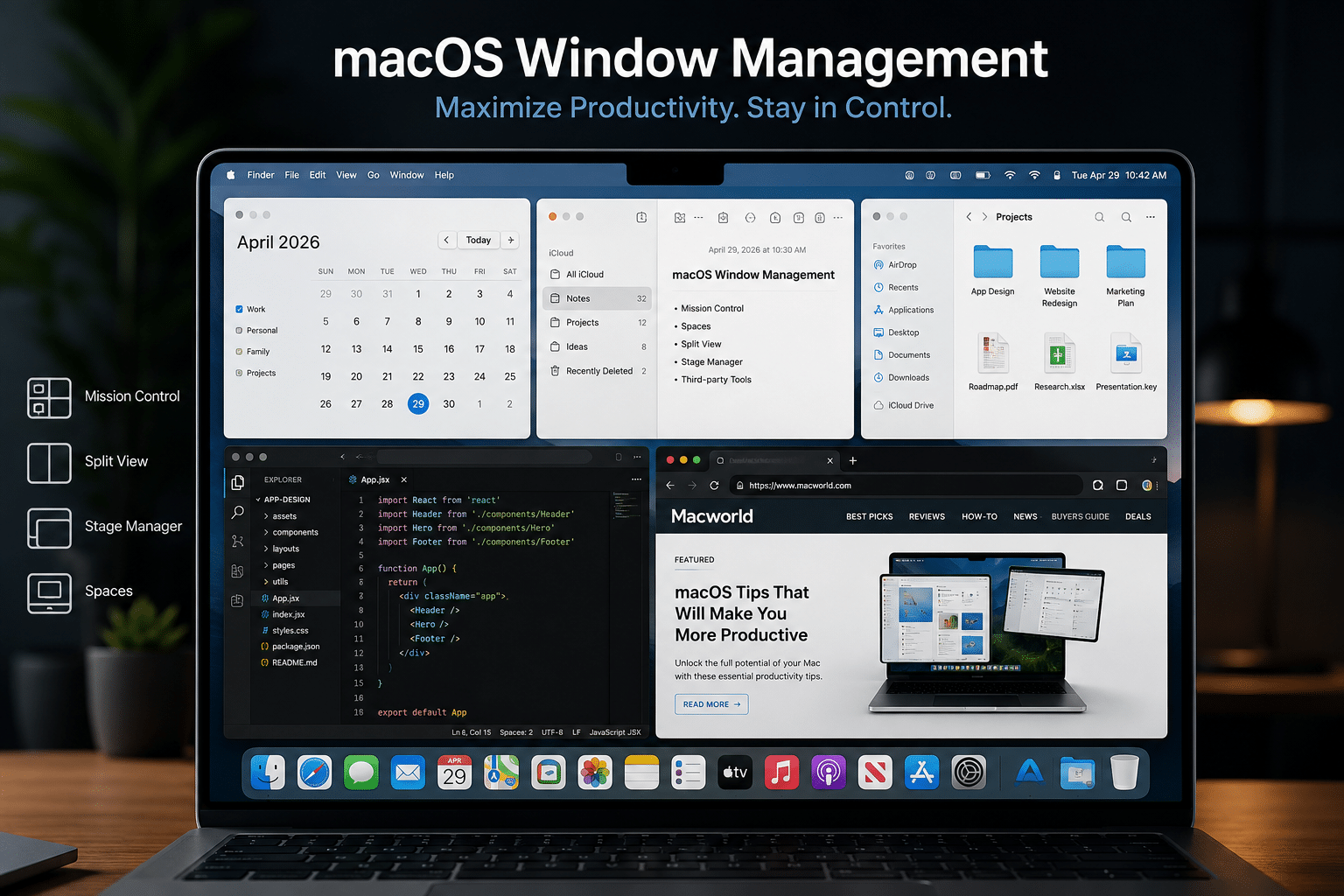
Apple’s macOS has long been praised for its elegant interface, rock-solid stability, and seamless integration with the Apple ecosystem. Features such as Handoff, Universal Clipboard, Continuity Camera, AirDrop, and iCloud synchronization make it one of the most cohesive desktop operating systems available.
However, despite years of incremental improvements, one long-standing criticism remains remarkably consistent:
Window management on macOS still frustrates power users.
Whether you’re a software developer with multiple IDEs open, a video editor juggling timelines and assets, a financial analyst working across dozens of spreadsheets, or an AI engineer monitoring several terminals, efficient multitasking isn’t a luxury—it’s essential.
While Apple has introduced features like Split View, Mission Control, Spaces, and Stage Manager, many users still download third-party applications such as Rectangle, Magnet, BetterTouchTool, Raycast, or Amethyst almost immediately after setting up a new Mac.
The reason is simple: modern workflows have evolved faster than macOS’s built-in window management capabilities.
The Rise of the Modern Multitasking Workflow
Today’s professionals rarely work inside a single application.
Instead, a typical workstation may include:
- Visual Studio Code
- Docker Desktop
- Chrome with 40+ tabs
- Slack or Microsoft Teams
- Terminal windows
- Git clients
- Notion
- Figma
- Photoshop
- AI assistants
- Virtual machines
- Remote desktops
- Documentation
- Cloud dashboards
Switching between these applications dozens or even hundreds of times each day demands a workflow that minimizes friction.
Even saving just five seconds per task can translate into hours of productivity over the course of a year.
Why Window Management Matters More Than Ever
Window management isn’t merely about arranging applications on a screen.
It’s about reducing cognitive load.
A well-organized desktop enables users to:
- Locate information instantly
- Reduce unnecessary mouse movement
- Improve concentration
- Compare documents side by side
- Monitor multiple systems simultaneously
- Increase workflow efficiency
For power users, poor window management leads to constant interruptions that break focus and slow down complex tasks.
Apple’s Philosophy vs. Professional Workflows
Apple has traditionally favored simplicity over extensive customization.
This philosophy has produced an interface that is intuitive for casual users but sometimes limiting for professionals.
Apple assumes users prefer:
- Minimal configuration
- Clean desktop layouts
- Simplicity
- Touchpad gestures
- Visual consistency
Power users, however, often prioritize:
- Keyboard shortcuts
- Custom layouts
- Instant window snapping
- Multi-monitor efficiency
- Automation
- Workspace persistence
This philosophical difference explains much of the ongoing frustration.
The Current macOS Window Management Toolkit
macOS includes several built-in multitasking features.
Mission Control
Mission Control provides a bird’s-eye view of open windows.
Advantages include:
- Easy window selection
- Multiple desktops
- Trackpad gestures
- Workspace organization
However, it doesn’t solve precise window placement.
Spaces
Virtual desktops allow users to separate workflows.
For example:
Desktop 1
- Development
Desktop 2
- Communication
Desktop 3
- Design
Desktop 4
- Entertainment
Spaces improve organization but require additional navigation.
Split View
Split View allows two applications to share the display.
While useful for casual multitasking, professionals often require:
- Three windows
- Four windows
- Six windows
- Custom layouts
Split View quickly reaches its limits.
Stage Manager
Introduced as Apple’s new multitasking experience, Stage Manager attempts to reduce desktop clutter by grouping applications.
Although visually appealing, many professionals find it slower than traditional tiling workflows.
Instead of accelerating productivity, it often introduces extra clicks.
Where macOS Still Falls Short
Several limitations remain evident in 2026.
1. Limited Window Snapping
Windows users enjoy Snap Layouts that instantly organize applications into multiple predefined layouts.
macOS still lacks comparable flexibility.
Users cannot quickly create:
- 2×2 grids
- Vertical thirds
- Horizontal thirds
- Asymmetrical layouts
without third-party software.
2. Weak Multi-Monitor Experience
Modern professionals increasingly use:
- Dual monitors
- Triple monitors
- Ultrawide displays
- Vertical monitors
Managing windows across these displays remains less intuitive than many competing desktop environments.
3. Poor Keyboard Workflow
Keyboard-first users expect to reposition windows instantly.
Many Linux tiling window managers allow complete desktop navigation without touching a mouse.
macOS still emphasizes drag-and-drop interaction.
4. Limited Automation
Automation remains another pain point.
Professionals often want windows to open automatically in predefined locations.
Examples include:
Browser → Left monitor
Slack → Right monitor
Terminal → Bottom left
VS Code → Center
Achieving this requires additional software.
5. No Native Tiling Window Manager
Linux users have long benefited from tiling window managers like:
- i3
- Hyprland
- Sway
- AwesomeWM
- BSPWM
These systems maximize screen utilization while minimizing window overlap.
macOS offers no comparable built-in experience.
Why Third-Party Apps Continue to Thrive
The popularity of third-party window managers demonstrates that demand remains high.
Popular choices include:
Rectangle
Free and lightweight.
Offers:
- Keyboard shortcuts
- Window snapping
- Custom layouts
Magnet
One of the most popular paid utilities.
Features include:
- Edge snapping
- Multi-monitor support
- Custom shortcuts
BetterTouchTool
Far more than a window manager.
It enables:
- Gesture customization
- Keyboard automation
- Macro creation
- Window positioning
Raycast
Although known primarily as a productivity launcher, Raycast integrates numerous workflow enhancements, including window management.
Amethyst
Ideal for users seeking Linux-style tiling behavior on macOS.
Windows Has Quietly Pulled Ahead
Microsoft has spent years refining multitasking.
Windows 11 includes:
- Snap Layouts
- Snap Groups
- Virtual Desktops
- FancyZones via PowerToys
- Improved keyboard navigation
- Better monitor awareness
These features allow professionals to organize complex workspaces in seconds.
Rather than relying on external software, many capabilities are built directly into the operating system.
Developers Feel the Difference
Software engineers often work across numerous windows simultaneously.
A typical setup includes:
- IDE
- Terminal
- Documentation
- GitHub
- Browser
- Database client
- Docker
- Local server logs
Efficient window placement directly impacts development speed.
Even small inefficiencies become noticeable during long coding sessions.
Designers Need Organized Workspaces
Creative professionals commonly use:
- Adobe Photoshop
- Illustrator
- Figma
- Asset libraries
- Browser previews
- Communication tools
Switching repeatedly between overlapping windows interrupts creative flow.
Structured layouts reduce distractions and improve efficiency.
Video Editors Face Similar Challenges
Modern video editing workflows rarely involve a single application. A professional editor may simultaneously use:
- Adobe Premiere Pro
- DaVinci Resolve
- After Effects
- Media Encoder
- Audition
- File Explorer or Finder
- Cloud storage dashboards
- Reference videos
- Communication tools
Managing these applications efficiently is crucial, especially when working on multi-monitor setups or ultrawide displays. Constantly resizing and rearranging windows interrupts creativity and slows project completion.
AI Developers Need Maximum Screen Space
Artificial intelligence and machine learning workflows have become significantly more complex in recent years.
A typical AI engineer may keep these windows open at the same time:
- VS Code
- Jupyter Notebook
- Terminal
- NVIDIA monitoring tools
- Docker containers
- Model training dashboards
- API documentation
- GitHub repositories
- Browser tabs
- ChatGPT or AI assistants
Without efficient window management, productivity suffers. This is one reason why many AI professionals either rely on third-party macOS utilities or choose Windows and Linux for development.
Linux Still Sets the Standard for Tiling
Linux desktop environments continue to lead in advanced window management.
Popular tiling window managers include:
- Hyprland
- i3
- Sway
- BSPWM
- AwesomeWM
These systems automatically arrange windows without overlap, making maximum use of available screen space. Keyboard shortcuts allow users to switch workspaces, resize windows, and launch applications without touching a mouse.
While Linux has a steeper learning curve, it remains the preferred choice for many developers who value efficiency over simplicity.
Apple Is Improving—But Progress Is Incremental
To Apple’s credit, macOS has evolved considerably.
Recent releases have improved:
- Multi-monitor support
- Mission Control
- Stage Manager
- Window resizing
- External display handling
- Apple Silicon performance
However, many of these improvements feel incremental rather than transformative. Power users continue to expect native window snapping, customizable layouts, and automation comparable to Windows or Linux.
The Future of Productivity Is Hybrid
The modern workplace is no longer tied to a single computer.
Professionals increasingly work across:
- Office desktops
- Home workstations
- Laptops
- Tablets
- Remote servers
- Cloud desktops
As workflows become more distributed, the focus shifts from the operating system itself to accessing powerful computing resources from anywhere.
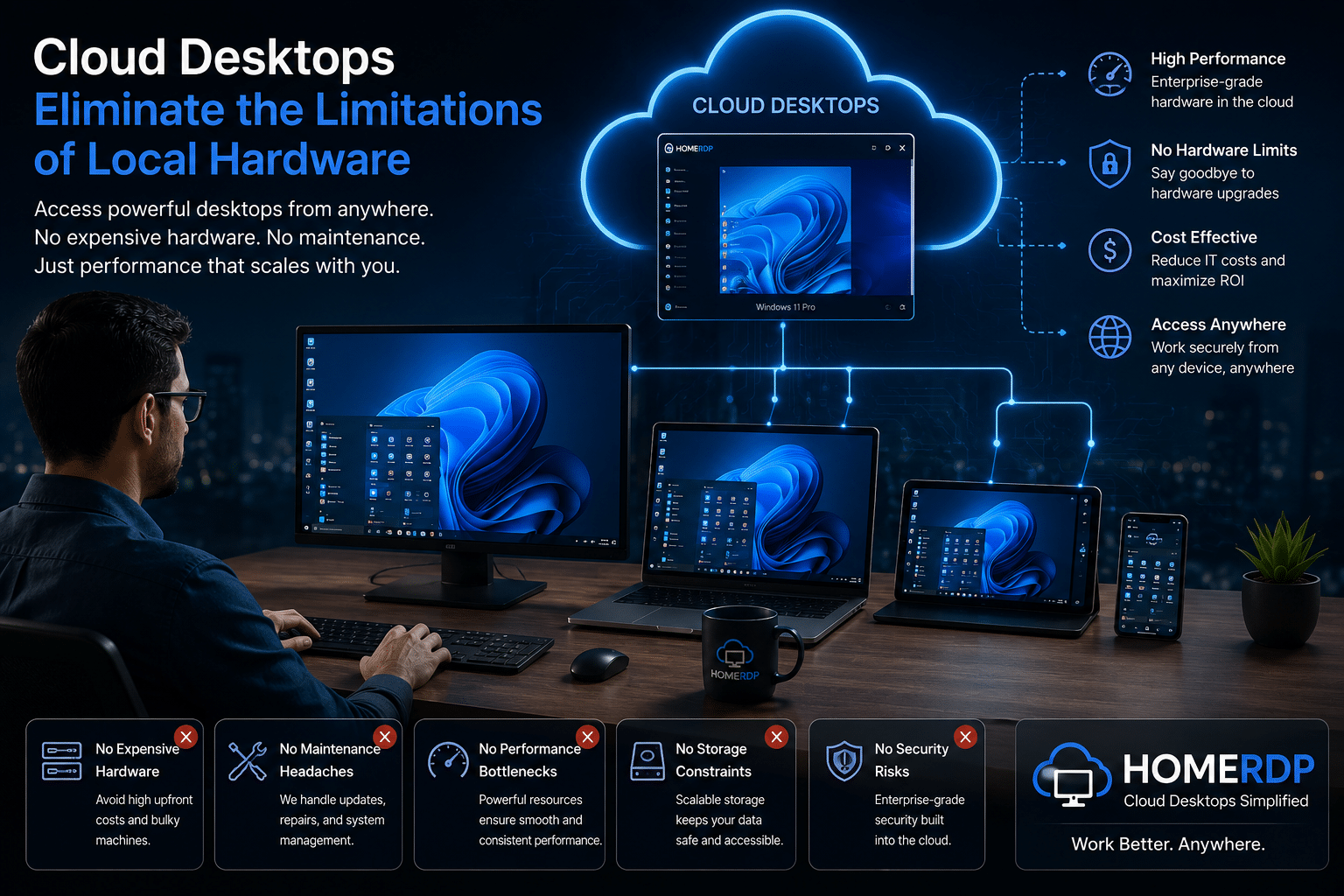
Why Cloud Workstations Are Growing Rapidly
Cloud desktops eliminate many of the limitations associated with local hardware.
Instead of purchasing expensive workstations every few years, organizations can deploy high-performance virtual desktops on demand.
Key benefits include:
- Access from virtually any device
- Centralized management
- Faster hardware upgrades
- Improved disaster recovery
- Reduced maintenance
- Easier collaboration
- Better scalability
- Lower upfront costs
This approach allows professionals to work efficiently whether they’re using a MacBook, Windows laptop, or Linux workstation.
Where HOMERDP Fits Into the Workflow
If you love macOS for its ecosystem but need the flexibility and productivity of Windows, HOMERDP Windows RDP offers the best of both worlds.
You can continue using your Mac while remotely accessing a high-performance Windows desktop optimized for multitasking, development, and business applications.
With HOMERDP, you gain:
- Fast SSD-powered Windows cloud desktops
- Low-latency remote access
- Reliable uptime
- Flexible plans for individuals and businesses
- Secure remote connectivity
- Ready-to-use Windows environments
This means you don’t have to replace your Mac—you simply complement it with a powerful Windows workspace whenever your workflow demands it.
Need More Power? Choose HOMERDP GPU RDP
Some workloads require far more than standard desktop performance.
That’s where HOMERDP GPU RDP shines.
Powered by NVIDIA GPUs, these remote workstations are ideal for:
3D Rendering
- Blender
- Autodesk Maya
- Cinema 4D
- 3ds Max
Video Editing
- Adobe Premiere Pro
- DaVinci Resolve
- After Effects
CAD & Engineering
- AutoCAD
- SolidWorks
- Revit
Game Development
- Unreal Engine
- Unity
AI & Machine Learning
- TensorFlow
- PyTorch
- Stable Diffusion
- Large Language Models (LLMs)
Instead of investing thousands of dollars in a dedicated workstation, professionals can scale GPU resources based on project requirements.
Why Businesses Choose HOMERDP
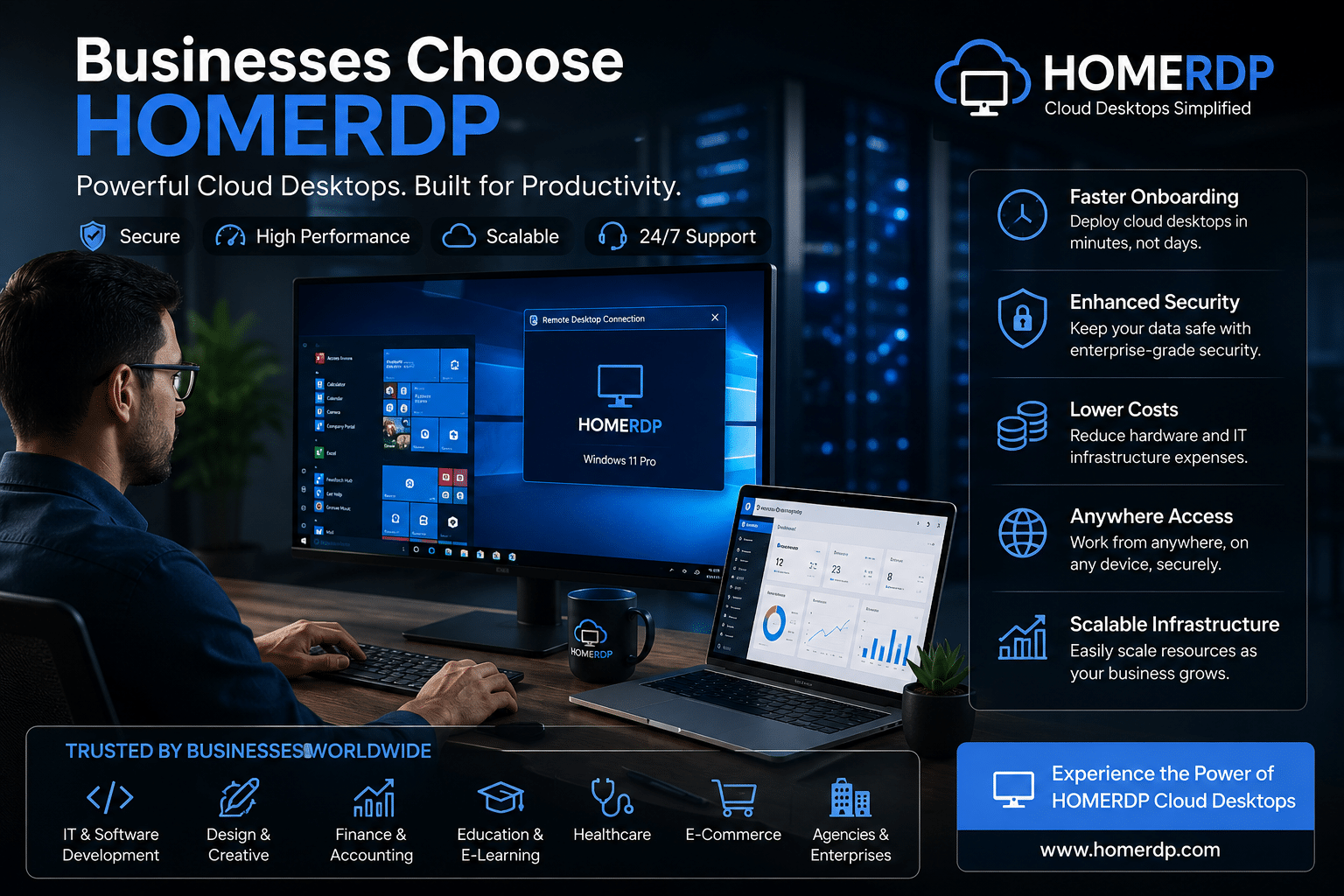
Organizations increasingly adopt cloud workstations because they simplify IT operations while improving employee productivity.
Faster Onboarding
New employees receive a preconfigured desktop within minutes instead of waiting days for hardware.
Enhanced Security
Data remains in the cloud rather than on local devices, reducing the risk of data loss or theft.
Lower Costs
Businesses avoid frequent hardware refreshes and expensive workstation upgrades.
Anywhere Access
Employees can securely access their desktops from home, the office, or while traveling.
Scalable Infrastructure
Resources can be upgraded as business needs grow without replacing physical machines.
The Best Workflow for Mac Users
Many professionals don’t need to abandon macOS—they simply need to enhance it.
A productive setup could include:
- macOS for everyday tasks and Apple ecosystem features.
- HOMERDP Windows RDP for Windows-exclusive software and advanced multitasking.
- HOMERDP GPU RDP for rendering, AI development, CAD, and video editing.
- Cloud storage for seamless file synchronization.
- External monitors for expanded workspace.
This hybrid approach combines the elegance of macOS with the performance and flexibility of enterprise-grade cloud computing.
Frequently Asked Questions

Is macOS window management improving?
Yes. Apple continues to refine multitasking with features like Stage Manager and Mission Control, but many power users still rely on third-party tools for advanced window organization.
Why do professionals prefer Windows for multitasking?
Windows offers native features such as Snap Layouts, Snap Groups, and PowerToys FancyZones, which provide faster and more flexible window organization.
Can I use Windows applications on a Mac?
Yes. With HOMERDP Windows RDP, you can securely access a full-featured Windows desktop from your Mac without dual-booting or using virtualization.
Who should use GPU RDP?
GPU-powered remote desktops are ideal for designers, video editors, 3D artists, engineers, architects, game developers, and AI professionals who need high-performance graphics and compute resources.
Final Thoughts
macOS continues to deliver one of the most polished desktop experiences available, but when it comes to advanced window management, it still leaves many power users wanting more. The continued popularity of third-party tools such as Rectangle, Magnet, BetterTouchTool, and Raycast highlights an ongoing demand for greater flexibility, automation, and keyboard-driven workflows.
Meanwhile, Windows has strengthened its position with features like Snap Layouts and PowerToys, while Linux remains the benchmark for tiling window management. As a result, professionals often choose the platform that best supports their productivity needs rather than remaining loyal to a single operating system.
For Mac users who want to keep Apple’s ecosystem without sacrificing the advantages of Windows, HOMERDP Windows RDP provides an ideal solution. It enables secure access to high-performance Windows cloud desktops from any Mac, allowing users to run Windows-exclusive applications and enjoy a more efficient multitasking experience.
For graphics-intensive workloads—including 3D rendering, CAD, video editing, game development, and AI training—HOMERDP GPU RDP delivers NVIDIA-powered cloud workstations that eliminate the need for costly local hardware.
As remote work and cloud computing continue to reshape the way professionals operate, the future belongs to flexible, device-independent workflows. By combining the simplicity of macOS with the power of HOMERDP’s cloud infrastructure, users can build a workspace that is faster, more scalable, and ready for the demands of modern productivity.
EXPLORE MORE ; How to connect SSH using Terminal in macOS
READ OUR BLOGS