

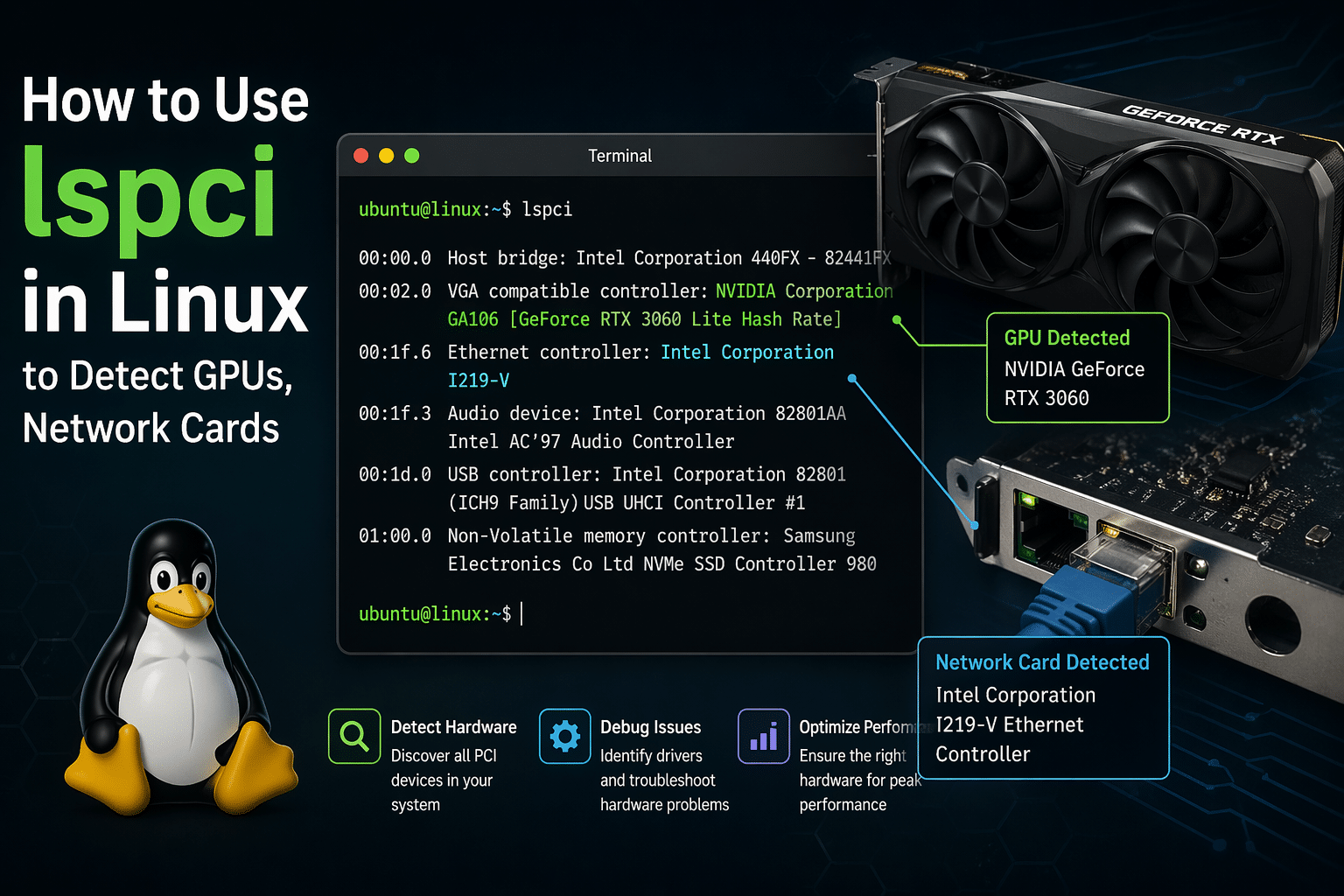
How to Use lspci in Linux to Detect GPUs, Network Cards, and More
Understanding your system hardware is a foundational skill for any Linux user—whether you’re a developer, sysadmin, DevOps engineer, or power user. When performance issues arise or when setting up new environments (especially cloud or remote desktops), the first question you should ask is:
What hardware is actually available to me?
That’s where the lspci command comes in.
This guide dives deep into how to use lspci in Linux to detect GPUs, network cards, storage controllers, and more—along with practical, real-world use cases and performance insights. We’ll also connect these capabilities to modern remote computing environments like HOMERDP, where hardware visibility is critical.
What is the lspci Command?
lspci stands for list PCI devices. It’s a command-line utility that displays detailed information about all PCI buses and devices in your system.
PCI (Peripheral Component Interconnect) devices include:
- Graphics cards (GPUs)
- Network interface cards (NICs)
- SATA/RAID controllers
- USB controllers
- Audio devices
In short:
lspci gives you a low-level hardware map of your Linux system.
Installing lspci (If Not Available)
On most Linux distributions, lspci is part of the pciutils package.
Install on Debian/Ubuntu:
sudo apt install pciutils
Install on RHEL/CentOS:
sudo yum install pciutils
Install on Arch Linux:
sudo pacman -S pciutils
Basic Usage: Listing All PCI Devices
The simplest command:
lspci
Sample Output:
00:00.0 Host bridge: Intel Corporation Device 1234
00:02.0 VGA compatible controller: NVIDIA Corporation Device 1fb8
00:1f.6 Ethernet controller: Intel Corporation Ethernet Connection
What This Means:
- 00:02.0 → PCI address
- VGA compatible controller → Device type
- NVIDIA Corporation → Vendor
This output is your starting point for hardware discovery.
Detecting GPUs Using lspci
One of the most common uses of lspci is identifying your graphics card.
Command:
lspci | grep -i vga
Alternative (for all display controllers):
lspci | grep -i display
Example Output:
00:02.0 VGA compatible controller: NVIDIA Corporation RTX 3060
Why GPU Detection Matters
- Installing correct drivers (NVIDIA, AMD, Intel)
- Enabling GPU acceleration (CUDA, OpenCL)
- Running AI/ML workloads
- Gaming or rendering tasks
In Cloud Environments (HOMERDP Use Case)
When working with GPU-enabled remote desktops, verifying GPU availability is critical.
✔ Run lspci to confirm GPU presence
✔ Ensure correct driver binding
✔ Avoid launching workloads on non-GPU instances
This simple check can save hours of debugging and wasted compute costs.
Detecting Network Cards (NICs)
Network connectivity is another critical component.
Command:
lspci | grep -i ethernet
Or:
lspci | grep -i network
Example Output:
00:1f.6 Ethernet controller: Intel Corporation Ethernet Connection
Why This Matters
- Troubleshooting internet issues
- Verifying hardware detection after OS install
- Diagnosing missing drivers
- Identifying multiple NICs in servers
Remote Desktop Insight
In platforms like HOMERDP:
- Stable network hardware = smooth remote experience
- Helps debug latency, packet drops, or disconnects
- Ensures correct NIC configuration for high throughput
Checking Drivers with lspci -k
To see which kernel driver is handling each device:
lspci -k
Example Output:
00:02.0 VGA compatible controller: NVIDIA Corporation
    Kernel driver in use: nvidia
    Kernel modules: nvidia
Why This is Powerful
- Detect driver mismatches
- Identify fallback drivers (e.g., nouveau instead of nvidia)
- Troubleshoot performance issues
Real-World Scenario
If your GPU is detected but performance is poor:
Run:
lspci -k | grep -A 3 -i vga
Check:
- Is the correct driver in use?
- Is the kernel module loaded?
Getting Detailed Hardware Information
For verbose output:
lspci -v
For even more detail:
lspci -vv
Includes:
- Memory regions
- IRQ assignments
- Device capabilities
Use Cases
- Deep diagnostics
- Performance tuning
- Debugging hardware conflicts
Viewing PCI Device Hierarchy
To see how devices are connected:
lspci -t
Output:
-[0000:00]-+-00.0
           +-02.0
           +-1f.6
Why It Matters
- Understand system architecture
- Debug complex server setups
- Analyze PCI bandwidth paths
Display Numeric Device IDs
lspci -nn
Example:
00:02.0 VGA compatible controller [0300]: NVIDIA Corporation [10de:1fb8]
Why Use This?
- Match hardware with drivers
- Search exact device IDs online
- Useful for kernel/module troubleshooting
Advanced Filtering Techniques
Filter by Vendor:
lspci | grep -i nvidia
Show Specific Device Details:
lspci -s 00:02.0 -v
Combine Commands:
lspci -nn | grep -i ethernet
Automating Hardware Checks
You can integrate lspci into scripts:
#!/bin/bash
if lspci | grep -i nvidia > /dev/null; then
    echo "GPU detected"
else
    echo "No GPU found"
fi
DevOps Use Case
- Auto-validate cloud instances
- Trigger GPU workloads only when available
- Integrate into CI/CD pipelines
Why lspci is Essential in Cloud & Remote Systems
Modern workflows are shifting toward:
- Remote desktops
- Cloud GPUs
- Virtualized environments
But visibility becomes limited.
That’s the challenge.
Enter HOMERDP +
lspci
HOMERDP provides:
- High-performance remote desktops
- GPU-enabled infrastructure
- Low-latency access
But you still need to verify:
✔ Is the GPU attached?
✔ Is the NIC working correctly?
✔ Are drivers properly loaded?
lspci answers all of these instantly.
Performance & Debugging Benefits
Using lspci regularly helps:
- Reduce troubleshooting time
- Improve system reliability
- Optimize hardware utilization
- Prevent misconfiguration
Pro Tips for Power Users
- Use
sudo lspcifor full access - Combine with
watchfor monitoring:watch -n 2 lspci - Pair with other tools:
lsusb→ USB deviceslshw→ complete hardware infohwinfo→ advanced diagnostics
Common Mistakes to Avoid
- Assuming hardware is available without checking
- Ignoring driver mismatches
- Not verifying GPU in cloud environments
- Skipping numeric IDs when debugging
Final Thoughts
The lspci command is one of the most powerful yet underrated tools in Linux. It gives you direct visibility into your system’s hardware—something that becomes even more critical in modern cloud and remote desktop environments.
From detecting GPUs and network cards to debugging drivers and optimizing performance, lspci is a must-have in your Linux toolkit.
And when combined with platforms like HOMERDP, it becomes a strategic advantage—helping you validate infrastructure, avoid costly mistakes, and ensure peak performance every time.
EXPLORE MORE ; The Ultimate Guide to Linux cat Command with HomeRDP Integration

READ OUR BLOGS