

Windows to Linux Without Rebooting: WSL, SSH, VMs, and VPS Explained
For years, Windows users who wanted to experience Linux had a fairly inconvenient choice: install Linux alongside Windows using dual boot, restart the computer whenever they wanted to switch operating systems, and hope that disk partitions and bootloaders behaved as expected.
That approach still works, but it no longer represents the easiest or most practical way to access Linux.
Modern computing has changed dramatically. Developers now work across multiple environments, applications run inside containers, infrastructure lives in cloud data centers, and remote development has become part of everyday workflows. As a result, using Linux no longer requires abandoning Windows or rebooting your computer.
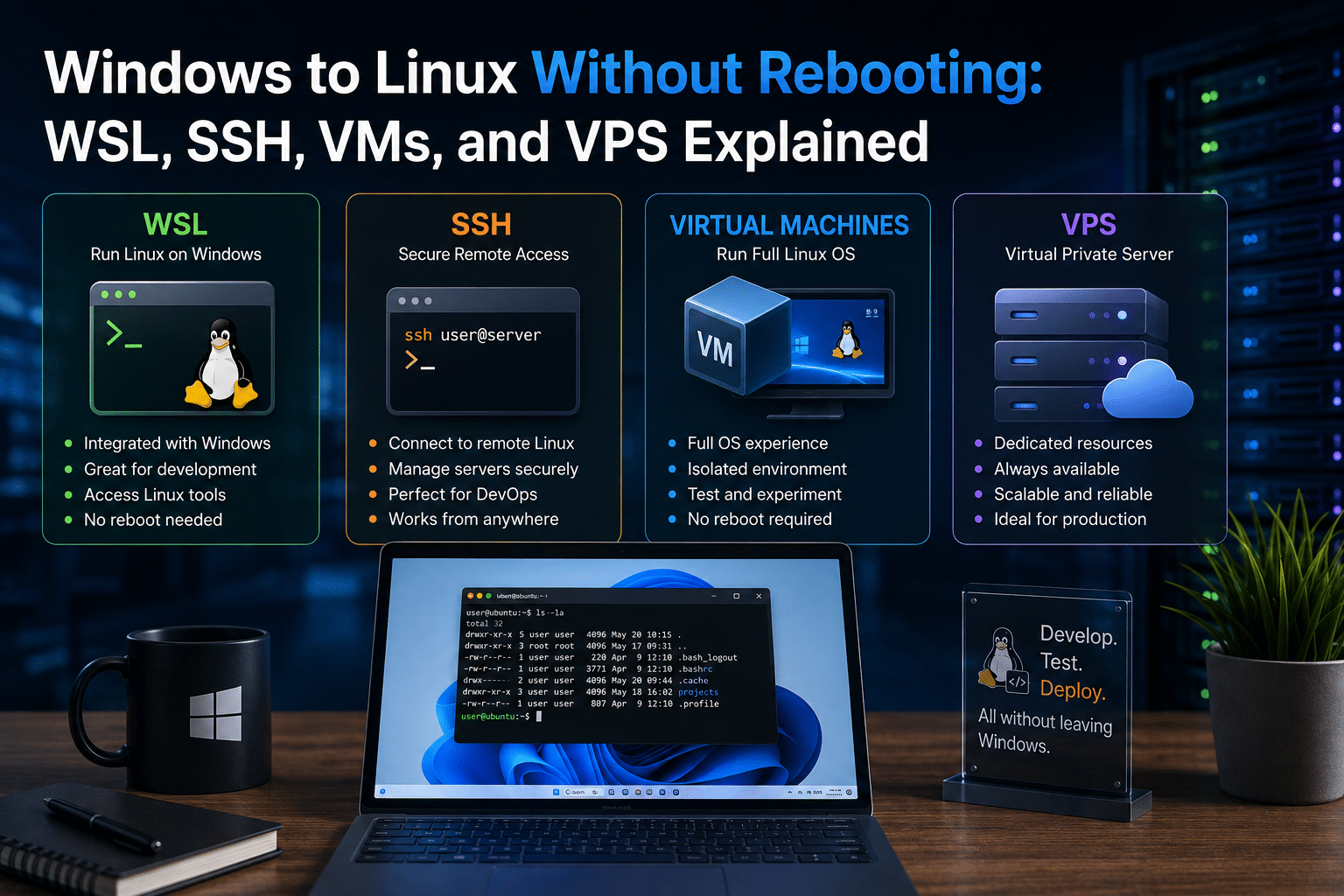
Today, you can run or access Linux from Windows through several powerful approaches:
- Windows Subsystem for Linux (WSL)
- SSH connections to remote Linux servers
- Virtual machines
- Containers
- Cloud-based Linux environments
- Linux VPS hosting
Each method solves a different problem.
A student learning Bash commands may need WSL. A developer testing an entire operating system may prefer a virtual machine. A system administrator managing production infrastructure may connect through SSH. Meanwhile, businesses and developers running persistent applications may need a dedicated Linux VPS.
The most important shift is this:
You no longer need to choose between Windows and Linux. You can use both.
This article explains how WSL, SSH, virtual machines, and VPS hosting work, where each option performs best, and why a hybrid Windows-and-Linux workflow can be more practical than traditional dual booting.
Why Windows Users Still Need Linux
Windows remains a dominant desktop operating system, especially in business, education, gaming, and general productivity. Linux, however, plays an equally important role behind the scenes.
Linux powers a massive portion of modern computing infrastructure, including:
- Web servers
- Cloud workloads
- Application backends
- Containers
- DevOps pipelines
- Automation platforms
- Databases
- Networking systems
- Scientific computing environments
- AI and machine learning infrastructure
This creates a practical reality for modern users.
You might prefer Windows as your desktop operating system but still need Linux tools to:
- Develop software
- Learn programming
- Run Bash scripts
- Manage servers
- Deploy applications
- Use Docker
- Work with cloud infrastructure
- Practice cybersecurity
- Build web applications
The traditional answer was dual booting.
The modern answer is much more flexible.
Instead of replacing Windows or constantly restarting your computer, you can access Linux when you need it.
The End of the Dual-Boot-Only Era
Dual booting gives users two operating systems on one computer.
You install Windows and Linux on separate disk partitions and select the operating system during startup.
This approach has obvious advantages.
You get native hardware performance and a complete Linux environment.
However, it also introduces friction.
Every time you want to switch operating systems, you need to:
- Save your work.
- Close applications.
- Restart the computer.
- Select another operating system.
- Wait for it to boot.
That workflow becomes inefficient when you frequently move between Windows and Linux tools.
Imagine writing documentation in Microsoft Office, testing code in Linux, checking something in a Windows-only application, and then returning to Linux.
Constantly rebooting interrupts productivity.
Modern tools eliminate much of this friction.
1. Windows Subsystem for Linux (WSL)
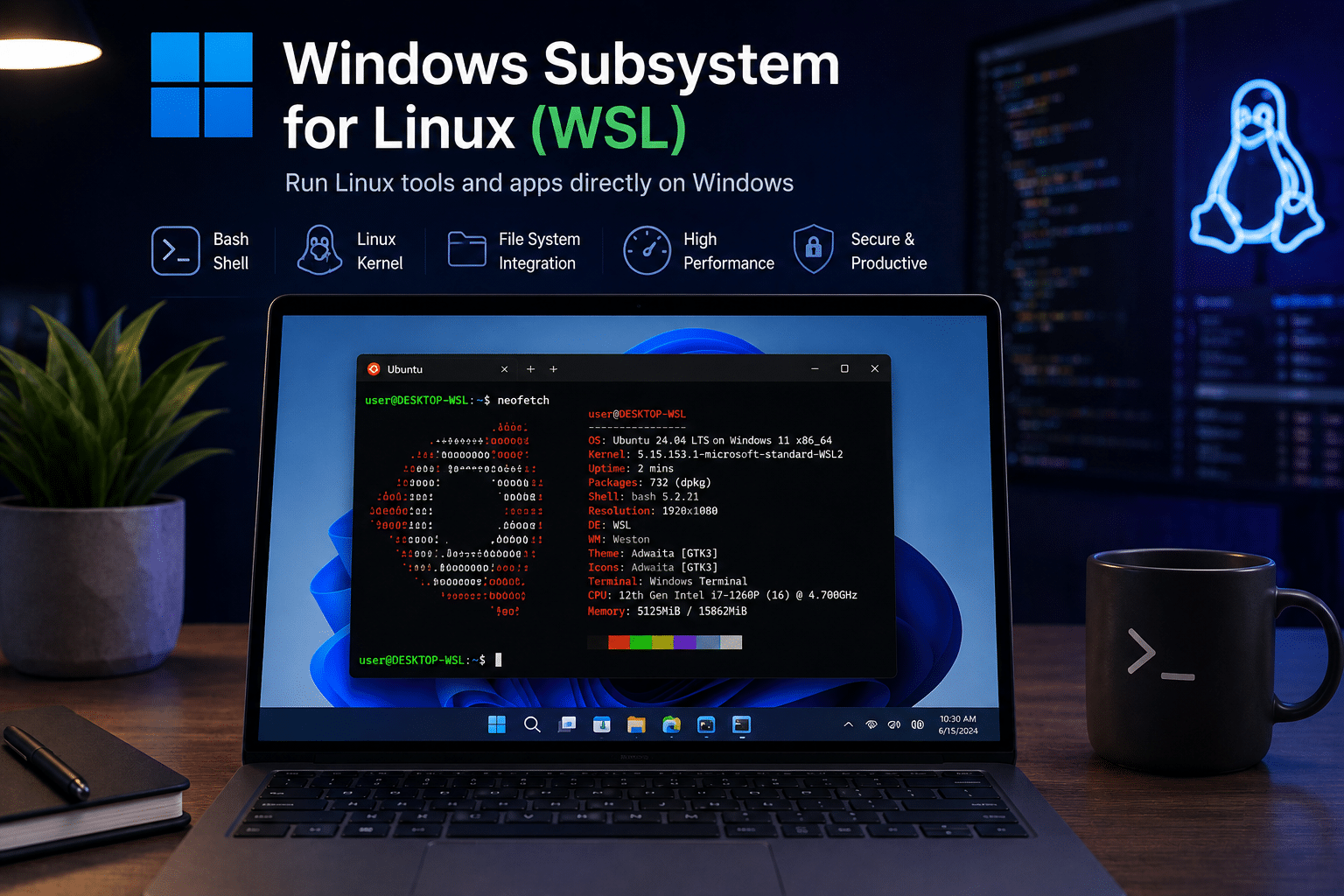
For many Windows users, WSL is the easiest way to begin using Linux.
Windows Subsystem for Linux allows users to run a GNU/Linux environment directly within Windows. Microsoft describes WSL as a way to use Linux distributions, command-line tools, utilities, and applications without requiring a traditional dual-boot setup or a separate conventional virtual machine.
This fundamentally changes how Windows users interact with Linux.
Instead of treating Linux as a separate operating system that requires a restart, WSL makes Linux tools accessible from the same desktop environment.
You can install distributions such as:
- Ubuntu
- Debian
- Kali Linux
- OpenSUSE
- Arch Linux and other supported options
Once installed, you can access a Linux terminal and begin working with familiar Linux tools.
For many developers, this means Windows and Linux can coexist in the same workflow.
What Can You Do With WSL?
WSL supports a wide range of development and command-line workloads.
You can use tools and technologies such as:
- Bash
- SSH
- Git
- Python
- Node.js
- Java
- C and C++
- Rust
- Go
- Ruby
- Package managers
- Shell scripting
- Databases
- Web servers
Microsoft’s WSL documentation also highlights support for common Linux command-line applications and development tools, along with the ability to install software using standard Linux package managers.
This makes WSL particularly useful for developers who want Linux compatibility while continuing to use Windows applications.
Installing WSL Has Become Simple
Modern Windows versions have significantly simplified the installation process.
The basic installation command is:
wsl --install
Microsoft’s current documentation states that this installation process enables the required WSL components, installs the Linux kernel, sets WSL 2 as the default, and installs a default Linux distribution.
That simplicity matters.
In the past, experimenting with Linux could require downloading ISO files, creating bootable USB drives, changing BIOS settings, and partitioning storage.
WSL reduces that barrier.
For a student who wants to learn Linux commands or a developer who needs a Bash environment, getting started is significantly easier.
Why WSL Works So Well for Developers
The biggest advantage of WSL is integration.
You can continue using Windows for:
- Microsoft Office
- Browsers
- Communication tools
- Design software
- Gaming
- Windows-native applications
At the same time, you can access Linux development tools.
This hybrid environment supports workflows such as:
Windows desktop → WSL terminal → Git → Remote server
Instead of forcing developers to choose a single ecosystem, WSL allows them to combine environments.
Microsoft also documents workflows involving WSL, code editors, Git, databases, Docker, GPU acceleration, and other development technologies.
For local development, this flexibility is extremely useful.
The Limitations of WSL
WSL is powerful, but it is important to understand what it is designed for.
WSL is primarily optimized around development workflows.
A local WSL environment depends on your Windows computer.
If your computer shuts down, your local Linux environment is no longer actively running.
That makes WSL different from a traditional server environment.
Microsoft’s WSL documentation specifically notes architectural differences between WSL and conventional production environments, including its managed lightweight VM behavior and lifecycle characteristics.
This distinction becomes important when your workload needs:
- Persistent uptime
- Public internet access
- Long-running services
- Remote availability
- Dedicated infrastructure
For those workloads, SSH and remote Linux servers become more appropriate.
2. SSH: Access Linux From Windows Remotely
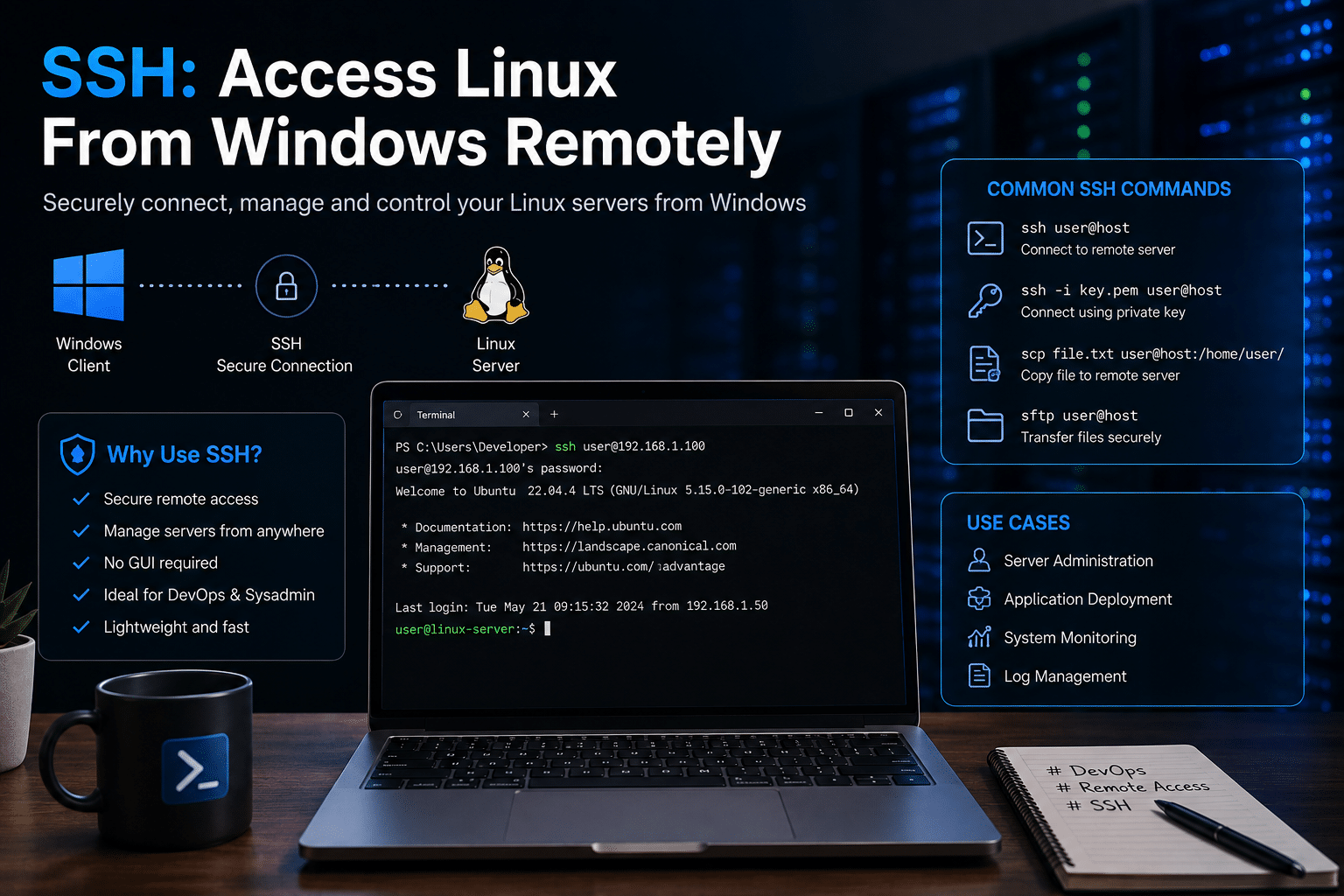
SSH provides another powerful way to use Linux without rebooting.
Unlike WSL, SSH does not necessarily run Linux directly on your computer.
Instead, SSH allows your Windows machine to connect securely to another Linux computer.
The architecture looks like this:
Windows PC → Internet or Local Network → Linux Server
Once connected, you interact with the Linux system through a terminal.
For example, a typical connection command looks like:
ssh username@server-ip-address
Within seconds, your Windows computer becomes a gateway to a remote Linux environment.
Why SSH Is So Important
SSH is one of the most important technologies in modern infrastructure management.
Developers and administrators use SSH to:
- Manage cloud servers
- Deploy applications
- Configure services
- Transfer files
- Monitor logs
- Restart processes
- Install software
- Manage users
- Configure databases
The key advantage is separation.
Your local computer does not need to perform every workload.
The server handles the workload while your Windows computer acts as the control interface.
This creates a fundamentally different model from dual booting.
Instead of asking:
“Which operating system should I boot?”
You ask:
“Which Linux environment should I connect to?”
Local Linux vs Remote Linux
This distinction is important.
Local Linux Environment
Examples include:
- WSL
- Virtual machines
- Dual boot installations
The Linux environment runs on your personal computer.
Your computer provides:
- CPU
- RAM
- Storage
- Network connectivity
Remote Linux Environment
Examples include:
- Cloud servers
- Dedicated servers
- Linux VPS hosting
The Linux environment runs independently from your personal computer.
Your laptop or desktop connects remotely.
This means you can potentially access the same development or server environment from multiple devices.
Microsoft’s remote development resources also highlight workflows that use SSH, virtual machines, and WSL to access development environments while keeping work consistent across machines and locations.
3. Virtual Machines: Run a Complete Linux System Inside Windows
Virtual machines provide another way to access Linux without rebooting.
A virtual machine creates a simulated computer inside your existing operating system.
You can install a Linux distribution inside the VM and use it almost like a separate physical computer.
Popular virtualization options allow users to run distributions such as:
- Ubuntu
- Fedora
- Debian
- Linux Mint
- Arch Linux
A virtual machine can include:
- Its own operating system
- File system
- Desktop environment
- Installed applications
- Networking configuration
This makes VMs useful for experimentation.
Why Developers Still Use Virtual Machines
Virtual machines provide stronger isolation than simply opening a terminal.
You can test an entire operating system.
For example, you might want to:
- Test software compatibility
- Experiment with a Linux desktop
- Practice system administration
- Configure networking
- Build isolated test environments
- Run multiple operating systems
Snapshots also make virtual machines useful for experimentation.
You can save a known working state, test something risky, and restore the previous snapshot if necessary.
This reduces the fear of breaking your primary computer.
The Main Drawback of Virtual Machines
Virtual machines consume local resources.
Your Windows computer must allocate:
- CPU cores
- RAM
- Storage
- Graphics resources
A lightweight Linux VM may run comfortably on a modern computer, but running several virtual machines can become resource-intensive.
This creates a trade-off.
WSL
Generally better for lightweight Linux development integrated with Windows.
Virtual Machine
Better when you need a complete Linux operating system and stronger isolation.
Remote Linux Server
Better when you need persistent infrastructure that operates independently from your local computer.
Understanding this difference helps users select the right environment instead of forcing one solution to solve every problem.
4. Linux VPS: Move Your Linux Environment Beyond Your PC
A Linux Virtual Private Server takes a different approach.
Instead of running Linux on your Windows computer, you rent virtualized server resources and access the machine remotely.
The workflow becomes:
Windows Computer → SSH → Linux VPS
This provides a real Linux server environment that can operate independently of your personal computer.
For developers, businesses, and system administrators, this creates important advantages.
You can configure the environment, install applications, manage services, and access the server remotely.
Why a Linux VPS Makes Sense
Consider a common situation.
You are developing an application on your Windows laptop.
You use WSL for:
- Writing scripts
- Testing dependencies
- Running development tools
Everything works perfectly.
But now you want the application to run continuously.
You may need:
- A web server
- A database
- Background processes
- Scheduled jobs
- Persistent storage
- Public network access
Keeping your laptop powered on 24/7 is rarely an ideal infrastructure strategy.
This is where a VPS becomes useful.
The VPS separates your personal computing environment from your server workloads.
HOMERDP Linux VPS: A Natural Extension of a Hybrid Workflow
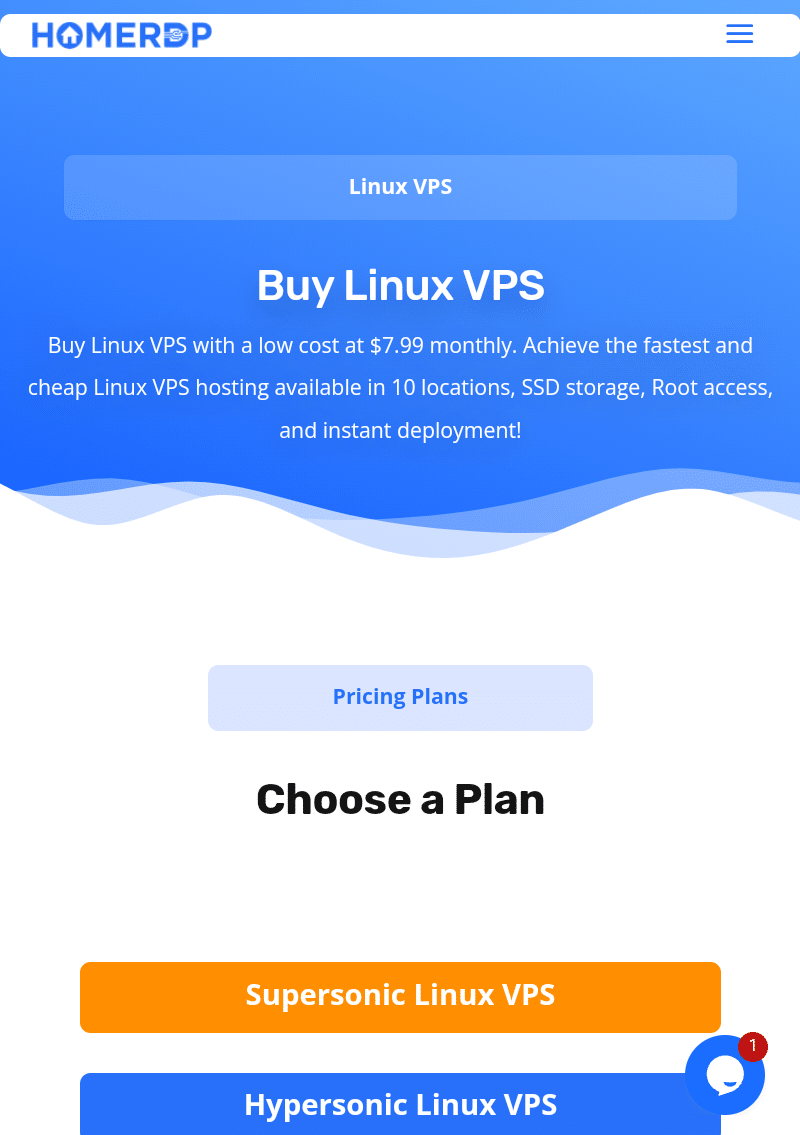
For users who want to move from local experimentation to remote Linux infrastructure, HOMERDP Linux VPS offers a relevant next step.
HOMERDP’s Linux VPS service provides plans with virtual CPU resources, DDR4 memory, NVMe/SSD storage, bandwidth allocations, and root access. The company also describes dedicated VPS resources, administrative control, management tools, and multiple data-center options as part of its offering.
The strategic benefit is straightforward:
You can keep Windows as your primary desktop while maintaining a separate Linux environment for persistent workloads.
This approach eliminates the need to transform your personal laptop into a permanent server.
Instead, you connect when you need to work.
A Practical Windows + Linux VPS Workflow
A modern hybrid workflow could look like this.
Step 1: Use Windows for Daily Productivity
Use Windows for:
- Browsing
- Office applications
- Communication
- Design
- Business applications
Step 2: Use WSL for Local Linux Development
Use WSL for:
- Bash scripting
- Programming
- Package management
- Local testing
- Git workflows
Step 3: Use Git for Version Control
Keep code organized and versioned.
Step 4: Connect to a Linux VPS Through SSH
Use a remote Linux environment for:
- Deployment
- Hosting
- Automation
- Long-running services
- Server administration
This creates a clean separation between development and infrastructure.
5. WSL vs SSH vs Virtual Machines vs VPS
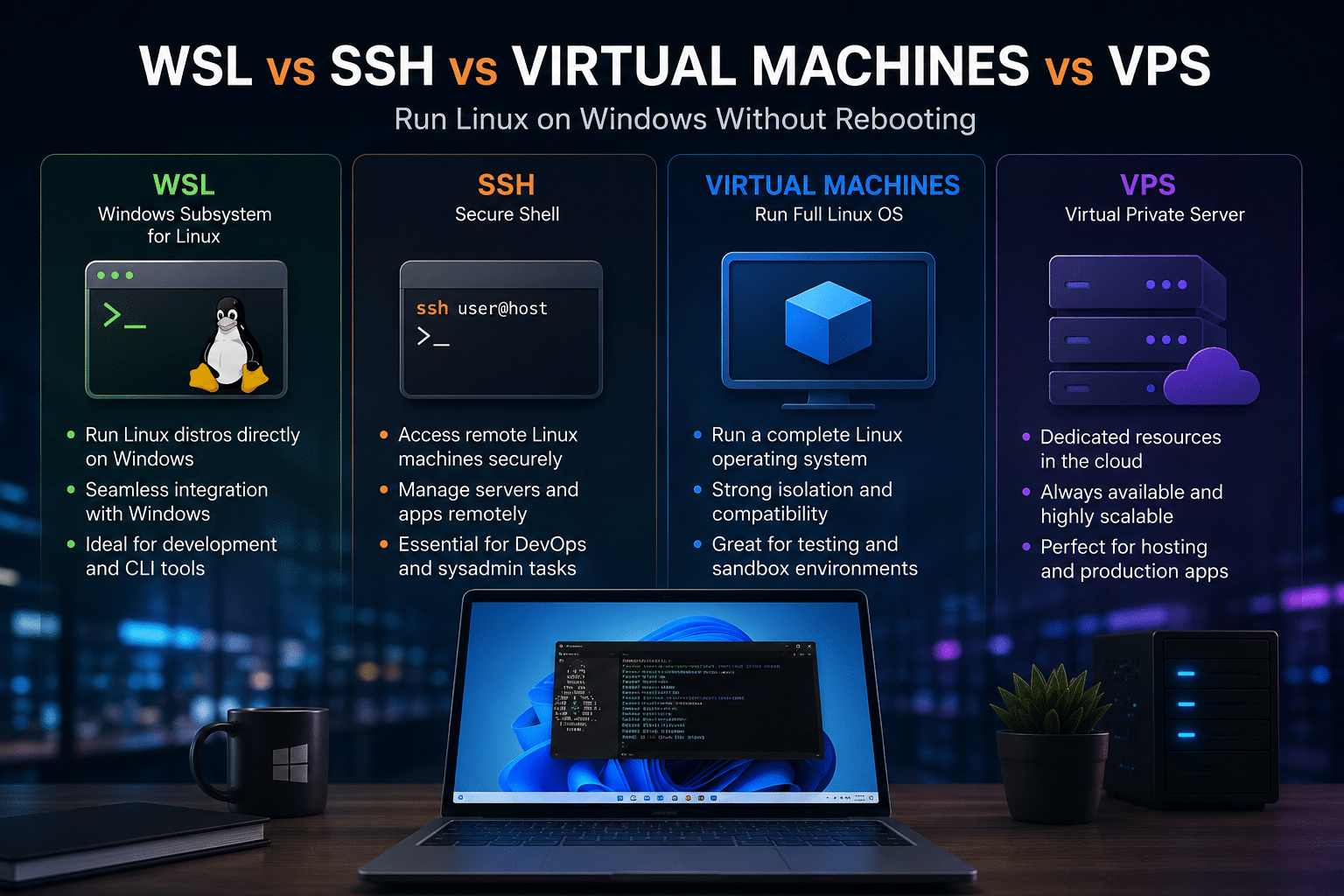
The easiest way to understand these technologies is to compare their primary roles.
| Technology | Primary Use | Runs on Your PC | Persistent Infrastructure |
|---|---|---|---|
| WSL | Linux development | Yes | No |
| SSH | Remote Linux access | No | Depends on server |
| Virtual Machine | Full OS testing | Yes | No |
| Linux VPS | Hosting and infrastructure | No | Yes |
Each option has strengths.
Choose WSL If You Need
- Linux command-line tools
- Local development
- Bash
- Programming environments
- Quick experimentation
- Windows and Linux integration
WSL is ideal for many developers because it reduces friction.
You can work across both ecosystems without constantly switching computers or rebooting.
Choose a Virtual Machine If You Need
- A complete Linux desktop
- Operating system testing
- Stronger isolation
- Experimental environments
- Snapshot functionality
Virtual machines are excellent for learning how a complete Linux system behaves.
Choose SSH If You Need
- Remote administration
- Server access
- Cloud infrastructure
- Secure terminal connectivity
SSH becomes particularly valuable when your Linux environment exists somewhere else.
Choose a Linux VPS If You Need
- Persistent workloads
- Remote accessibility
- Application deployment
- Web hosting
- Automation
- Root-level control
- Dedicated server resources
A VPS is not necessarily a replacement for WSL.
In many workflows, they complement each other.
Why Combining Technologies Is Better Than Choosing One
The most efficient workflow often combines multiple technologies.
For example:
Local Development
Use:
Windows + WSL
Application Packaging
Use:
Docker or containers
Version Control
Use:
Git
Deployment
Use:
SSH + Linux VPS
Each technology solves a different part of the workflow.
Trying to use only one environment for everything can create unnecessary complexity.
A developer does not necessarily need to choose between Windows and Linux.
They can build a workflow that uses the strengths of both.
A Realistic Developer Workflow
Imagine a web developer building an application.
Development Stage
The developer works on Windows.
They use:
- VS Code
- A browser
- Communication tools
They open WSL for Linux commands.
They install dependencies.
They test the application locally.
Version Control Stage
The developer commits changes using Git.
Deployment Stage
The developer connects to a Linux VPS through SSH.
They pull the latest version of the application.
They configure the server.
They restart the application service.
Monitoring Stage
The developer checks logs remotely.
The development laptop and production server remain separate.
This architecture provides flexibility.
Why Persistent Infrastructure Matters
One of the biggest differences between local Linux access and a VPS is persistence.
Your personal computer is designed primarily for personal use.
You may:
- Shut it down
- Restart it
- Move between networks
- Put it into sleep mode
A server environment has a different purpose.
It is designed to run workloads independently.
For example, you may want to operate:
- A website
- An API
- A database
- A development server
- A monitoring tool
- An automation script
These workloads should not necessarily depend on whether your personal laptop is open.
A remote Linux environment separates infrastructure from personal computing.
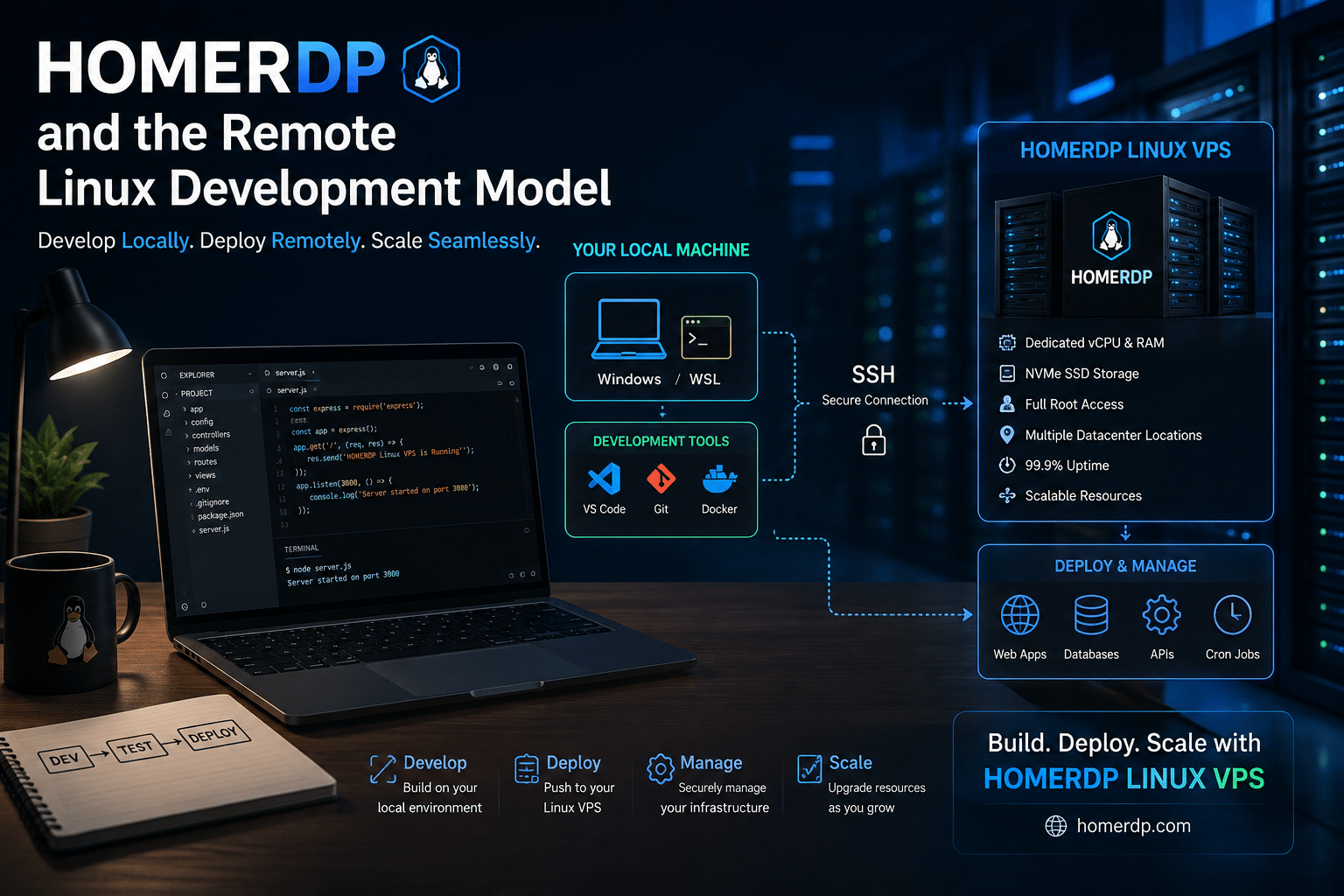
HOMERDP and the Remote Linux Development Model
This is where HOMERDP’s Linux VPS offering fits naturally into the broader discussion.
WSL makes Linux accessible from Windows.
SSH makes remote Linux manageable.
A VPS provides the infrastructure where persistent Linux workloads can operate.
According to HOMERDP, its Linux VPS plans provide root access and dedicated virtual resources, allowing users to configure the operating system and install software according to workload requirements. The service also advertises NVMe/SSD storage, scalable plans, management controls, and data-center options.
For developers who begin with WSL, a remote VPS can represent the next stage of infrastructure maturity.
The workflow evolves from:
Learning Linux commands
to:
Building Linux applications
to:
Deploying Linux workloads
That progression makes a Linux VPS particularly relevant for developers, startups, and technical professionals who need an environment beyond a local terminal.
Can You Use WSL and a VPS Together?
Absolutely.
In fact, this is one of the most practical combinations.
You can use WSL locally while using a VPS remotely.
For example:
Windows Desktop
       │
       ├── WSL
       │    ├── Python
       │    ├── Node.js
       │    ├── Git
       │    └── Docker tools
       │
       └── SSH
             │
             ▼
       Linux VPS
             │
             ├── Web Server
             ├── Application
             ├── Database
             └── Automation
The local environment handles development.
The remote environment handles persistent workloads.
This separation mirrors modern software development practices.
What About Docker?
Docker adds another layer to this ecosystem.
Containers allow developers to package applications and dependencies together.
Instead of manually configuring every environment, developers can create reproducible application containers.
A common workflow could be:
Windows → WSL → Docker → Linux VPS
For example:
- Write code on Windows.
- Test Linux dependencies through WSL.
- Package the application in a container.
- Deploy the workload to a Linux server.
This approach can improve consistency between development and deployment environments.
Security Considerations for Remote Linux Access
Remote Linux access provides flexibility, but users should follow basic security practices.
Use SSH Keys
SSH keys can provide stronger authentication than relying only on passwords.
Keep Systems Updated
Apply security updates regularly.
Configure Firewalls
Expose only the ports required by your services.
Use Separate User Accounts
Avoid performing every task with the highest-privileged account.
Monitor Server Logs
Logs can help identify configuration issues and suspicious activity.
Maintain Backups
Important applications and data should have an appropriate backup strategy.
Infrastructure flexibility should always be combined with responsible administration.
The Educational Value of a Remote Linux Server
A Linux VPS can also serve as a learning environment.
Many people learn basic Linux commands locally.
They practice:
ls
cd
mkdir
cp
mv
cat
grep
chmod
Eventually, they want to explore more advanced concepts.
A server environment allows users to learn about:
- SSH
- User management
- File permissions
- Process management
- System services
- Web servers
- Reverse proxies
- Firewalls
- Cron jobs
- Containers
- Databases
These skills are directly relevant to real-world infrastructure.
A remote Linux environment provides a dedicated space for experimentation without turning a personal Windows computer into a permanent server.
The Economics of Hybrid Computing
One reason hybrid workflows have become popular is efficiency.
Not every workload requires the same environment.
A powerful local workstation might be ideal for:
- Coding
- Design
- Productivity
- Interactive applications
A remote Linux server might be better suited for:
- Hosting
- Background processing
- Automation
- Remote services
Instead of overloading one machine with every responsibility, users can distribute workloads.
This approach also creates flexibility.
You can change your laptop without necessarily rebuilding your server environment.
You can access remote infrastructure from another computer.
You can maintain a consistent server environment while changing local devices.
Windows and Linux Are No Longer Opposing Choices
For years, technology communities often treated operating systems as competing camps.
You were either:
- A Windows user
- A Linux user
- A macOS user
Modern workflows are less rigid.
A software developer might use Windows as their desktop operating system, Linux for development tools, containers for applications, and cloud servers for deployment.
Operating systems have become components within larger workflows.
The goal is no longer operating system loyalty.
The goal is productivity.
The Best Setup for Different Types of Users
Students
Recommended: Windows + WSL
Why?
Students can learn Linux commands and programming tools without modifying disk partitions or replacing their primary operating system.
Software Developers
Recommended: Windows + WSL + Git
Why?
This combination provides a productive local development environment with access to Linux tools.
System Administrators
Recommended: Windows + SSH + Remote Linux Servers
Why?
Administrators often manage infrastructure remotely rather than running every server locally.
Web Developers
Recommended: Windows + WSL + Linux VPS
Why?
Develop locally and deploy to a persistent Linux environment.
Businesses and Startups
Recommended: Local Development + Remote VPS Infrastructure
Why?
Separating personal computers from business infrastructure can create a cleaner operational environment.
The Future of Cross-Platform Computing
The boundary between operating systems continues to become less rigid.
Windows increasingly supports Linux development workflows.
Linux tools are accessible through WSL.
Remote development platforms allow users to access infrastructure from anywhere.
Cloud servers separate workloads from physical personal computers.
The future is not necessarily about replacing one operating system with another.
It is about interoperability.
Users increasingly expect tools to work across environments.
They want:
- Local flexibility
- Remote infrastructure
- Portable workflows
- Consistent development environments
Technologies such as WSL, SSH, virtual machines, and VPS hosting make this possible.
Final Thoughts
You no longer need to reboot your computer to access Linux.
Modern Windows users have multiple options.
WSL
Best for local Linux development and command-line access.
SSH
Best for securely connecting to remote Linux systems.
Virtual Machines
Best for running complete Linux operating systems and isolated testing environments.
Linux VPS
Best for persistent infrastructure, remote workloads, hosting, and deployment.
The most powerful approach is often not choosing one option.
It is combining them.
A modern workflow can look like this:
Windows for productivity.
WSL for local Linux development.
Virtual machines for testing.
SSH for remote access.
A Linux VPS for persistent infrastructure.
For users who want to extend their Windows workflow into a remotely accessible Linux environment, HOMERDP’s Linux VPS service provides plans with root access, dedicated virtual resources, NVMe/SSD storage, bandwidth options, and scalable configurations.
Ultimately, the question is no longer whether Windows is better than Linux or whether Linux should replace Windows.
The smarter question is:
How can you use both environments together?
The answer depends on your workflow, but modern technology makes the possibilities far more flexible than traditional dual booting.
You can develop locally.
You can test in isolated environments.
You can connect remotely.
You can deploy globally.
And you can do it all without constantly rebooting your computer.
EXPLORE MORE ; Why Enterprises Are Replacing VPNs with RustDesk and Tailscale

READ OUR BLOGS